manuals.online logo
Brands
  1. Home
  2. •
  3. Brands
  4. •
  5. A4Tech
  6. •
  7. Mouse
  8. •
  9. A4Tech MeetingMan G10-690F User manual

A4Tech MeetingMan G10-690F User manual

Other A4Tech Mouse manuals

A4Tech G9-530HX User manual

A4Tech

A4Tech G9-530HX User manual

A4Tech BT-630 User manual

A4Tech

A4Tech BT-630 User manual

A4Tech RSOP533N User manual

A4Tech

A4Tech RSOP533N User manual

A4Tech G7-200NX User manual

A4Tech

A4Tech G7-200NX User manual

A4Tech G9-540F User manual

A4Tech

A4Tech G9-540F User manual

A4Tech NB-30 User manual

A4Tech

A4Tech NB-30 User manual

A4Tech G7-200 User manual

A4Tech

A4Tech G7-200 User manual

A4Tech G9-600HX User manual

A4Tech

A4Tech G9-600HX User manual

A4Tech X5-35WD User manual

A4Tech

A4Tech X5-35WD User manual

A4Tech RFSWOP-50 User manual

A4Tech

A4Tech RFSWOP-50 User manual

A4Tech RFMSW-15 User manual

A4Tech

A4Tech RFMSW-15 User manual

A4Tech N-400 User manual

A4Tech

A4Tech N-400 User manual

A4Tech G6-70MD User manual

A4Tech

A4Tech G6-70MD User manual

A4Tech G3-220 User manual

A4Tech

A4Tech G3-220 User manual

A4Tech G9-400 User manual

A4Tech

A4Tech G9-400 User manual

A4Tech G9-110H User manual

A4Tech

A4Tech G9-110H User manual

A4Tech G9-640 User manual

A4Tech

A4Tech G9-640 User manual

A4Tech G9-557HX User manual

A4Tech

A4Tech G9-557HX User manual

A4Tech G9-500H User manual

A4Tech

A4Tech G9-500H User manual

A4Tech RFSWOP-54 User manual

A4Tech

A4Tech RFSWOP-54 User manual

A4Tech RFSOP-535 User manual

A4Tech

A4Tech RFSOP-535 User manual

A4Tech R4 User manual

A4Tech

A4Tech R4 User manual

A4Tech G6-19 User manual

A4Tech

A4Tech G6-19 User manual

A4Tech G10-800 User manual

A4Tech

A4Tech G10-800 User manual

Popular Mouse manuals by other brands

Viper V570 user manual

Viper

Viper V570 user manual

Cherry MC 2.1 user manual

Cherry

Cherry MC 2.1 user manual

Sven RX-G720 user manual

Sven

Sven RX-G720 user manual

Sharkoon Light2 180 manual

Sharkoon

Sharkoon Light2 180 manual

Cherry MW 8C ERGO user manual

Cherry

Cherry MW 8C ERGO user manual

Vantec NBW-100U user manual

Vantec

Vantec NBW-100U user manual

NGS HIT RB manual

NGS

NGS HIT RB manual

Sharkoon FireGlider manual 

Sharkoon

Sharkoon FireGlider manual 

Lenovo Wireless Mouse N3902 quick start guide

Lenovo

Lenovo Wireless Mouse N3902 quick start guide

BASETech BN-S11 operating instructions

BASETech

BASETech BN-S11 operating instructions

Dell WM326 user guide

Dell

Dell WM326 user guide

Areson B213 user guide

Areson

Areson B213 user guide

Targus AMU83EU operating instructions

Targus

Targus AMU83EU operating instructions

HP M17587-371 manual

HP

HP M17587-371 manual

Chatpen CHA-30 user manual

Chatpen

Chatpen CHA-30 user manual

GAMDIAS DEMETER GMS5000 Quick installation guide

GAMDIAS

GAMDIAS DEMETER GMS5000 Quick installation guide

HP KJ453AA - Wireless Laser Mouse datasheet

HP

HP KJ453AA - Wireless Laser Mouse datasheet

Trust GRAPHIN GXT 960 user guide

Trust

Trust GRAPHIN GXT 960 user guide

manuals.online logo
manuals.online logoBrands
  • About & Mission
  • Contact us
  • Privacy Policy
  • Terms and Conditions

Copyright 2025 Manuals.Online. All Rights Reserved.

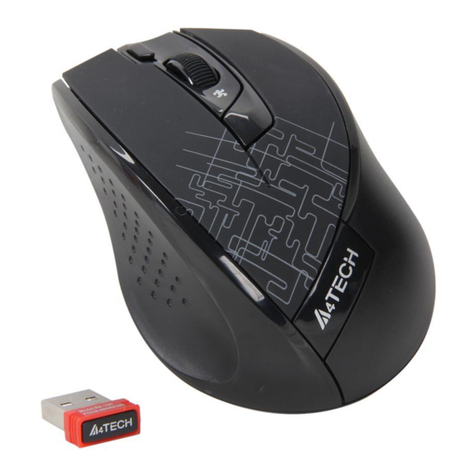
MeetingMan
Wireless Mouse
User Manual
Model: G10-690F
www.a4tech.com
- 1 -
THIS DEVICE COMPLIES WITH PART 15 OF THE FCC RULES. OPERATION IS SUBJECT TO THE FOLLOWING TWO CONDITIONS: (1) THIS DEVICE
MAY NOT CAUSE HARMFUL INTERFERENCE AND (2) THIS DEVICE MUST ACCEPT ANY INTERFERENCE RECEIVED, INCLUDING INTERFERENCE
THAT MAY CAUSE UNDESIRED OPERATION.
Federal Communications Commission Requirements
The equipment has been tested and found to comply with the limits for Class B Digital Device, pursuant to part 15 of the FCC Rules. These limits are designed to
provide reasonable protection against harmful interference in a residential installation. This equipment generates uses and can radiate radio frequency energy
and, if not installed and used in accordance with the instruction, may cause harmful interference to radio communication. However, there is no guarantee that
interference will not occur in a particular installation. If this equipment does cause harmful interference to radio or television reception, which can be determined
by turning the equipment off and on, the user is encouraged to try to correct the interference by one or more of the following measures:
●Reorient of relocate the receiving antenna.
●Increase the separation between the equipment and receiver.
●Connect the equipment into an outlet on a circuit different from that to which the receiver is connected.
●Consult the dealer or an experienced radio/TV technician for help.
THE CHANGES OR MODIFICATIONS NOT EXPRESSLY APPROVED BY THE PARTY RESPONSIBLE FOR COMPLIANCE COULD VOID THE USER'S
AUTHORITY TO OPERATE THE EQUIPMENT.
This device complies with Part 15 of the FCC Rules. Operation is subject to the following two conditions:
(1) This device may not cause harmful interference, and receiver.
(2) This device must accept any interference received, including interference that may cause undesired operation.
FCC Radiation Exposure Statement
The equipment complies with FCC radiation exposure limits set forth for uncontrolled equipment and meets the FCC radio frequency (RF) Exposure Guidelines in
Supplement C to OET65. The equipment has very low levels of RF energy that it is deemed to comply without testing of specific absorption ratio (SAR).
- 2 -
1. Hardware Installation
1). Connect the 10-Link receiver
Take out the 10-Link receiver from bottom of the mouse and connect it to your computer or
Notebook.
Notes:
1. If you are using the receiver in a long range meeting room or there is strong wireless
conflicts nearby, adopting the receiver with a USB extension cable to keep it away from the
computer or any interfering sources.
2. Connect receiver on the same side with the mouse, it may avoid potential wireless
conflicts from the notebook computer.
2). Insert the batteries
Push down the mouse cover to open the battery cover and insert the supplied batteries.
Please make sure the positive (+) and negative (-) ends of the battery match the polarity
indicators inside the battery compartment.
3). Turn on your Mouse
Push the power switch to ON position and turn on your mouse. >>Then LED light at the
bottom of the mouse is on immediately.
- 3 -
2. Software Installation(Note: The software is applicable to Windows 2000/ XP/ 2003/ Vista/ Windows 7)
The G10 MeetingMan offers 2 flexible ways to install the driver, Normal Installation and Mobile Execution. The MeetingMan
main program has a special feature that it can be executed directly without the need to install the software to Windows
system. This is convenient when you are using a public computer and installing mouse driver to the system is prohibited or
restricted. In such circumstances, you do not need to install the mouse driver, but just run the MeetingMan's main
program directly from your storage device, e.g., a memory stick.
Normal Installation
1). Uninstall any mouse software on your system.
2). Insert enclosed CD to start installation and follow the on-screen instructions to finish the
software installation. You may manually double click the “auto-run"program if execution
does not automatically start.
3). The shortcut icon " " will appear on your desktop screen, and then you have successfully
installed the software. (Otherwise, installation is failed and you have to remove the software
and re-install.)
To remove the driver, follow the steps:
Go to START>> PROGRAMS >>A4TECH Software >> "G10 MeetingMan" >> "Uninstall G10
MeetingMan, see figure on the right.
Mobile Execution:
You may copy and store the Mobile Edition files to your storage device, e.g., a memory stick,
and plug it into any public systems to execute the Mobile Edition directly without installation.
Or, you may copy all the files to the system, and then run the Mobile Edition main program
- 4 -
directly. This is convenient when you are using a public computer in the school or net bar,
where installation any new program is prohibited or restricted.
Mobile Edition.exe
Usage:
1). Copy all the files in the folder “G10"to your memory stick, and if needed, copy the files
to the public system.
2). Double-click the icon to run Mobile Edition.exe
(1) Knowing the G10 MeetingMan Software
The basic principles
and design concepts of
G10 MeetingMan
Before you are getting started to use this product, it is vital to understand the basic principles
and design concepts of MeetingMan.
For each of MeetingMan’s script file, it will contain 5 different working modes, and each
working mode can setup 7 buttons on the mouse with various functionalities. Those preset
modes can be accessed by pressing the “mode-shift” button, and each button’s functionality
can be activated by clicking the appropriate mouse button according to various applications.
Thus, it turns a simple mouse into a very unique and powerful tool with individual’s innovation.
For instance, there are 5 preset working modes available for Office, TutorPen Meeting, Open
file, LaserPointer Meeting and Gaming respectively, and after the MeetingMan software being
installed, those 5 working modes can be shifted using a “mode-shift” button and make your
jobs well done effortlessly!
Functions Descriptions Figures
- 5 -
. Mode Name/Select
Click on “Mode Name/Select” on the Main Menu, the mode setup
screen will pop up as shown on the right.
You may tick off the modes you would not need temporarily from
bottom to top order, or tick the mode you need from top to bottom
order.
You may enter a new mode name on the blank, or edit existing mode
names.
. Selected Mode to
Edit
It displays the current mode number in editing. You may select other
mode numbers if needed.
There are 5 modes you can select to edit; with each mode you can
define a number of new button settings. Remember to click “Apply” on
the main menu to save the new settings to the receiver before taking
effect.
③. Mode Name
The current mode name in editing. You may edit the mode name as
described in the “1.Mode Name/Select” section.
- 6 -
④. Default
Click the "Default" a reminder will pop up as shown on the right. Click
"OK" will resume all the buttons to the original settings, or click
"Cancel" to exit the screen without any change.
- 7 -
(2) Button Settings and Relevant Functions
Functions Descriptions Figures
Button
Settings
Click any “button definition area” on the main menu; you will see the function listing
as shown on the right. According to your preference, you may select one of them as
the button setting. You also can enter a short description on the “Description of
reminder” area, which will be displayed on the screen when it is activated as the
reminder.
No Setting There is no button setting being defined.
Figure 1
Keyboard You may setup the mouse button to simulate a keyboard's
keystroke, or a key combination with "Win", "Ctrl", "Shift" and "Alt",
then followed with any keystroke on the keyboard, and then assign it
to the designated mouse button.
Mouse Except mouse left button, you may setup any of mouse buttons to
be one of "mouse left button, mouse right button, mouse middle
button, mouse 4th button, mouse 5th button, wheel up and wheel
down".
Open a File
One click to open a program file or a document. You may setup any
of mouse buttons of 2, 3, 4, 5, 6, wheel up(UP) and wheel down(DN)
with “Open a File” function.
Usage:
1). Select “Open a file” from the pull-down button menu as figure 1
shows.
2). A screen of file listings will pop up as figure 2 shows.
3) Select one of the files that you would open it with the associated
button and click “Open”.
4) Now you can see the file you selected has been assigned to the
button.
5) Click “Apply” to save the new button setting.
- 8 -
Memo
Example:
While in the session of a meeting or teaching, it is embarrassing to
keep others waiting due to searching for a document, or look up for
a program or a shortcut. With “Open a File” function, you may have
better way to resolve this issue. By setting up each button in
association to the document, program or shortcut, all you need to do
is to shift to the mode and click each mouse button to open all the
files instantly. You may also open an on-line reminder to check each
mouse button association details.
See below “Memo” section in more details.
One click to open the Memo screen and list out all the current button
settings as the reminder. You may setup any of mouse buttons of 2,
3, 4, 5, 6, wheel up(UP) and wheel down(DN) with “Memo” function.
Usage:
1). Select “Memo” from the pull-down button menu of G10
MeetingMan main menu as figure 3 shows.
2). Click “Apply” to save button setting.
Example:
This function is useful during the session of a meeting or teaching,
when you are not very sure which button is associated with the
function you need.
Click the “Memo” button will bring the “Memo” screen as figure 4
shows. Now you can check each button setting and activate them
immediately.
For instance, the teacher can open all the handout documents in
seconds by clicking the button in association with the mouse
buttons.
The Memo function is available for mouse button 2, 3, 4, 5, 6, Wheel
up(UP) and Wheel down (DN).
Figure 2
Figure 3
Figure 4
- 9 -
Office Sets
You may setup any one of Office command sets such as: “Zoom In,
Zoom Out, Paste Text, Double Click and Treble Click”to the mouse
buttons.
Zoom In/Out:One click to perform zoom in or zoom out function,
applicable to CAD, ACDSee, Windows or text editing programs.
Paste Text:One click to perform “Select, Copy & Paste” texts, it
turns office jobs can never be so simple.
Key
Combination
Quick access to Office commands of key combinations, such as:
Cut, Copy, Paste, Delete, Search, Select All, Redo, Undo, New File,
Open File, Save File, Print…etc.
Multimedia Quick access to Multimedia commands, such as: Media Player
(Open), Previous, Next, Stop, Play/Pause, Mute, Volume+,
Volume-…etc.
Internet Quick access to usually used Internet commands, such as:
Backward, Forward, Stop, Refresh, Search, My Favorite, Web
Browser, E-mail...etc.
System Quick access to Windows commands, such as: Open Calculator,
Open My Computer, Sleep, Power Off...etc.
Gesture
16-in-1 This 16-in-1 mouse utility offers 16 directions to draw the lines with
the mouse and the preset commands will be executed immediately.
Note that this gesture function is only available for mouse button 
and . See more details on the Gesture 16-in-1 section.
LaserPointer
(By Model) The LaserPointer is only available by models, if your model does not
have LaserPointer, please use TutorPen instead. (Note that the
LaserPointer switch will still in working even when the computer is
power off, remember to switch off the mouse power on your long
journey)