manuals.online logo
Brands
  1. Home
  2. •
  3. Brands
  4. •
  5. Accton Technology
  6. •
  7. PCI Card
  8. •
  9. Accton Technology WN3101A-1 User manual

Accton Technology WN3101A-1 User manual

Other Accton Technology PCI Card manuals

Accton Technology CheetahPower User manual

Accton Technology

Accton Technology CheetahPower User manual

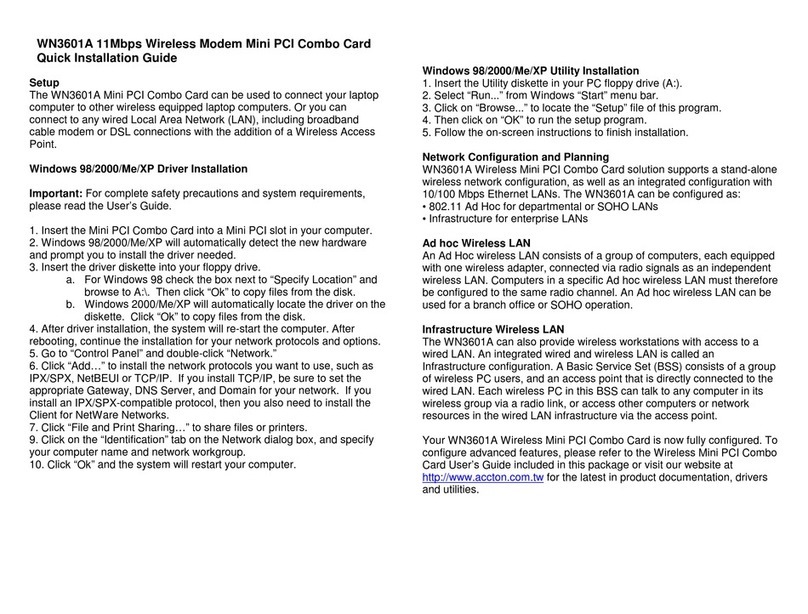
Accton Technology WN3601A User manual

Accton Technology

Accton Technology WN3601A User manual

Accton Technology EN2218-1 User manual

Accton Technology

Accton Technology EN2218-1 User manual

Accton Technology Cheetah EN1207D-TX User manual

Accton Technology

Accton Technology Cheetah EN1207D-TX User manual

Popular PCI Card manuals by other brands

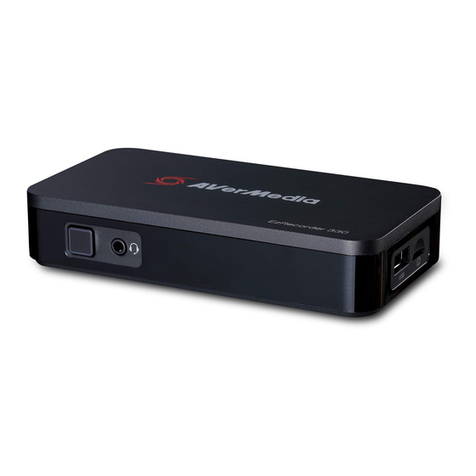
Avermedia ER330 Quick installation guide

Avermedia

Avermedia ER330 Quick installation guide

ERMA SSI 1417 instruction manual

ERMA

ERMA SSI 1417 instruction manual

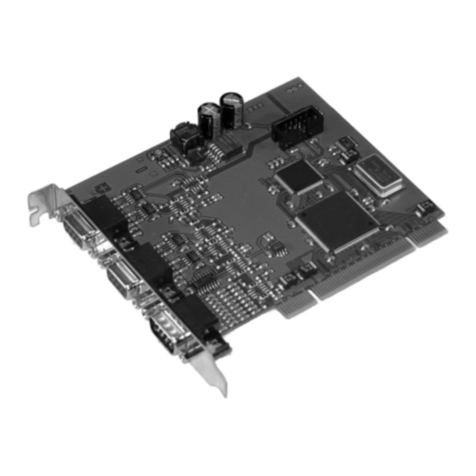
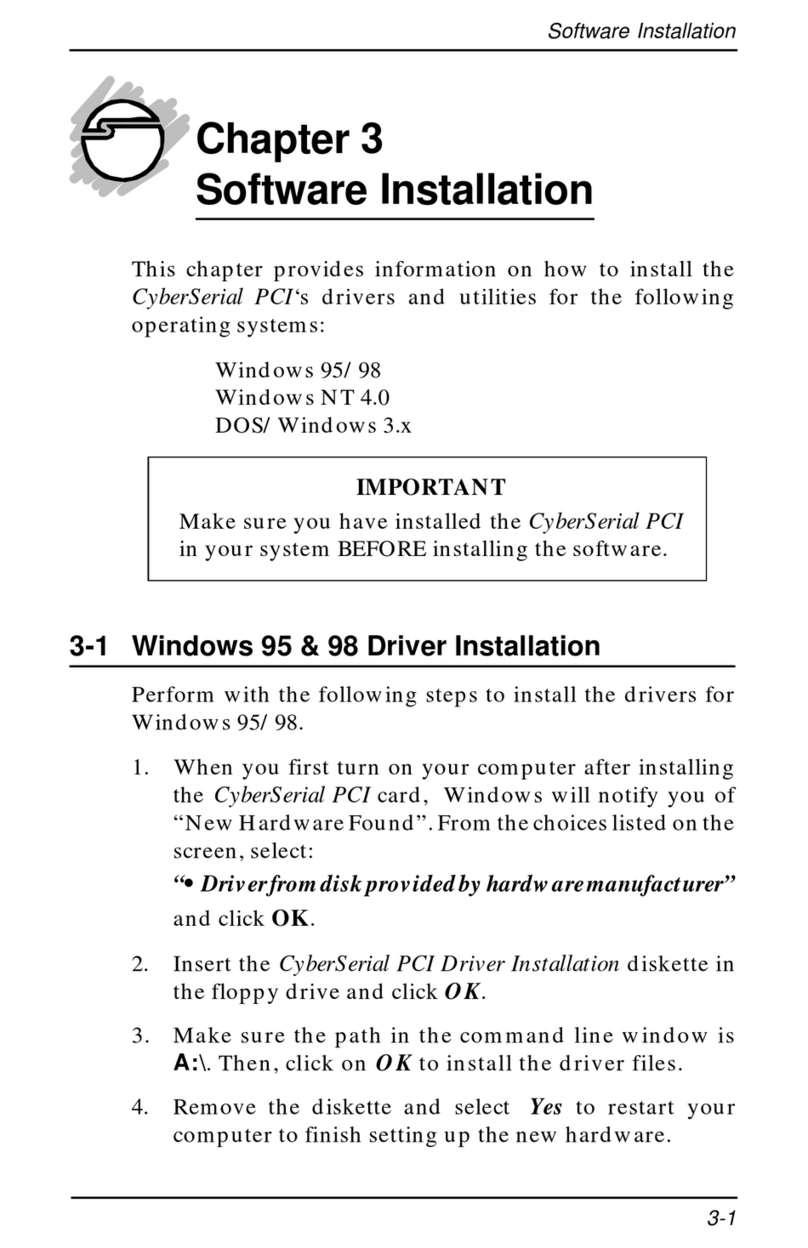
SIIG CyberSerial Dual PCI Software installation

SIIG

SIIG CyberSerial Dual PCI Software installation

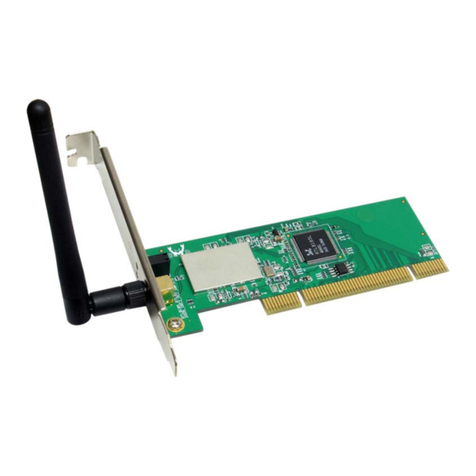
Airlink101 AWLH3028 user manual

Airlink101

Airlink101 AWLH3028 user manual

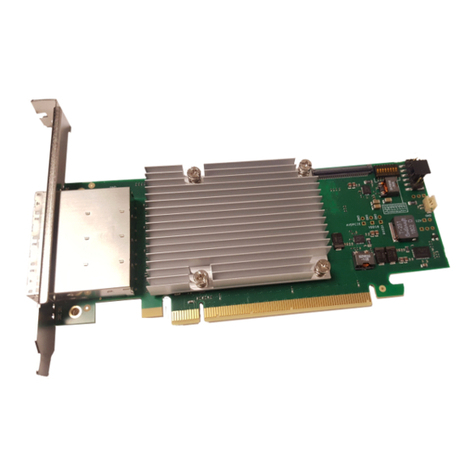
Dolphin MXH932 user guide

Dolphin

Dolphin MXH932 user guide

I-Bus IBC2602 user guide

I-Bus

I-Bus IBC2602 user guide

ICP DAS USA PCI-1002H user manual

ICP DAS USA

ICP DAS USA PCI-1002H user manual

Exsys EX-60102 manual

Exsys

Exsys EX-60102 manual

Chelsio Communications T5 Series Installation and user guide

Chelsio Communications

Chelsio Communications T5 Series Installation and user guide

Conrad Electronic 97 46 71 operating instructions

Conrad Electronic

Conrad Electronic 97 46 71 operating instructions

Micro Innovations USB650A Quick installation guide

Micro Innovations

Micro Innovations USB650A Quick installation guide

KTI Networks KF-310 user guide

KTI Networks

KTI Networks KF-310 user guide

Intellinet 500517 user manual

Intellinet

Intellinet 500517 user manual

Asus SpaceLink WL230 user manual

Asus

Asus SpaceLink WL230 user manual

SIIG SC2475 Quick installation guide

SIIG

SIIG SC2475 Quick installation guide

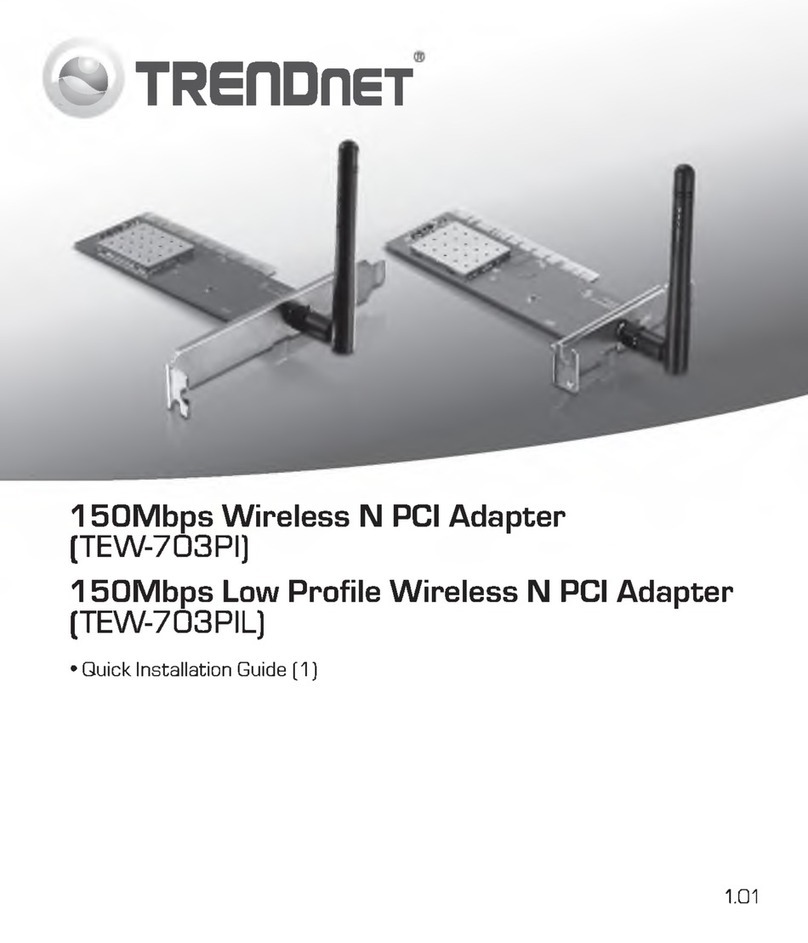
TRENDnet TEW-703PI Quick installation guide

TRENDnet

TRENDnet TEW-703PI Quick installation guide

Pericom PI7C7100 manual

Pericom

Pericom PI7C7100 manual

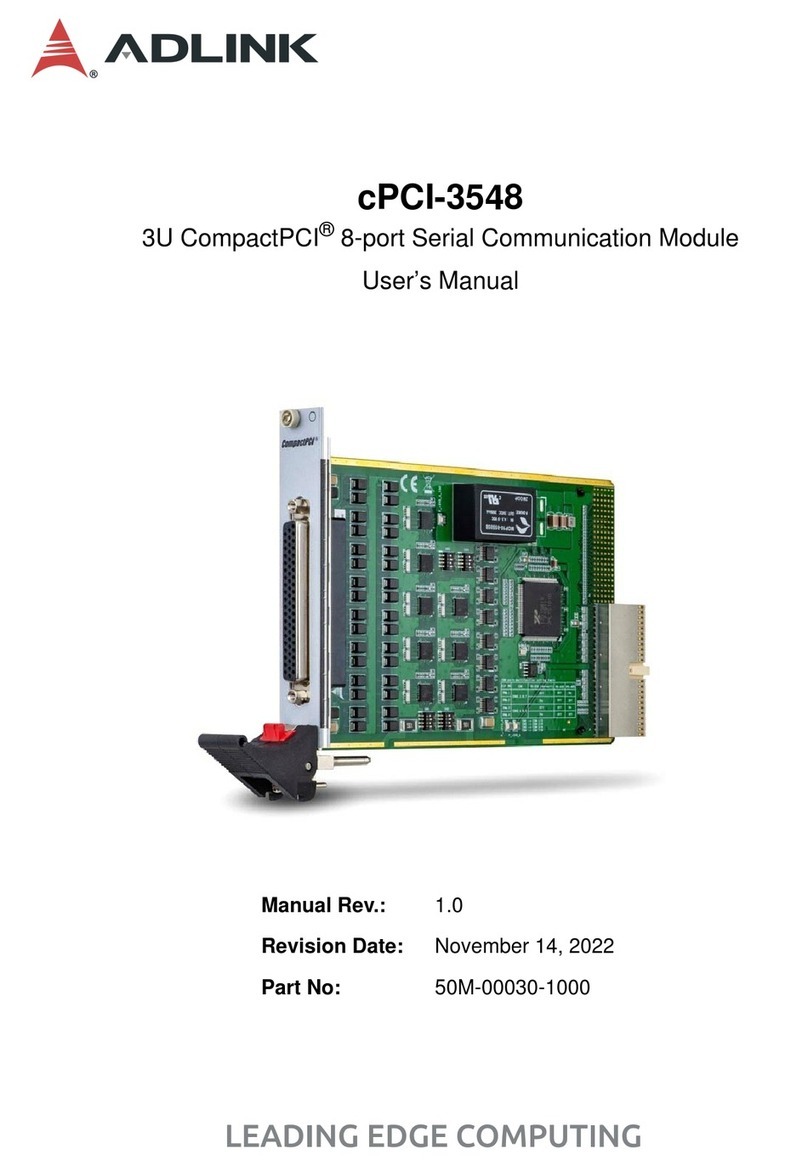
ADLINK Technology cPCI-3548 user manual

ADLINK Technology

ADLINK Technology cPCI-3548 user manual

manuals.online logo
manuals.online logoBrands
  • About & Mission
  • Contact us
  • Privacy Policy
  • Terms and Conditions

Copyright 2025 Manuals.Online. All Rights Reserved.

WN3101A-1 11Mbps Wireless Mini PCI Card
Quick Installation Guide
Setup
The WN3101A-1 Mini PCI(TYPE 3B) Card can be used to connect your
laptop computer to other wireless equipped laptop computers. Or you can
connect to any wired Local Area Network (LAN), including broadband
cable modem or DSL connections with the addition of a Wireless Access
Point.
Windows 98/2000/Me/XP Driver Installation
Important: For complete safety precautions and system requirements,
please read the User’s Guide.
1. Insert the Mini PCI Card into a Mini PCI slot in your computer.
2. Windows 98/2000/Me/XP will automatically detect the new hardware
and prompt you to install the driver needed.
3. Insert the driver diskette into your floppy drive.
a. For Windows 98 check the box next to “Specify Location” and
browse to A:\. Then click “Ok” to copy files from the disk.
b. Windows 2000/Me/XP will automatically locate the driver on the
diskette. Click “Ok” to copy files from the disk.
4. After driver installation, the system will re-start the computer. After
rebooting, continue the installation for your network protocols and options.
5. Go to “Control Panel” and double-click “Network.”
6. Click “Add…” to install the network protocols you want to use, such as
IPX/SPX, NetBEUI or TCP/IP. If you install TCP/IP, be sure to set the
appropriate Gateway, DNS Server, and Domain for your network. If you
install an IPX/SPX-compatible protocol, then you also need to install the
Client for NetWare Networks.
7. Click “File and Print Sharing…” to share files or printers.
9. Click on the “Identification” tab on the Network dialog box, and specify
your computer name and network workgroup.
10. Click “Ok” and the system will restart your computer.
Windows 98/2000/Me/XP Utility Installation
1. Insert the Utility diskette in your PC floppy drive (A:).
2. Select “Run...” from Windows “Start” menu bar.
3. Click on “Browse...” to locate the “Setup” file of this program.
4. Then click on “OK” to run the setup program.
5. Follow the on-screen instructions to finish installation.
Network Configuration and Planning
WN3101A-1 Wireless Mini PCI Card solution supports a stand-alone
wireless network configuration, as well as an integrated configuration with
10/100 Mbps Ethernet LANs. The WN3101A-1 can be configured as:
• 802.11 Ad Hoc for departmental or SOHO LANs
• Infrastructure for enterprise LANs
Ad hoc Wireless LAN
An Ad Hoc wireless LAN consists of a group of computers, each equipped
with one wireless adapter, connected via radio signals as an independent
wireless LAN. Computers in a specific Ad hoc wireless LAN must therefore
be configured to the same radio channel. An Ad hoc wireless LAN can be
used for a branch office or SOHO operation.
Infrastructure Wireless LAN
The WN3101A-1 can also provide wireless workstations with access to a
wired LAN. An integrated wired and wireless LAN is called an
Infrastructure configuration. A Basic Service Set (BSS) consists of a group
of wireless PC users, and an access point that is directly connected to the
wired LAN. Each wireless PC in this BSS can talk to any computer in its
wireless group via a radio link, or access other computers or network
resources in the wired LAN infrastructure via the access point.
Your WN3101A-1 Wireless Mini PCI Card is now fully configured. To
configure advanced features, please refer to the Wireless Mini PCI Card
User’s Guide included in this package or visit our website at
http://www.accton.com.tw for the latest in product documentation, drivers
and utilities.

System Requirements
Before you install the Cheetah Mini PCI Adapter, check
your system for the following requirements:
• A PC and BIOS that support the PCI Local Bus Specification
v2.0 or later
•An availablebus-masteringtypeIIIB32-bit MiniPCI slot
• An available telephone wall jack for modem connection
• A 10BASE-T/100BASE-TX switch or hub installed in your
network for connection to an Ethernet network
Federal Communication Commission Interference Statement
This equipment has been tested and found to comply with the limits for a Class B digital device,
pursuant to Part 15 of the FCC Rules. These limits are designed to provide reasonable protection
against harmful interference in a residential installation. This equipment generates, uses and can
radiate radio frequency energy and, if not installed and used in accordance with the instructions,
may cause harmful interference to radio communications. However, there is no guarantee that
interference will not occur in a particular installation. If this equipment does cause harmful
interference to radio or television reception, which can be determined by turning the equipment
off and on, the user is encouraged to try to correct the interference by one of the following
measures:
- Reorient or relocate the receiving antenna.
- Increase the separation between the equipment and receiver.
- Connect the equipment into an outlet on a circuit different from that to which the receiver is
connected.
- Consult the dealer or an experienced radio/TV technician for help.
FCC Caution: To assure continued compliance, (example - use only shielded interface cables
when connecting to computer or peripheral devices) any changes or modifications not expressly
approved by the party responsible for compliance could void the user's authority to operate this
equipment.
This device complies with Part 15 of the FCC Rules. Operation is subject to the following two
conditions: (1) This device may not cause harmful interference, and (2) this device must accept
any interference received, including interference that may cause undesired operation.
Statement Needed to be Shown on End Product
Since this module is installed inside the end product, the end product should be affixed a label on
visible area showing that this product contain a RF module, and also its FCC ID.
IMPORTANT NOTE:
FCC Radiation Exposure Statement:
This equipment complies with FCC radiation exposure limits set forth for an uncontrolled
environment. This equipment should be installed and operated with minimum distance 20cm
between the radiator & your body.
This transmitter must not be co-located or operating in conjunction with any other antenna or
transmitter.