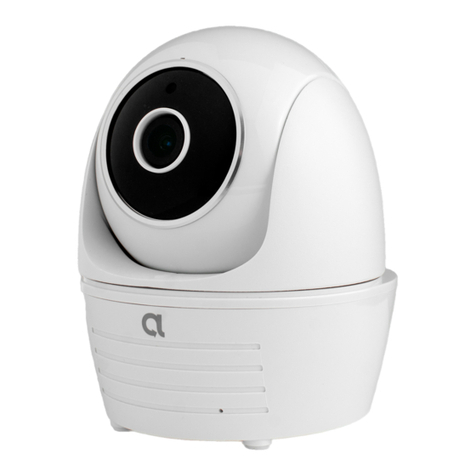
Alula RE700 User manual

SAVE THIS MANUAL FOR FUTURE REFERENCE
Indoor Mini Camera
Quick Start Guide

1
EN
Setup
Step 2 Camera Setup
- Scan the QR Code on the bottom of the camera.
- Enter the verification code located on the bottom of the camera.
-Follow the app wizard to finish Wi-Fi configuration.
Bottom of the Camera Alula
Step 1 Power-on
Plug the power cable into the camera and to the power adapter
and then into a power outlet, as shown in the figure below. The
LED indicator will flash red and blue when the camera is ready for
setup.
- Add a camera to the Alula app
• Log in to your account using the Alula app.
•From the Alula app Home screen, tap “+” on the upper-
right hand corner to go to the scan QR code interface.
If you want to change your camera's Wi-Fi, press and
hold the reset button for 5s and repeat this part.
Power Cable
Power Outlet

2
Installation
Step 1 Installing the Metal Plate (Optional)
Pick a clean and flat surface and secure the metal plate to the
desired position with the foam stickers or screws (not included).
There’s a magnet piece inside the camera. You can skip this step if the surface is made
of metal.
Step 2 Installing the Camera
Secure the camera magnetically to the metal plate or metal surface (see figure below).
Step 3 Completing Installation
Adjust the camera angle as required.

3
EN
Appendix
Basics
Name Description
IR Light Auto light source for dark environment. The
camera video has two modes: color (for
daylight recording) and black and white with IR
illuminator (for night condition).
LED Indicator
RESET
•Blinking Red and Blue OR Rapidly Blinking
Blue: The camera is ready for Wi-Fi connection.
•Steady Red: The camera is starting up.
•Steady Blue: The camera is connected by a user.
•Slowly Blinking Blue The camera is running
properly.
•Slowly Blinking Red: The Wi-Fi connection has
failed.
•Rapidly Blinking Red: MicroSD card error.
Hold down the RESET button for 10seconds
while the camera is running, the camera restarts
and all parameters are reset to default.
Power Input 5V±10%
Speaker Two-way talk.
Lens
Microphone
LED Indicator
IR Light
Speaker
Power Input
microSD Card Slot
RESET
Magnetic Base

4
Box Contents
Internet Camera (x1) USB Cable (x1) Power Adapter (x1)
Foam Sticker X2 Metal Plate X1
(3.5mm Hole Diameter) Quick Start Guide X1
Installing Memory Card
Insert a microSD card into the slot until
you hear a click.

5
EN
Troubleshooting
Q: "The device is offline.” or “The device is not registered.”
prompts appear when adding the camera using the Alula App.
A: 1. Make sure the network, which the camera is connected to
is working properly and the router’s DHCP is enabled.
2. Hold down the RESET button for 10s to reset the settings if you
change the network parameters.
Q: The mobile phone cannot receive alarm prompts when the
camera is online.
A: 1. Make sure the Alula app is running on your mobile phone.
2. For Android OS mobile phone, make sure the app is running
in the background; and for iOS mobile phones, enable the
message push function in “Settings > Notification”.
Q: Does the camera support power via USB devices or a
portable battery.
A: It’s advised to use the Alula standard power adapter to provide
a stable voltage supply.

6
Configuración
Paso 1 Encendido
Conecte el cable de alimentación a la cámara y al adaptador de
corriente y después a una toma. Consulte la siguiente figura. Cuando
la cámara esté preparada para la configuración, el indicador LED se
iluminará en rojo y azul.
Paso 2 Configuración de la cámara
- Escanee el código QR que figura en la parte inferior de la cámara.
- Introduzca el código de verificación que figura en la parte inferior de
para finalizar la configuración.la cámara.
- Introduzca la zona horaria Correcta e información DST y toque
“Finish” (Finalizar)
Parte inferior de
la cámara
1. Agregue una cámara a Alula
- Inicie sesión en la app Alula.
-Desde la pantalla de inicio de la app Alula, toque el símbolo
“+” situado en la esquina superior derecha para entrar en la
interfaz de escaneo del código QR.
Alula
Cable de alimentación
Toma de alimentación

7
superficie está hecha de metal, puede omitir este paso.
Paso 2 Instalación de la cámara
Monte la cámara en la placa de metal o superficie metálica con el
imán (consulte la siguiente figura).
Paso 3 Fin de la instalación
Ajuste el ángulo de la cámara según sea necesario.
Instalación
Paso 1 Instalación de la placa de metal (Opcional)
Seleccione una superficie lisa y limpia y coloque la placa de metal en la
posición deseada con los adhesivos de espuma o tornillos (no incluidos).

8
Anexo
Conceptos básicos
Nombre Descripción
Luz IR Luz automática para ambientes oscuros. La videocámara
tiene dos modos: color (para grabación durante el día) y
blanco y negro con luz IR (para ambiente nocturno).
Indicador LED •Parpadeo rojo y azul: La cámara está preparada para la
conexión Wi-Fi.
•Azul fijo: Un usuario ha conectado la cámara.
•Parpadeo azul lento: La cámara funciona correctamente.
•Rojo fijo: La cámara se está iniciando.
•Parpadeo rojo lento: Hay un error en la red Wi-Fi.
•Parpadeo rojo rápido: Error de tarjeta MicroSD.
Ranura para
tarjeta microSD
REINCIAR
Para la tarjeta microSD (no incluida con este producto).
Puede adquirirla por separado. Compatibilidad
recomendada: Clase 10, espacio máximo de 128 GB. Tras
insertar la tarjeta SD, puede grabar con la cámara.
Mantenga pulsado el botón de REINICIO durante 10
segundos con
la cámara en marcha. La cámara se reiniciará y los
parámetros se restablecerán a los valores predefinidos.
Alimentación 5V±10 %
Altavoz Intercomunicador.
Lentes
Luz IR
Indicador LED
Micrófono
Base magnética
Altavoz Ranura para tarjeta microSD
REINCIAR
Alimentación

9
Contenido del paquete
Cámara de Internet (x1) Cable USB (x1) Adaptador de corriente (x1)
Adhesivo de espuma X2
Placa metálica X1
(con orificios de 3,5 mm de diámetro)
Instalación de la tarjeta de memoria
Inserte la tarjeta microSD en la ranura hasta encajarla.
Guía de inicio rápido x1
Table of contents
Languages:
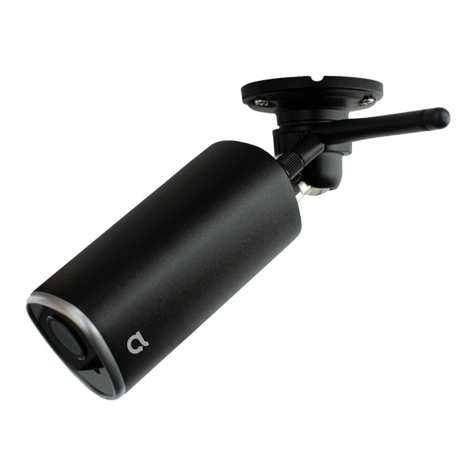
Other Alula Security Camera manuals