manuals.online logo
Brands
  1. Home
  2. •
  3. Brands
  4. •
  5. Antennas Direct
  6. •
  7. Adapter
  8. •
  9. Antennas Direct Clearstream TV User manual

Antennas Direct Clearstream TV User manual

Popular Adapter manuals by other brands

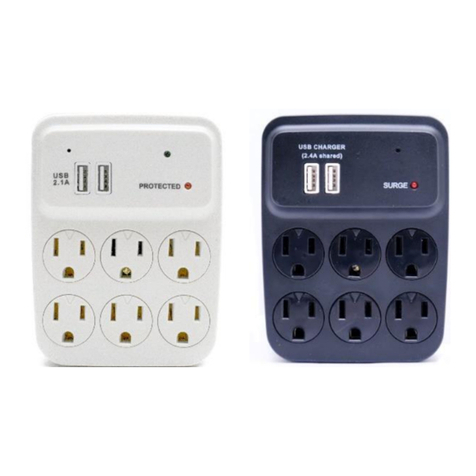
Mini Gadgets BB2Outlet user manual

Mini Gadgets

Mini Gadgets BB2Outlet user manual

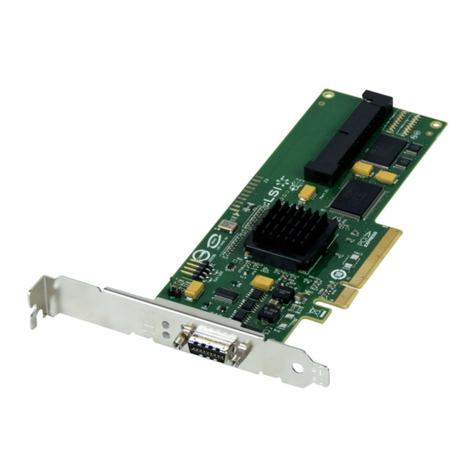
LSI LSISAS3442E-R Quick installation guide

LSI

LSI LSISAS3442E-R Quick installation guide

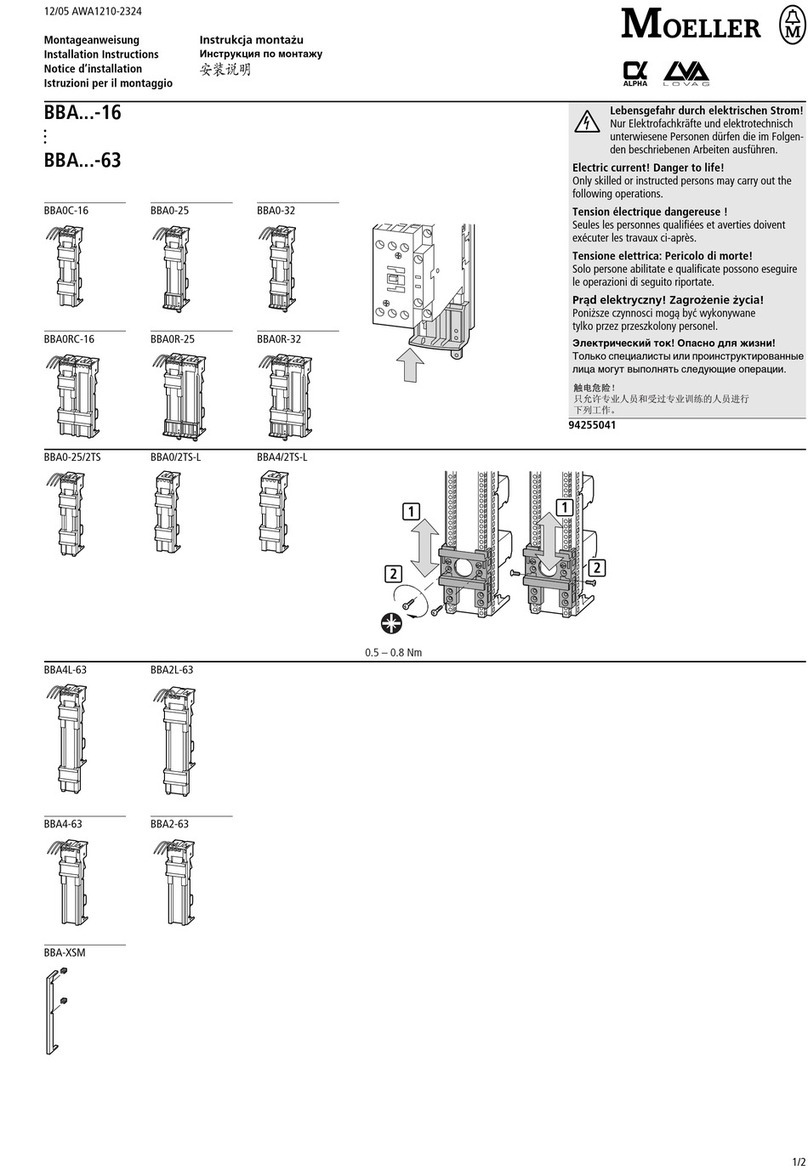
Moeller BBA -16 Series installation instructions

Moeller

Moeller BBA -16 Series installation instructions

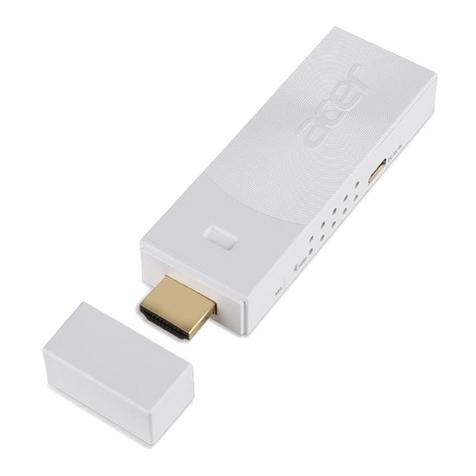
Acer MWA3 quick start guide

Acer

Acer MWA3 quick start guide

Connect Tech ADG095 user guide

Connect Tech

Connect Tech ADG095 user guide

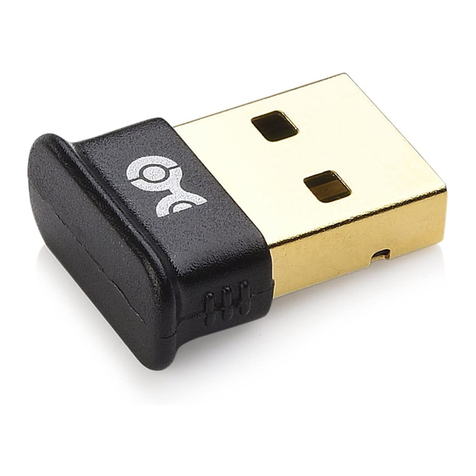
cable matters 604002 user manual

cable matters

cable matters 604002 user manual

Solwise PL-85PEW Easy start

Solwise

Solwise PL-85PEW Easy start

HP Photosmart 7100 user guide

HP

HP Photosmart 7100 user guide

HP E2494A installation guide

HP

HP E2494A installation guide

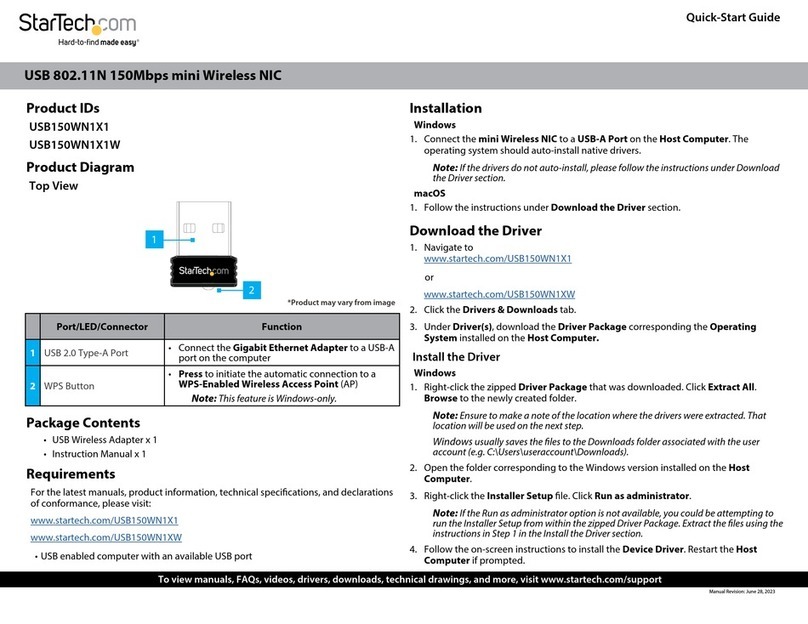
StarTech.com USB150WN1X1 quick start guide

StarTech.com

StarTech.com USB150WN1X1 quick start guide

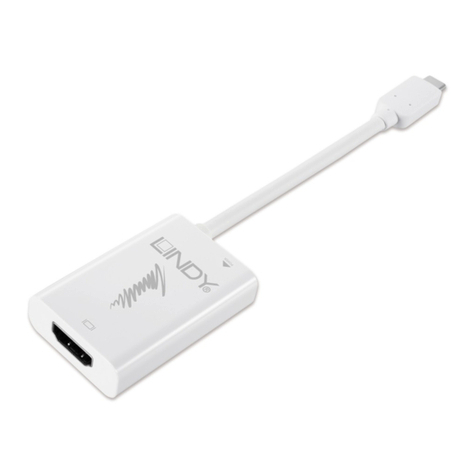
Lindy 43198 user manual

Lindy

Lindy 43198 user manual

A&D AD-8527 instruction manual

A&D

A&D AD-8527 instruction manual

Motorola WU830G user guide

Motorola

Motorola WU830G user guide

Hawking HUF2 Specifications

Hawking

Hawking HUF2 Specifications

Allen-Bradley E3 Plus installation instructions

Allen-Bradley

Allen-Bradley E3 Plus installation instructions

Trust BT-2210Tp manual

Trust

Trust BT-2210Tp manual

HP NC7170 overview

HP

HP NC7170 overview

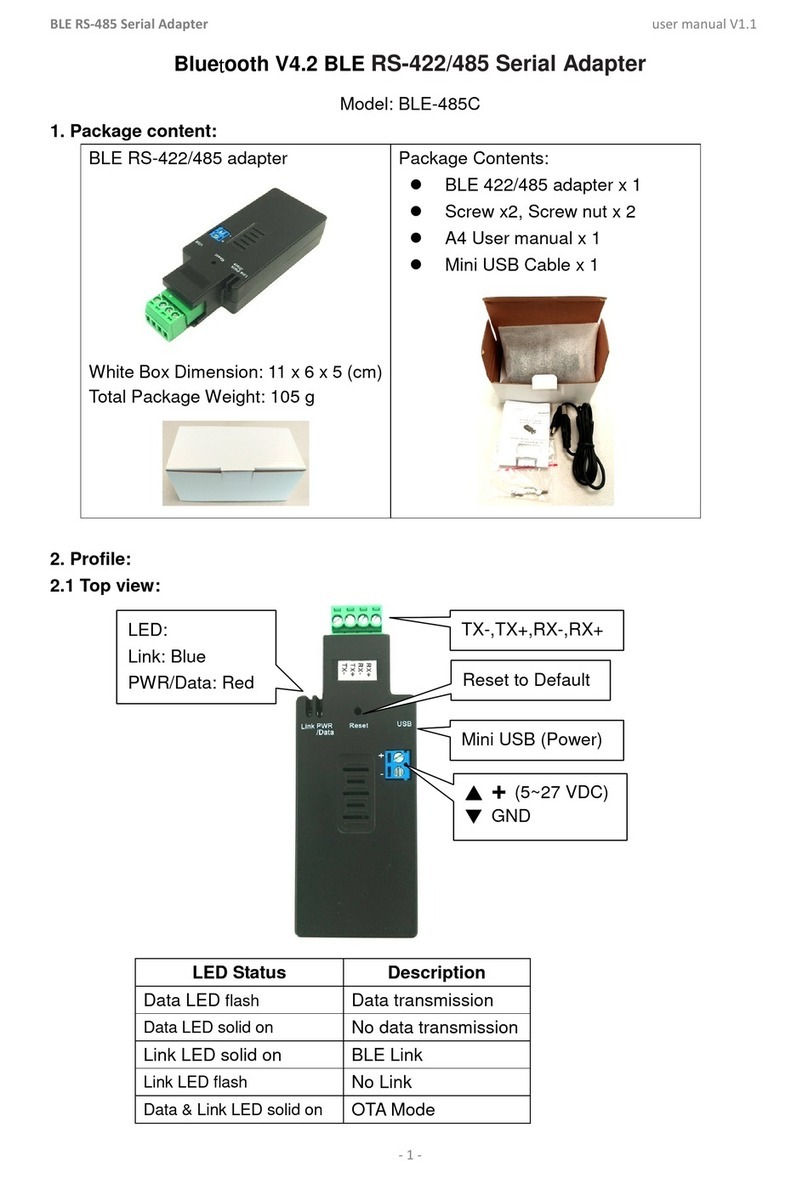
Uconnect BLE-485C user manual

Uconnect

Uconnect BLE-485C user manual

manuals.online logo
manuals.online logoBrands
  • About & Mission
  • Contact us
  • Privacy Policy
  • Terms and Conditions

Copyright 2025 Manuals.Online. All Rights Reserved.

Download the FREE ClearStream TV companion app from the app store.
ROKU USERS: Roku streaming devices do not support the initial WiFi Setup of the ClearStream TV. Complete the initial WiFi Setup with
an iOS or Android smartphone or tablet.
How it Works:
Download the App
1
2
3
When the device powers on, you will see blue and red status lights. This indicates ClearStream TV is starting up.
When the status light turns green, this means ClearStream TV is on and ready for use.
It may take 1-3 minutes before the status light turns green.
Power Setup
MINIMUM OS REQUIREMENTS: Android 4.2 or above, iOS 8.4 or above, tvOS 10.2 or above, Roku v7.50 b4099 or above, and Amazon Fire devices from 2013 or newer.
Connect ClearStream TV™ to your TV Antenna
Before connecting ClearStream TV to a home WiFi network, the device
needs to be powered on. First, plug the power adapter into a wall
outlet, and then connect the other end to ClearStream TV.
ClearStream TV works with any HDTV antenna, and connects using a standard coaxial cable, just like
the one used to connect the antenna directly to a TV.
Be sure the antenna is positioned in the best location to receive broadcast signals, and ClearStream TV
is within 20 . of WiFi signals, with no obstructions to facilitate proper reception.
Status Lights
Model # CLEARTV Made in China
Call to Learn.
Toll-Free Helpline:
1-877-825-5572
Technical Assistance is available Monday – Friday, 9:00 am to 9:00 pm
and Saturday – Sunday, 10:00 am to 6:00 pm, Central Time.
09/2017
Launch the
ClearStream TV app
and select the
Settings menu and
then select Connect
CLEARSTREAM TV.
Select Get Connected and then
choose “CLEARSTREAMTV_XXXX”
from the list of available wireless
networks. This will allow you to
connect the ClearStream TV as
an access point, so you can
connect ClearStream TV to your
home WiFi network in the
following steps.
Return to the
ClearStream TV
app and select
Next.
Select your Home
WiFi network to
connect the
ClearStream TV, and
enter your home WiFi
password. The
ClearStream TV will
reboot to finalize the
WiFi Setup process.
Select OK and wait
for the status light to
turn green on the
ClearStream TV
device.
ClearStream TV should now be
connected to your WiFi network.
Select Finish. Select OK.
Follow the
instructions
below to scan
for TV
channels.
FCC Compliance Statement
This device complies with part 15 of the FCC rules. Operation is subject to the following two conditions: (1) this device may not cause harmful interference, and (2)
this device must accept any interference received including interference that may cause undesired operation.
Important: This product has demonstrated EMC compliance under conditions that included the use of compliant peripheral devices and shielded cables between
system components. It is important that you use compliant peripheral devices and shielded cables between system components to reduce possibility of causing
interference to other electronic devices.
Use Restriction
This device is restricted to indoor use.
Disposal and Recycling
Dispose of this product separately from household waste, and in accordance with local environmental laws and guidelines.
Limited Warranty
Antennas Direct® Inc. warrants our products against defects in materials and workmanship under normal use for a period of NINETY (90) DAYS from the date of
retail purchase by the original end-user purchaser (Warranty Period). If a defect arises and a valid claim is received within the Warranty Period, at its option,
Antennas Direct® Inc. will exchange the part with a new or refurbished part that is equivalent to the original part without charge to the purchasers when returned
with proof of date of purchase from an authorized Antennas Direct® Inc. dealer. The replacement part will assume a new NINETY (90) DAY warranty from the date
Antennas Direct® Inc. sends you the replacement part. This warranty does not cover damages resulting from accident, negligence, improper service or use, or
other causes not arising out of defects in materials or workmanship.
© 2017 Antennas Direct Inc. All rights reserved.
Antennas Direct, Inc
16388 Westwoods Business Park
Ellisville, Missouri 63021, USA