manuals.online logo
Brands
  1. Home
  2. •
  3. Brands
  4. •
  5. Audiovox
  6. •
  7. Car Receiver
  8. •
  9. Audiovox XSN1V1 User manual

Audiovox XSN1V1 User manual

This manual suits for next models

1

Other Audiovox Car Receiver manuals

Audiovox GC-600 User manual

Audiovox

Audiovox GC-600 User manual

Audiovox GM-250 User manual

Audiovox

Audiovox GM-250 User manual

Audiovox CE105 User manual

Audiovox

Audiovox CE105 User manual

Audiovox CNP2000UCA User manual

Audiovox

Audiovox CNP2000UCA User manual

Audiovox FD-250 User manual

Audiovox

Audiovox FD-250 User manual

Audiovox VM9313 User manual

Audiovox

Audiovox VM9313 User manual

Audiovox Rampage ACD-94 User manual

Audiovox

Audiovox Rampage ACD-94 User manual

Audiovox Rampage AV-428 Programming manual

Audiovox

Audiovox Rampage AV-428 Programming manual

Audiovox Prestige P-963ESP User manual

Audiovox

Audiovox Prestige P-963ESP User manual

Audiovox AV-990 User manual

Audiovox

Audiovox AV-990 User manual

Audiovox VME 9122 TS - User manual

Audiovox

Audiovox VME 9122 TS - User manual

Audiovox UCD101 User manual

Audiovox

Audiovox UCD101 User manual

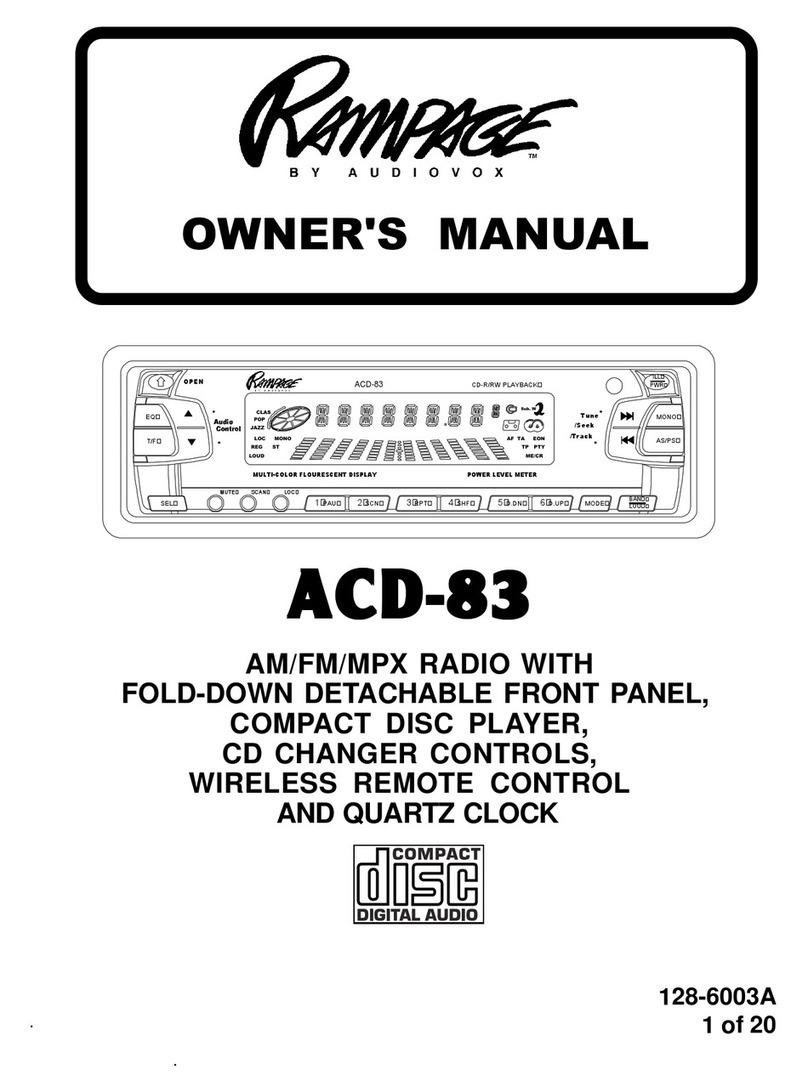
Audiovox Rampage ACD-83 User manual

Audiovox

Audiovox Rampage ACD-83 User manual

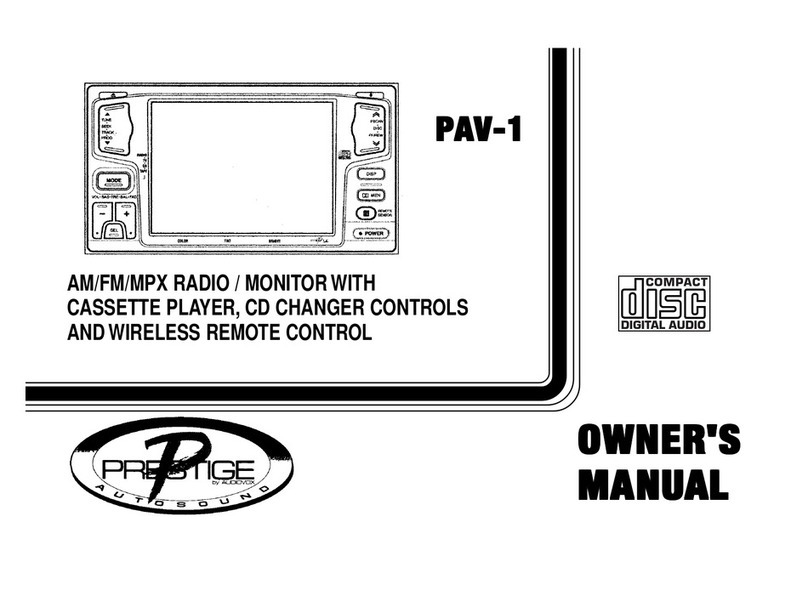
Audiovox Prestige PAV-1 User manual

Audiovox

Audiovox Prestige PAV-1 User manual

Audiovox UMP301 User manual

Audiovox

Audiovox UMP301 User manual

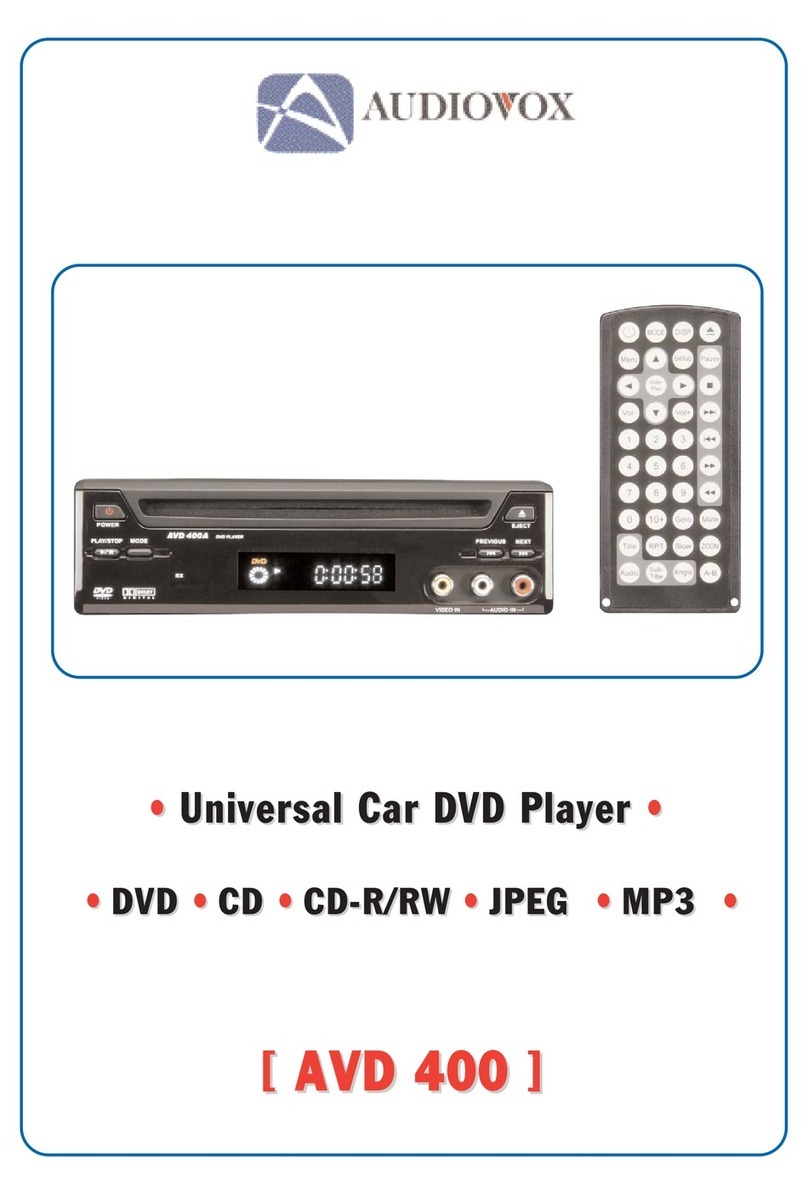
Audiovox AVD400 - AVD 400 - DVD Player User manual

Audiovox

Audiovox AVD400 - AVD 400 - DVD Player User manual

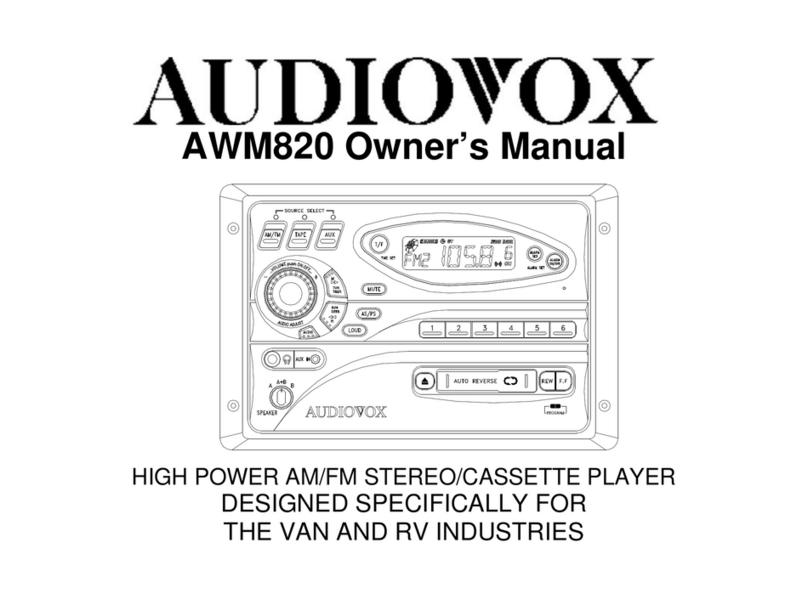
Audiovox AWM820 User manual

Audiovox

Audiovox AWM820 User manual

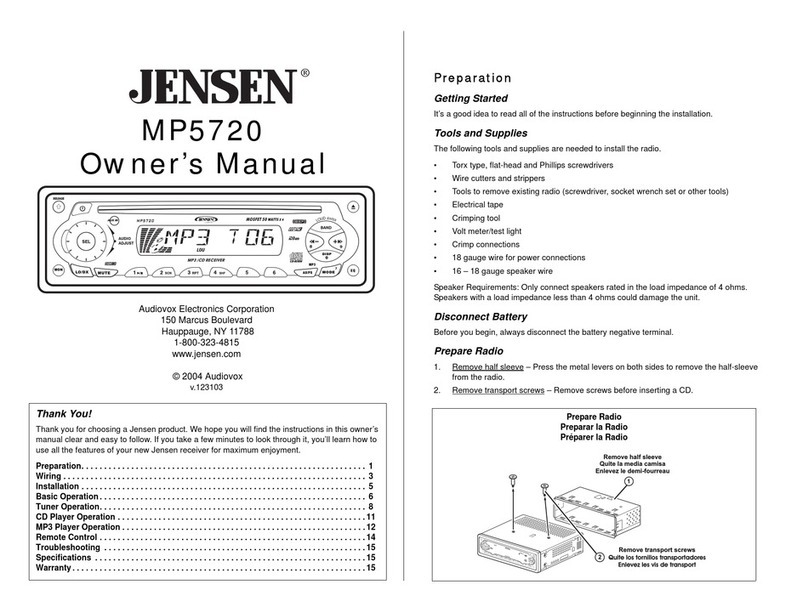
Audiovox Jensen MP5720 User manual

Audiovox

Audiovox Jensen MP5720 User manual

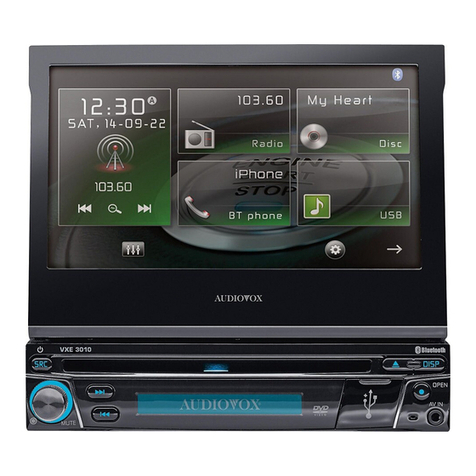
Audiovox VXE 3010 User manual

Audiovox

Audiovox VXE 3010 User manual

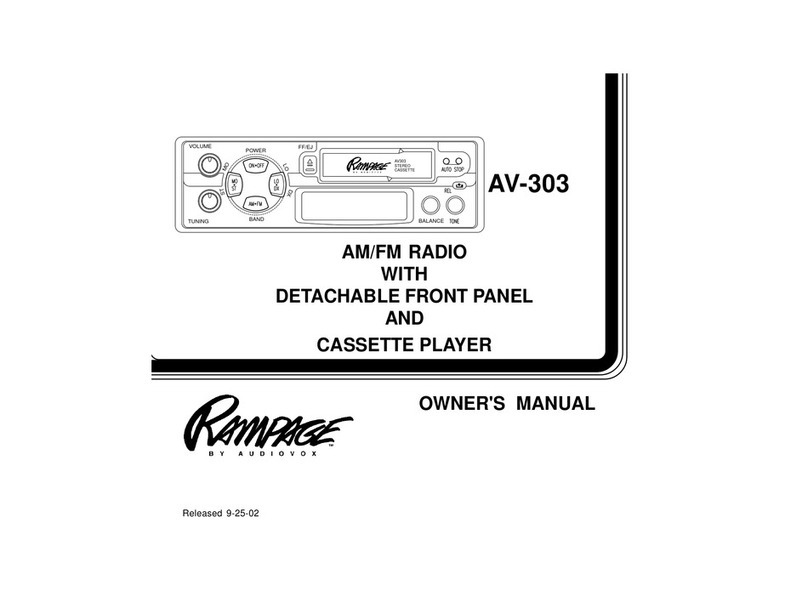
Audiovox Rampage AV-303 User manual

Audiovox

Audiovox Rampage AV-303 User manual

Audiovox Prestige P153B User manual

Audiovox

Audiovox Prestige P153B User manual

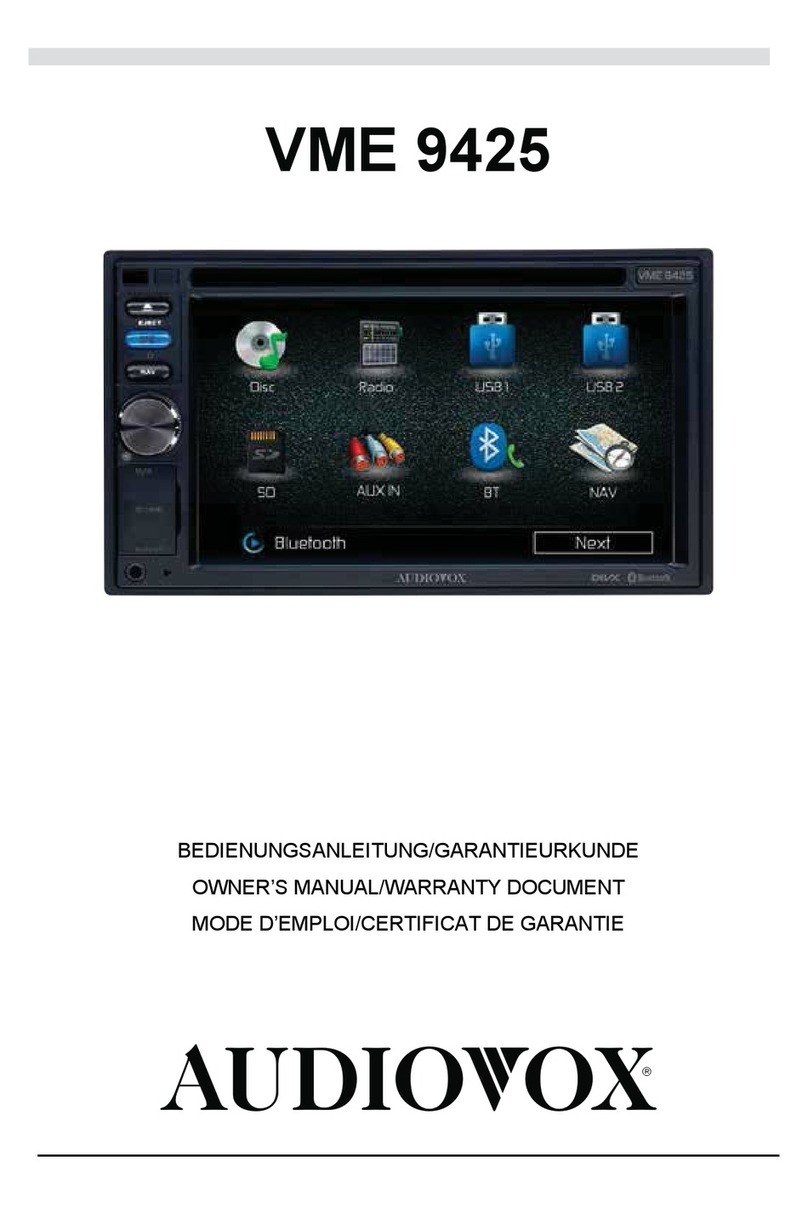
Audiovox VME 9425 User manual

Audiovox

Audiovox VME 9425 User manual

Audiovox AV1410 User manual

Audiovox

Audiovox AV1410 User manual

Audiovox Jensen MP5610 User manual

Audiovox

Audiovox Jensen MP5610 User manual

Popular Car Receiver manuals by other brands

Linear Series LS5050 Operation and installation manual

Linear Series

Linear Series LS5050 Operation and installation manual

Kenwood KRC-160 instruction manual

Kenwood

Kenwood KRC-160 instruction manual

Sony XR-CA430X Service manual

Sony

Sony XR-CA430X Service manual

T+A Elektroakustik K1 CD-RECEIVER operating instructions

T+A Elektroakustik

T+A Elektroakustik K1 CD-RECEIVER operating instructions

SoundMax SM-CDM1052 instruction manual

SoundMax

SoundMax SM-CDM1052 instruction manual

Xtrons HD107HD user manual

Xtrons

Xtrons HD107HD user manual

Mopar RB3 manual

Mopar

Mopar RB3 manual

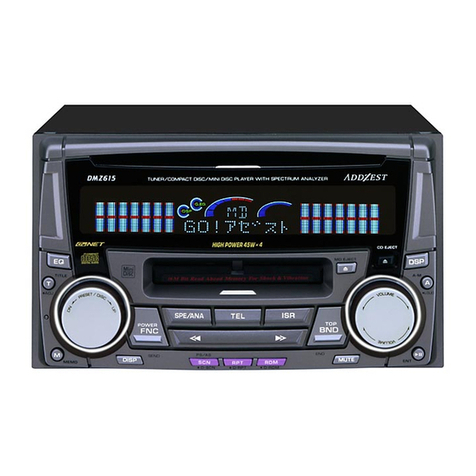
Clarion ADDZEST DMZ615 owner's manual

Clarion

Clarion ADDZEST DMZ615 owner's manual

Sony XAV-601BT Specifications

Sony

Sony XAV-601BT Specifications

PIE GM12-POD/S Operation manual

PIE

PIE GM12-POD/S Operation manual

Hyundai H-910H instruction manual

Hyundai

Hyundai H-910H instruction manual

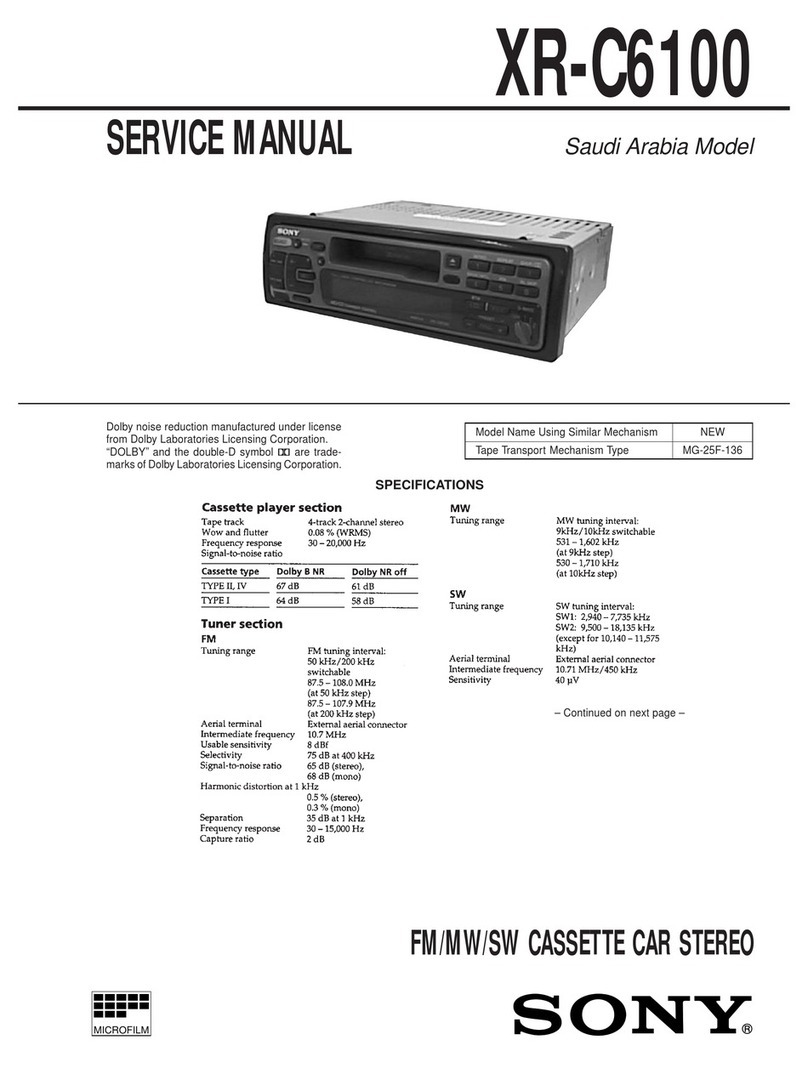
Sony XR-C6100 Service manual

Sony

Sony XR-C6100 Service manual

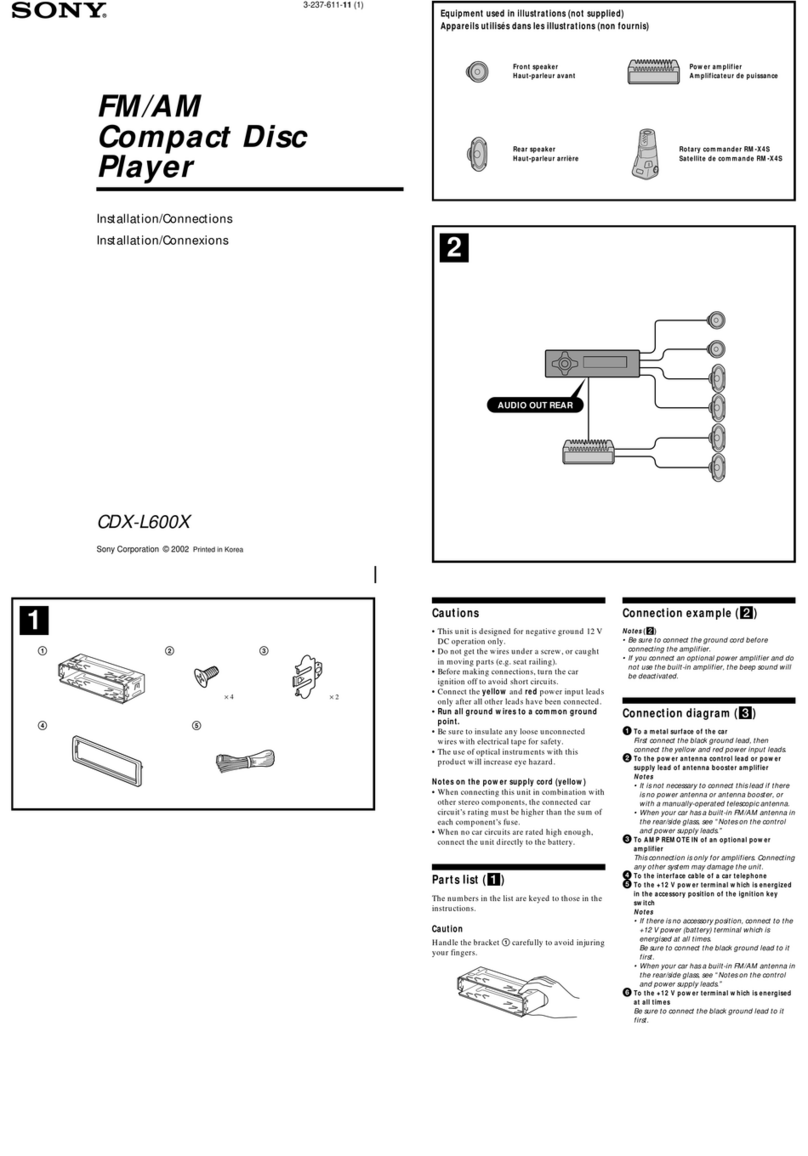
Sony CDX-L600X - Fm/am Compact Disc Player Installation/connections

Sony

Sony CDX-L600X - Fm/am Compact Disc Player Installation/connections

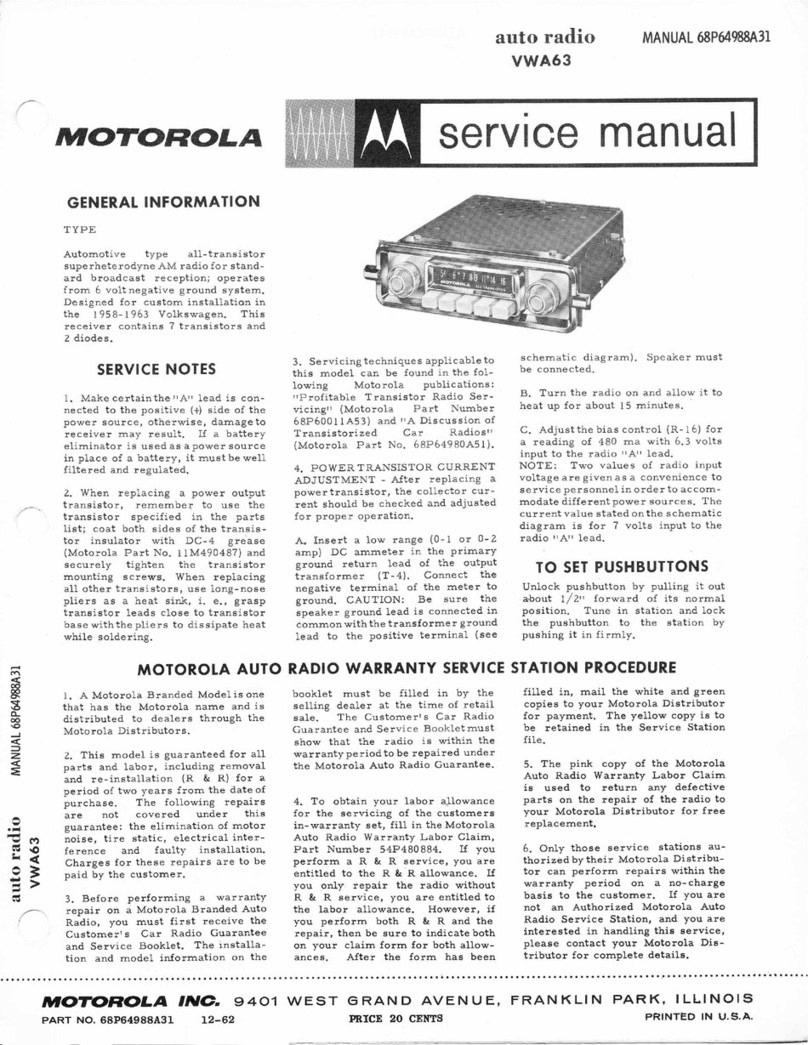
Motorola VWA63 Service manual

Motorola

Motorola VWA63 Service manual

Sound Storm STM93R user manual

Sound Storm

Sound Storm STM93R user manual

Nextar D3201 instruction manual

Nextar

Nextar D3201 instruction manual

Alpine CDE-163BT owner's manual

Alpine

Alpine CDE-163BT owner's manual

Kenwood KDC-X303 quick start guide

Kenwood

Kenwood KDC-X303 quick start guide

manuals.online logo
manuals.online logoBrands
  • About & Mission
  • Contact us
  • Privacy Policy
  • Terms and Conditions

Copyright 2025 Manuals.Online. All Rights Reserved.

A. Mount the Magnetic Mount Antenna outside your vehicle, on a clean and dry
horizontal surface that will always face the sky.
B. The best location is on the roof above the front windshield, centered between
the left and right sides.
C. Install the Cable Routing Adapter to direct the antenna cable downward, if mounting on an
edge.
TIP: Use the Alcohol Prep Pad to clean
the surface.
CAUTION: Do not attempt to install, activate, or adjust any of the setting options described in this
Quick Start Guide unless your vehicle is parked in a safelocation.
What’s in the Box?
Snap Radio Magnetic Mount
Antenna
Antenna Alcohol
Preparation Pad
Aux In Cable
1 2 3 4 5
Cable
Routing Adapter
Alcohol
Prep Pad
1 Mount the Magnetic Mount Antenna 2 Route the Antenna Cable 3 Find a Location for Snap and Mount It
Sedans and Coupes Pickups and SUVs Convertibles*
* If the antenna can not
be placed above the
windshield, place it on
vehicle hood.
A. Tuck the antenna cable under the windshield rubber
molding and run it to the nearest corner.
B. Route the cable out of the molding and into the rubber
weather stripping around the door opening.
C. Lift the weather stripping. Tuck and run the cable
inside it to the bottom of the door opening. Replace the
weather stripping.
D. Pull the cable out and route it toward the power adapter
or cigarette lighter socket location.
E. Plug the Magnetic Mount Antenna connector into the
ANTENNA connector on the Base of Snap.
TIP: Include enough slack in your routing to
accommodate open doors or the hood lid. Coil
any excess cable in a hidden locationand
keep it away from anyvehicle pedals or
controls.
Place Antenna
Closer to A-Pillar
if Cable Doesn’t Reach
Center of Roof
Power Adapter or
Cigarette Lighter
Socket Location
ANTENNA
AUDIO FM
Antenna
Connector
Base
Antenna
Plug
Flexible
Stalk
4 Initiate the Courtesy Period
A. Power on your Snap by pressing the Power button. Ensure the
vehicle is outside and the antenna has a clear view of the sky.
B. When prompted, press the number button 1, then 2, then 3. The
Courtesy Period Begun message will verify that the Courtesy Period
has begun.
C. You will benotified aboutthe length of theCourtesy Period and
prompted to set up the audio connection. Snap will then tune to
channel1.
TIP: At this point, you should have access to all the channels in a few
minutes. However, leave Snap tunedto channel 1 until you have set up the
audio connection.
NOTE: If Acquiring Signal or Chk Antenna Connection is displayed, verify
that you have mounted and connected the antenna. Refer to “Mount the
Magnetic Mount Antenna” on page 14, or to “Troubleshooting” on page 42 of
the User Guide for additional help.
MENU FM
5 Connect the Audio
Decide on one of the following in-box audio connection options. Refer to “Connect the Audio” on page
23 of the User Guide for details including other connection options.
Option 1: Best: Use the provided Aux In Cable, if your vehicle’s stereo system has anauxiliary inputjack.
A. Plug oneend of the cable into the AUDIO connectoron Snap and the other end into the auxiliary
input jack on the vehicle’s stereo system.
B. Turn on your vehicle’s stereo system and set it to play from the auxiliary input source.
C. You should now hear the XM channel 1. Theinstallationis complete.
TIP! Refer to your vehicle’s owner’s manual to find the locationof the auxiliary input jack, or consult the
vehicle dealer.
AUDIO FM
Audio
Connector
Aux In Cable
Aux In
continued on other side...
A. Mount Snap by plugging the Base into the power adapter or cigarette lighter socket.
B. Grasp the rear of Snap’s Base and gently push in, while at the same time rotating the Base
slightly to the right and then to the left. Do not push it in by holding the Radio Control Unit or
Flexible Stalk.
TIP: Choose a socket that doesn’t interfere with the driver’s vision or access to driving controls, won’t
interfere with the deployment of airbags or othersafety equipment, and makes Snap easily accessible for
operation.
Power Adapter or
Cigarette Lighter
Socket
12345
Rock
Underground
25
Press 1,2,3
To Begin
Courtesy
Period Begun
12345
Option 2:Good: Use the PowerConnect™ feature of Snap. PowerConnect plays the XM audio
through your vehicle’s FM radio.
A. Find and make a list of all available FM channels in your area that are
not being used by an FM radio station.
B. Pick the first FM channel on your list. Tune your vehicle’s FM radio to
this FM channel.
C. Set your Snap to transmit on the same FM channel that you have
selected on your vehicle’s FM radio:
i. Press FM on the top of Snap.
ii. Turn the Rotary knob to select the available FM channel you
have chosen.
D. You should hear XM channel 1 through your vehicle’s FM radio. If you are satisfied with the
sound quality, the installation is complete.
E. If you are not satisfied, move to the next FM channel on your list and repeat the process.
Continue until you have found an FM channel with which you are satisfied.
F. Press FM or wait 10 seconds to exit the FM mode.
TIP: Refer to “PowerConnect Installation
Instructions” on page 25 of the User Guide for
details on how to find an available FM channel.
FM 90.1
FM
6 Explore, Enjoy and Subscribe
Once installation is complete, you can tune to other channels and listen to all the commercial-free
music, plus live sports and the latest news, talk & entertainment on XM.
A. Turn the Rotary knobto tune to otherchannels and press the Previous or Next Categorybutton
to browse andselect the differentcategories.
B. Subscribe before the Courtesy Period expires.Follow the instructions displayed on the screen.
C. You can also subscribe anytime you want online or byphone. Just goto www.xmradio.com and
click on Activate Radioor call 1-800-XM-RADIO (1-800-967-2346).
TIP: To subscribe, you will need your Radio ID, which youcan find by pressing MENU, on a label on the
bottom of the gift box, on the label on the back of your Snap,and by tuning to channel 0.
Connect the Audio (continued) Snap Button Functions Snap Main Display
www.xmradio.com
SIRIUS XM Radio Inc.
1221 Avenue of the Americas
New York, NY 10020
1.800.967.2346
© 2010 SIRIUS XM Radio Inc.
XSN1QSG 082610a
Call / Visit
866-408-9796
To Subscribe
xmradio.com
Self installation instructions and tips are provided for your convenience. It is your
responsibility to determine if you have the knowledge, skills and physical ability required
to properly perform an installation. SIRIUS|XM shall have no liability for damage or injury
resulting from the installation or use of any SIRIUS|XM or third party products. It is your
responsibility to ensure that all products are installed in adherence with local laws and
regulations and in such a manner as to allow a vehicle to be operated safely and without
distraction. SIRIUS|XM product warranties do not cover the installation, removal or
reinstallation of any product.
When listening to a channel, information about the channel and what is currently playing is
displayed. The screen will alternate between displaying the artist name and song/program title;
and displaying the category, channel name and channel number.
Antenna Signal Strength
Artist Name
or Talk ShowHost
or Sports Teams/Score
Displayed when a
Favorite Channel or
FM Preset is selected
Category
Displayed whenSnap
is in menumode (after
pressing the MENUbutton)
Displayed whenSnap is in
FM mode (afterpressing
the FM button)
Song/ProgramTitle or
Talk ShowSchedule or
Game Time/Game Details
ChannelNumber
ChannelName
Rock
The Loft
50
Los Lobos
Johnny 99
MENU
1 2 3 4 5
FM
Power Button
Press to turn Radio
on and off.
Menu Button
Press to access
Radio ID and adjust
audio level.
Scan Button
Press to start or stop
scanning through channels
within the current category.
Rotary Knob
Turn to tuneto the previous
or next channel within the
current category; in FM mode,
turn to tune FM channels.
1 2 3 4 5
MENU FM
Front View (RadioControl Unit) Top View(Radio Control Unit)
FM Button
Press to change
to FM mode for
configuring FM
channels.
Number Buttons
Press to tune to a stored
favorite channel, pressand
hold to store a favorite
channel; in FM mode, press
to select a stored FM preset,
press and hold to store an
FM preset.
Previous/NextCategory Buttons
Press to access the previous
or next category; press and
hold to cycle through the
categories.
MATCHFM
CHANNELS
1 2 3 4 5
90.1
MENU FM