manuals.online logo
Brands
  1. Home
  2. •
  3. Brands
  4. •
  5. Canyon Smart
  6. •
  7. Security Camera
  8. •
  9. Canyon Smart CNSS-CM1W User manual

Canyon Smart CNSS-CM1W User manual

This manual suits for next models

2

Popular Security Camera manuals by other brands

ADEMCO RapidDome Owners Operating & Installation Guide

ADEMCO

ADEMCO RapidDome Owners Operating & Installation Guide

EverFocus EBA2880 user manual

EverFocus

EverFocus EBA2880 user manual

Honeywell OptiCAM-IR Installation and setup guide

Honeywell

Honeywell OptiCAM-IR Installation and setup guide

Uniq UC-600 user manual

Uniq

Uniq UC-600 user manual

OPTICOM NVD-120-S datasheet

OPTICOM

OPTICOM NVD-120-S datasheet

Steren CCTV-221 instruction manual

Steren

Steren CCTV-221 instruction manual

Arm Electronics C420BCDNVFIR Features

Arm Electronics

Arm Electronics C420BCDNVFIR Features

Eneo PLD-2036PTZ installation guide

Eneo

Eneo PLD-2036PTZ installation guide

Axis AXIS M20 Series installation guide

Axis

Axis AXIS M20 Series installation guide

Panasonic KX-HCM230 operating instructions

Panasonic

Panasonic KX-HCM230 operating instructions

COP-USA CC15NV-SL Specifications

COP-USA

COP-USA CC15NV-SL Specifications

Active Silicon HARRIER H.264 quick start guide

Active Silicon

Active Silicon HARRIER H.264 quick start guide

Motorola Avigilon 1.3C-H5SL-BO1-IR installation guide

Motorola

Motorola Avigilon 1.3C-H5SL-BO1-IR installation guide

INSTEON 2864-232 user manual

INSTEON

INSTEON 2864-232 user manual

Wisenet XNB-6002 quick start guide

Wisenet

Wisenet XNB-6002 quick start guide

Axis M5525-E user manual

Axis

Axis M5525-E user manual

Vitek VTC-IR62NZ922 user guide

Vitek

Vitek VTC-IR62NZ922 user guide

Panasonic WV-SF342 Specifications

Panasonic

Panasonic WV-SF342 Specifications

manuals.online logo
manuals.online logoBrands
  • About & Mission
  • Contact us
  • Privacy Policy
  • Terms and Conditions

Copyright 2025 Manuals.Online. All Rights Reserved.

Operations Manual
for CANYON SMART IP Cameras
CANYON SMART security cameras are presented in three alternate
designs:
CNSS – KA1W – with a system of motion detection and door opening sensors
CNSS – CM1W – with a wide viewing angle
CNSS – CB1W – standard camera
CNSS – KA1W
1. Package contents for CNSS-KA1W
IP camera (Fig. 1.1) - 1 pcs
Motion sensor (Fig. 1.2) - 1 pcs
Door opening sensor: Receiver (Fig. 1.3) - 1 pcs
Receiver sensor (Fig. 1.4) - 1 pcs
Power supply unit INP 220V OUT 5V 2000mA - 1 pcs
Mounting bracket - 1 pcs
Battery: Battery - A23 12V - 1 pcs
Batteries AAA - 3 pcs
Manual - 1 pcs
Fig. 1.1 Fig. 1.2
Fig. 1.3 Fig. 1.4
Camera features:
360 degrees viewing angle
Two-way audio: speakers and microphone
MicroSD card slot
720p HD video stream
Wi-Fi connection
Plug-and-play installation
Compatibility with iOS, Android and Windows 10
Push-notifications and motion detection sensor
Infrared light vision
Security mode with push-notifications
Motion sensor features
Type - infrared
Detecting angle, vertically/horizontally - 50°/110°
Detecting range - 10 m
Optimum installation height - 2.5 m
Wireless emitting distance - 30 m (depends on the presence of obstacles)
Power supply - batteries AAA, 3 pcs.
Current consumption in rest mode - up to 25 μA
Current consumption in transmission mode - up to 15 mA
Operating temperature range - -10…+45 °С
Relative humidity - up to 95% without condensation
Door sensor features
Operating voltage - 12V (А23)
Operating temperature range - -10…+45 °С
Operating distance between the sensor elements - 20 ± 5 mm
Emitting distance: - 30 m (depends on the presence of obstacles)
CNSS – CM1W
Package contents for CNSS-CM1W
IP camera (Fig. 1.5) - 1 pcs
Power supply unit INP 220V OUT 5V 1500mA - 1 pcs
USB cable, USB 2.0 / micro USB - 1 pcs
Mounting bracket - 1 pcs
Manual - 1 pcs
Camera features:
360 degrees viewing angle
Two-way audio: speakers and microphone
MicroSD card slot
720p HD video stream
Wi-Fi connection
Plug-and-play installation
Compatibility with iOS, Android and Windows 10
Push-notifications and motion detection sensor
Infrared light vision
Security mode with push-notifications
No sensors included
Fig. 1.5
CNSS – CB1W
Package contents for CNSS – CB1W
IP camera (Fig. 1.6) - 1 pcs
Power supply unit INP 220V OUT 5V 1000mA - 1 pcs
USB cable, USB 2.0 - 1 pcs
Manual - 1 pcs
Camera features:
110 degrees viewing angle
Two-way audio: speakers and microphone
MicroSD card slot
720p HD video stream
Wi-Fi connection
Plug-and-play installation
Compatibility with iOS, Android and Windows 10
Push-notifications and motion detection sensor
Infrared light vision
Security mode with push-notifications
No sensors included, no remote camera rotation function
Fig. 1.6
All CANYON SMART IP Cameras of the CNSS series
have the same connection algorithm.
First connection and configuration
You will need a smartphone on Android or IOS platform with a pre-installed application for
reading QR-codes and a stable high-speed Internet.
2. Installation and configuration
2.1 Use your application to scan the QR-code and download the CANYON S ma r t application
on your smartphone.
Android I O S
You can also find the CANYON Smart application in the PlayMarket for Android and
AppStore for IOS.
If you are using a computer, enter the link canyon.usmartcam.com in the Internet browser,
press enter, and the application will start downloading.
2.2 Connect your smartphone to Wi-Fi. Open the CANYON Smart application and register a
new account.
2.3 Click *Register* (Fig. 2.1).
2.4Enter your e-mail address in the first field, and your password (any you come up with,
but at least 6 characters) in the second one; repeat your password again in the third field.
(Fig.2.2)
Fig. 2.1 Fig. 2.2
2.5To enter into newly created account, enter your e-mail and password that you have
entered earlier in (Fig. 2.2).
3. Camera connection and configuration
3.1 Log into the CANYON Smart application from your smartphone under your account.
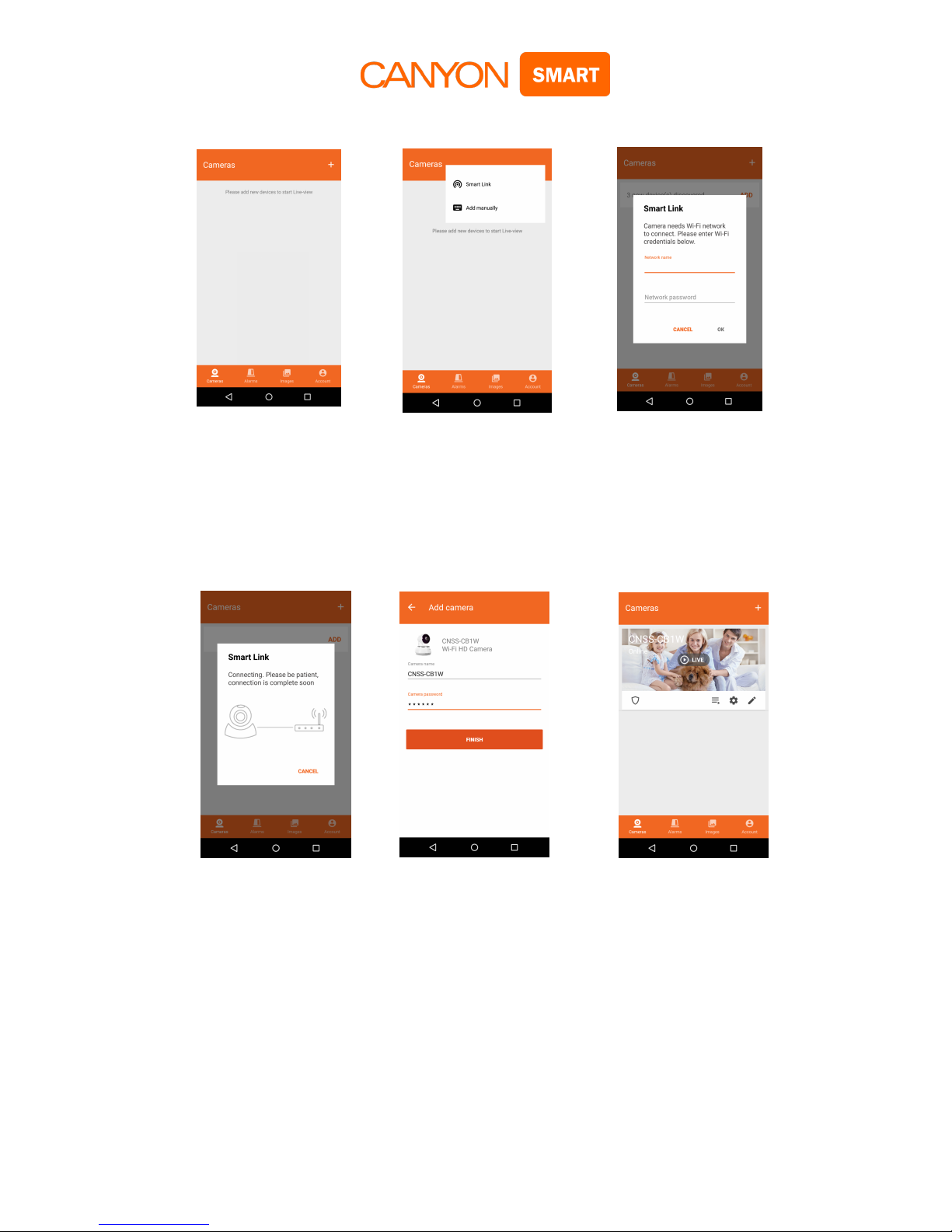
3.2 Click *+* in the upper right corner. (Fig. 3.1)
3.3 Select *Smartlink*. (Fig. 3.2)
3.4 Connect camera to the grid 220V with power supply unit (PSU) included.
After the camera is connected to the grid, hold the RESET button underneath the camera
until you hear the voice notice *Reset to default settings* to reset your camera to default and
find your device.
* Search time is accompanied by the characteristic single sound signals (within 5 minutes).
* Pairing time is approximately 1 minute.
* Ensure that there are no loud noises during search and connection, which may interfere
camera from pairing.
3.5 Enter your Wi-Fi network password. (Fig. 3.3)
Fig. 3.1 Fig. 3.2 Fig. 3.3
3.6 Your camera uses audible signal for connection, therefore, the camera should be away
no more than 30 cm from the smartphone. (Fig. 3.5)
3.7 Wait for the sound signal from the camera, after which the application will automatically
go to the login page with the name and password fields (Fig. 3.6). *PW* password is
indicated on the camera sticker.
Fig. 3.5 Fig. 3.6 Fig. 3.7
3.8 Now your camera is connected and ready for use (Fig. 3.7).
* Important: if your connection was not successful, repeat all the steps from point 3.1.
Important settings
4. Security
4.1 It is recommended to change the default password and name of the camera. To do this
(Fig. 4.1), click the button (5.4) and enter a new password that will contain numbers and Latin
letters. The password should be from 6 to 30 characters (Fig. 4.2). You can choose the
camera name at your discretion.
* Default password: 123
* New password - example: 12345QWER
*The password strength indicator will help you: the yellow category password is acceptable, if
the indicator remains in the red category - you will not be able not change the password.
Fig. 4.1 Fig. 4.2
5. Assignment of the main user keys
5.1 Opening the camera image in full-screen horizontal mode
5.2 Playing records from MicroSD card
5.3 Settings: video recording, date, time, adding sensors and other camera options
5.4 Changing camera name and password
5.5 Enable / Disable sound of the camera on your smartphone
5.6 Security mode is on if motion is detected in the camera's field of view or is the sensors
are triggered, a siren may turn on and you will be able to receive a notification on the
smartphone (depends on the user's settings)
5.7 Security mode is off
5.8 Press and hold to talk to those who are at the camera
5.9 Taking screenshot. The image will be saved in the Gallery
5.10 High quality video
5.11 Average quality video
5.12 Low quality video
6. Main interface
The main interface consists of 4 main sections:
Section *Cameras*(Fig. 6.1)
List of all connected cameras (list is formed in the order of connection)
Button *+ *(adding new cameras)
Name of your camera (for convenience, it is recommended to use the names of facilities or
the serial number)
Camera status *Online* or *Offline* (when opening the CANYON Smart application all
cameras will have the *Offline* status; this is for the power saving mode of your device. If you
want to resume the connection and start watching, you need to click on the last saved image
of the desired camera)
Button 5.6 *Security mode on* (this means that the camera and sensors are in active
surveillance mode)
Button 5.7 *Security mode off* (this means that the camera and sensors are in passive
surveillance mode)
Button 5.2 *Playing records from MicroSD card*
Button 5.3 *Camera settings*
Button 5.4 *Changing camera name and password*

Fig. 6.1
Section *Alarms*
In this section, you are notified of the trigger of the camera or connected sensors.
Notifications are received in the form of text messages with the date and time, camera or
sensor name and type of the alarm (Fig. 6.2).
* An alarm signal is sent to your device provided that it is turned on and connected to the
Internet (Fig. 6.3).
Fig. 6.2 Fig. 6.3