CP-2575/CP-2070 US OG Preliminary Text
March 17, 2000
CP2575 M1S1 OG.doc 8
Press AUTODIALagainwhenyoufinishto save the new entry. Nothing will be stored until the AUTODIAL
key is pressed.
Press PROGRAM to exit the mode.
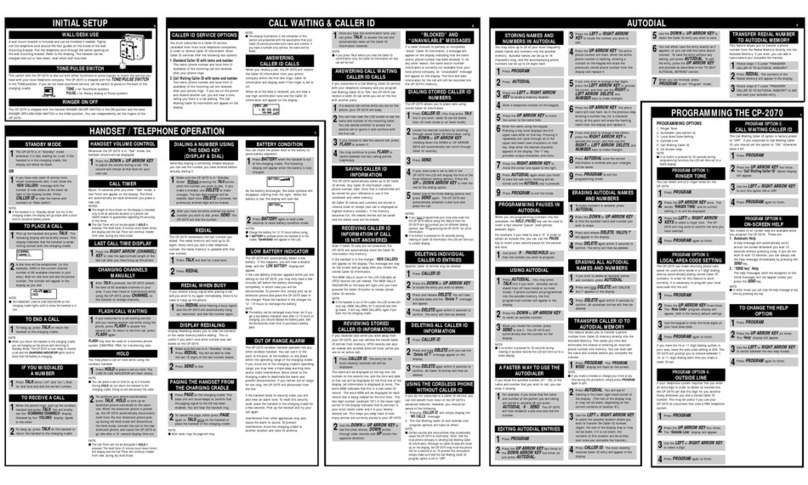
Programming Pauses In Autodial
When you are programming numbers into the autodialer, the HOLD (PAUSE) key can be used to insert a two-
second "pause" (wait period) between digits.
For example, if you need to dial a "9" in order to obtain an outside line, you can use the PAUSE key to insert
a two second pause for the second dial tone.
Just press "9 ", PAUSE/HOLD, and then the number you wish to program.
Using Autodial
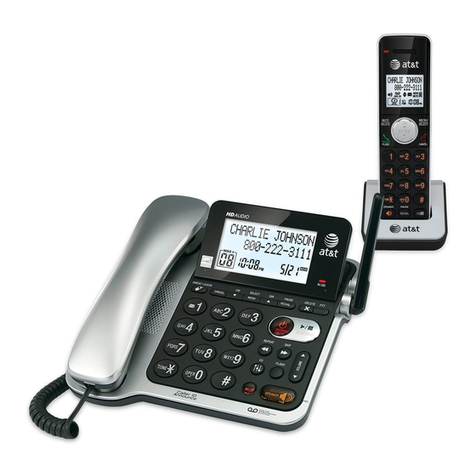
Press AUTODIAL. (You may press TALK first if you wish. Autodial can be dialed fromoff hook mode or
on hook mode). If phone numbers are programmed into the autodial memory, the first programmed number
will appear inthe display.
Press the DOWN or UP ARROW KEY to select an autodial number.
When you locate the number, press SEND to dial it. The CP-2575/CP-2070 will automaticallydial the
number on the display.
NOTE:
•If no buttonis pressed for 30 seconds during viewing of autodial records the LCD will time-out to a
blank display.
A Faster Way to Use the Autodialer
If you know the autodial number (01 - 20) of the name and number that you wish to call, you can enter it
directly.
For example, if you know that the name and number of the person you are calling are stored in autodial 06
just press AUTODIAL, "6 ", SEND. The CP-2575/CP-2070 will thenestablish a dial tone and dial the
number.
Editing Autodial Entries
Press PROGRAM.
Press the UP ARROW KEY three times or the DOWN ARROW KEY five times (or just press AUTODIAL).
Press the LEFT or RIGHT ARROW KEY to locate the number you wish to edit.
Press the UP ARROW KEY. The entire phone number will flash. Whenthe entire phone number is flashing,
entering a number onthe keypad will erase the previouslystored phone number fromthe displayand replace
it.
If you only wish to change a few digits, press the LEFT ARROW KEY to activate the cursor, and then use the
RIGHT or LEFT ARROW, DELETE, and Number keys to make changes.
Press the UP ARROW KEY. The entire name will now flash. As in the previous step, enteringa number key
(for a character entry) at this point will erase the flashingname fromthe displayand replace it.
If you only wish to change a few letters, press the RIGHT ARROW KEY to activate the cursor, and then use
the RIGHT or LEFT ARROW, DELETE, and Number keys to make changes.
Press AUTODIALonce the correct informationis entered and your changes will be saved.
Press PROGRAM to exit the programming mode.
Erasing Autodial Names and Numbers
To erase numbers in autodial, press AUTODIAL.
Press the DOWN or UP ARROW KEY to find the autodial name and number you wish to erase.
Press and release DELETE. "DELETE ?" will appear inthe display.
Press Delete againwithin 5 seconds to confirm. The entrywill thenbe deleted.
Erasing All Autodial Names and Numbers
If you wish to delete all Autodial names and numbers, press AUTODIAL.
Press and hold DELETE until "DELETE ALL?" appears in the display.
Press Delete againwithin 5 seconds to confirm. All autodialer entries will thenbe deleted.
Transfer Caller Id To Autodial Memory
This feature allows you to transfer a phone number fromCaller ID memory directly into the Autodial
Memory. This saves you time and eliminates the chance of entering an incorrect phone number into memory.
You can even edit the name and number before you complete the transfer.
Press PROGRAM. The "ProgramMode" displaywill flash onthe screen.
NOTE: