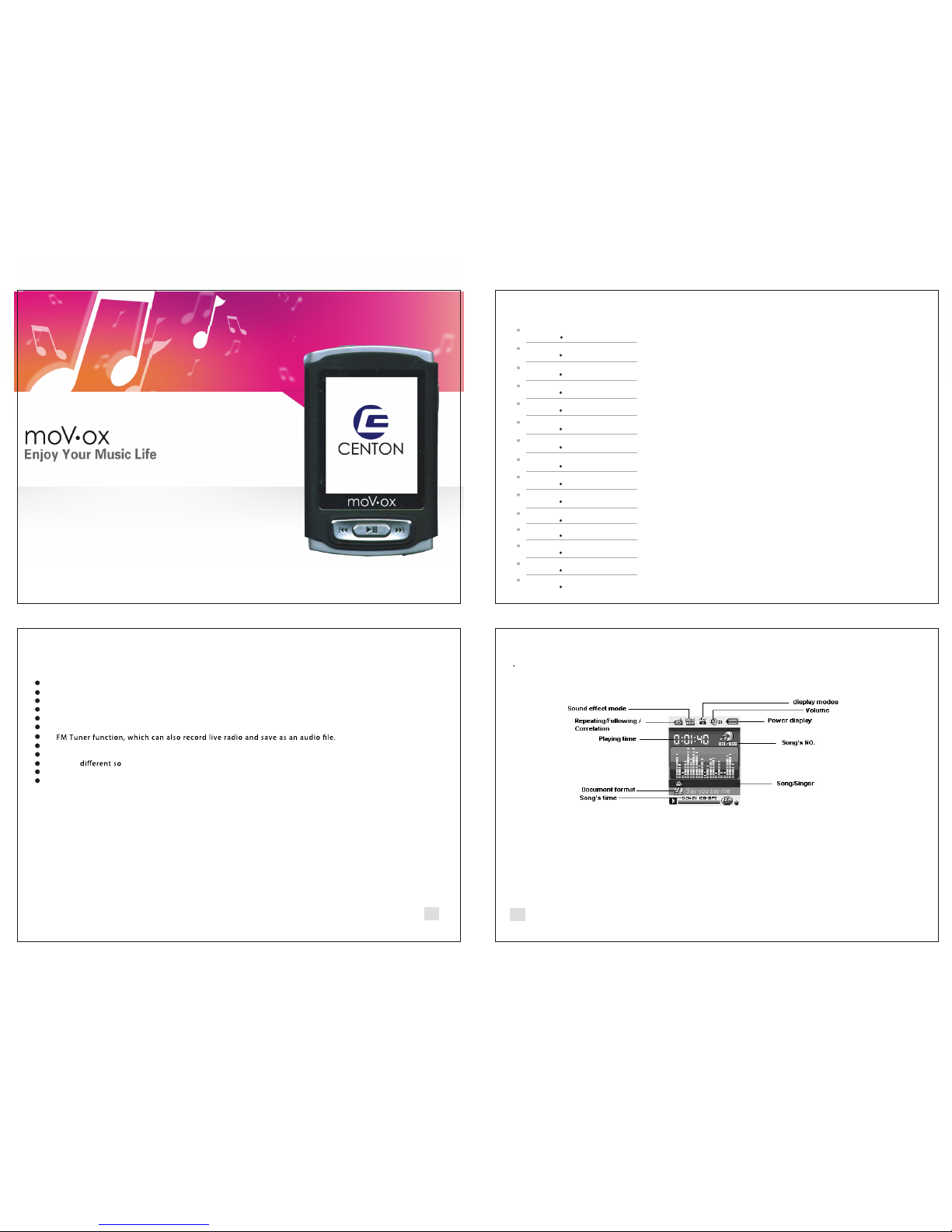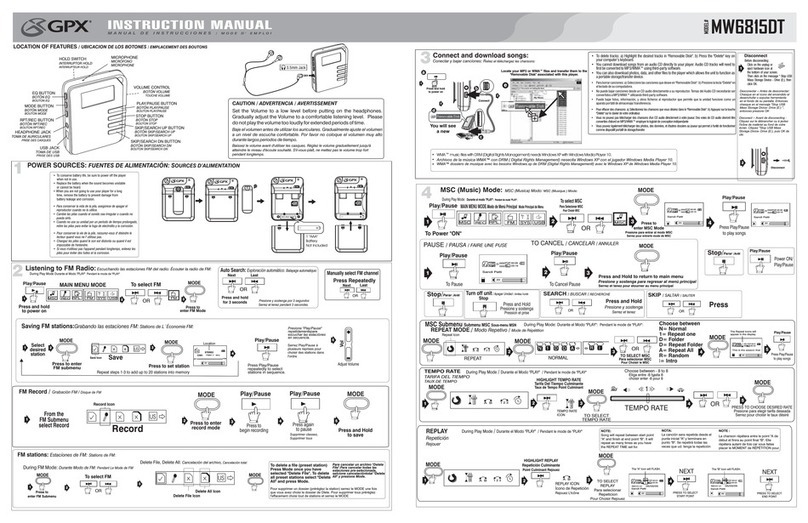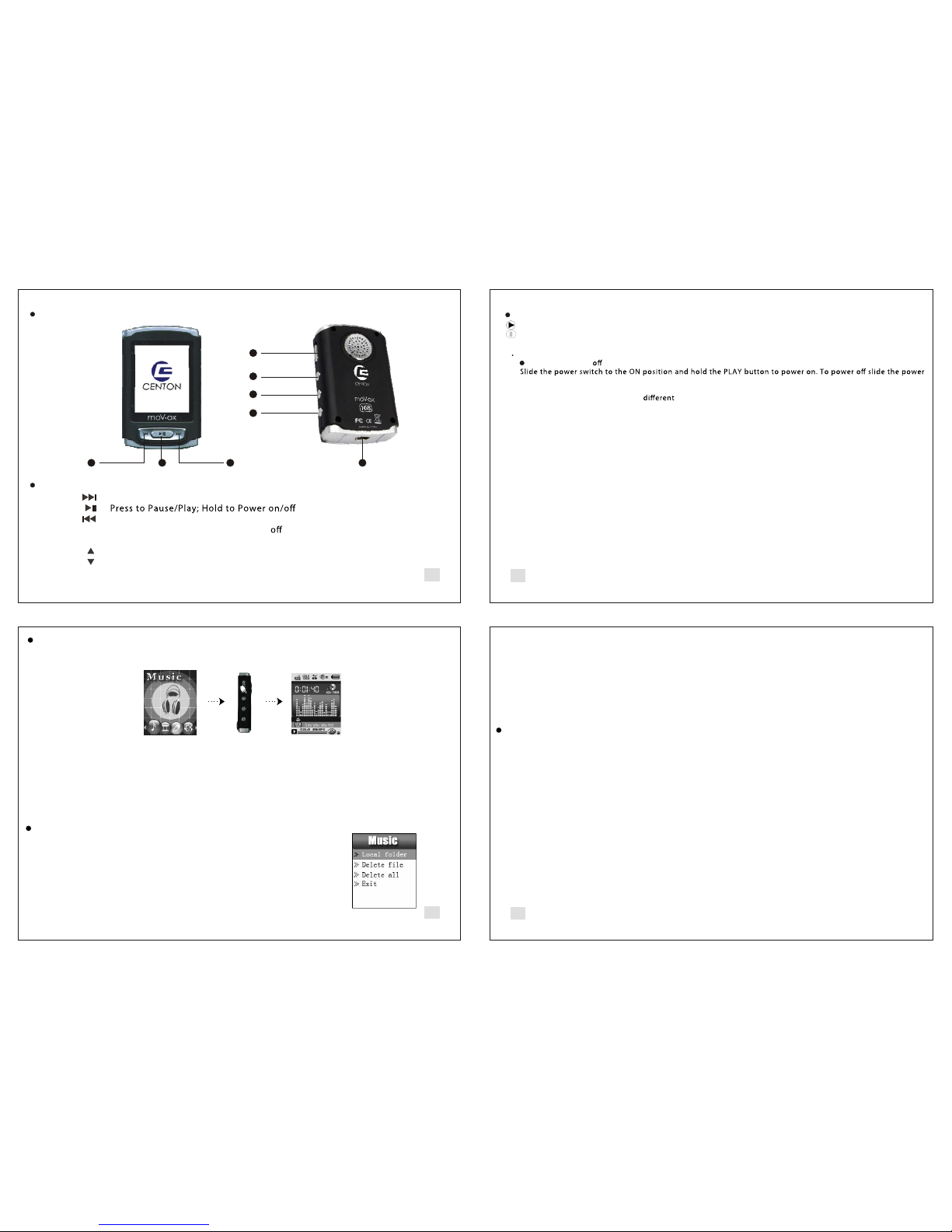
Keys functions
1.NEXT ( ) : Hold to Fast forward; press to skip to next item
2.PLAY ( ) :
3.LAST ( ) : Hold toRewind; press to skip to previous item
4.ON /OFF : Power key , control power on /power
5.MODE(M) : Mode key, Access the menu , enter work mode. Hold to access Main Menu.
6.VOL+ ( ) : Increasethe volume.
7.VOL- ( ) : Decreasethe volume.
8.USB
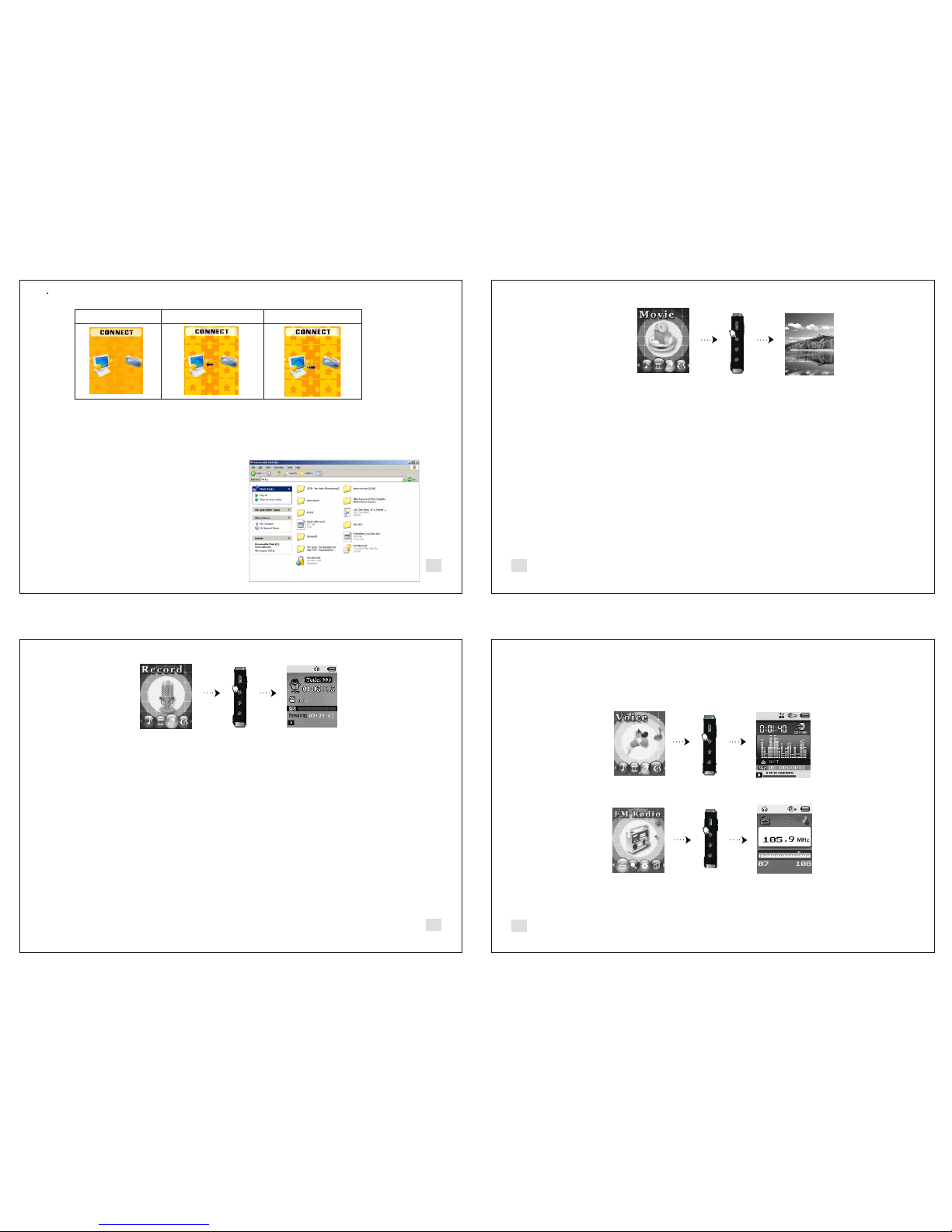
PLAYING STA TUS
Status display , Song is playing.
Status display , Song is paused.
2 Basic operation .
Power on / Power
swtich to the OFF position and hold the PLAY button.
Menu
Through press MODE key to enter sub-menus. The menus are divided into main menu ,sub-menu and
stopping sub-menu .
Play or pause
playing , press the PLAY button to pause.
While paused, press the PLAY button to resume play.
Adjust the volume
Under music, movie, speech (play or record) or radio mode:
Shortly press VOL- , descrease the volume
Shortly press VOL+ , increase the volume
3. Play Music
,
While
NE XT
1LA ST 3
PL AY
2
4
5
6
7
8
ON /OF F
MO DE
VO L+
VO L-
US B
Overview
34
56
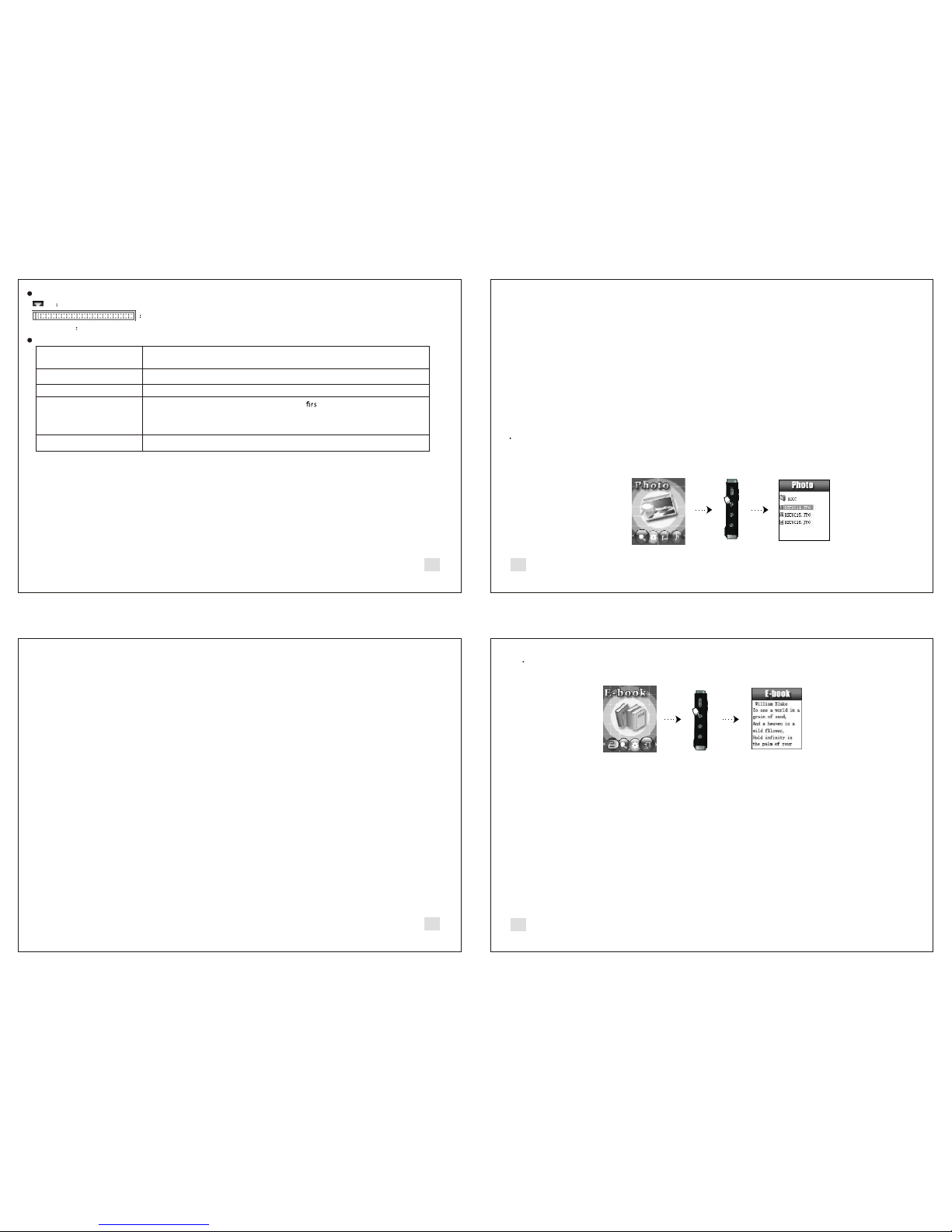
Press the MODE button to enter the Music Menu. You will see options including: “Local Folder”, “Delete File”,
“Delete All”, and “Exit”. Anytime in this menu, pressing the PLAY/PAUSE button will cause you to return to Music Mode.
- In the Music Menu, highlight “Local folder” and press the MODE button. This will bring you to the folder/file selection menu.
Here you can scroll up and down using the NEXT/LAST buttons, and using the MODE button to select.
( You will notice a folder called “ROOT”; this is the main folder of the player. Also a folder marked with a “ \ ” means you are
going back up a folder. For example, if you are in the RECORD folder, and select the folder marked “ \ “, you will be brought
to the main menu, or the ROOT folder.
-In the Music Menu, highlight “Delete file”, and press the MODE button.
This will bring you to the last folder you were viewing in the “Local folder”.
Here, highlight a song/file and press the MODE button.
Then you will be prompted to choose “yes” or “no”. Highlight “yes” and press the MODE
button to delete the selected song/file.
3. Delete All Files *** CAUTION – This feature will erase all of your files. ***
- In the Music Menu, highlight “Delete all” and press the MODE button.
Then using the NEXT/LAST buttons, select “yes” and your files will be completely deleted.
While music is playing, press the MODE button to access the Music Menu.
This menu will give you various options to
customize your listening experience.
In this section, you have the following options : normal, repeat one, repeat folder, repeat all, random or intro.
- Your EQ options here include: Natural, Rock, Pop, Classic, Soft, Jazz, and DBB.
3. SRS WOW Effects - This is an effects system which includes: 3D sound, TruBass, and FOCUS.
Each of these features can be customized in the menu.
- In the Music Menu, highlight “SRS WOW mode” and press the MODE button. Here your options will be to
enable SRS WOW mode, customize the user settings of each effect, and to disable SRS WOW mode.
Navigation is the same in this menu; using the NEXT/LAST buttons to scroll and the MODE button to select.
- This option gives you the ability to adjust the tempo of a live song
This only works with MP3 format files and gives you a range from 8-8.
- Here you can choose between A-B repeating, Following mode, and Contrast.
Simply press the MODE button
when “Replay” is highlighted and use the NEXT/LAST buttons to scroll through the settings.
- This options allows you to adjust the number of times a song is replayed.
- Here you are able to adjust the replay gap.
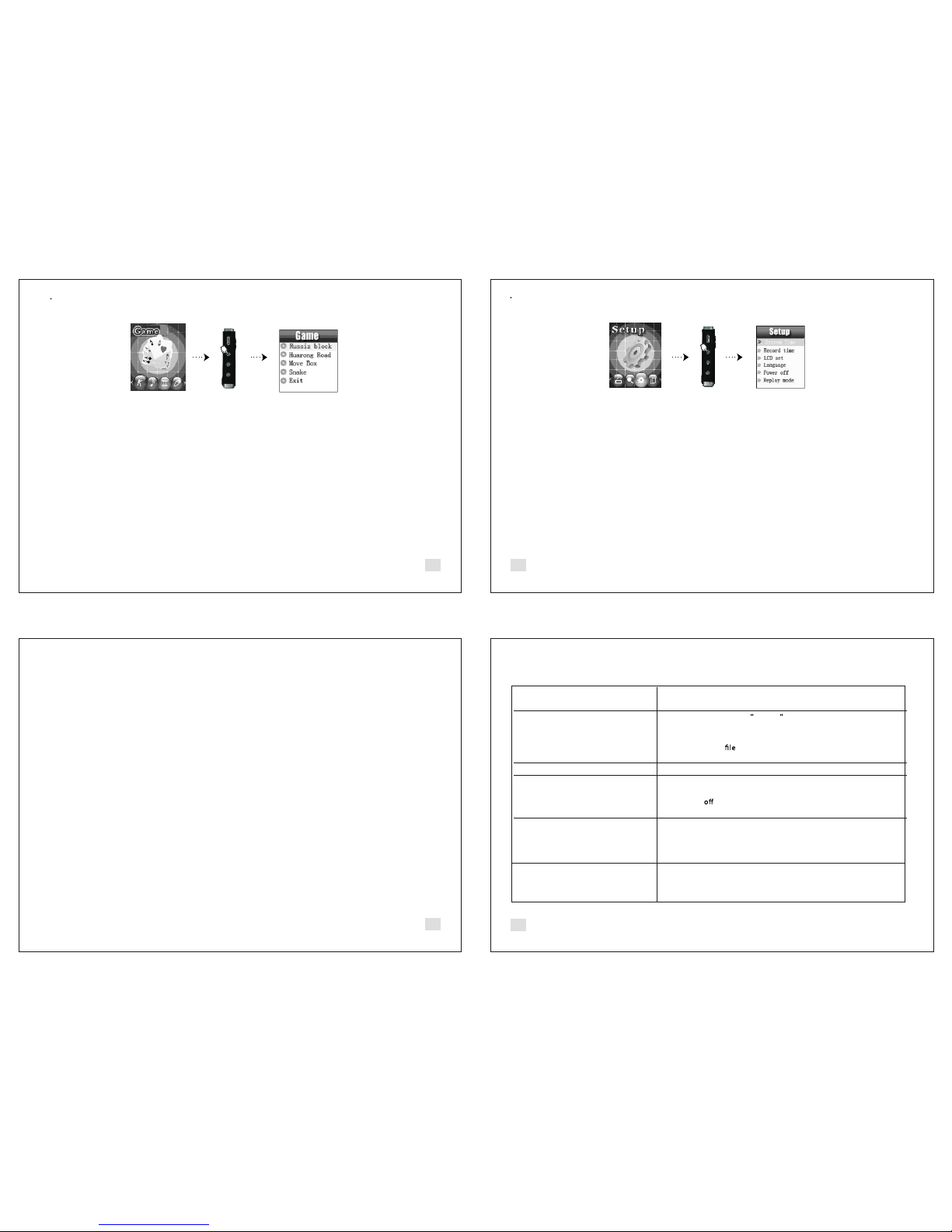
DISPLAY LYRICS AND SONGS AT THE SAME TIME
This player supports LRC document for displaying lyrics.
This gives you the ability to see the lyrics during playback.
1. How to use the lyrics document
- Keep the LRC file and the song file in the same folder and make sure they have the same name.
Example:
Song name: Rock.mp3
Lyric name: Rock.lrc