logo
Brands
  1. Home
  2. •
  3. Brands
  4. •
  5. Denon Professional
  6. •
  7. Music Mixer
  8. •
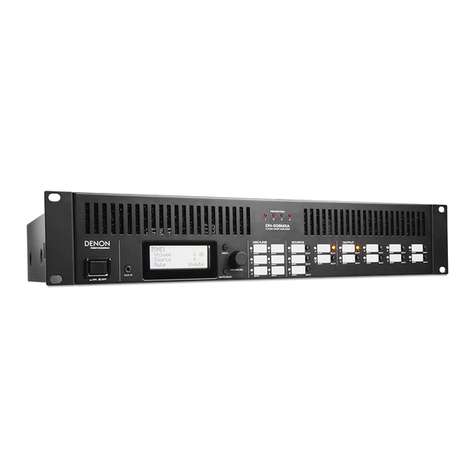
  9. Denon Professional DN-508MXA User manual

Denon Professional DN-508MXA User manual

Other manuals for DN-508MXA

1

Other Denon Professional Music Mixer manuals

Denon Professional DN-410X User manual

Denon Professional

Denon Professional DN-410X User manual

Denon Professional DN-508MXA User manual

Denon Professional

Denon Professional DN-508MXA User manual

Popular Music Mixer manuals by other brands

Neve 8816 user manual

Neve

Neve 8816 user manual

Mackie Onyx Analogue Mixer brochure

Mackie

Mackie Onyx Analogue Mixer brochure

Behringer EUROPOWER PMP518M user manual

Behringer

Behringer EUROPOWER PMP518M user manual

Peavey S-32 Sanctuary Series Operation guide

Peavey

Peavey S-32 Sanctuary Series Operation guide

Rane MP 4 Operator's manual

Rane

Rane MP 4 Operator's manual

True T9 Touchscreen Console owner's manual

True

True T9 Touchscreen Console owner's manual

Studiomaster Air Pro 24 instruction manual

Studiomaster

Studiomaster Air Pro 24 instruction manual

Pioneer SVM 1000 - Audio/Video Mixer Service manual

Pioneer

Pioneer SVM 1000 - Audio/Video Mixer Service manual

Roland M-160 owner's manual

Roland

Roland M-160 owner's manual

Yamaha MR1642 Operation manual

Yamaha

Yamaha MR1642 Operation manual

Ecler MAC40v user manual

Ecler

Ecler MAC40v user manual

Pioneer DJM 909 - Battle Mixer W/Effects operating instructions

Pioneer

Pioneer DJM 909 - Battle Mixer W/Effects operating instructions

Veeder-Root TLS-350 Series System setup manual

Veeder-Root

Veeder-Root TLS-350 Series System setup manual

Alto APM80.QUAD user manual

Alto

Alto APM80.QUAD user manual

Omnitronic PM-211 user manual

Omnitronic

Omnitronic PM-211 user manual

SoundCraft B400 user guide

SoundCraft

SoundCraft B400 user guide

Roland SoundCanvas SC-8820 owner's manual

Roland

Roland SoundCanvas SC-8820 owner's manual

CARVIN RX 1200 operating manual

CARVIN

CARVIN RX 1200 operating manual

https://manuals.online logo
https://manuals.online logoBrands
  • About & Mission
  • Contact us
  • Privacy Policy
  • Terms and Conditions

Copyright 2025 Manuals.Online. All Rights Reserved.

User Guide English ( 3 – 16 )
Guía del usuario Español ( 17 – 30 )
Guide d’utilisation Français ( 31 – 44 )
Guida per l’uso Italiano ( 45 – 58 )
Benutzerhandbuch Deutsch ( 59 – 72 )
A
ppendix English ( 73 – 75 )
DN-508MXA
DENON
PROFESSIONAL
3
User Guide (English)
Introduction
DN-508MXA is a professional 8-zone mixer and 4-zone amplifier with remote controllability via
RS-232C, RS-422, and IP. It has professional-grade audio circuitry, mic/line pad functions, full
BTL (bridge-tied load) balanced outputs, 3-band input equalization, 5-band output
equalization, priority, delay, dynamics, LoZ and HiZ speaker support, and an automatic power-
saving function. When connected to a network or router, you can use a web-based interface
to control the system, as well.
Please see this guide’s Setup chapter to learn how to integrate DN-508MXA with your audio
system, and then refer to the Operation chapter to start using DN-508MXA.
Box Contents
DN-508MXA
Euroblock Connectors
(6) 5-Pin (for the Line Outputs 1–8 and Amp Inputs 1–4)
(2) 4-Pin (for Mic/Line Inputs 1 & 2)
(4) 3-Pin (for Mic/Line Inputs 3–6)
(5) 2-Pin (for the Speaker Outputs 1–4 and Mute connector)
(2) 5-Pin with Jumper Wires (for connecting Line Output 1–4 and Amp Inputs 1–4)
Power Cable
User Guide
Safety & Warranty Manual
Support
For the latest information about this product (system requirements, compatibility information,
etc.) and product registration, visit denonpro.com.
DENON
4
Features
Front Panel
1. Power Button: Press this button to power DN-508MXA on or off.
2. Display: This screen indicates the current settings, status, etc.
3. Volume/Sel: Turn the knob to navigate or scroll through the options shown in the display, and then
press the knob to select one.
4. Menu: Press this button to switch between the Menu and the settings of the current zone in the display.
In the Menu, turn the Volume/Sel knob to navigate or scroll through the available options, and then
press the knob to select it.
5. Mute/Back: When viewing the settings of the current zone, press this button to select the Mute setting.
To mute or unmute the zone, turn the Volume/Sel knob to select Mute or Unmute, and then press it to
confirm your choice.
When in the Menu, press this button to return to the previous screen.
6. Aux In (1/8” /3.5 mm):Use a standard stereo 1/8” (3.5 mm) cable to connect an optional audio source
to this stereo input. When a cable is connected to this input, the Aux In (RCA) inputs on the rear panel
will be disabled.
7. Mic/Line Indicators: These lights will illuminate different colors to show the signal status of each
mic/line input:
•Off: The input is receiving no signal or a very low-level signal.
•Green: The input is receiving a signal at an optimal level.
•Amber: The input’s signal is very high.
•Red: The input’s signal is “peaking” (higher than 0 dB). Decrease its Gain knob on the rear panel
or decrease the volume of the source to prevent “clipping” (distortion).
8. Source Indicators: These lights will illuminate different colors to show the signal status of the aux in
and ST inputs:
•Off: The input is receiving no signal or a very low-level signal.
•Green: The input is receiving a signal at an optimal level.
•Amber: The input’s signal is very high.
•Red: The input’s signal is “peaking” (higher than 0 dB). Decrease the volume of the source to
prevent “clipping” (distortion).
9. Source Selectors: Press one of these buttons to assign or unassign that source to the currently
selected zone. When a source is assigned to the zone, its button will be lit amber. To select a zone,
press one of the Output Selectors.
10. Output Indicators: These lights will illuminate different colors to show the signal status of the line
outputs (zone outputs):
•Off: The output is sending no signal or a very low-level signal.
•Green: The output is sending a signal at an optimal level.
•Amber: The output’s signal is very high.
•Red: The output’s signal is “peaking” (higher than 0 dB). Decrease the volume of the zone to
prevent “clipping” (distortion).
11. Output Selectors: Press one of these buttons to select that zone. The button for the currently selected
zone will be lit amber.
12. Protection Indicator: These red LEDs will light when amplifier protection is engaged for the Speaker
Outputs. The LEDs correspond to Zones 1-4.
DN-508
MXA
PROTECTION
123
4
5
6
8
9
10
11
12
7
DVD
CD
Dining
Room L
Dance
Hall L
Kitchen
Dance
Hall R
Dining
Room R
Phone
DENON
,.,,FE66/IIIIIAL
5
Rear Panel
1. Power Input: Use the included power cable to connect this input to a power outlet.
2. Line Outputs: Use Euroblock connectors to connect these line-level outputs to your
loudspeakers or other audio devices. Each group of 5 connections corresponds to 2 zones.
Each zone has a hot (H) and cold (C) connector, and each pair of zones shares the ground (G)
connector. Make sure each loudspeaker is connected to the desired zone.
To send audio signal to the Speaker Outputs, use the included 5-pin Euroblock with jumper wires
to connect the Line Outputs of Zones 1-4 to the Amp Inputs of Zones 1-4.
3. Mic/Line Inputs: Use Euroblock connectors to connect your mic-level or line-level audio
sources to these inputs. Each input has a hot (H), cold (C), and ground (G) connector. Inputs 1
and 2 have an additional connector for Page Switch. Remember to adjust the Gain knob to set
the input volume level.
4. Mic/Line Gain: Turn these knobs to set the input gain for each Mic/Line Input.
5. Aux In (RCA):Use a standard stereo RCA cable to connect an optional audio source to this
stereo input. When a cable is connected to the Aux In on the front panel, these inputs will be
disabled.
6. ST Inputs: Use standard stereo RCA cables to connect line-level audio sources to these inputs.
7. Mute Connector: Use a 2-pin Euroblock connector to attach a switch to this connector. The
switch can then mute or unmute the incoming signal from all audio sources.
8. Remote Port: This port lets you connect a computer to DN-508MXA. Use a 9-pin D-Sub cable
to make this connection. You can use the computer with a third-party utility to manage DN-
508MXA via serial communication.
9. Remote Extend Port: This port lets you connect another DN-508MXA to the host device. Use a
9-pin D-Sub cable to make this connection. You can use a computer with a third-party utility to
control all connected DN-508MXA units via serial communication.
10. RS-422 Port: This port lets you connect a host device to DN-508MXA. You can then use a third-
party utility to control DN-508MXA via serial communication. Use a standard analog telephone
cable with RJ45 connectors to make this connection.
11. Ethernet Port: This port lets you connect DN-508MXA to a network. Connect this port to a
computer via a network switch or router. Alternatively, connect it directly to a computer using an
Ethernet crossover cable. This connection lets you control DN-508MXA though the web
interface.
12. Speaker Output: Use Euroblock connectors to connect these outputs to your loudspeakers at
low-impedence (LoZ), high-impedence (HiZ) or BTL (bridge-tied load). When using LoZ, each
group of 2 connections corresponds to 1 zone, for 4 total zones. When using HiZ and BTL, each
pair of groups of 2 connections corresponds to 1 zone, for 2 total zones. Each zone has a
positive (+) and negative (-) connector. Make sure each loudspeaker is connected to the desired
zone and that the wiring polarity is correct.
13. Amplifier Input: Use Euroblock connectors to connect line-level audio sources to these inputs.
Each zone has a hot (H) and cold (C) connector, and each pair of zones shares the ground (G)
connector.
To send audio signal to the Speaker Outputs, use the included 5-pin Euroblock with jumper
wires to connect the Line Outputs of Zones 1-4 to the Amp Inputs of Zone 1-4.
14. Fan: The speed of the fan adjusts automatically to cool the unit.
1
23
4
56
8
10
11
7
9
12
13
14
DENON
0
0
6
Setup
Items not listed under Introduction > Box Contents are sold separately.
To set up DN-508MXA with your sound system:
1. If you are using any audio source with RCA outputs (Blu-ray®players, stereos, etc.), use standard RCA
cables to connect them to the ST inputs on the rear panel. Your audio sources must be line-level (no
phono-level turntables).
2. If you are using an amplifier or other audio source with outputs that can be wired into standard
Euroblock connectors, connect them to the Mic/Line Inputs on the rear panel.
3. Use the included 5-pin Euroblock with jumper wires to connect Line Outputs 1–4 to Amp Inputs 1–4.
Each group of 5 connections corresponds to 2 zones. Each zone has a hot (H) and cold (C) connector,
and each pair of zones shares the ground (G) connector.
4. Use standard Euroblock connectors to connect the loudspeakers of your different zones to the
Speaker Outputs on the rear panel. For LoZ speakers at 4 Ohm or 8 Ohm, each group of 2
connections corresponds to 1 zone, for 4 total output zones. For HiZ speakers at 70 V, 100 V, or BTL,
each pair of groups of 2 connections corresponds to 1 zone, for 2 total zones. Each zone has a positive
(+) and negative (-) connector. Always make sure to properly align the wiring polarities between your
speakers and DN-508MXA.
5. To manage DN-508MXA using its web interface, connect the Ethernet Port and your computer to a
network switch or router using standard Ethernet cables. If your computer is wirelessly connected to
your router, connect just DN-508MXA to that router. Alternatively, connect DN-508MXA’s Ethernet Port
directly to a computer using an Ethernet crossover cable.
6. To manage DN-508MXA using serial communication, connect the remote port to your computer
using a 9-pin D-Sub cable. Use a third-party utility to manage DN-508MXA. Alternatively, connect the
RS-422 port to a third-party utility using a standard analog telephone cable with RJ45 connectors.
Tip: We recommend using the web interface to control DN-508MXA rather than serial communication. It
is much easier to use the web interface via IP communication than a third-party utility via RS-232 serial
communication.
7. Use the included power cable to connect DN-508MXA to a power outlet.
8. Power on all of your audio sources (Blu-ray®players, stereos, microphones, amplifiers, etc.).
9. Power on DN-508MXA.
Example:
Zone 1
Zone 2 Zone 3
Zone 4
Computer
To Zone Speakers
Blu-ray Player
Amplifier
Router
Microphones Power
Jumper Wires
(Connects Line
Outputs 1–4 to
Amp Inputs 1–4)
DENON
,.,,FE66/IIIIIAL
7
Operation
After setting up and powering on DN-508MXA and your connected devices, you can start using DN-
508MXA.
Important: The default administrator password is adminpwd. There is no default operator password.
Using the LCD Interface
Navigating the Display and Menus
To switch between the Menu and the settings of the current zone, press Menu.
To move through the options in the display, turn the Volume/Sel knob.
To select an option in the display, press the Volume/Sel knob.
To return to the previous screen, press Mute/Back.
To lock all controls, press and hold the Menu button for 3 seconds. Turn the Volume/Sel knob to select
Yes or No when prompted to “Apply to change?” the LOCK setting. You will need to enter the administrator
password to successfully lock all controls. To unlock all controls, press and hold the Menu button for 3
seconds again. Turn the Volume/Sel knob to select Yes or No when prompted to “Apply to change?” the
UNLOCK setting. You will need to enter the administrator password to successfully unlock all controls.
Managing Zones
To select a zone, press the desired output selector. The currently selected one will be lit amber. The
source selectors of any audio sources that are assigned to that zone will light up amber, as well.
To assign or unassign an audio source to a zone, press the desired output selector, and then press the
desired source selector. The source selector for the currently assigned audio source will be lit amber. Only
one source can be assigned to a zone at a time.
To set the volume level of a zone, press the desired output selector, and then turn the Volume/Sel knob.
To mute a zone, press the desired output selector, and then press the Mute/Back button. Turn the
Volume/Sel knob to select whether to Mute or Unmute the channel, and then press the knob to select it.
Menu
Click the Menu button and select Preset, System, or Information to view the corresponding settings page.
1. Preset
Mic/Line: Select this to edit Mic/Line Source 1–6. Once selected, you can set the frequency (Freq), Gain, or
bandwidth (Q) of the 3 available equalizations: a low-shelving filter (SHL), a high-shelving filter (SHH), and a
parametric equalizer (PEQ). Only the parametric equalizer has a bandwidth control. You can also set the
Input Volume that each Mic/Line Input sends to each Zone.
Source: Select this to edit Source 1–4 or Aux. Once selected, you can set the frequency (Freq), Gain, or
bandwidth (Q) of the 3 available equalizations: a low-shelving filter (SHL), a high-shelving filter (SHH), and a
parametric equalizer (PEQ). Only the parametric equalizer has a bandwidth control.
Output: Select this to edit Zone 1–8.
•Source Select: Select this to choose Source 1–4 or Aux. You can use the Volume/Sel knob to select
a source, or press the source selectors.
•Source Level: Select this to set the input level of the selected source.
•Source Mute: Select this to turn source mute on or off.
•Mic Level: Select this to set the output level of the microphone.
•PEQ: Set the frequency (Freq), Gain, or bandwidth (Q) of the 5 frequency ranges: Low, Mid-Low,
Mid, Mid-High, and High.
•Master Level: Select this to set the zone’s overall output level.
Note: If a zone is stereo, it will actually use 2 zones (e.g. Zone 1-2, 3-4) that share the same output
settings. The second zone of a stereo pair (e.g. Zone 2 or 4) will show as unavailable for editing. You
can edit the first zone, or change the Zone’s settings in the Output menu.
DENON

8
2. System
Schedule: Select a Schedule 1–30 to edit. To edit a Schedule, you may have to enter the
administrator password.
•On/Off: Select this to enable or disable the schedule. You can use multiple schedules
simultaneously.
•Date: Select this to set a specific date on which to apply the schedule (instead of regular days
of the week). Click each menu to select the Month, Day, and Year. You can also set the
schedule to repeat every month, day, and/or year.
•Day of Week: Select this option to apply the schedule regularly to certain days of the week
(instead of a specific date). Select each day to turn it on or off.
•Time: Select this option to set the Hour and Minute when the schedule will be applied. You
can also set the schedule to repeat every hour.
•Command: This field will show any serial commands assigned to the Schedule. Serial
commands can be added or changed using Web Remote.
Mic/Line: Select a Mic/Line 1–6 to edit.
•Name: Select this to edit the display name of the Mic/Line channel, up to 32 characters.
•Mic/Line: Select this to set the input level for a microphone (Mic) or a line-level device (Line).
•Hi pass filter: Select this to turn the high-pass filter on or off.
•Phantom: Select this to turn phantom power on or off. Please note that most dynamic
microphones do not require phantom power, while most condenser microphones do. Consult
your microphone’s documentation to find out whether it needs phantom power.
Source: Select a Source 1–4, Aux, or Aux AGC to edit.
•Name: Select this to edit the display name of the Source up to 32 characters.
•Gain: Select this to set the gain trim level of each audio source.
•Aux AGC: These settings control the automatic gain control (AGC), which adjusts the gain level
to help reduce noise in the signal.
oCompensation Level: Select this to set how much gain is applied after the signal is
compressed by the AGC.
oResponse Time: Select this to set how quickly the AGC reacts to audio signal.
oNoise Gate: Select this to enable (On) or disable (Off) the noise gate. When on, the audio
signal will be automatically muted if it is below a certain volume level. This eliminates
moments during which the source is not producing any sound but there is still detectable
noise in the audio signal.
Output: Select a Zone 1–8 to edit.
•Name: Select this to edit the display name of the Zone Output up to 32 characters.
•Mono/Stereo: Select this to set whether the audio signal the zone plays is monaural (Mono) or
binaural (Stereo). When set to Stereo it will actually use 2 zones (e.g., Zones 1–2, Zones 3–4),
which will share the same output settings.
Note: When using a Stereo output, editing the first zone will apply changes to both zones. The
second zone will show as unavailable for editing.
•Priority Settings: Each zone has settings for 1st priority and 2nd priority. When the mic/line
input (set in the Source menu) detects an incoming audio signal, any other signal sent to that
zone will be attenuated (“ducked”) so the incoming signal can be heard. The 1st-priority source
will attenuate the 2nd-priority source.
oVolume: Select this to set the volume level of the incoming audio signal.
oSource: Select this to set the source for the priority: Mic/Line 1–6or no source (None).
Setting both priorities to the same mic/line input will result in greater-than-normal
attenuation.
oThreshold: Select this to set the threshold. The incoming audio signal must be louder than
this threshold to attenuate the current signal. A lower threshold produces more attenuation.
oAttack Time: Select this to set how long it takes for the current signal to be fully attenuated.
DENON
,.,,,,FE66IIINAL
9
oHold Time: Select this to set how long the current signal remains fully attenuated after the
incoming audio falls below the threshold.
oRelease: Select this to set how long it takes from the fully attenuated signal to return to its
previous level after the incoming audio signal falls below the threshold.
oAttenuation Level: Select this to set how much the current signal’s volume is attenuated
(“ducked”).
•Delay: Select this to set how long it takes for the zone to play any incoming audio signal after it
receives it. This is useful when multiple zones are playing the same audio signal—listeners in
certain areas may hear that same signal multiple times because the sound from each zone
reaches them at different times rather than all at once. Delaying the zone’s audio output can
help prevent this effect.
•Dynamics: These settings determine the dynamic control (via compression) of the zone’s
output signal.
oOn/Off: Select this to enable (On) or disable (Off) the zone’s dynamic control.
oThreshold: Select this to set the threshold. The incoming audio signal must be louder than
this threshold to trigger the dynamic control.
oRatio: Select this to set the ratio of the dynamic control—how much the signal is attenuated
relative to its original level.
oAttack Time: Select this to set how long it takes for the dynamic control to compress the
signal.
oRelease: Select this to set how long it takes from the compressed signal to return to its
original level after the incoming audio signal falls below the threshold.
oGain: Select this to set how much gain is applied after the signal is compressed.
oKnee: Select this to set the knee of the dynamic control. This determines how sharp or
smooth the “curve” is when compression is applied at the threshold. A “hard” knee
produces very dramatic compression, while a “soft” knee produces a more natural-sounding
compression.
Amp: Select this to edit the Amp Inputs 1–4. Once selected, you can set Hi Impedance Mode (70V
mode, 100V mode, or Off), Hi Pass Filter (On or Off), BTL (On or Off), and Impedance Mode (4 ohm
or 8 ohm).
Mute: Select this to mute either the music only (Music) or all audio signals (All).
Ethernet: Select this to configure your Ethernet settings. Select IP Address, Subnet Mask, Gateway, or
IP Control Port to configure DN-508MXA to detect network settings automatically (Auto On/Off), or enter
settings manually using the Volume/Sel knob.
Baudrate: Select this to set the baud rate of each port. RS232C is for the remote port. RS422 is for
the RS-422 port. Each rate is shown bits per second (BPS).
Time: Select this to edit the System Time and set the current month, day, year, hour, minute, and
second. DN-508MXA will display this at the top of the web interface and will use it for scheduling.
You can also set DN-508MXA to enable (On) or disable (Off) daylight saving time. When on, select
each menu below it to set the month, day, and hour that daylight saving will start and end. Choose
Offset to select how much the time will be shifted.
Passwords: Use these fields to set a new password for the administrator (Admin), which can control
all DN-508MXA functions, or the operator (Operator), which can control only certain functions.
3. Information
Firmware Version: This field shows the current firmware version installed in DN-508MXA.
Important: Visit denonpro.com to download the latest firmware for DN-508MXA.
Network Information: Select this to view the current settings for IP Address, Mac Address,
Gateway, and DNS.
DENON
10
Using the Web Interface
Important: To use the web interface, both DN-508MXA and your computer must be
connected to the same network. We recommend connecting the Ethernet Port and your
computer to a network switch or router using standard Ethernet cables. If your computer is
wirelessly connected to your router, connect just DN-508MXA to that router. Alternatively,
connect DN-508MXA’s Ethernet Port directly to a computer using an Ethernet crossover
cable.
To open the DN-508MXA web interface, on your computer, open a web browser.
•If DN-508MXA is connected directly to a computer, go to http://192.168.0.1 in your web
browser. You may have to enter the operator password. There is no default password,
but if you have already set one, you will have to enter it here.
•If DN-508MXA is connected to a network switch or router (wirelessly or wired), use the
Menu button and the Volume/Sel knob to do the following:
i. Press Menu to enter the Menu.
ii. Select and enter 2. System, then Ethernet, then IP Address, and then the Auto
setting (you may have to enter the administrator password).
iii. Set Auto to On, and select Yes when asked if you want to apply the change.
iv. Press the Mute/Back button to return to the previous page, and then select IP
Address again. The display will now show a maximum 12-digit IP address. Enter this
address into your web browser as http://###.###.###.###. You may have to enter the
administrator password. The default administrator password is adminpwd.
To use the controls shown in the web interface:
•Pages: Click the Output, Input, or Settings button at the top of the window to view each
page in the web interface below.
•Faders: Click and drag a fader to set its level. Alternatively, click the dB field below it,
enter a value with your computer keyboard, and then click elsewhere in the page.
•Menus: Click a menu, and then click an option to select it.
•Buttons: Click a button to select it.
•Checkbox: Click a checkbox to select or deselect it.
•Text Field: Click a text field, enter a name with your computer keyboard, and then click
elsewhere on the page.
Important: In order to make changes in the web interface, first click the lock icon at the top of
the page. You will need to enter the Administrative password to unlock the page to make
changes. The default Admin password is adminpwd. Once you have finished editing, you can
lock the page again to prevent further changes.
DENON
,.,,,,FE66IIINAL