manuals.online logo
Brands
  1. Home
  2. •
  3. Brands
  4. •
  5. Easypix
  6. •
  7. Digital Camera
  8. •
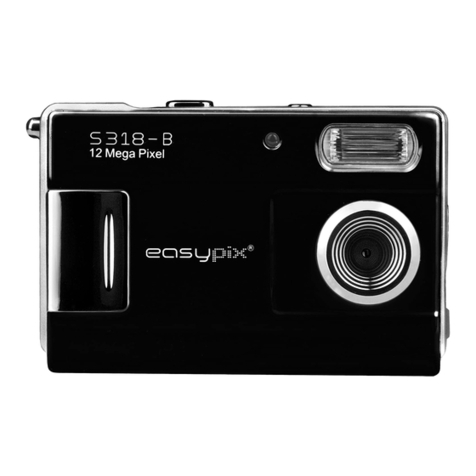
  9. Easypix LCD User manual

Easypix LCD User manual

Other manuals for LCD

2

This manual suits for next models

1

Other Easypix Digital Camera manuals

Easypix V130 User manual

Easypix

Easypix V130 User manual

Easypix V 527 User manual

Easypix

Easypix V 527 User manual

Easypix VX 1400 HD User manual

Easypix

Easypix VX 1400 HD User manual

Easypix camera / video User manual

Easypix

Easypix camera / video User manual

Easypix 5300 User manual

Easypix

Easypix 5300 User manual

Easypix Ultra Slim User manual

Easypix

Easypix Ultra Slim User manual

Easypix DVC5127 User manual

Easypix

Easypix DVC5127 User manual

Easypix Streetvision SV4 User manual

Easypix

Easypix Streetvision SV4 User manual

Easypix AX581 User manual

Easypix

Easypix AX581 User manual

Easypix DVC 527 User manual

Easypix

Easypix DVC 527 User manual

Easypix v515 duo User manual

Easypix

Easypix v515 duo User manual

Easypix aquapix W1627 Ocean User manual

Easypix

Easypix aquapix W1627 Ocean User manual

Easypix DV 5211 HD User manual

Easypix

Easypix DV 5211 HD User manual

Easypix W508 User manual

Easypix

Easypix W508 User manual

Easypix AQUAPIX W2024 Splash User manual

Easypix

Easypix AQUAPIX W2024 Splash User manual

Easypix GoXtreme User manual

Easypix

Easypix GoXtreme User manual

Easypix V130 User manual

Easypix

Easypix V130 User manual

Easypix Digital camera User manual

Easypix

Easypix Digital camera User manual

Easypix Megxon S320 User manual

Easypix

Easypix Megxon S320 User manual

Easypix V500 Diamond User manual

Easypix

Easypix V500 Diamond User manual

Easypix KIDDYPIX BLIZZ User manual

Easypix

Easypix KIDDYPIX BLIZZ User manual

Easypix Octonauts User manual

Easypix

Easypix Octonauts User manual

Easypix goXtreem REEF User manual

Easypix

Easypix goXtreem REEF User manual

Easypix GoXtreme BLACK HAWK+ 4K User manual

Easypix

Easypix GoXtreme BLACK HAWK+ 4K User manual

Popular Digital Camera manuals by other brands

Canon WP-DC35 user guide

Canon

Canon WP-DC35 user guide

Xiaomi 70mai Dash Cam Lite user manual

Xiaomi

Xiaomi 70mai Dash Cam Lite user manual

Samsung PL70 Quick start manual

Samsung

Samsung PL70 Quick start manual

GE E1680W user manual

GE

GE E1680W user manual

Canon EOS 1200D instruction manual

Canon

Canon EOS 1200D instruction manual

Tevion MD 86497 user guide

Tevion

Tevion MD 86497 user guide

Exakta VX Features

Exakta

Exakta VX Features

Kodak Digital Science DC120 user guide

Kodak

Kodak Digital Science DC120 user guide

Nikon FM3A Specifications

Nikon

Nikon FM3A Specifications

Vectra Fitness H1 Quick reference guide

Vectra Fitness

Vectra Fitness H1 Quick reference guide

Nikon COOLPIX 775 quick start guide

Nikon

Nikon COOLPIX 775 quick start guide

Olympus IR 500 - 4MP Digital Solutions Camera Manuel de Référence

Olympus

Olympus IR 500 - 4MP Digital Solutions Camera Manuel de Référence

Samsung EC-L100ZBBA brochure

Samsung

Samsung EC-L100ZBBA brochure

FujiFilm FINEPIX BL01124-201 owner's manual

FujiFilm

FujiFilm FINEPIX BL01124-201 owner's manual

Panasonic DMC-L10KPP Service manual

Panasonic

Panasonic DMC-L10KPP Service manual

Hyundai Electric HYU-CC-CHBF12001 Quick installation guide

Hyundai Electric

Hyundai Electric HYU-CC-CHBF12001 Quick installation guide

Sony DSC-WX80 specification

Sony

Sony DSC-WX80 specification

Nikon Nuvis S - Point & Shoot instruction manual

Nikon

Nikon Nuvis S - Point & Shoot instruction manual

manuals.online logo
manuals.online logoBrands
  • About & Mission
  • Contact us
  • Privacy Policy
  • Terms and Conditions

Copyright 2025 Manuals.Online. All Rights Reserved.

1
User Manual
1.0 Table of Contents
1. Total pages....................................
2. Cautions.......................................
3. Overall Introduction........................
3.1 Accessories..............................
3.2 External View............................
3.3 Display Information...................
4. Getting Ready................................
4.1 Turn on/off Camera....................
4.2 Inserting the battery...................
4.3 Insert/Remove a memory card....
4.4 Attaching Wrist Strap.................
5. Buttons & Function.........................
5.1 Shutter Button...........................
5.2 Tele/Wide Button.......................
5.3 Up/Voice Memo Button...............
5.4 Mode Button..............................
5.5 Left/Self-timer Button................
5.6 Right/Flash Button.....................
5.7 Down/Delete Button...................
5.8 MENU/OK Button......................
5.9 Playback Button........................
5.10 Macro Button...........................
............
6. DSC Mode.....................................
6.1 Shooting...................................
6.2 Function Introduction.................
6.2.1 Flash....................................
6.2.2 Self-timer.............................
6.2.3 Macro..................................
6.2.4 EV.......................................
6.2.5 Menu Mode..........................
6.2.5.1 Mode Set.........................
6.2.5.2 Size................................
6.2.5.3 Quality.............................
6.2.5.4 White Balance..................
6.2.5.5 Metering..........................
6.2.5.6 Shooting..........................
6.2.5.7 Sharpness.......................
6.2.5.8 Effect..............................
6.2.5.9 OSD Information...............
6.2.5.10 Face Detection...............
7. DV Mode.......................................
7.1 Movie Recording.......................
7.2 Function Introduction.................
7.2.1 Movie Mode..........................
7.2.2 Self-timer.............................
5.11 IR Switch & Night Vision
01
02
02
02
03
03
04
04
04
04
04
04
04
04
04
05
05
05
05
05
06
06
06
06
06
06
06
06
06
06
06
06
07
07
07
07
07
07
07
08
08
08
08
08
08
08
7.2.3 Macro Mode.........................
7.2.4 EV.......................................
7.2.5 Menu Mode..........................
7.2.5.1 Video Size.......................
7.2.5.2 Metering..........................
7.2.5.3 Effect..............................
7.2.5.4 OSD Information..............
8. Voice Recording Mode....................
8.1 Voice Recording........................
9. Playback Mode..............................
9.1 Playback of Still Image...............
9.2 Playback of Movie Clip...............
9.3 Playback of Voice Clip................
9.4 Thumbnail Display.....................
9.5 Enlargement.............................
9.6 Photo Exif.................................
9.7 Menu Mode...............................
9.7.1 Protect.................................
9.7.2 Slide....................................
9.7.3 Delete..................................
9.7.4 DPOF...................................
9.7.5 Rotate..................................
10. SETUP Mode................................
10.1 General Introduction.................
10.2 Start Image..............................
10.3 System Sound.........................
10.4 Q. View...................................
10.5 Power Save.............................
10.6 Imprint....................................
10.7 Date & Time.............................
10.8 Language................................
10.9 File.......................................
10.10 Frequency.............................
10.11 Reset All................................
10.12 Format..................................
11. PictBridge Mode...........................
11.1 Image.....................................
11.2 Auto Set..................................
11.3 Custom Set.............................
11.4 Print.......................................
11.5 DPOF Print..............................
11.6 Reset.....................................
12. USB Connection...........................
..............
13. Specification................................
12.1 Computer / Notebook Connection...
12.2 Webcam Mode...........
08
08
08
08
08
08
08
08
08
09
09
09
09
09
09
09
10
10
10
10
10
11
11
11
11
11
12
12
12
12
12
13
13
13
13
14
14
14
14
14
15
15
15
15
15
16

2
2.0 Cautions
Do not try to disassemble the camera by yourself, which may damage the camera or
cause electric shock.
Do not fire the flash in a close distance (less than 1 meter); it may hurt your eyes.
Keep the camera away from the reach of children or animals to prevent them from
swallowing the battery or small accessories.
Stop using the camera if any kind of liquid or foreign object enters the camera.
If it happens, power off the camera and contact your dealer for help.
Do not operate this camera with wet hands; it may cause electric shock.
The camera may be damaged in an environment of high temperature.
To avoid electricity leakage, please remove the battery if the camera is expected
not to be in use for a long period.
It is normal that the temperature of the camera body rises if the camera works for a
long time.
Small Tip to Save You Big Headache
A digital camera is in a way very similar to a computer. If the digital
camera hangs itself during operation, please follow the procedures
below and most likely the camera can be re-activated.
1. Remove the battery.
2. Reload the battery.
3. Switch on the camera.
3.0 Overall Introduction
3.1 Accessories
User Manual USB Cable Wrist Strap Camera Pouch
Li-ion Battery
3
3.0 Overall Introduction
Top
Shutter Button
Front
Strap
Eyelet
Flash
LED
Side
Macro
Switch
USB
Connector
Bottom
Tripod Socket
Battery/Memory
Card Cover
LCD
Montior
Back
3.3 Display Information
Focus Range ( ) Macro
Voice Memo ( )
Memory Card
( ) No Card
( ) Memory Card inserted
( )
WARNING: Low Light
Metering
( ) Multi ( ) Spot
EFFECT
NORMAL
( ) B&W
( ) SEPIA
( ) NEGATIVE
EV
( ) Exposure+-2EV(0.5 EV/Step)
White Balance
Auto
( ) Daylight
( ) Cloudy
Sharpness
( ) Soft
( ) Normal
( ) Vivid
Quality
( ) S. Fine
( ) Fine
( ) Normal
Image Size
(12M) (by interpolation)
(5M)
(3M)
(1M)
Video Size
( ) 720 x 480
( ) 640 x 480
( ) 320 x 240
(100) Available Shots or
(00:00:24) Available Video Time
Zoom Status Indicator
( )
( ) Face Detection
Working& Scene Mode
( ) Image Shooting Mode
( ) Playback Mode
( ) Movie Clip Mode
( ) Voice Recording Mode
( ) Auto Mode
( ) Smart Mode
( ) Portrait Mode
( ) Night Mode
( ) Program Mode
( ) Landscape Mode
( ) Transform Mode
( ) Backlight Mode
( ) Auction Mode
( ) Sport Mode
( ) Smile Shutter Mode
( ) Night Vision DSC
( ) Night Vision DV
Battery Status
( ) Battery Full
( ) Battery Half Drained
( ) Battery Drained
Self-timer
( ) 10 Seconds
( ) 2 Seconds
( ) Double
1
2
1
20
3
( ) Fluorescent
( ) Tungsten
Time & Date
720
640
320
6
7
8
9
10
11
12
13
14
15
16 17
18
19
20
2
3
4
5
6
7
8
9
100
5M
19
18
17
16
14
13
12
11
15
10
8:08AM
2009/03/01
3.2 External View Microphone
Lens
WIDE Button
TELE Button
MODE Button
Right / Flash Button
MENU / OK Button
Playback Button
POWER Button( long-press)
Left / Self-
timer Button
Down / Delete Button(EV+/-)
Up / Voice Memo Button
(Play/ Pause)
LED
IR Switch
(Night Vision)
Infrared
LED
5
Flash Mode
( ) Auto Flash
( ) Fill-in Flash
( ) Flash Off
4
Shooting
Single
( ) Continuous
( ) AEB
4
4.0 Getting Ready
5.0 Buttons & Function
4.1 Turn on / off Camera
Long-press the Power Button (approx. 2 seconds) to turn on the camera.
Long-press the Power Button again to turn off the camera.
4.2 Inserting the battery
1. Power off the camera.
2. Push the battery cover following the arrow to open.
3. Insert the battery.
4. Close the battery cover.
The indication of the battery status.
( ): Battery power is full.
( ): Battery power is half drained.
( ): Battery power is drained. Replace with a new battery.
The battery may run out if kept inside the camera and
not in use for a long time.
o o
The battery may not work normally under 0 C or over 40 C.
Note: When battery power is drained, you can connect to PC or
Notebook by USB cable for charging. When charging is
completed, the red LED light will be off.
4.3 Insert / Remove a memory card
1. Power off the camera.
2. Open the battery cover.
3. Insert the memory card into the card slot and press
it down until a click sound is heard.
4. Please press the memory card again to get it out once a click
sound happens.
Note: There is no built-in memory available.
4.4 Attaching Wrist Strap
Make sure strap is properly fixed before you take it.
5.1 Shutter Button
Fully press the shutter button to capture an image.
5.2 Tele / Wide Button
Press the Tele Button, the Zoom Bar Indicator
appearing on the top side of the LCD Monitor
will show the current zoom status. The camera
allows maximum 5.0x digital zoom.
5.3 Up / Voice Memo Button
Press the Up Button ( ) to move the cursor to the up tab in menu.
Under Image Shooting Mode, you can press the Voice
Memo Button ( ) to have 10 seconds of voice memo
after you release shutter.
Under Playback Mode, you can press the Voice Memo
Button ( ) to have 10 seconds of voice memo after you
release shutter.
( ) icon will be displayed on the LCD under playback mode.
21
5M
5
5.4 Mode Button
There are three modes.
Still Image
21
5M
00:00:23
640
PAUSE ?
00:00:23
Movie Clip Voice Recording
5.5 Left / Self-timer Button
Press the ( ) Button to move the cursor to the left tab in menu.
When the menu is not displayed on the LCD monitor, the Left Button
operates as Self-timer function.
With the 10 sec. Self-timer ( ): The image will be taken after an
interval of 10 seconds once the Shutter Button is released.
With the 2 sec. Self-timer ( ): The image will be taken after an
interval of 2 seconds once the Shutter Button is released.
With the Double Self-timer ( ): The image will be taken twice
once the Shutter Button is released. The first image will be taken after
10 seconds and the second image 2 seconds after that.
2S
21
5M
5.0 Buttons & Function
5.7 Down / Delete Button
Press the Down Button to move down the submenu
cursor.In Playback Mode, you can press the Delete ( )
Button to delete still images, movie clips and voice clips.
5.8 MENU / OK Button
Press the Menu Button to go to the menu selection.
Under Menu mode, press the OK Button to confirm the
setting.
5.6 Right / Flash Button
Press the Right Button ( ) to move the cursor to the right tab
Under Image Shooting Mode, the Right Button ( ) operates
as Flash function.
Press the Flash Button ( ) you can select different
flash options as follows.
Note: "Low Light Warning"
( ) represents that the environment is considered dark and
the shutter speed is slower than 1/30 sec. Please set the
Flash Mode for "Auto" or "Fill-in" to avoid the blur image
caused by the shaken camera.
in menu.
Maximum ( 5.0X )
EXIT : MENU MOVE:
MODE SET
AUTO
SMART
PORTRAIT
NIGHT
21
5M
Auto Flash
Fill-in Flash
Flash Off
This m
ircumstances.
ode will enable the flash to fire
in any c
The flash fires automatically as required
under shooting mode.
The mode will disable the flash to fire
in any circumstances.
5M
DEL ETE ?
DEL ETE
CANCE L
CONFI RM: MENU
DEL ETE ?
DEL ETE
CANCE L
CONFI RM: MENU
21
6
5.10 Macro Switch
Focus range: Normal: 1.2M~infinity Macro: 20cm
Note: Please make sure that the Focus is set correctly.
Otherwise, the image will be out of focus.
Move the Macro Switch up to activate Macro function.
The Macro icon ( ) will appear on the LCD Monitor.
5.11 IR Switch & Night Vision
The Night Vision Function lets you shoot subjects in the
dark places without using the flash such as camp scenes
at night or nocturnal plants and animals. Note that
images/video recorded using the Night Vision function
will become monochrome(black and white).
1.Under DSC/ DV mode, setting IR Switch to IR, it will
enter the Night Vision DSC( )/DV( ) mode.
2.Set the IR switch back for normal DSC/DV mode setting.
Note: While using the Night Vision function, the settings
available will be limited (ex. flash will be disabled).
Note: Hot key for switching off OSD display: under Night
Vision DSC( )/DV( ) mode, you can short-press
Power button to switch off the OSD information.
5.9 Playback Button
Select the Playback Mode by pressing the Playback
Button ( ).
Playback Mode will show still images and movie clips.
Select an image by pressing the Left and Right Buttons.
21
5M
100-0001
5.0 Buttons & Function
6.0 DSC Mode
6.1 Shooting
Taking a Picture
1. Press the POWER Button to power on the camera.
2. Make sure the camera is at still shooting mode.
3. Press the TELE Button to zoom in.
4. Press the Shutter Button to capture the image.
6.2 Function Introduction
6.2.1 Flash
Please refer to 5.6 Flash description on Page 5.
6.2.2 Self-timer
Please refer to 5.5 Self-timer on Page 5.
6.2.3 Macro
Please refer to 5.10 Macro on Page 6.
6.2.4 EV
Under Image Shooting Mode, after pressing down
Delete / Down button, you can easily adjust the
6.2.5.1 Mode Set
This feature is for you to choose the scene
of the image from the following options.
( ) Auto Mode
( ) Smart Mode
( ) Portrait Mode
( ) Night Mode
( ) Program Mode
( ) Landscape Mode
21
5M
Note:
1. Under Smart Mode, the camera automatically
detects and adjusts the scene mode according
to shooting condition when previewing.
2. Transform Mode could make the subject look
slimmer or stretched wider. Under Transform
Mode, you can press Menu Button to find the
transform settings. There are 4 levels from
-10%(slim) to +10%(stretched).
3. Under Smile Shutter Mode, when taking a
portrait photo, the camera will auto detect the
smile and release shutter at the same time.
( ) Transform Mode
( ) Backlight Mode
( ) Auction Mode
( ) Sport Mode
( ) Smile Shutter Mode
6.2.5 Menu Mode
value of the exposure by left /right button from
+2.0EV to -2.0EV (at 0.5EV increments).
Night Vision DSC Night Vision DV
7
6.2.5.3 Quality
Quality is to select the appropriate compression
ratio for the captured and recorded images.
( ) S. Fine ( ) Fine ( ) Normal
QUALITY
S.FINE
FINE
NORMAL
W.BALANCE
AUTO
DAYLIGHT
CLOUDY
FLUORESCENT
EXIT : MENU MOVE:
Operation Steps
1. MENU
2. or
3. or
4. OK
Operation Steps
1. MENU
2. or
3. or
4. OK
6.2.5.4 White Balance
In Program mode ( ), select WB of Menu Mode.
Auto Adjust the white balance automatically
Daylight For strong light environment
Fluorescent For fluorescent light environment
Tungsten For tungsten light environment
Cloudy For cloudy light environment
6.0 DSC Mode
No special effect is added to the picture.
NOR
Turn the image into black and white.
Turn the image into yellowish brown.
Turn the image into negative film
effect.
NORMAL
B & W
SEPIA
NEGATIVE
METERING
MULTI
SPOT
SHOOTING
SINGLE
CONTINUOUS
AEB
SHARPNESS
SOFT
NORMAL
VIVID
6.2.5.8 Effect
In Program Mode ( ),
select Effect of Menu Mode.
Soft
This effect can make the edge of the
captured image look smoother, which is
suitable for image editing on PC.
This effect can make the edge of the
captured mage look sharp, which is
suitable for printing out.
This effect can make the edges of your
captured image look sharper but may result
in more image noise.
Normal
Vivid
6.2.5.6 Shooting
In Program Mode ( ), select Shooting of Menu
Mode.
1. SINGLE: No continuous shooting.
2. CONTINUOUS: You can have the continuous
shooting function starting by pressing and
holding the Shutter Button and ending by
releasing the Shutter Button.
3. AEB (Auto Exposure Bracketing)
Take three pictures in a series in different
exposures, short exposure (-0.5EV), standard
exposure (0.0EV) and over exposure (+0.5EV).
Note: The continuous shooting function will not
be canceled until " SINGLE" is selected.
Note: When Continuous shooting or AEB
function is selected, flash will be disabled.
Operation Steps
1. MENU
2. or
3. or
4. MENU/OK
Operation Steps
1. MENU
2. or
3. or
4. OK
Operation Steps
1. MENU
2. or
3. or
4. OK
6.2.5.5 Metering
In Program Mode ( ), select Metering of Menu
Mode.Metering provides more superior exposure
condition and brighter pictures.
Multi Metering: Exposure will be evaluated
according to the average of the available light source
in the image area. This is suitable for general use.
Spot Metering: If the subject is against the light
source or has little contrast, you can use this
function to make the subject brighter.
6.2.5.7 Sharpness
In Program Mode ( ), select Sharpness of
Menu Mode.
EXIT : MENU MOVE:
EXIT : MENU MOVE:
EXIT : MENU MOVE:
EXIT : MENU MOVE:
SIZE
12M 4032 x 3024
5M 2592 x 1944
3M 2048 x 1536
1M 1280 x 960
EXIT : MENU MOVE:
6.2.5.2 Size
Image Size is to select
the image resolution.
(12M) 4032 x 3024
(by interpolation)
(5M) 2592 x 1944
(3M) 2048 x 1536
(1M) 1280 x 960
8
Stand by Start Recording
1. Press the Mode Button and switch Voice Recording Mode( ).
2. Press the Shutter Button to start the recording and press the Shutter Button to stop the recording.
3. During recording, press Up/Voice Memo Button to put the recording on hold and press it again to continue recording.
8.1 Voice Recording
7.1 Movie Recording
1. Press the Power Buttonto turn on the camera.
2. Press the Mode Button to change to Movie Clip
Mode( ).
3. Press the Shutter Buttonto start or stop movie recording.
4. Press the UP Button to pause / resume during recording.
Recording On Hold Stop
PAUSE ?
STANDBY
00:00:23
PAUSE ?
00:00:23
RECORD
00:00:23
320
00:00:23
STANDBY
EFFECT
NORMAL
B & W
SEPIA
NEGATIVE
OSD INFORMATION
OFF
BASIC
DETAIL
FACE DETECTION
OFF
ON
6.2.5.10 Face Detection
Face Detection allows you to focus on human
faces.It is effective with the camera held
horizontally or vertically.
Face Detection can only be used with still image.
Face Detection is effective within a distance 2.5m.
Subjects not suitable for Face Detection:
1. The face is obscured by glasses, a hat or hair.
2. A person turned sideways, or who has his head
lifted.
3. The subject is too far to be recognized as a face.
Note: The Face Detection ( ) icon will be
displayed on the top of the LCD Monitor.
EXIT : MENU MOVE:
Operation Steps
1. MENU
2. or
3. or
4. OK
Operation Steps
1. MENU
2. or
3. or
4. OK
Operation Steps
1. MENU
2. or
3. or
4. OK
6.2.5.9 OSD Information
There are 3 options for the OSD information.
1. OFF: Only working & scene mode icon is required.
2. BASIC: Only basic information is required.
3. DETAIL: Detailed information is required.
6.0 DSC Mode
EXIT : MENU MOVE:
7.0 DV Mode
7.2 Function Introduction
7.2.1 Movie Mode
Press the Mode Button and switch to Movie Mode.
7.2.2 Self-timer
Please refer to 5.5 Self-timer on Page 5.
7.2.3 Macro Mode
Please refer to 5.10 Macro Mode on Page 6.
7.2.4 EV
Please refer to 6.2.4.EV on Page 6.
7.2.5 Menu Mode
7.2.5.1 Video Size
The video size options are provided as follows:
720 (720 x 480) 640 (640 x 480) 320 (320 x 240)
7.2.5.2 Metering
Please refer to 6.2.5.5 Metering on Page 7.
7.2.5.3 Effect
Please refer to 6.2.5.8 Effect on Page 7.
7.2.5.4 OSD Info
Please refer to 6.2.5.9 OSD Info on Page 8.
8.0 Voice Recording Mode
EXIT : MENU MOVE:
00:00:23
9
9.6 Photo Exif
1. Long-press the Playback Button to have Photo Exif .
2. The image information will be displayed on the below
of LCD Monitor.
3. Long-press the Playback Button to cancel the display.
9.0 Playback Mode
9.1 Playback of Still Image
Please press the Playback Button to view the images taken.
Press the Right or Left Button to go to the next or the previous image.
Press the Delete ( ) Button to delete the image.
Note: The icon ( ) shows up when viewing a still image with
a voice memo (Please refer to Page 4).
9.3 Playback of Voice Clip
Press the Playback Button to browse the Audio Clips.
Press the Delete ( ) Button to delete the Voice clip.
Note: The icon ( ) on the top left of the LCD Monitor represents
an audio clip, not a still image or movie clip.
Note: Please connect with PC by USB cable to play the audio clip
on PC.
9.2 Playback of Movie Clip
Press the Playback Button to play the Movie Clips.
Press Up/Voice Memo to play or pause the movie clip when
browsing a video file.
During Video Playback, press the Left Button for Rewind, press the
Right Button for Fast forward.
Press the Delete ( ) Button to delete the movie clip.
Note: The icon ( ) on the top left of the LCD Monitor represents
a Movie clip, not a still image.
9.4 Thumbnail Display
Thumbnail Display is a convenient tool for you to find the image you
took from the list. In Playback Mode, you can press WIDE Button to
have Thumbnail Display.
(Press OK or TELE Button to go back to normal Playback display.)
9.5 Enlargement
1. Select a file and press the Tele Button to enlarge the selected
image or file.
2. Press and hold the Tele Button to enlarge the image to up to 8.0X.
(Depending on the original size of image.)
3. Use the UP/DOWN/LEFT/RIGHT Button to explore the image and
check the focus.
4. Press and hold the Wide Button to return the image to its normal size.
100-0021
F3.2 1/25S
2592X1944
2010/01/01
200
Enlargement
100-0021
PLAY?
100-0021
123
456
100-0021
X 1.6
00:00:23
10
9.7.2 Slide
1. This option enables you to view your photos with slide show.
2. Press the Menu Button and select “SLIDE”.
3. There are 3 interval options available.
(a) Show: Play, Repeat
(b) Interval: 2, 3, 5, 10 sec.
(c) Effect: Effect 1, 2, 3, 4, MIX
4. Select the OK Button to confirm the request.
9.7.3 Delete
Delete single image
1. Select the image you want to delete and press the Menu
Button and select “DELETE" and "ONE”.
2. Press the OK Button to confirm the request or select cancel
to give up the request.
Delete all image(s)
Select "DELETE" and "ALL" and press the OK Button to confirm
the request or select cancel to give up the request.
9.7.4 DPOF
This function can only be used when a memory card is inserted.
This option allows you to put the print quantity
(MAX.30 pcs) on your memory card.
[ONE PIC] - specifies the number of copies for a selected image.
[ALL PICS ] - specifies the number of copies for all pictures
apart from movie clips and voice recording files.
Note: You cannot see the "PRINT" function on the LCD Monitor if
a memory card is not inserted.
MOVE : CHANGE:
SLIDE
SHOW PLAY
INTERVAL 2 SEC
EFFECT OFF
DELETE
ONE
ALL
DPOF
STANDARD 00 PIC
INDEX NO
PRINT SIZE DEFAULT
CANCEL ...
MOVE : CHANGE:
MOVE : CHANGE:
9.0 Playback Mode
Set all images with Protection
1. Press the Menu Button and select "Protect" and
"All".
2. Press the OK Button to confirm the request.
3. ( ) will show on the LCD Monitor when the
protection is set.
4. Press the OK Button again to cancel the protection.
13
456
100-0021
W LOCK T
EXIT:MENU
100-0021 100-0021
9.7 Menu Mode
9.7.1 Protect
Set selected image(s)with Protection
1. In Playback Mode, press the Menu Button
and select "Protect" and”Select".
2. Press the OK Button to confirm the request.
3. Select one image and press the TELE/
WIDE Button to lock the image.
4. ( ) will show on the LCD monitor when
the protection is set.
TELE/ WIDE5. Press the Button again to
cancel the protection.
PROTECT
SELECT
ALL
MOVE: SET : MENU
13
456
100-0021
W UNLOCK T
EXIT:MENU
W LOCK T
EXIT:MENU
W UNLOCK T
EXIT:MENU