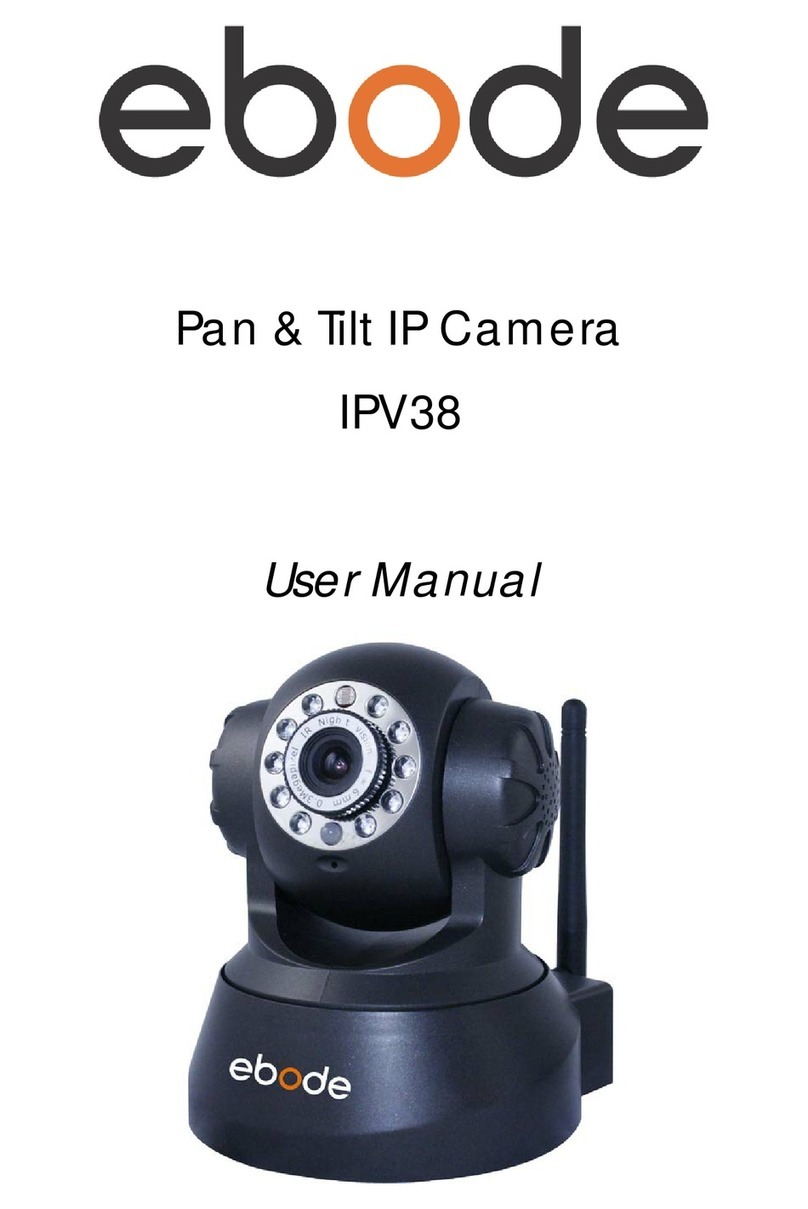
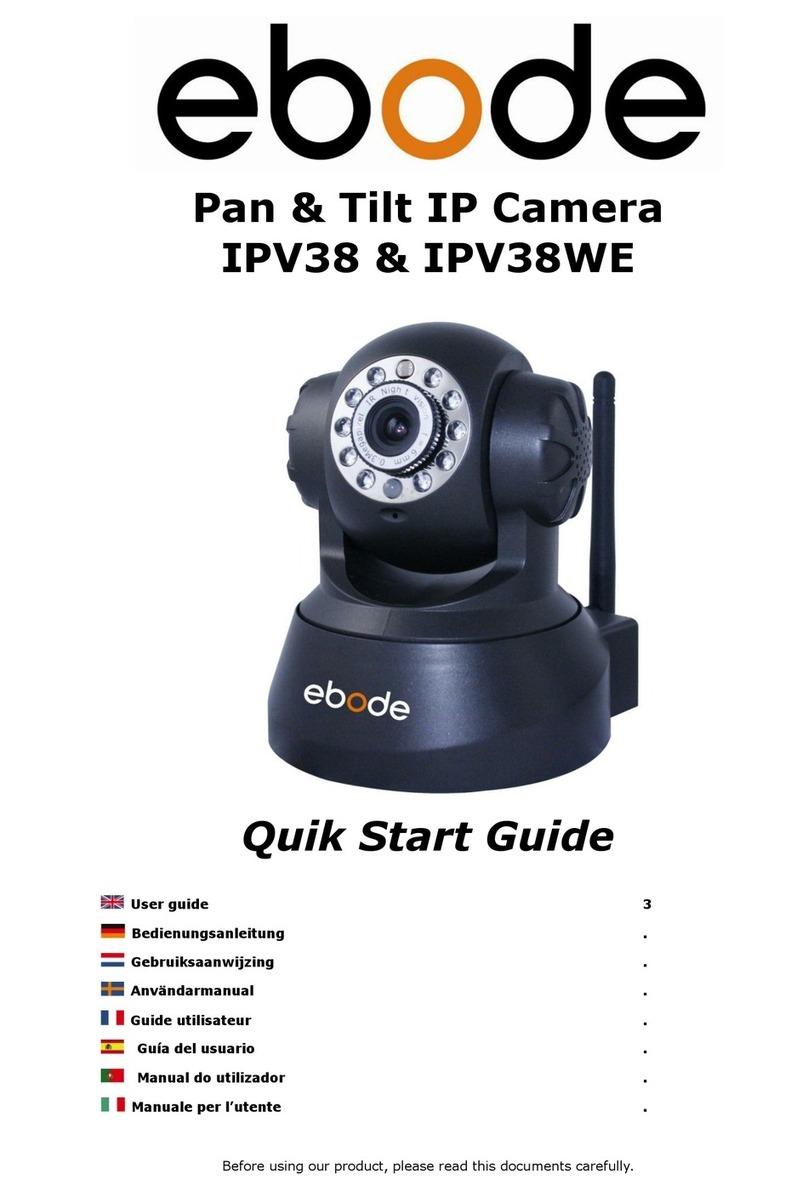
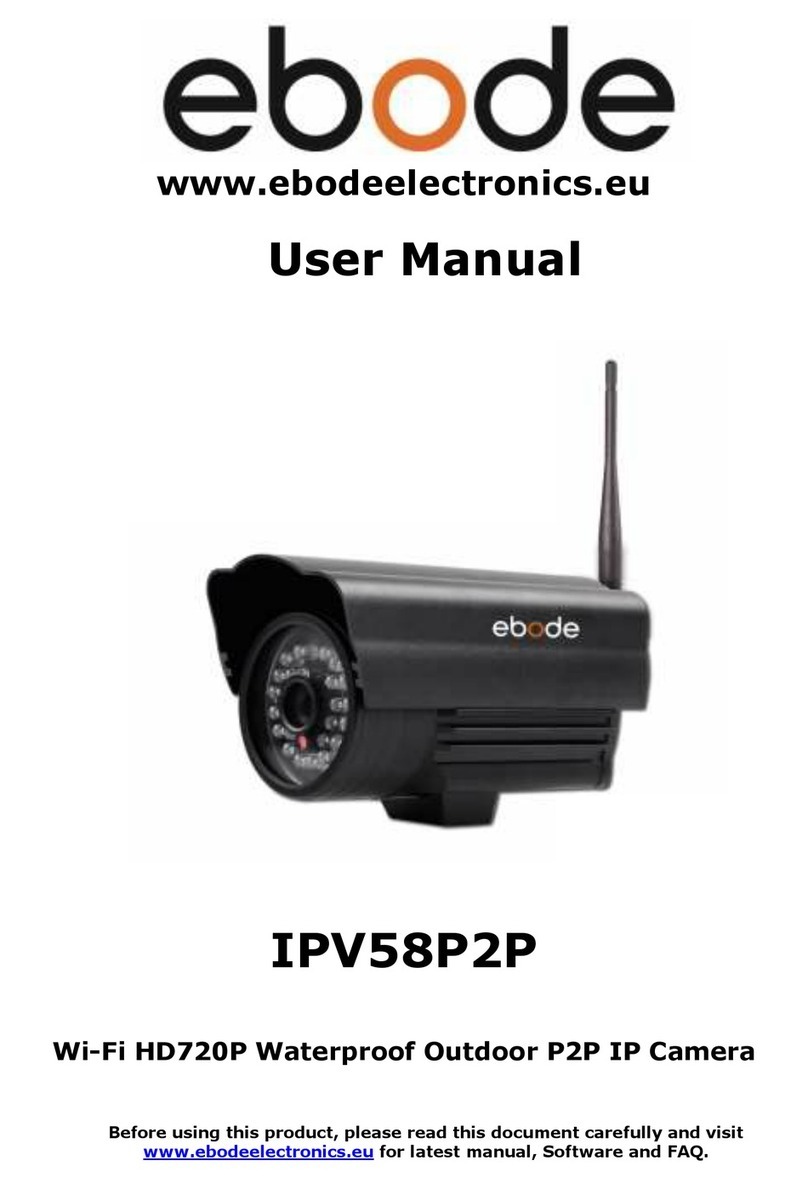
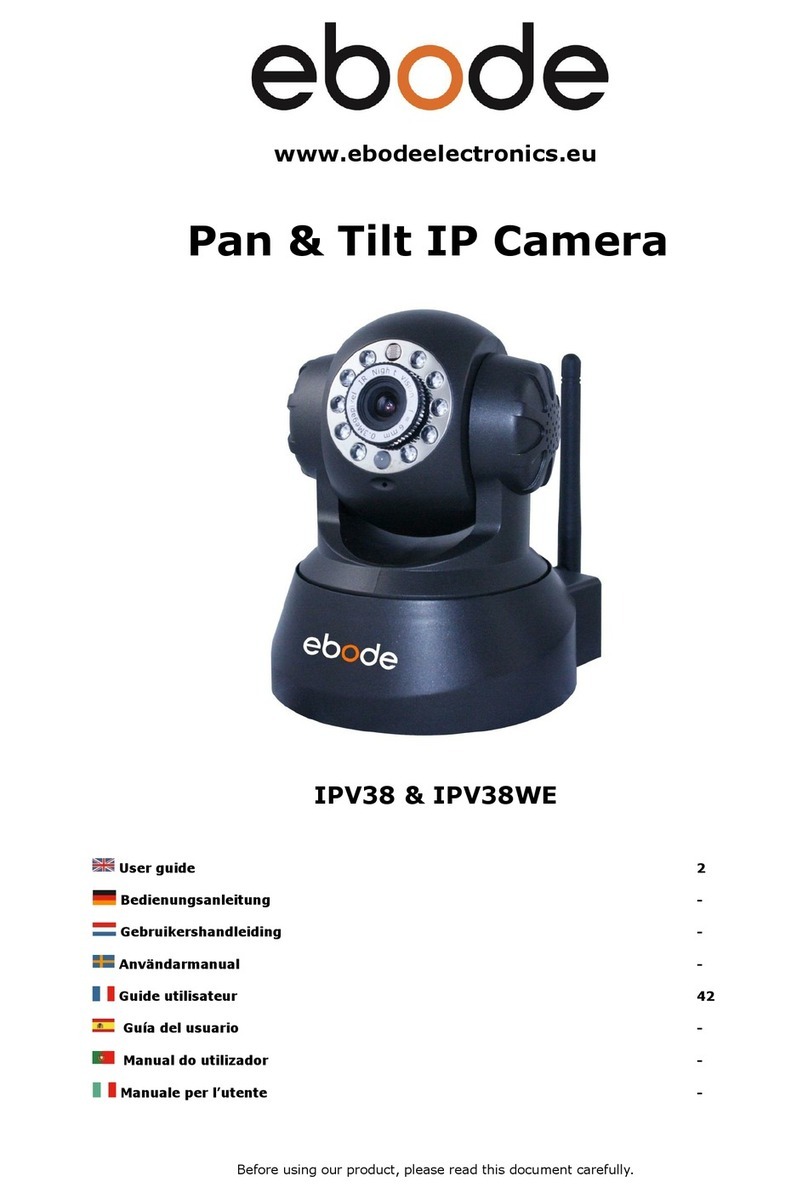
Ebode IP Vision 38 User manual

22-3-2012 1 IP Vision 38
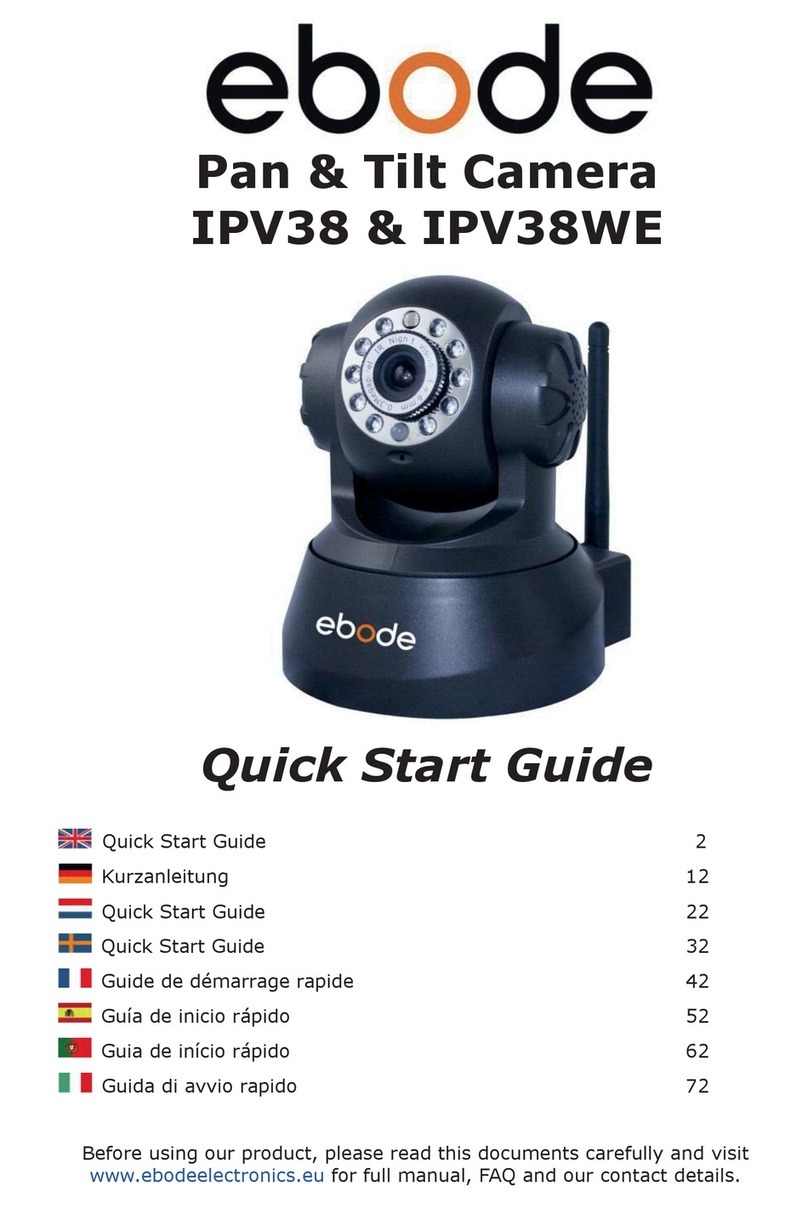
IP Vision 38
Pan & Tilt IP Camera
Quick Start Guide (Using IE Browser)
User guide 2
Bedienungsanleitung 13
Gebruiksaanwijzing 24
Användermanual 35
Guideutilisateur 46
Guíadelusario 57
Manualdoutilizador 68
Manualeperl’utente 79

22-3-2012 2 IP Vision 38
User Guide
Conformity of Use
For carefree and safe use of this product, please read this manual and safety information
carefully and follow the instructions. The unit is registered as a device that does not cause
or suffer from radio-frequency interference. It is CE approved and it conforms with the Low
Voltage Directory. The safety and installation instructions must be observed. Technical
manipulation of the product or any changes to the product are forbidden, due to security
and approval issues. Please take care to set up the device correctly - consult your user
guide. Young children should use the device only under adult supervision. No guarantee or
liability will be accepted for any damage caused due to incorrect use of the equipment
supplied, other than indicated in this owner’s manual.
SAFETY WARNINGS
•To prevent short circuits, this product (except if specified for outdoor usage) should only
be used inside and only in dry spaces. Do not expose the components to rain or
humidity.
•Only connect the adapter to the mains after checking whether the mains voltage is the
same as the values on the rating labels. Never connect an adapter or power cord
when it is damaged. In that case, contact your supplier. If there is any danger of a
thunderstorm, it is a good precaution to unplug the power supply from the mains
network in order to protect it from lightning. The same applies if the system is to be out
of action for any length of time.
•Avoid strong mechanical tear and wear, extreme ambient temperatures, strong
vibrations and atmospheric humidity.
•Do not disassemble any part of the product: the device contains live parts and no
user-serviceable parts are inside. The product should only be repaired or serviced by
qualified and authorized service personnel. Defected pieces must be replaced by
original (spare) parts.
•Batteries: keep batteries out of the reach of children. Dispose of batteries as chemical
waste. Never use old and new batteries or different types of batteries together.
Remove the batteries when you are not using the system for a longer period of time.
When inserting batteries be sure the polarity is respected. Make sure that the batteries
are not short circuited and are not disposed in fire (danger of explosion).
In case of improper usage or if you have opened, altered and repaired the product
yourself, all guarantees expire. The supplier does not accept responsibility in the case of
improper usage of the product or when the product is used for purposes other than
specified. The supplier does not accept responsibility for additional damage other than
covered by the legal product responsibility.
1. Introduction
Congratulations on purchasing this ebode product. With this product you can access your
camera's live video feed from your web browser or through software on your computer, your
tablet, or your smart phone.
To access your camera via Ethernet, to your desktop computer - Follow steps 1 – 3.
To access your camera via Wi-Fi, to your notebook via Wi-Fi and cell-phone via Wi-Fi - Follow
steps 1 – 4.
To access your camera via W-Fi, to cell-phone via 3G/4G and computer over the Internet -
Follow steps 1- 4 and then see the full owner's manual on the CD or for dynamic DNS and port
forwarding, or use software (visit www.ebodeelectronics.eu).

22-3-2012 3 IP Vision 38
2. Set Contents
IPCamera Wi-FiAntenna
Quick Setup Guide Power Supply
CD NetworkCable
Mounting bracket
3. Setting up the device
Step 1: Hardware Installation
You need to set up your camera using a network cable (wired) first, before you can use it
wirelessly.
Install the Wi-Fi antenna. Plug the power adaptor into the camera and into an AC outlet. Plug
one end of the network cable into the camera, and the other end into your router/switch.
Please note that your power supply will fit both the AC outlet and the Audio Out, please
make sure you put it in the AC outlet, or your IP camera will not be powered.

22-3-2012 4 IP Vision 38
Step 2: Software Installation
Install the following software:
IP Camera Tool: Open the CD, click “IPCamSetup.exe”—“Next”—“Next”—“Close”.
See the 2 pictures on the next page on how to achieve this.
After this is done, the icon “IP Camera Tool” will be displayed on your desktop.

22-3-2012 5 IP Vision 38

22-3-2012 6 IP Vision 38
If you are using MS Windows Internet Explorer, you will ill also need the ActiveX software app.
Please take the following steps to install this. The 2 images below illustrate where to find the
right files.
ActiveX: Click “Appinstall.exe”—“Next”—“Install”—“Finish”.

22-3-2012 7 IP Vision 38
WARNING: You might get a
Windows Security Alert Popup. It
will ask you to choose a setting
for the firewall. Please make sure
you choose the ‘UNBLOCK’
option. Your IP camera will not
work without unblocking the
firewall settings. If the Firewall is
not Unblocked there will be no
Live Video from the camera!
Step 3: Real-time Video Demonstration
Login: Double click “IP Camera Tool” icon on your desktop, look for the IP address, choose
the one for your camera, double click to go to IE login interface. It may take a few minutes
before the IP address appears in the list.
Default username: admin
Password: no password

22-3-2012 8 IP Vision 38
Choose the language.
Choose the Sign In mode:
For IE (Internet Explorer) browser: choose ActiveX mode.
For Safari, Firefox, Google chrome browser: Chose Server Push Mode or VLC mode.
For Mobile phone: Chose sign in mobile phone mode.
Important:
If there is no picture shown in your Internet Explorer Web Browser
If using IE (Internet Explorer) browser to connect to the camera for the first time, and there is
no image displayed, there will be an ActiveX prompt in the top of the screen (see next
pictures), please click the prompt and choose Run Add-on, refresh the IE browser, and login
to the camera again, then you should be able to see live video.
Reminder:
Did you install the Appinstall.exe file from the CD from step 2?
If not you might have some certificate error in your web browser when trying to log in to the
camera. Install the Appinstall.exe and please try to login again. If the Appinstal.exe didn`t
work please take the next step.

22-3-2012 9 IP Vision 38

22-3-2012 10 IP Vision 38
If there is an image please skip the following step
If there is still no live video after you run ActiveX, please try to enable the ActiveX options of IE
security settings, please take these steps:
Close your computer’s Firewall.
Change the ActiveX settings, open “Internet Explorer” browser and select “Tools” > “Internet
Options” > “Security”> “Custom Level” > “ActiveX control and Plug-ins”, all the ActiveX
options should be set to be “Enable”: Especially:
Enable: Download unsigned ActiveX controls
Enable: Initialize and script ActiveX controls not marked as safe
Enable: Run ActiveX controls and plug-ins
Table of contents
Languages:
Other Ebode IP Camera manuals