FrontRow DRS5000 User manual

SETUP GUIDE
DRS5000 SERVER

CONTENTS
What is the DRS5000? ..........................................................................1
1. Connecting to the DRS5000 server .............................................................1
2. Logging onto the DRS5000 server ..............................................................1
3. Connect to the Webmin managment interface ................................................2 - 3
4. Setting the system time.......................................................................4
5. DRS5000 TimeSync........................................................................5 - 6
6. DRS Recovery ...........................................................................7 - 8
7. Changing the network settings for installation ................................................9 - 10
Appendix A
FrontRow Default IP Addresses...............................................................11
Appendix B
FrontRow Default Login Information...........................................................11
Appendix C
Reboot & Shutdown ........................................................................12
Appendix D
Advanced IP Setup .........................................................................12

DRS5000 Configuration
What is the DRS5000?
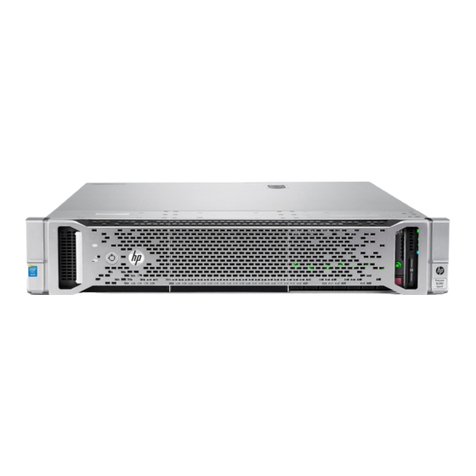
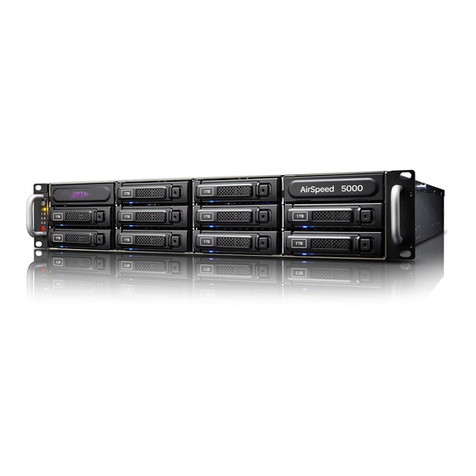
The DRS5000 is a versatile 1RU (rack unit) Linux server that operates as the central administrator for several of the FrontRow software
packages. This server is a critical component for the Conductor, Maestro and Encore products.
1. Connecting to the DRS5000 server
1. Configure your computer for a static IP address of 192.168.1.100 and a subnet mask of 255.255.255.0
The DRS5000 server is shipped with a default IP address of 192.168.1.99.
2. Connect an Ethernet cable from the computer to the labeled network port of the DRS5000.
2. Logging onto the DRS5000 server
1. Power up the DRS5000 by pressing and holding the power button for about a second.
2. Wait approximately 1 minute for the server to completely boot up.
Important!
Electronic devices with power supplies can be affected by power surges and fluctuating power sources. To ensure continuous
operation of the DRS5000, provide a UPS backup with surge protection for the server. If using Conductor, this will also help
ensure that public announcements can be made during a power outage.
1

3. Connect to the Webmin management interface
1. Open a web browser and type in the following URL:
http://192.168.1.99
The DRS5000 home page is displayed. From here you can go to any of the DRS5000 services. Take a moment to
review the services, then click on Webmin Portal (you can also access it directly by entering 192.168.1.99:10000 in
the browser).
2
NOTE: Because the Webmin portal is secured with a self-signed certificate, your browser may display a
warning that it cannot confirm the identity of the site. You may ignore these warnings. To prevent this
browser warning, you may either turn off Webmin security using the administrator log-in (not recommended)
or establish a local trusted CA (certificate authority) for the server.

2. Log into the Webmin interface by entering:
Username: dealer
Password: The password is the serial number of the DRS5000 as shown on a label on the top of the unit
3. Then select Sign in
4. Once logged in you will see this screen:
TIP: If you have access to the network at the installation site, you can skip to section 7 and set up the network-
ing first, then disconnect your computer, plug the DRS5000 into the network, join the network from your com-
puter (wirelessly or wired) and return to set up system time, TimeSync, and DRS Recovery.
3

4
4. Setting the system time
1. From the menu on the left side select Hardware ---- > System Time
2. There will be three settings involved with this step:
•TIME ZONE – Set the proper time zone for the installation. Select the tab labeled Change timezone from the tabs
near the top of the System Time screen. After selecting the appropriate time zone click Save.
•TIME SERVER – On the Time server sync tab, select the proper network time sync source (get information from the
school for this – time.nist.gov is frequently used) and enter this information in the Timeserver hostname box. This
will be the network connection where the DRS5000 gets the accurate time. Set Synchronize on schedule? to NO
(the Linux system will automatically check for time). Select Sync and Apply to save the settings before leaving
this page.
NOTE: You will receive an error message if the time server cannot be reached. The settings will not be saved.
Be sure to set this when you have access to the Timeserver host.
•SET TIME – Manually set the time, even if you will be connecting to a time server. This is to ensure that in the early
stages of deployment you will have the correct time. (You can skip this step if the Network Time Sync is working.)
Setting the time (follow the RED number sequence).
1 2
4
5
6
3

5. DRS5000 TimeSync
The DRS5000 server connects to the school’s Network Time Server and as a result keeps very accurate time, staying in sync with
the school’s clocks. The DRS5000 can also update other FrontRow devices across the network so that they have accurate
time. This version of the DRS5000 is configured to allow time updates to the CB5000, CB6000, and CB2000 (although no time
is displayed on the CB2000, it does have an internal clock to allow for timed actions). The CB5000 and CB6000 can show the
current time on the LCD panel display, and many schools choose to use this as their classroom clock.
By default, TimeSync is automatically configured to send the current time to all applicable FrontRow devices on the same
subnet. For district-wide Maestro installations there may be more than one subnet required. In this case each device will
need to be added individually.
To add devices outside the default subnet, select Target Devices from the DRS TimeSync module.
1. Check the box for the current host list (ALL).
You can then Add a device before or after (click Add Before or Add After buttons) the current devices in the list
(this sets the order of time sync, a sequential process).
NOTE: It is recommended that additional devices be added AFTER the ALL row. ALL represents all devices on the
current default subnet (the same subnet as the server IP address). See Help for additional explanation.
2. Enter the IP address of the target device (i.e. the CB6000). If Security is enabled on the device (Security Level set to
Admin instead of None), enter admin for the Username field and the password in the Password field. Note that if
the password is left at the default (calypso), TimeSync will automatically try this password. Click Save when done.
5

3. To confirm that TimeSync is working for all your devices, click the Run Now button on the DRS TimeSync page. The log will
show right on the screen when completed. The General Options are rarely used and can remain with the default settings.
You can also import a list of devices from a text file (example shown below). Simply select Import Before Selection or
Import After to add the devices above or below the selected (checked) row.
6

6. DRS Recovery
To ensure continuous school operations in the event of a hardware failure or to recover from accidental changes made to
Conductor or Maestro, it is critical that DRS Recovery is set up when you install the system.
The DRS5000 automatically creates backups of important settings and databases. This allows for system recovery in the unlikely
event of a server failure. The data is automatically backed up to the internal hard disk drive, but it is strongly recommended that you
also use the included FrontRow Flashback USB drive (or any 8GB or larger USB drive), which will be the primary backup location.
NOTE: Advanced integrators can configure remote network locations for backup by using the Linux shell. This allows the backup
to be continuously stored offsite for additional security. This method is beyond the scope of this manual.
IMPORTANT: The FrontRow Flashback drive is already formatted as FAT32. If you are using your own USB drive you can format
it as follows:
1. Insert the USB flash drive into your computer
2. Navigate to Start —> Computer
3. Right click on your USB drive and select Format
4. You will see the screen below, choose FAT32 and select Start
This will format and erase the entire contents of your USB
flash drive.
Setting up backup to a USB drive:
1. Insert the USB drive into any USB port on the
the DRS5000.
2. Select DRS Recovery and click Mount /media/usb0.
(The USB drive may already have been auto-mounted.) If you
are still unable to mount the USB drive, reformatting the USB
drive as FAT32 may solve the problem.
3. Select Backup Now. The DRS5000 will show the status as the backup runs and then Backup ended when it
is complete.
4. Backup will now continue automatically per the default schedule (once per day, keeping the last 30 daily backups, the
last 12 monthly backups, and the last 6 half-yearly backups).
7

Restoring a backup to the DRS5000:
1. Insert the USB drive containing the backup archive into the DRS5000.
2. Select the DRS Recovery module and select Mount /media/usb0.
3. Select the Restore from Backup button.
4. In the dialog that opens, you can restore from the USB drive (Local Primary storage archive), from the local hard disk
(Local Secondary storage archive), or from an archive uploaded to the server (useful when restoring a
DRS5000 remotely).
5. Navigate to the backup file you wish to restore in the DRS_Recovery folder. Each archive will be a zip file with the
creation date as part of the file name. Select the file and click OK. Be sure the correct radio button is selected for the
location of the restore archive.
6. From the Select what to restore dropdown, choose Full system (the default), Conductor data only, or
Maestro data only, depending on your needs. Using Full system restore has stricter compatibility requirements.
7. Select the Restore button. The restore will take several minutes, during which nothing will be shown on the page.
When the restore is complete the screen will show the log and will initiate a reboot. After reboot, be sure to mount your
USB drive to continue backing up.
8
NOTE: When restoring an archive to the original DRS5000 where the backup was made, and using the Full system
setting, all your Conductor, Encore LUS, Maestro, and Webmin settings will be restored from the backup. In the case
of restoring to a new DRS5000, it is possible you may need to secure a new license key from FrontRow Customer
Service for the Encore LUS as it is tied to the DRS5000 hardware.
IMPORTANT: If you are upgrading from an Ubuntu 8 (32-bit) server, to an Ubuntu 14 (64-bit) server (white FrontRow
bezel) the process will only restore the Conductor, Maestro, and LUS data. The log will show that the system data
restore failed, which is normal since the system files on the DRS5000 are newer for the 64-bit system.
Table of contents