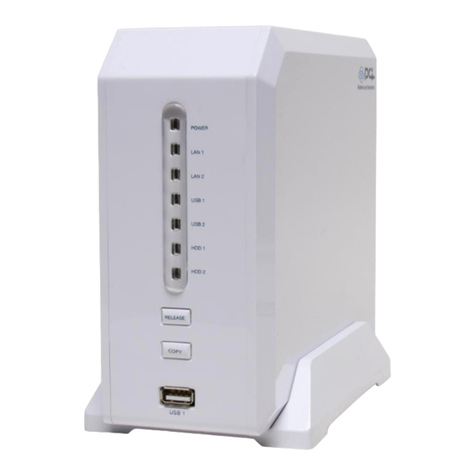
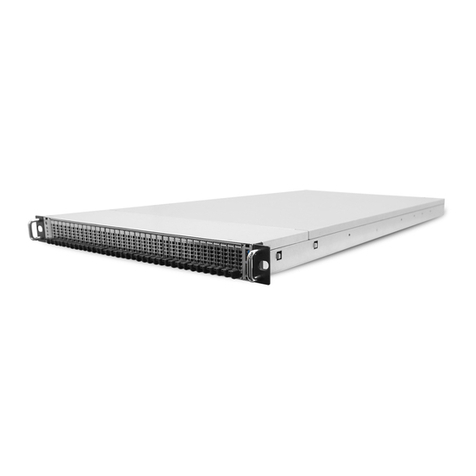
Galaxy 3508NAS User manual

Metal Gear Box NAS User Guide

Index
What is NAS?......................................................................................3
Metal Gear Box NAS Introduction .....................................................4
First time Hardware Installation.......................................................4
Booting up Metal Gear Box NAS........................................................5
Notice: Format Your HDD using Metal Gear Box NAS Disk Utility
format software. .......................................................................11
How to set up Metal Gear Box NAS .................................................12
Identifying and using Metal Gear Box NAS on your network.........14
Entering the system management page.........................................15
1. Manage the Users and Groups ...........................................16
A. To add a user.............................................................................................. 16
B. To delete a user.......................................................................................... 16
C. To place a user into a group. ..................................................................... 16
2. File Management ................................................................17
A. File Server................................................................................................... 17
B. FTP Server Setting ...................................................................................... 18
C. NFS Server Setting ...................................................................................... 18
D. Guest Access Setting.................................................................................. 19
E. Share Management ..................................................................................... 20
3. System Settings ..................................................................21
A. Network Setting.......................................................................................... 21
B. Time Setting ............................................................................................... 22
C. Turn Off Server........................................................................................... 22
D. Information................................................................................................. 23
E. Disk Usage.................................................................................................. 23
4. Maintenance .......................................................................24
A. Disk Utility.................................................................................................. 24
B. Firmware Upgrade...................................................................................... 24
C. Save Configuration..................................................................................... 25
D. Restore Configuration................................................................................ 25
E. Factory Reset .............................................................................................. 26
Account Management......................................................................26
Log Out............................................................................................26
2

What is NAS?
NAS is the abbreviation of Network Attached Storage, which represents a HDD
based storage box can be connected with a RJ-45 network cable. It could be
accessed by all the devices located on the same IP network range, some
advanced version could be also connected by a outside device (i.e. another IP
network range or WWW), and would be identified as an accessible storage disk
through “Network Neighborhood” (Microsoft Windows) /Apple Macintosh OS
or Linux Samba, with user/group privilege setting function equipped, it could
even prevent important data/files from being accessed by unauthorized
people.
Using a NAS, you don’t have to keep your original data-center PC server
operating all day long anymore, a smaller size, more stable, less
power-consumption, less heat, less cost, easier to access device would make
your life more convenient!
3

Metal Gear Box NAS Introduction
What’s the difference?
Metal Gear Box NAS, it’s not only an ease of use network storage, with it’s
integrated USB client chip, it is a dual-function HDD box, users could use it as
a NAS where network connection is available or bring it as a portable HDD
external enclosure, accessing it via its USB 2.0 client jack. This
dual-functionality design gives users a great deal of flexibility to access the
unit anytime, anywhere.
First time Hardware Installation
Content Check List:
Hard disk drive may come pre-installed or leave to user’s integration.
4

About the Metal Gear Box NAS Display
System Time
System in NAS Mode
System IP Address
System in USB Mode
System Temperature
System Shutting Down
System Booting Up
System Fan Speed
Available Disk Capacity
System Power On Duration
After system boots up, the IP address assigned to this unit will be displayed for
30 minutes. Then the current system will be displayed. The display will rotate
in the following order:
System Time -> IP Address -> System Temperature -> System Fan Speed ->
Disk Space -> Power On Duration -> Back to System Time
5

Booting up Metal Gear Box NAS
Assembly
1. Put in a hard disk drive, if the Metal Gear Box NAS version you got already
has hard disk drive installed. Please skip this step and jump to step 2.
Open the upper cover of Metal Gear Box NAS through the 2 screws located
in the back end of Metal Gear Box NAS with your hands.
2. Uncover the upper case, take out the HDD rack and fix your HDD onto the
rack with the attached screws.
6

3. Put the HDD with the HDD rack back into Metal Gear Box NAS and fix it
with attached screws, cover the upper case up.
4. Using the hand-screwed screws to get the upper case fixed on Metal Gear
Box NAS.
7

5. Metal Gear Box NAS equips with SMART User Mode Auto-Detection
function, it could automatically operate under the mode you want to use
(NAS / USB HDD external enclosure) through the cable you are plugging
into:
yIf you are plugging the attached RJ-45 cable and power adapter core
into the “LAN” and “DC IN” plugs, Metal Gear Box NAS would boot up
with NAS mode.
yIf you are plugging the attached USB cable and power adapter core
into the “USB” and “DC IN” plugs, Metal Gear Box NAS would boot up
with USB HDD external enclosure mode.
yIf you are plugging the attached RJ-45 , USB cables and power
adapter core into the “LAN” , “USB” and “DC IN” plugs, Metal Gear Box
NAS would boot up with NAS mode for higher boot-up priority.
8

6. Metal Gear Box NAS provides Printer Server function, if you want to use
Metal Gear Box NAS as your printer server in your LAN environment,
please plug the USB cable of the printer into the back end of Metal Gear
Box NAS before you boot up it. After booting up, you can use your
PC/laptop computer to search and add this printer as a Network Printer.
7. Plug the other side of the RJ-45 cable into your PC/laptop or your Ethernet
HUB. (This is very important for Metal Gear Box NAS, when booting up,
Metal Gear Box NAS would automatically detect whether the operation
mode is NAS function or USB hard disk drive external enclosure by
identifying if there’s any activity from RJ-45 network side.)
9

8. Plug the other side of the power core into the power plug.
9. Press and hold the power switch at the front panel for at least 3 seconds to
turn on the system power.
(Note: Due to its sophisticated software design, the system may take
up to 3 minutes to boot. During the booting process, the icon
“Booting” on the front panel flashes. When the system finishes
booting, the IP address assigned to this device will be shown on the
display.)
10
Table of contents
Other Galaxy Network Storage Server manuals

Popular Network Storage Server manuals by other brands
HP
HP NetStorage 6000 user guide
Seagate
Seagate U10 ST320423A installation guide
Synology
Synology RackStation RS816 Hardware installation guide
D-Link
D-Link ShareCenter Pro DNS-1200-05 user manual
Avid Technology
Avid Technology VideoRAID ST Setup and user guide
Western Digital
Western Digital My Cloud Home Duo user manual