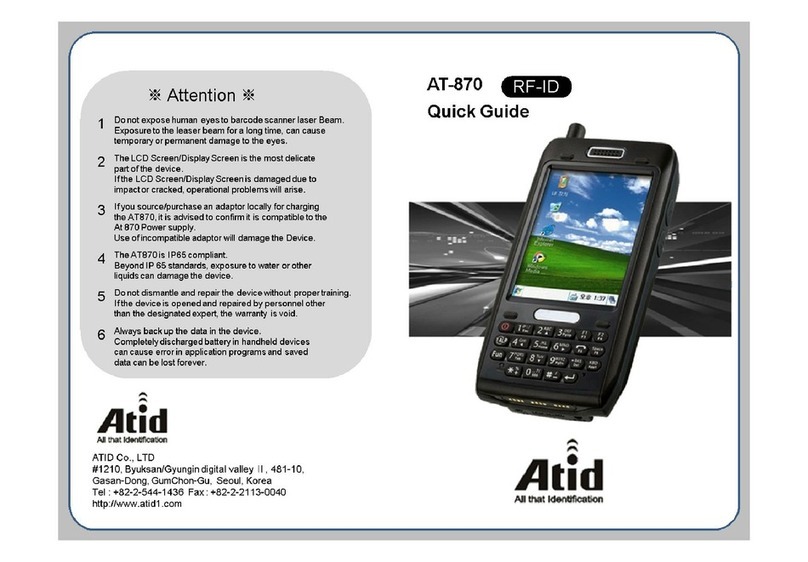
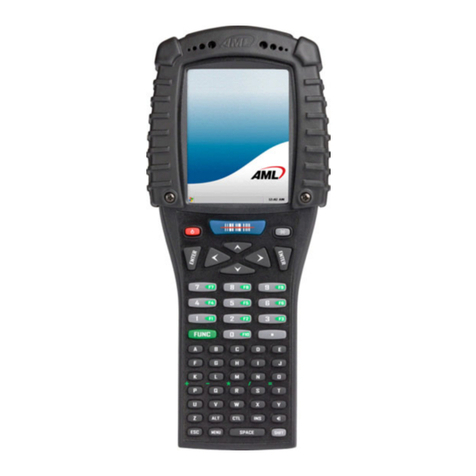
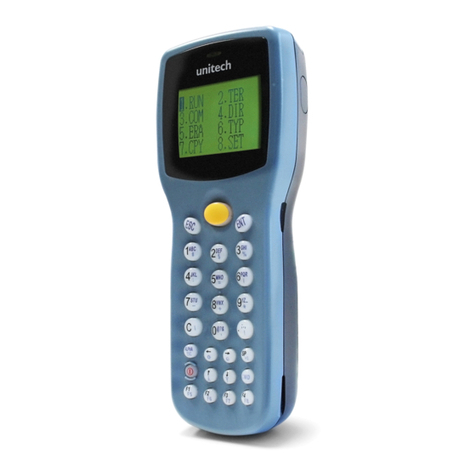
Intermec CS40 Handheld Information
IntermecCS40HandheldInformation080511.doc Page10
APPENDIX 3 – GigaTrak Application Installation Notes
Microsoft Active Sync Installation (For Windows XP)
1) Locate a copy of the latest version of Active Sync for your computer system. The correct version
is available from Microsoft’s WEB site or a copy is included on your CD. Version 4.5 is the latest
from Microsoft as of this printing.
2) Look for the installation file (i.e. activesync_setup.msi) and run it. We recommend that you follow
the installation instructions and accept the standard default settings during your install.
3) Leave Active Sync running to install and connect your handheld computer.
NOTE: Some users may use a single PC to connect multiple handheld computers. If this is the case,
it is best to setup your PC to recognize each handheld as a “Guest”. This avoids having Active Sync
loading shared data from your Outlook and other PC applications. To set all connected handhelds as
a Guest, please double-click and run the provided “GuestOnly.reg” file. It will instantly update your
system for future connections.
Windows Mobile Device Center Installation (For Windows Vista or Windows 7)
1) Locate a copy of the latest version of Windows Mobile Device Center for your computer system.
The correct version is available from Microsoft’s WEB site or a copy is included on your CD.
2) Look for the installation file (i.e. drvupdate-x86.exe) and run it. We recommend that you follow
the installation instructions and accept the standard default settings during your install.
Install GigaTrak Handheld Application – WIRELESS and/or Batch versions
The handheld application files can be found in the PocketPC folder of your installation CD (or was
provided to you via email).
1) Connect the handheld docking station to your computer (typically a USB connection) and plug in
the AC power cable.
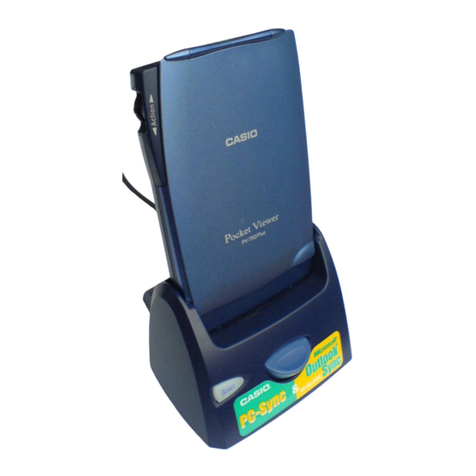
2) Put the handheld in the dock and wait for it to sync with the PC.
3) Copy the CAB file to the device using ActiveSync (XP) or Windows Mobile Device Center
(Vista/7). -- Any folder, it doesn't matter where.
4) Once the file(s) is(are) copied, disconnect the USB cable.
5) On the handheld itself, browse to the folder where you installed the *.CAB file and click on the
CAB file to install.
a. WIN_xxx-W.cab (for the Wireless Application
b. WIN_xxx.cab (for the Batch Application)
6) If prompted, select Device as the install location. On the handheld, click the file to run it – this
will install the application on the handheld.
7) Exit out to the main desktop screen on the handheld.
8) Start | Programs | xxx_xxx-W to run the Wireless version of the application
9) Start | Programs | xxx_xxx to run the Batch version of the application