Hitachi DZ-HS903 User manual
Quick Operation
(English)
DZ-HS803
DZ-HS903
DZ-HS903
DZ-HS803
Quick Operation (English)
1
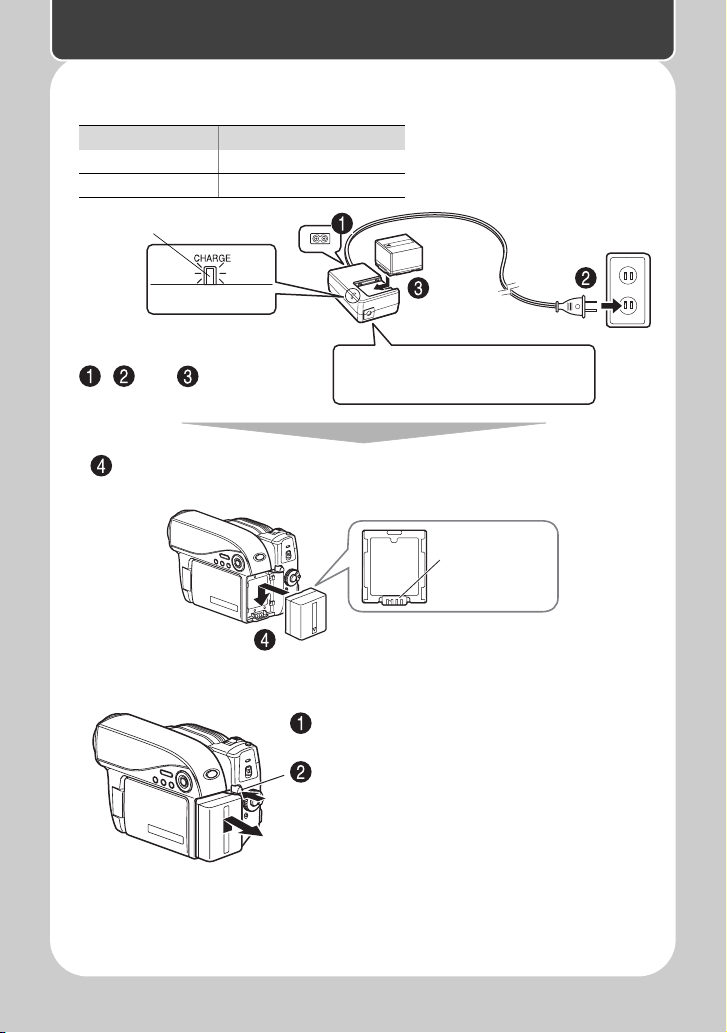
Setting up the battery pack
Removing the battery pack
Charging status CHARGE indicator
During charge Lit
Charge complete Unlit
Note
Charging will not occur if the DC
power cord is connected.
Terminal at
bottom
After charging is complete, attach the battery pack to the camcorder.
If the CHARGE indicator does not
light, check that the connections
( , , and ) are firmly made.
CHARGE
indicator
Always turn the power off before
disconnecting the power supply.
While pressing and holding the PUSH
switch, slide the battery pack upward,
then remove it.
• Be careful not to drop the battery pack
while detaching it.
Quick Operation (English)
Quick Operation (English)
2
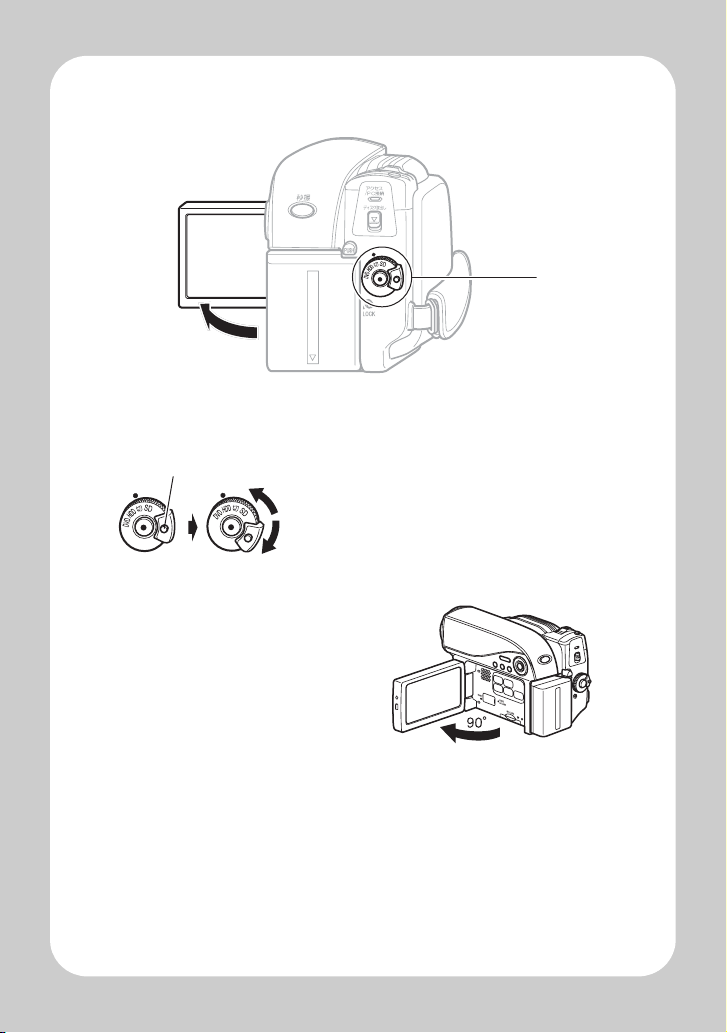
Turning on the Power
1Turn on the power.
2Open the LCD
monitor.
1
2
Press and hold the lock button, and turn the power switch to the
desired mode.

Quick Operation (English)
3
Changing the display language
(LANGUAGE)
You can change the language used on screens and menus.
The following shows how to change from Japanese to English.
Press the menu button, then select " 初期設定 " by pressing f/e.
Then, press c(or the confirmation button).
A(Confirmation button)
Menu button
C(Cancel/Stop button)
Press eor cwhile the screen on the
left is displayed.
The " 言語切替 " screen appears.
Select "English" and press A.
The display language switches to
English.

Quick Operation (English)
4
Setting the Date and Time
Press the menu button, then select "Date Setup" by pressing f/e.
Then, press cto select "Date Set" and press cagain.
Press the confirmation button.
The confirmation screen appears.
Select each item by pressing d/c
and set the correct value by pressing
f/e.
• Repeat this step until year, month,
date, hour, minute, and AM/PM are
correctly set.
Press dto select "YES", then press
the confirmation button to confirm.
• If you select “No” and press e, the
screen returns to step .
Quick Operation (English)
5
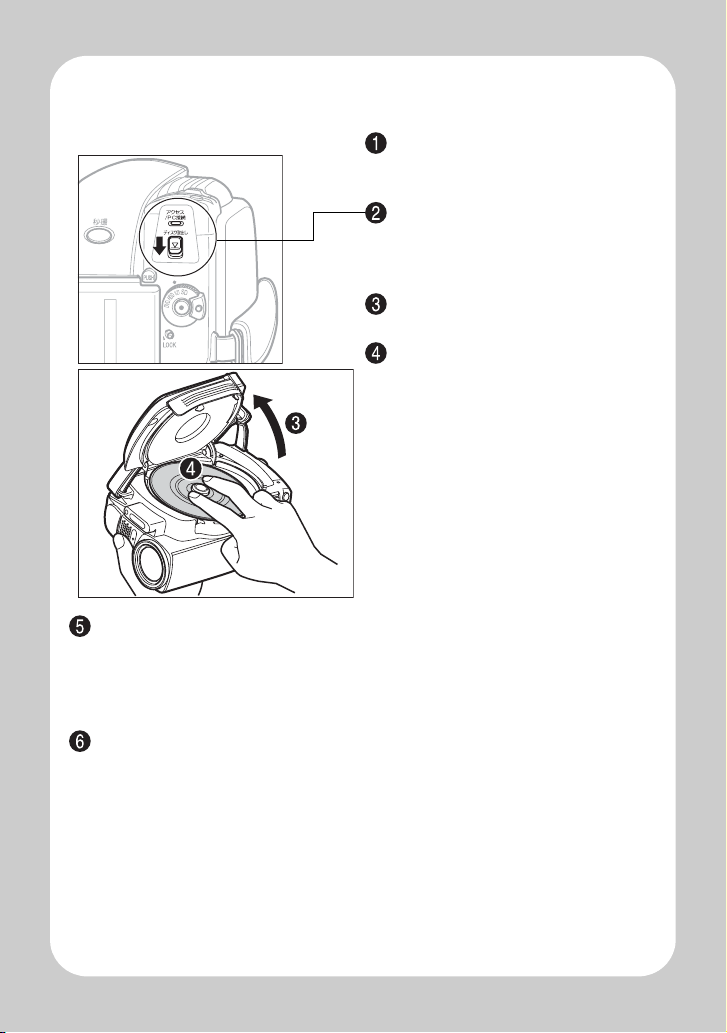
Inserting a DVD
Close the lid.
After the lid is closed all the way, the camcorder will attempt to recognize the
DVD. During this recognition process, the access/PC indicator flashes. While
this is happening, do not remove the power source, shake the camcorder, or
subject it to impact.
When you insert a new DVD-RW/+RW and the message which prompts you
to format the disc appears, format the disc (p.6).
You can record on a DVD-RAM/DVD-R without formating.
Attach the charged battery pack to
the camcorder, or connect the
camcorder to a power outlet.
Turn the power switch to " 切",
then press down the disc eject
switch until the access/PC indicator
lights, then release.
After several seconds, the lid pops
open. Open it fully with your hand.
Place the recording surface of the
DVD face down, then push down
on the center of the DVD until it
clicks into place.
• For single-sided discs, the side
opposite the label is the recording
surface.
• To record on the other side for
double-sided discs, remove the
disc (p.6), flip it over, and then
reload it.

Quick Operation (English)
6
When loading a new DVD-RW/+RW
The disc must be formatted before it can be used for recording. When the disc is
loaded, the format confirmation screen will appear in the LCD monitor.
Open the LCD monitor (p.2).
Notes
• The disc mechanism may be quite hot immediately after
use. Do not touch the metallic areas.
• Do not peer into the pickup. Doing so may cause
damage to your eyesight.
• To prevent malfunction, never do any of the following:
– touch the laser pickup
– insert a disc that is not compatible with the camcorder
– close the lid before setting the disc securely into place
• The power automatically turns off if the lid is left open for approx. 3 minutes.
• The lid will not open if the camcorder is not connected to a power source.
Pickup
Removing the DVD
Pressing slightly on the center hub with a
finger, grip the edge of the disc with your
thumb and lift the disc out as shown.
A
d/cNote
Be careful that the power is not
accidentally cut off while formatting,
otherwise, the disc will become unusable.

Quick Operation (English)
7
Select "YES" by pressing d, then press the confirmation button.
(When using a DVD-RW)
The recording format selection screen appears.
Select “VR Mode” or “VF Mode” by pressing d
/
c, then press the
confirmation button.
Inserting and Removing Card
ENTER
Format DVD
YES NO
All data will be deleted.
Format the DVD now?
• When using a DVD-RW, proceed to
step .
• When using a +RW, formatting will
start. Skip step .
ENTER
Format DVD
VR Mode VF Mode
DVD Format.
Select record format.
VR Mode
After recording, you can perform various
editing functions, such as choosing or
deleting scenes. You can play back the
disc in a device that supports an 8cm
DVD-RW (VR Mode) after finalizing the
disc.
VF (Video) Mode
Although editing cannot be done on the
camcorder, you can play back the disc on
other DVD devices after finalizing the disc.
Always turn off the power before
inserting a card.
Open the cover.
Push the card in until it clicks into
place.
(To remove the card, push it in
slightly and release. The card will
pop up, and you can remove it.)
Always close the cover.
Pay attention to the orientation
of the card.
The terminals should face away
from the LCD monitor.
Quick Operation (English)
8
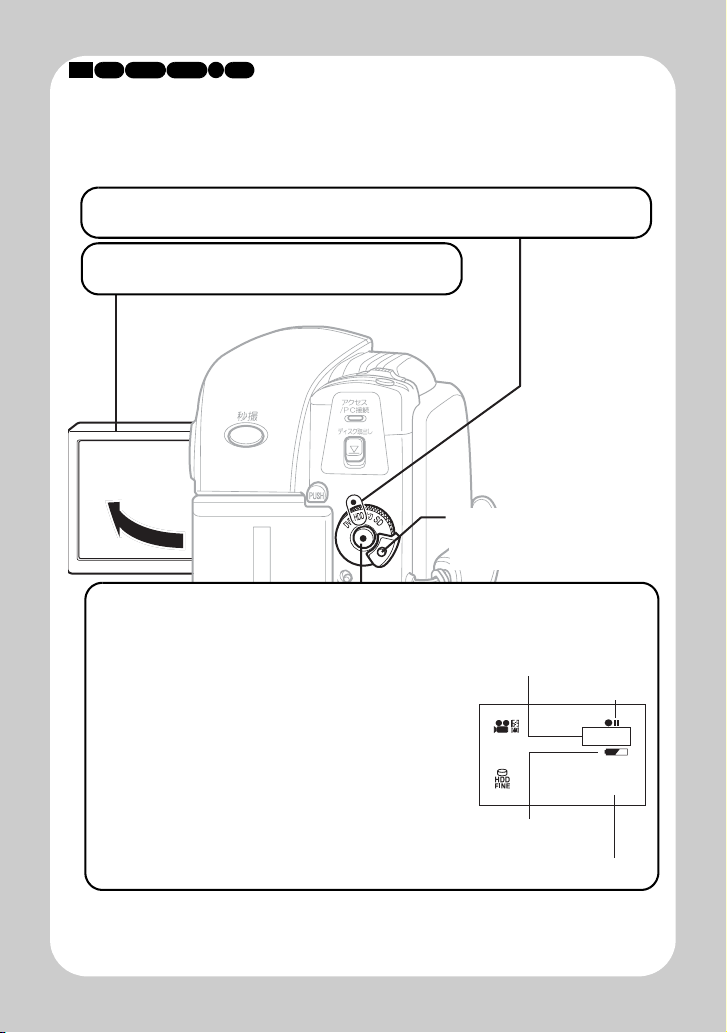
Recording Movies
You can choose either HDD or DVD to record movies.
HDD RAM -RW (VR) R
-RW (VF) +RW
1Turn the power switch to "HDD" or "DVD".
2Open the LCD monitor.
Press and hold the lock
button to turn the power
switch.
3Press the record button.
・"m" (recording pause) in the LCD
monitor will change to "n" and
recording will begin.
The recording indicator beneath the lens
will also light up red.
・To pause recording, press the record
button again. The elapsed recording
time will reset to "0:00:00".
・To resume recording, press the record
button again.
AM10:00
2008/10/1
31MIN
0:00:00
REM
m/n
Elapsed recording time
(hrs : mins : secs)
Remaining space on
HDD/DVD/Card
Remaining battery
level
Current time
Quick Operation (English)
9
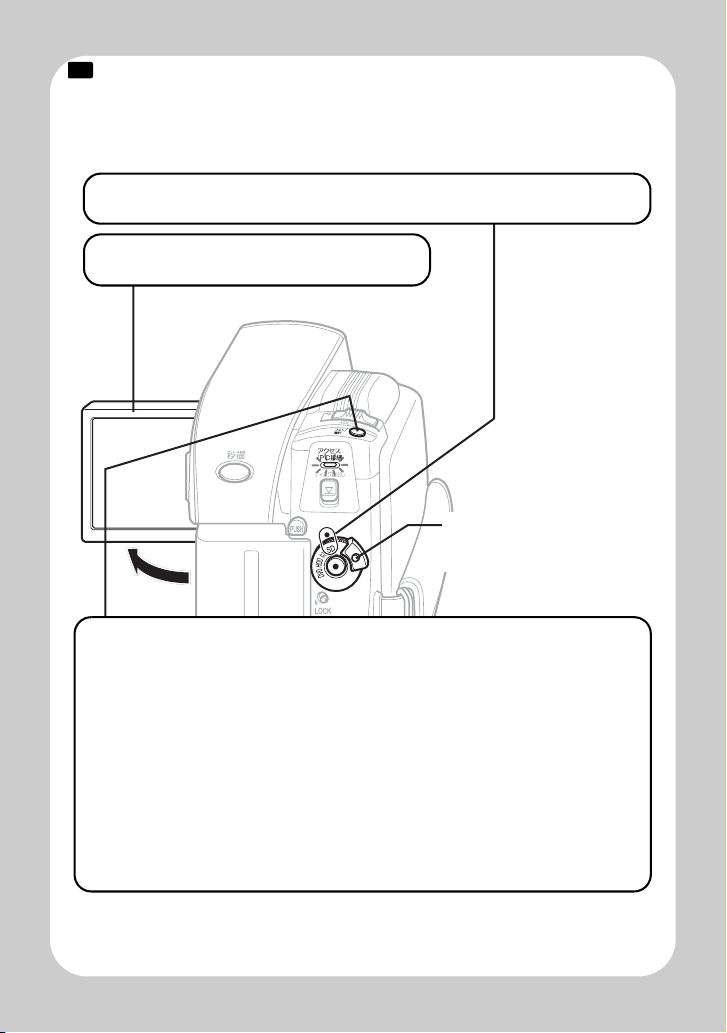
Recording Still Pictures
Still pictures are recorded on an SD memory Card.
CARD
1Turn the power switch to "SD".
2Open the LCD monitor.
3Press the "フォト/選択"(photo) button
halfway down.
A subject in the center of the screen will be focused. When focus is
locked, the green "m"in the LCD monitor will turn purple.
4Fully press the "フォト / 選択 " (photo)
button.
The image will be recorded. After a few seconds, the image shot will
be displayed for about three seconds. You can shoot the next photo
when "m" changes back to green.
Press and hold the lock
button to turn the power
switch.
This manual suits for next models
1
Table of contents
Other Hitachi IP Camera manuals