Installation and Connection
1. Remove the battery compartment cover.
2. 1.5V 2pcs battery insert
3. Replace the battery compartment cover.
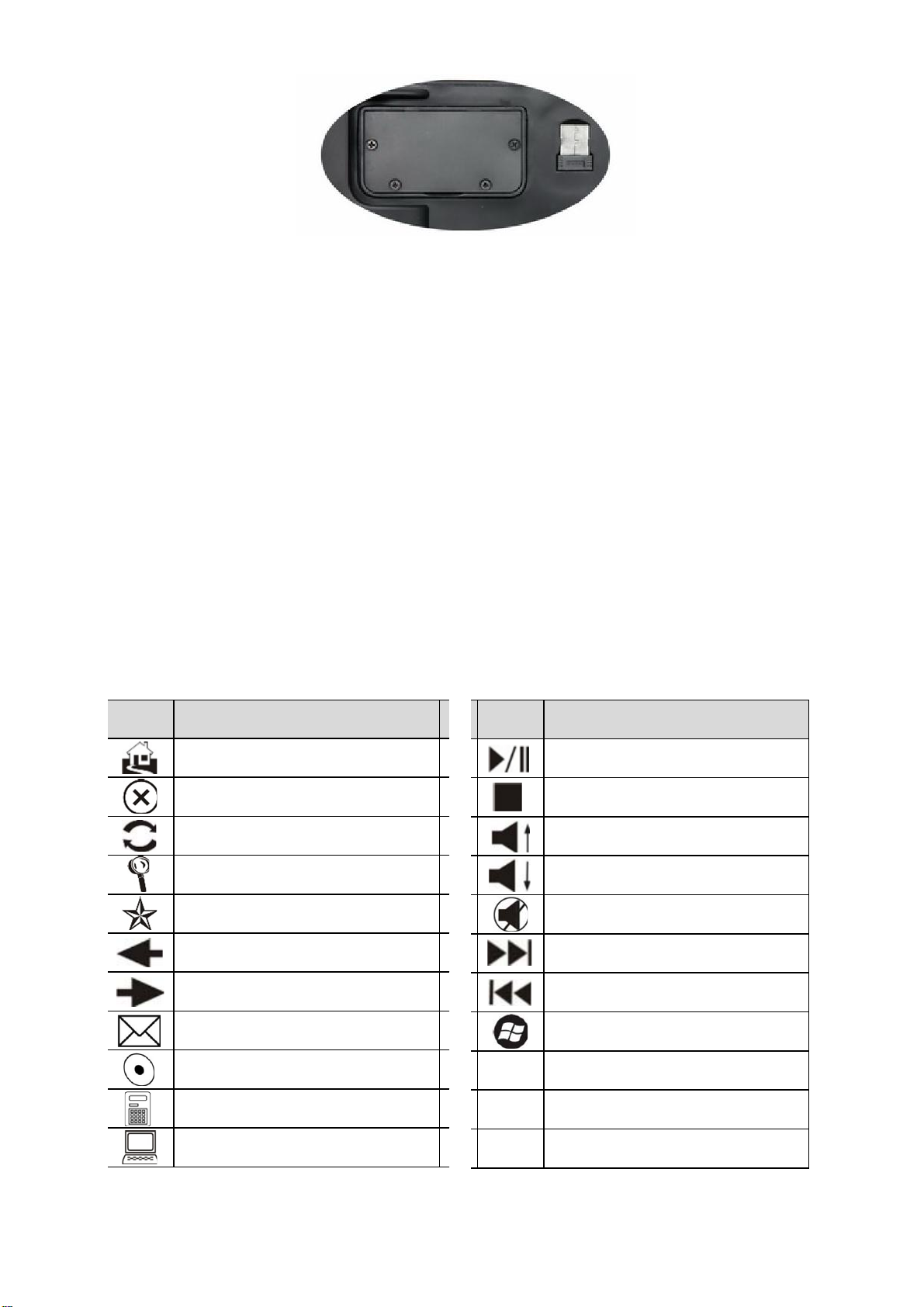
4. Remove the Nano USB Receiver from the back of the keyboard.
5. Plug the Nano USB Receiver into a USB port on your computer.
6. A message pops out on your computer screen “An USB device is found” or “Adriver software is being installed”,
after a while a new message shows “The device is ready for use”.
7. Test the Keyboard by pressing the Window®key on the Keyboard. If the key is functional, the connection is
completed and the Keyboard is working with your computer properly, otherwise, you should try another USB
port on your computer by following step 5 to step 7
Media and Hot Keys
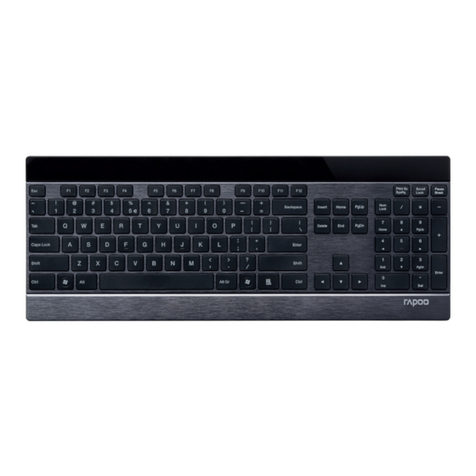
There are 18 media and hot keys located on the keyboard. The media and hot keys are shortcuts to your default web
browser, Microsoft®Outlook®, Windows®Media Player. They also control basic playback of Windows®Media Player.
Each function of the media and hot keys see the table below.
Windows
Legend Function
Play/Pause (Works only on Windows
®
Media Player)
Stop (Works only on Windows
®
Media
Player)
Volume Up (Works only on Windows
®
Media Player)
Volume Down (Works only on Windows
®
Media Player)
Mute (Works only on Windows
®
Media
Player)
Next Track (Works only on Windows
®
Media Player)
Previous Track (Works only on Windows
®
Media Player)
Windows
®
Start
Windows
Legend Function
Home (Launch default web browser)
Stop (Stop browsing)
Refresh (Refresh the page)
Search (Launch Windows
®
Search)
Favorites (Open Favorites in default web
browser)
Back (Back to previous page)
Forward (Go to next page)
Mail (Launch Microsoft
®
Outlook
®
)
Media (Launch Windows
®
Media Player)
Calculator (Launch Windows
®
Calculator)
My Computer (Launch My Computer)