Adjusting the sound level
You can adjust the bass and treble sound level
within the range of –3 to +3.
1Press SETTING to enter the setting mode.
– BASS: Adjusts the bass sound level.
– TREBLE: Adjusts the treble sound level.
2Press 4or ¢to select the item you want
to set.
3Press UP/DOWN to adjust the level.
NOTE
The change in the bass and treble sound level of the
speakers differ depending on the incoming signal of
the input source.
Using the surround mode
You can listen to a more realistic sound than stereo
sound using surround—StudioSound HD (SSHD).
Press SSHD.
Each time you press the button, surround mode is
turn on and off (SSHD ON and SSHD OFF scroll on
the display).
Setting up the HDMI functions
You can change the settings of HDMI functions with
the menu on the display.
HDMI function optionally includes the controlling•
signals employed for the High-Definition
Multimedia Interface (HDMI) standard—Consumer
Electronics Control (CEC).
When devices equipped with CEC are connected,
each device can control the others. This system is
compatible with some basic functions of CEC. For
example, when you start playback on a connected
DVD/BD player, the unit and connected TV
compatible with CEC automatically turns on.
For details about the CEC function, refer to the•
operation manuals of the connected CEC devices.
NOTES
The CEC function may not work on some CEC devices.•
The HDMI functions may not work depending on the•
setting or status of the unit or the connected devices.
1Press SETTING to enter setting mode.
2Press 4or ¢to select the item you want
to set.
The setting mode changes as follows:
BASS \TREBLE \HDMI PASSTHROUGH \
HDMI AUDIO OUT \CEC CONTROL (\POWER
CONTROL \SYSTEM AUDIO \TV IN)*2
3Press UP or DOWN to select the setting.
For TV IN, pressing UP or DOWN may cause the
setting to change as follows:
OFF \D1 \ARC
4Repeat 2and 3to set up other items.
To exit from the menu, press SETTING.
Item Contents
HDMI PASSTHROUGH ON : The audio and video signal are transmitted to the TV connected to HDMI OUT terminal even if the unit is on standby.*1
The STANDBY lamp lights orange while the unit is on standby.•
OFF : The audio and video signal are not transmitted to the TV connected to HDMI OUT terminal while the unit is on standby.
NOTES
To toggle between HDMI 1 IN and HDMI 2 IN during standby, press and hold the HDMI input button for 2 seconds.•
If HDMI 1 is selected, STANDBY indicator lamp blinks once. If HDMI 2 is selected, STANDBY indicator lamp blinks twice.•
HDMI AUDIO OUT TV : The audio signal is emitted from the TV connected to HDMI OUT terminal.
AMP : The audio signal is emitted from the speakers of the unit.
NOTE
If you select ON for System Audio*2, you cannot change this setting (AUTO appears).
CEC CONTROL ON : Activates the CEC function.
OFF : Deactivates the CEC function.
POWER CONTROL*2ON : The unit automatically turns on when you start playback on a connected DVD/BD player, and turns off when you turn off the TV
connected to HDMI terminals.
OFF : Deactivates this function.
SYSTEM AUDIO*2ON : The audio signal is emited from the speakers of the unit, and the volume control for this System can be operated by the TV
remote control.
OFF : Deactivates this function.
NOTE
Applicable only if the TV supports System Audio and correct setting have been made on the TV.
TV IN*2D1 : The input source of the unit is changed to “DIGITAL 1” automatically if you change the input source from HDMI to another on
the TV.
ARC : The input source of the unit is changed to “TV ARC” automatically if you change the input source from HDMI to another on the
TV.
OFF : Deactivates this function.
*1The power consumption will be increased.
*2These are the settings for the CEC function which are selectable only when CEC CONTROL is ON.
If you have a problem with this System, check this
list for a possible solution before calling for service.
POWER
Power does not come on.
The power cord is not inserted securely. Plug it in=
securely.
The unit suddenly turns off.
Auto power save function is on. Refer to=
“Activating/deactivating APS (Auto Power Save)”
in “Basic operation.”
REMOTE CONTROL
The remote control does not work.
Pull out the insulation sheet.=
Sunlight is shining directly on the remote sensor.=
Hide the remote sensor from direct sunlight.
The path between the remote control and the=
remote sensor on the front panel is blocked.
Point the remote control at the remote sensor on=
the front panel.
Signals cannot reach the remote sensor. Move=
closer to the unit.
The battery is exhausted. Replace the battery.=
The remote control of the TV does not work.
If you installed the unit in front of the TV, connect=
the TV remote pass through cable (supplied).
External components
No sound can be heard when DIGITAL 1 or
DIGITAL 2 is selected as a source.
Check the output setting of the connected=
digital components. Set the output setting to
PCM signal. (Refer to “Specifications” for more
information.)
Output Power : 60 W (30 W + 30 W) at 4 Ω
(10% THD)
Audio section
Analog Input : ANALOG IN : 1 Vrms/50 kΩ
Digital Input* : DIGITAL IN 1 (OPTICAL) :
–21 dBm to –15 dBm
(660 nm ±30 nm)
DIGITAL IN 2 (COAXIAL) :
0.5 Vp-p/75 Ω
Subwoofer Output : SUBWOOFER PRE-OUT
Speaker section
Type : Bass-Reflex Type
Speaker : 6.5 cm cone × 4
Power Handling Capacity :
30 W
Impedance : 4 Ω
Frequency Range : 75 Hz to 23 kHz
Sound Pressure Level : 83 dB/W•m
General
Power Source (DC IN) : DC 19 V 3.37 A
AC Adaptor (AA-R1904) : Input : AC 100 – 240 V ,
50 Hz/60 Hz, 1.5 A – 0.9 A
Output : DC19 V 3.37 A
Power Consumption 0.50 W or less
(in Standby mode) :
Dimensions (W × H × D) :
600 mm × 75 mm × 148 mm
Mass : 3.1 kg
iPod
Output Power : DC 5 V 1 A
Video Out (VIDEO OUT) : Composite
Troubleshooting
iPod
iPod cannot be connected firmly.
Check to see whether the connector between=
iPod and the unit is not damaged, and connect it.
iPod does not provide sound.
iPod is not properly connected. Remove iPod=
from the unit, and then connect it again.
iPod cannot be charged.
iPod is not properly connected. Remove iPod=
from the unit, and then connect it again. After
connecting iPod, turn on the power again.
HDMI
No sound can be heard when HDMI 1 or HDMI 2
source is selected as a source.
Check the output settings on the HDMI=
connected devices. Set the audio output setting
to PCM signal and enable HDMI Audio Out.
No sound can be heard when TV ARC is selected as
a source.
Check if your TV supports this function and turn=
on the settings for ARC and set the digital audio
output setting to PCM signal on your TV.
Specifications
HDMI
HDMI Input* : HDMI 1 IN, HDMI 2 IN
HDMI Output : HDMI OUT
Max. Capability : 1920 × 1080 at 60 Hz
Output Power : DC 5 V 55 mA
*Corresponding to Linear PCM only (with sampling
frequency — 32 kHz, 44.1 kHz, 48 kHz)
When an audio signal other than Linear PCM comes–
in, NONPCM appears on the display.
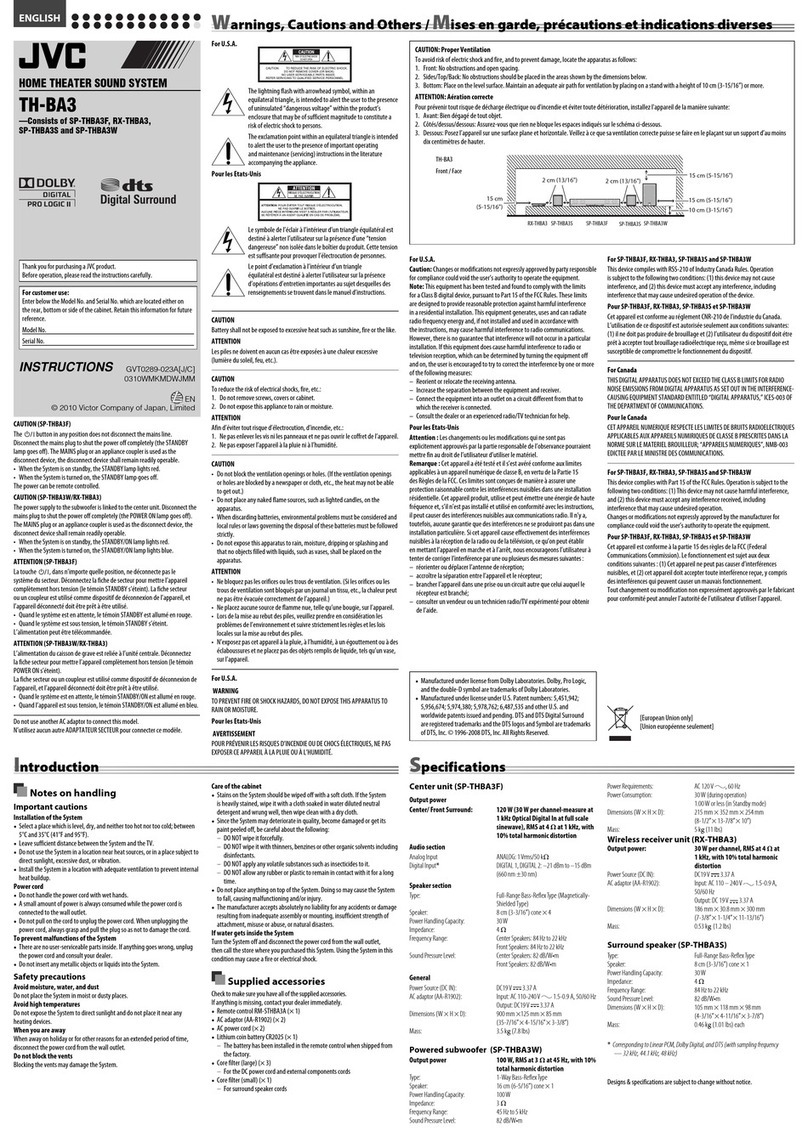
Design and specifications are subject to change
without notice.
Skipping to the next track7
Press ¢.
Skipping back to the previous track7
Press 4twice or more repeatedly.
Returning to the beginning of the track7
Press 4once.
Putting iPod in sleep mode7
Press and hold iPod 6.
Displaying a menu/Returning to the7
previous menu
Press MENU.
Selecting an item on the menu7
Press UP or DOWN, then press SELECT.
NOTES
Operate iPhone or iPod touch itself in the following•
cases:
When operating the home button.–
When selecting application icons on the home–
screen.
When dragging the slider.–
Sound distortion may occur when playing back•
audio sources with high recording levels. If distortion
occurs, it is recommended to turn off the equalizer of
iPod.
You can select the video signal format (NTSC or PAL)•
in the setting menu on iPod.
Playing back iPod
Connecting iPod7
While the power is turned off...
1Push the tray (8) to open the dock for iPod.
2Connect iPod to the connector.
You cannot connect iPod to the unit if it is covered•
by something or with accessories attached.
Remove them before connecting.
Keep iPod in a straight position while connecting/•
disconnecting it.
Do not carry the unit with iPod connected. It might•
cause damage to the dock for iPod or you might
drop iPod.
Do not touch or hit the iPod terminal pins or•
connector pins in the dock for iPod directly. Doing
so might cause damage to the connector pins.
While the power is turned on, or during Standby•
with HDMI Pass Through ON, iPod can be charged.
Playing back7
Press iPod 6.
While the power is turned off, simply pressing•
iPod 6turns on the power and plays back iPod.
Pausing/resuming playback7
Press iPod 6.
Skipping forward/back7
Press and hold ¢or 4.
Activating/deactivating APS (Auto Power7
Save)
The System automatically turns off to save the
power.
Press and hold APS.
Each time you press and hold the button, Auto
Power Save is turn on and off (APS ON and APS OFF
scroll on the display).
The System automatically turns off to save the•
power when one of the following situations
continues for 29 minutes:
For all sources:
When the volume is set to 0.–
When muting is activated.–
For DIGITAL 1/DIGITAL 2:
When the optical cord or coaxial cord is not–
connected, or there is no signal.
For TV ARC (Audio Return Channel):
When HDMI OUT is not connected, or there is no–
signal.
For iPod:
When iPod is not connected to the unit.–
For HDMI 1/HDMI 2:
When HDMI 1 IN/HDMI 2 IN is not connected, or–
there is no signal.
When one of the situations occurs...
The APS indicator is shown for 1 second every
1 minute and starts flashing 30 seconds before the
System turns off.
Selecting the input source7
Press one of the input buttons repeatedly to
select the input source.
Each time you press each button, the source
changes as follows:
DIGITAL:
DIGITAL 1 (for the optical connection) \DIGITAL
2 (for the coaxial connection) \TV ARC (for HDMI
OUT with ARC)*
ANALOG:
ANALOG IN (for the analog connection)
HDMI:
HDMI 1 IN (for HDMI 1)|\ HDMI 2 IN (for HDMI 2)
*To use TV ARC, set CEC to ON, and make sure your TV
supports this function and has the correct settings.
Buttons and lamps on the front panel
Basic operation
Turning on/off the power7
Press .
NOTES
A small amount of power is consumed even when the•
power is turned off (standby mode). During standby
mode, the STANDBY indicator lamp on the front
panel lights up. Unplug the power cord from the AC
outlet to turn the power off completely.
You can also turn on the power by pressing one of•
the input buttons (DIGITAL, ANALOG or HDMI) and
iPod 6.
Adjusting the volume7
Press VOLUME +/–.
Adjusts the volume within the range of 0 (MIN) to
40 (MAX).
CAUTION
Set the volume to the minimum level before starting
any source. If the volume is set to a high level, the
sudden blast of sound may damage your hearing and
blow out the speakers.
Turning off the sound temporarily7
Press MUTING.
To restore the sound, press the button again or•
press VOLUME + to adjust the volume.
Maintaining steady volume level7
You can set your desired volume level for different
input sources to avoid volume fluctuation when
changing from one source to the other—TruVolume
(TVOL).
Press TVOL.
Each time you press the button, TruVolume is turn
on and off (TVOL ON and TVOL OFF scroll on the
display).
Changing the display brightness7
Press DIMMER.
Each time you press the button, the display
brightness changes with the following scrolling
message:
DIMMER OFF (normal) \DIMMER 1 (darker) \
DIMMER 2 (darkest)
Operations
1(power) button
2INPUT button
Press the button repeatedly to select the input
source (DIGITAL 1 (DGTL1), DIGITAL 2 (DGTL2),
TV ARC, ANALOG, HDMI1, HDMI2).
3iPod 6button
Press the button to play back iPod.
4SSHD button
Press to turn on/off StudioSound HD.
5VOLUME +/– buttons
Adjusts the volume within the range of 0 (MIN)
to 40 (MAX).
6Remote sensor
Receives the signal from the remote control.
7STANDBY indicator lamp
Lights up while the power is turned off.
SSHD indicator lamp
Lights up while StudioSound HD is activated.
TVOL indicator lamp
Lights up while TruVolume is activated.
8Tray for iPod dock
Push the tray to open the dock for iPod.
9Display
Shows the volume level, the current source
and the settings.
iPod (not supplied)
“Made for iPod” and “Made for iPhone”•
mean that an electronic accessory has been
designed to connect specifically to iPod or
iPhone, respectively, and has been certified
by the developer to meet Apple performance
standards. Apple is not responsible for the
operation of this device or its compliance with
safety and regulatory standards. Please note
that the use of this accessory with iPod or
iPhone may affect wireless performance.
iPhone, iPod, iPod classic, iPod nano and iPod•
touch are trademarks of Apple Inc., registered
in the U.S. and other countries.
HDMI, the HDMI logo and High-Definition•
Multimedia Interface are trademarks or
registered trademarks of HDMI Licensing LLC.
HDCP is the abbreviation of “High-bandwidth•
Digital Content Protection,” and is the high-
reliable copy control technology licensed by
Digital Content Protection, LLC.
• is a trademark of SRS Labs, Inc.
StudioSound HD technology is incorporated•
under license from SRS Labs, Inc.
SSHD: StudioSound HD by SRS Labs, Inc. SRS•
StudioSound HD™ provides an immersive and
engaging surround sound experience, while
maintaining steady volume and delivering rich
bass and clear dialog.
TVOL: TruVolume by SRS Labs, Inc. SRS•
TruVolume™ maintains a steady volume,
allowing listeners to set their desired volume
level once to enjoy television, music and all
other content without annoying volume
fluctuations.
EN_TH-LB3[U6]f.indd 2EN_TH-LB3[U6]f.indd 2 3/29/12 5:30:23 PM3/29/12 5:30:23 PM