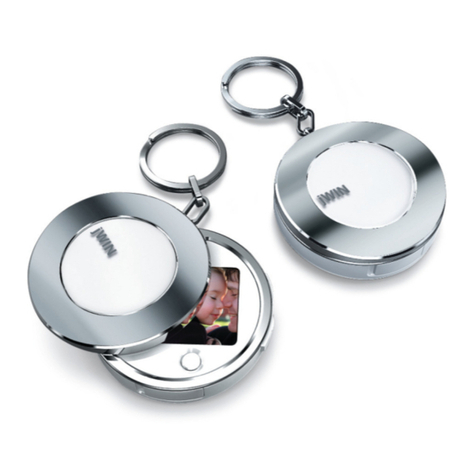
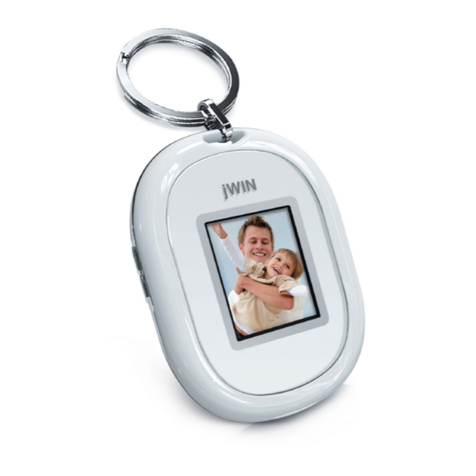
Digital Photo Frame Keychain V10M10_IM_EN_08272008
www.jWIN.com
- 3 -
GETTING STARTED
Menu Navigation
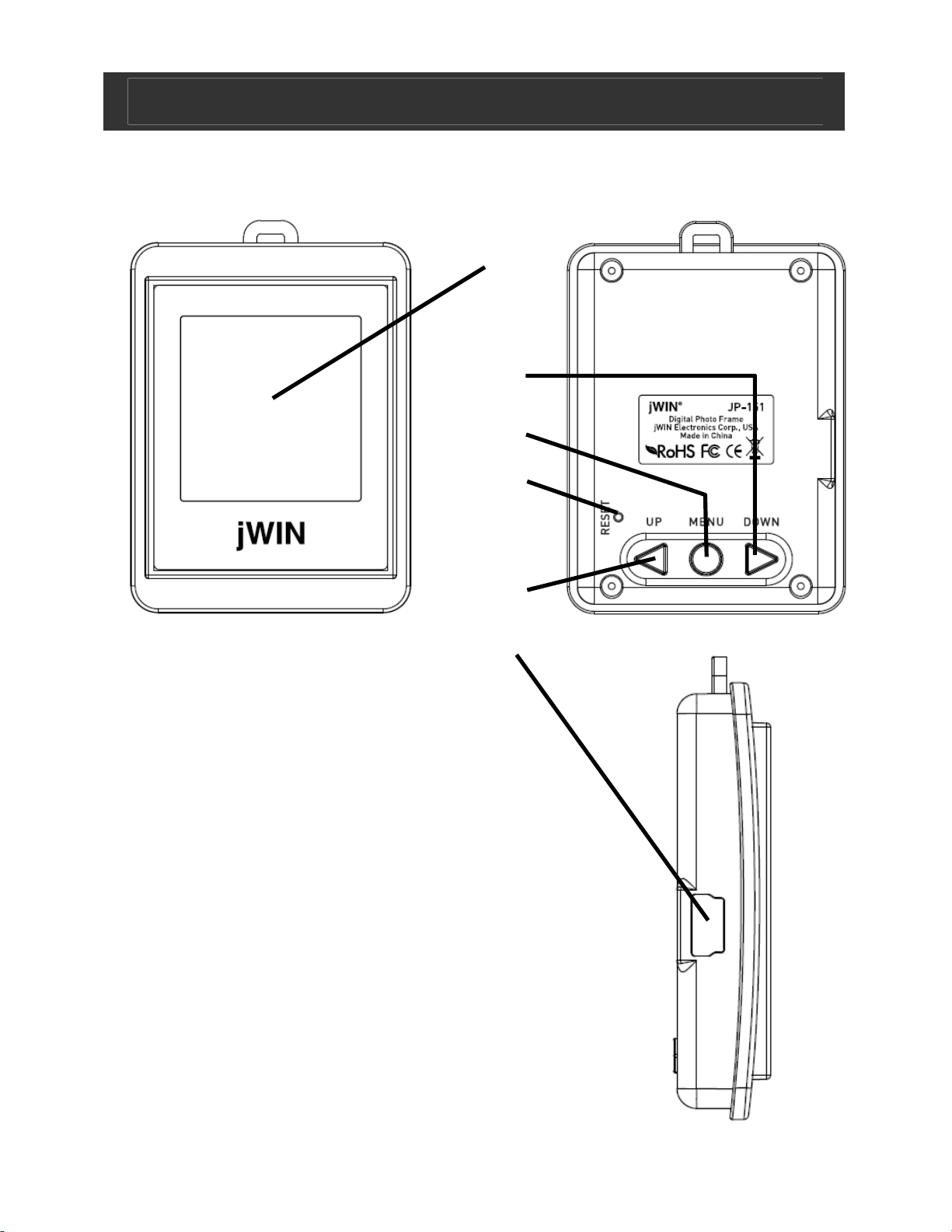
Press the MENU button to enter Menu mode. The menu
provides settings to set the display mode, clock, auto on/off etc.
Press the Wor Xbutton to select a menu item. Press the
MENU button to confirm your selection.
Connecting to a Computer/Transferring Files
You can charge the battery and download files by connecting
to a computer. Follow these steps:
1. Connect the USB cable to the USB interface of PC.
2. Connect the smaller end of the USB cable to the USB
interface of this unit. When connected to the computer, the
LCD screen provides two options - "USB Charge" or "USB
Update".
3. To download files from the computer, press “W” or “X” to
select "USB Update" and press the MENU button to confirm.
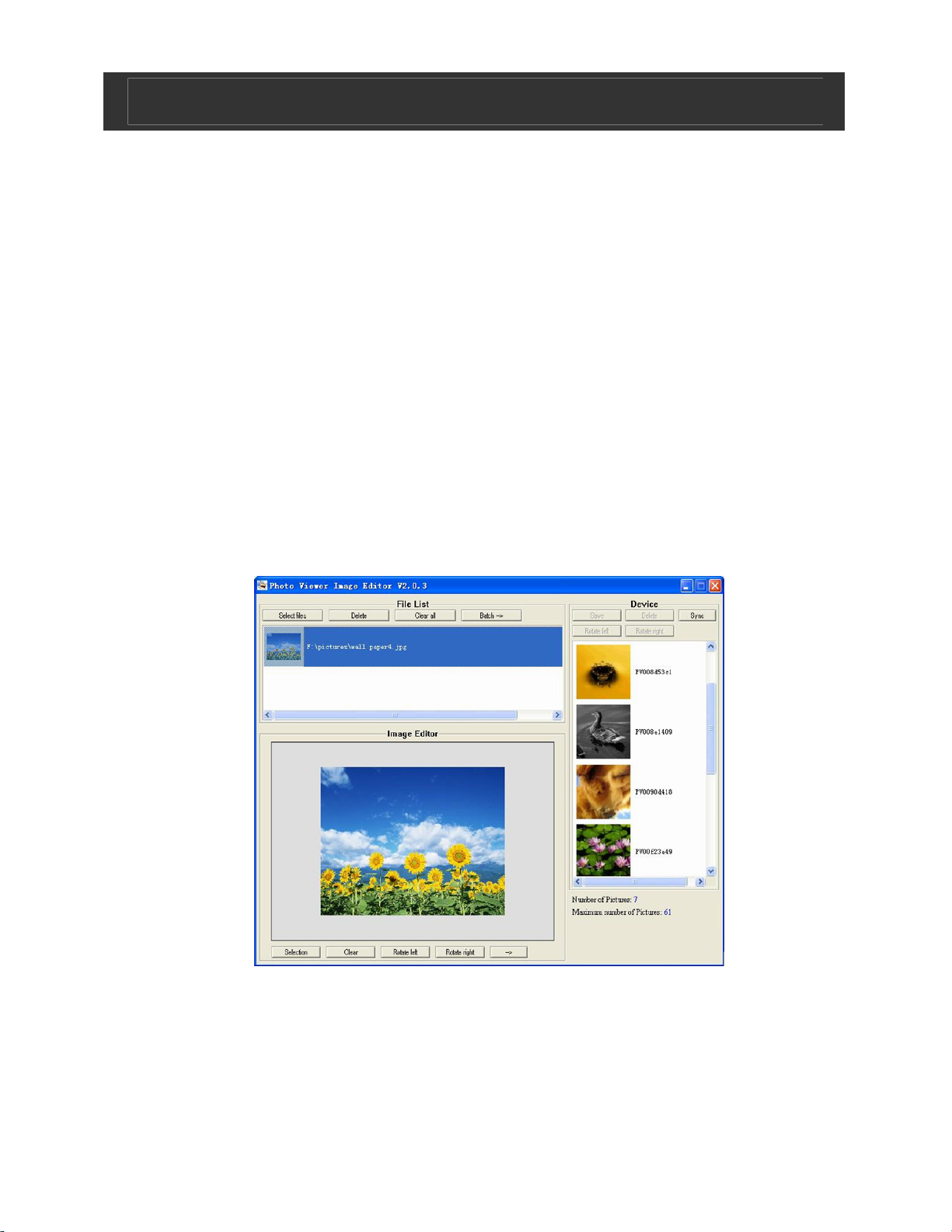
An image transfer tool will run automatically. It may take a
while..
•To use the tool, click “run the program”or “open folder
to view files” then click DPF exe. on the pop up window.
If the tool does not run automatically, click “local disk”in
“My Computer”then click DPF exe.
•Then transfer desired files between the device and
computer.
4. Click "Select files" to select image files from your computer.
The selected files are listed in the file list.
Note: Upload time may lengthen depending on the size of the
image.