manuals.online logo
Brands
  1. Home
  2. •
  3. Brands
  4. •
  5. KYE Systems Corp.
  6. •
  7. Mouse
  8. •
  9. KYE Systems Corp. GMZK1 User manual

KYE Systems Corp. GMZK1 User manual

Other KYE Systems Corp. Mouse manuals

KYE Systems Corp. KM002 User manual

KYE Systems Corp.

KYE Systems Corp. KM002 User manual

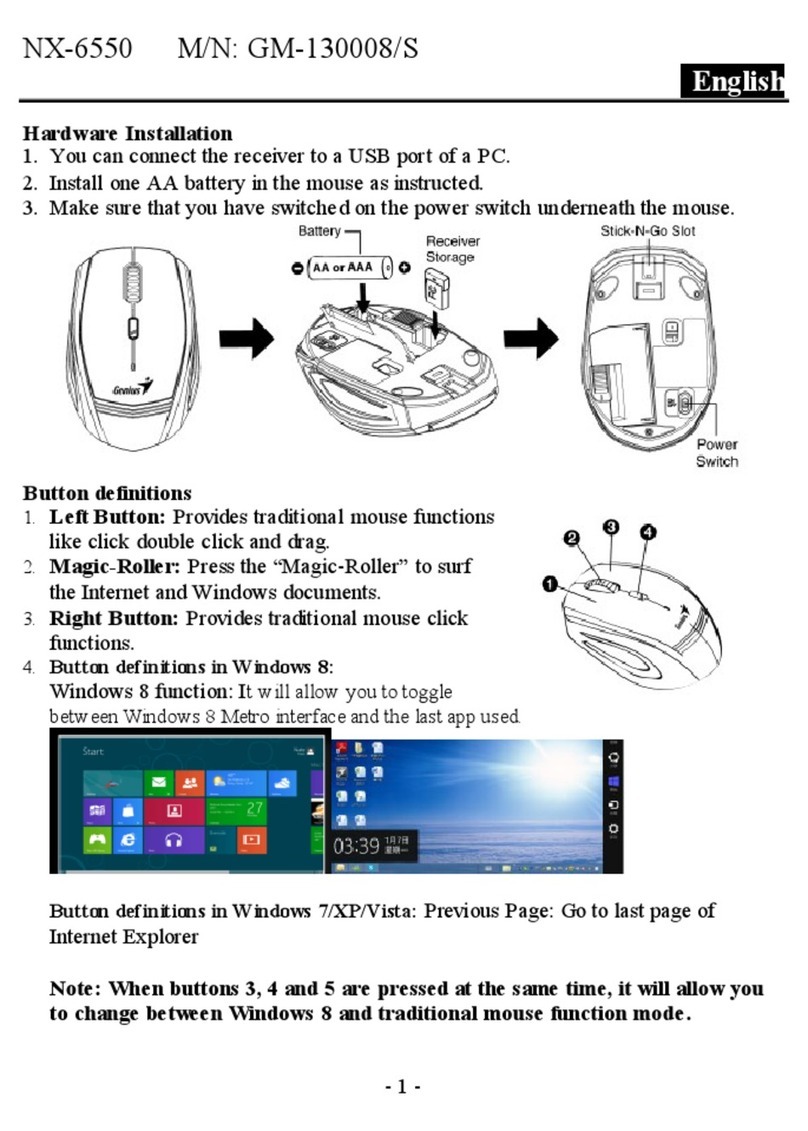
KYE Systems Corp. Exhibit 08 NX-6550 User manual

KYE Systems Corp.

KYE Systems Corp. Exhibit 08 NX-6550 User manual

KYE Systems Corp. Traveler 900 User manual

KYE Systems Corp.

KYE Systems Corp. Traveler 900 User manual

Popular Mouse manuals by other brands

Viper V570 user manual

Viper

Viper V570 user manual

Cherry MC 2.1 user manual

Cherry

Cherry MC 2.1 user manual

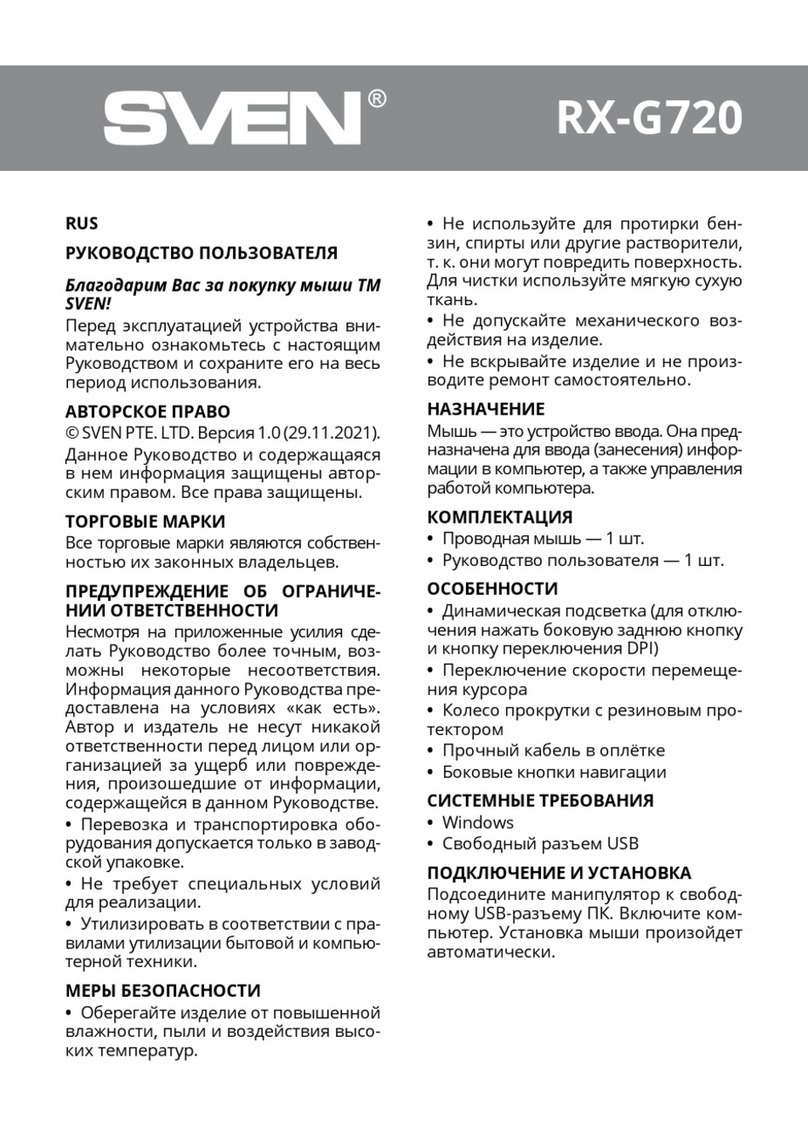
Sven RX-G720 user manual

Sven

Sven RX-G720 user manual

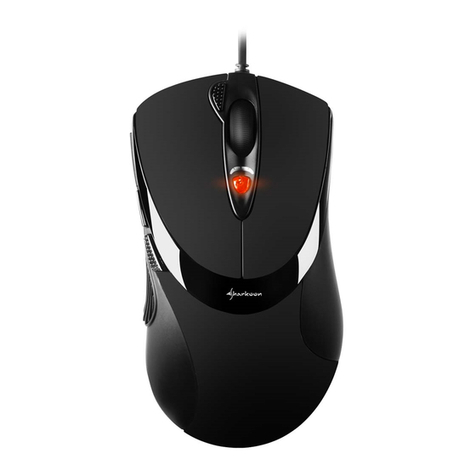
Sharkoon Light2 180 manual

Sharkoon

Sharkoon Light2 180 manual

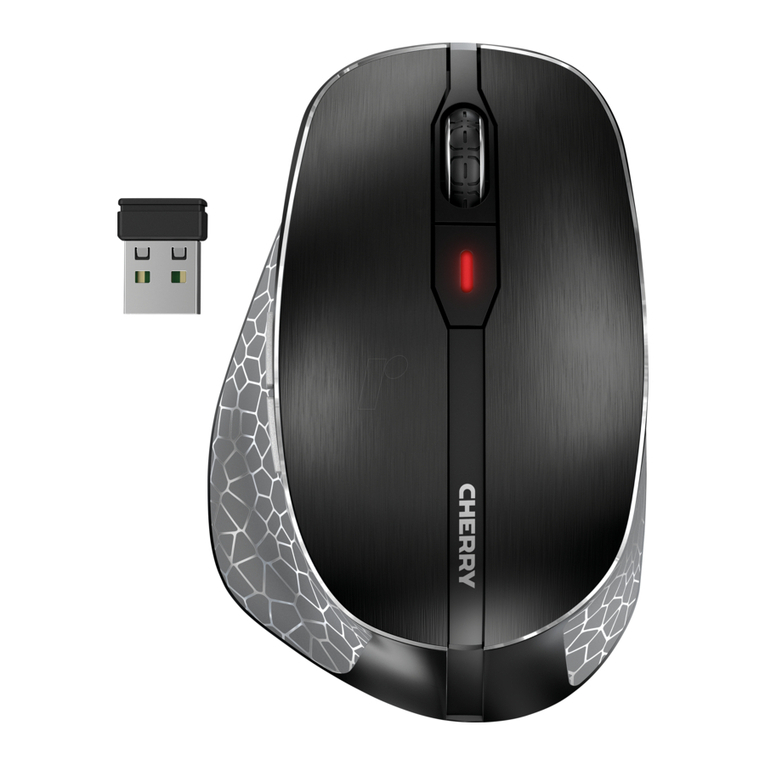
Cherry MW 8C ERGO user manual

Cherry

Cherry MW 8C ERGO user manual

Vantec NBW-100U user manual

Vantec

Vantec NBW-100U user manual

NGS HIT RB manual

NGS

NGS HIT RB manual

Sharkoon FireGlider manual 

Sharkoon

Sharkoon FireGlider manual 

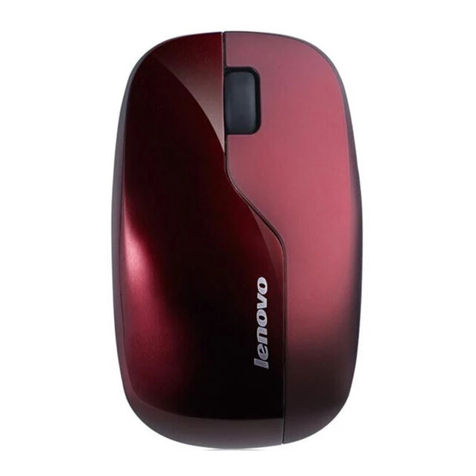
Lenovo Wireless Mouse N3902 quick start guide

Lenovo

Lenovo Wireless Mouse N3902 quick start guide

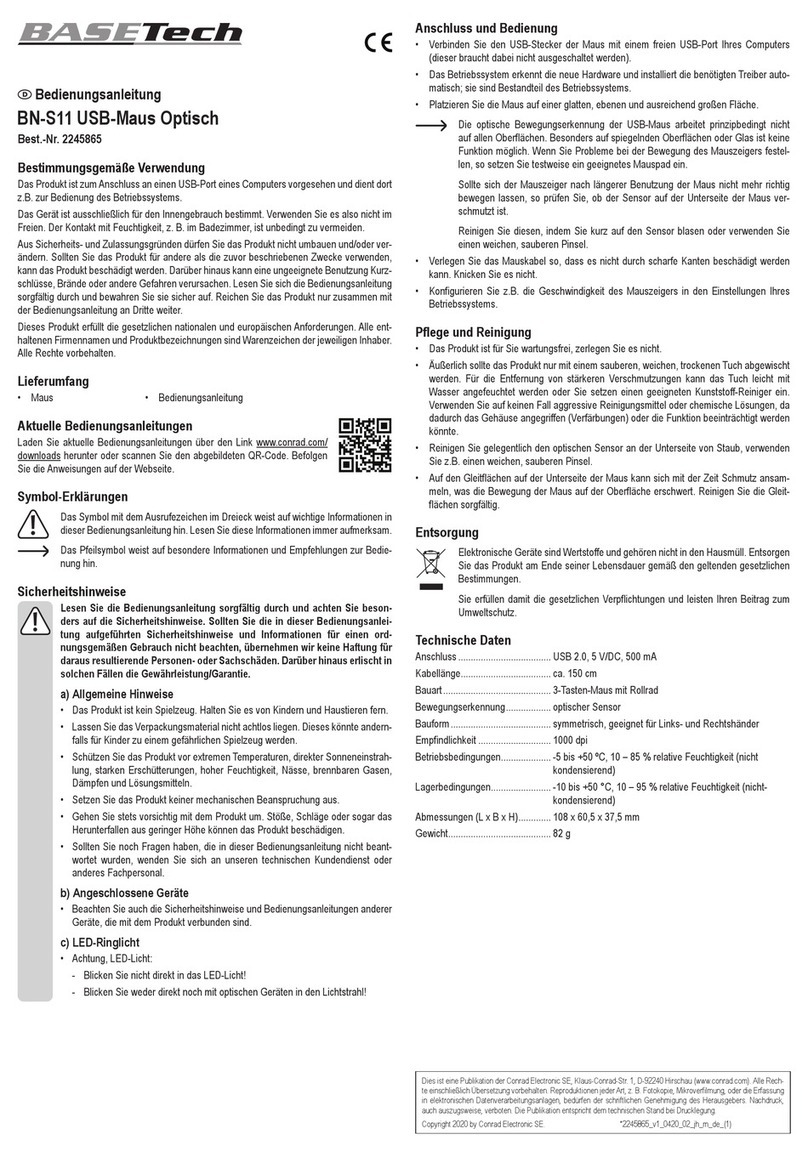
BASETech BN-S11 operating instructions

BASETech

BASETech BN-S11 operating instructions

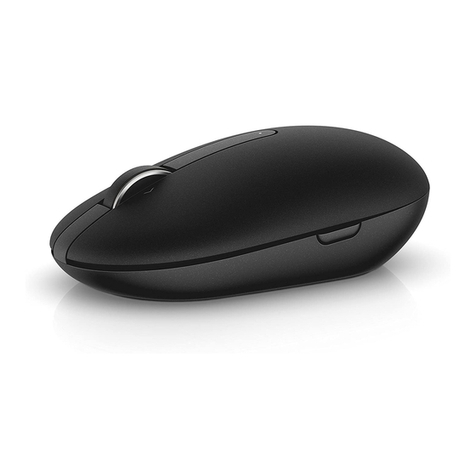
Dell WM326 user guide

Dell

Dell WM326 user guide

Areson B213 user guide

Areson

Areson B213 user guide

Targus AMU83EU operating instructions

Targus

Targus AMU83EU operating instructions

HP M17587-371 manual

HP

HP M17587-371 manual

Chatpen CHA-30 user manual

Chatpen

Chatpen CHA-30 user manual

GAMDIAS DEMETER GMS5000 Quick installation guide

GAMDIAS

GAMDIAS DEMETER GMS5000 Quick installation guide

HP KJ453AA - Wireless Laser Mouse datasheet

HP

HP KJ453AA - Wireless Laser Mouse datasheet

Trust GRAPHIN GXT 960 user guide

Trust

Trust GRAPHIN GXT 960 user guide

manuals.online logo
manuals.online logoBrands
  • About & Mission
  • Contact us
  • Privacy Policy
  • Terms and Conditions

Copyright 2025 Manuals.Online. All Rights Reserved.

ENGLISH
1
Hardware Installation
1. Install two AAA batteries in the mouse.
Pairing Process in Vista and Windows XP SP2
1. Open the Windows control panel, then select “Bluetooth
devices”.
2. Click
“Add…..”
ENGLISH
2
3. Select “My device
is setup and ready to
be found”, then
click “Next”.
4. Press and hold the “CONNECT” button
under the mouse.
5. In “Peripherals
(Keyboards, mice,
joysticks)”, select
Genius Bluetooth
Mouse and click
“Next”.
ENGLISH
3
6. Select “Don’t use a
passkey” and click “Next”.
7. Windows will start to
connect the Genius
Bluetooth Mouse
automatically. Press the
finish button after the
connection process is
completed.
Once the connection between the
Genius Bluetooth Mouse and your
computer is established, the connection
will be kept permanently. That means
the connection will re-establish
automatically each time you run
Windows.
ENGLISH
4
Pairing Process in Windows 7
1. Select the Bluetooth device icon and click the right mouse button
to open the function list, then select “Add a Device”.
2. Press and hold the “CONNECT” button under the mouse.
3. Select Genius Bluetooth Mouse, and click “Next”.
4. Windows will start to connect the Genius Bluetooth Mouse
automatically. Press the “Close” button after the connection
process is completed.
ENGLISH
5
Pairing Process in Mac OS X 10.2.8 or later
1. Press and hold the “CONNECT” button
under the mouse.
2. Click the Bluetooth icon
on the task bar and select
“Setup Bluetooth device”.
3. Click “Continue” when the “Bluetooth Setup Assistant” appears.
ENGLISH
6
4. Choose “Mouse” and
press “Continue” to the
next step.
5. When Bluetooth finds the
“Genius Bluetooth
Mouse”, please press
“Continue” to the next
step.
6. Click “Continue” when
the “Passkey exchange
with your mouse”
appears.
7. The connection is now successful and you can use your Genius
Bluetooth Mouse.
ENGLISH
7
Pairing Process in Mac OS X 10.5 or later
1. Click the Bluetooth icon on
the task bar and click the +
sign to “Setup new device”.
2. Press and hold the
“CONNECT” button under
the mouse.
3. When Bluetooth finds the
“Genius Bluetooth Mouse”,
press “Continue” to the next
step.
ENGLISH
8
4. When Mac connects with the
Genius Bluetooth Mouse,
press “Quit” and return to the
Bluetooth setup screen.
5. The connection is now successful and you can use your Genius
Bluetooth Mouse.
Now you can use the Genius Bluetooth Mouse wirelessly with a
Bluetooth enabled Apple computer. Afterwards, the connection of the
Genius Bluetooth mouse will re-establish automatically each time
Mac OS X runs.
Software Installation (for 4D scrolling only)
1.
Make sure the mouse is connected to the computer.
2.
Put the CD driver into the CD drive.
3.
Follow the instructions on the screen to finish the software
installation.
Adjust dpi resolution
Press left and right button together for three
seconds, the resolution will switch from 1600
to 800 dpi. Press both buttons again for three
seconds and it will revert to 1600 dpi. The
LED flash is shorter for 800 dpi.

ENGLISH
9
Note:
Class 2 Laser Product. The last pointer is dangerous to
eyes! Do not stare into the beam, and be sure to avoid any
child using the pointer. (IEC 60825-1)
Factory Setting
Use “Switch Button” to switch from “Mouse mode” and “Presenter
mode” for different functions. LED flash will show you which mode
you are in now. When LED is “BLUE”, it is in Mouse mode and when
LED is in “RED”, it is in Presenter mode.
In Mouse mode:
1. Left Button: Provides traditional mouse functions like click,
double click and drag.
2. Right Button: Provides traditional mouse click functions.
ENGLISH
10
3. Magic-Roller: Press the “Magic-Roller” to surf the Internet and
Windows documents.
Horizontal Scroll: Press the roller to the left and the cursor
scrolls to the left; press the roller to the right and the cursor
scrolls to the right.
4. Switch Button: To switch between Mode-1 (Mouse) and
Mode-2 (Presenter) function.
5. LED indicator: If your battery power is low, the LED will
brighten. When LED is “BLUE” it is in Mouse mode.
In Presenter Mode:
1. Left Button: Next page when you are in PowerPoint.
2. Right Button: Previous page when you are in PowerPoint.
3. Magic-Roller: Press the “Magic-Roller” to use laser point.