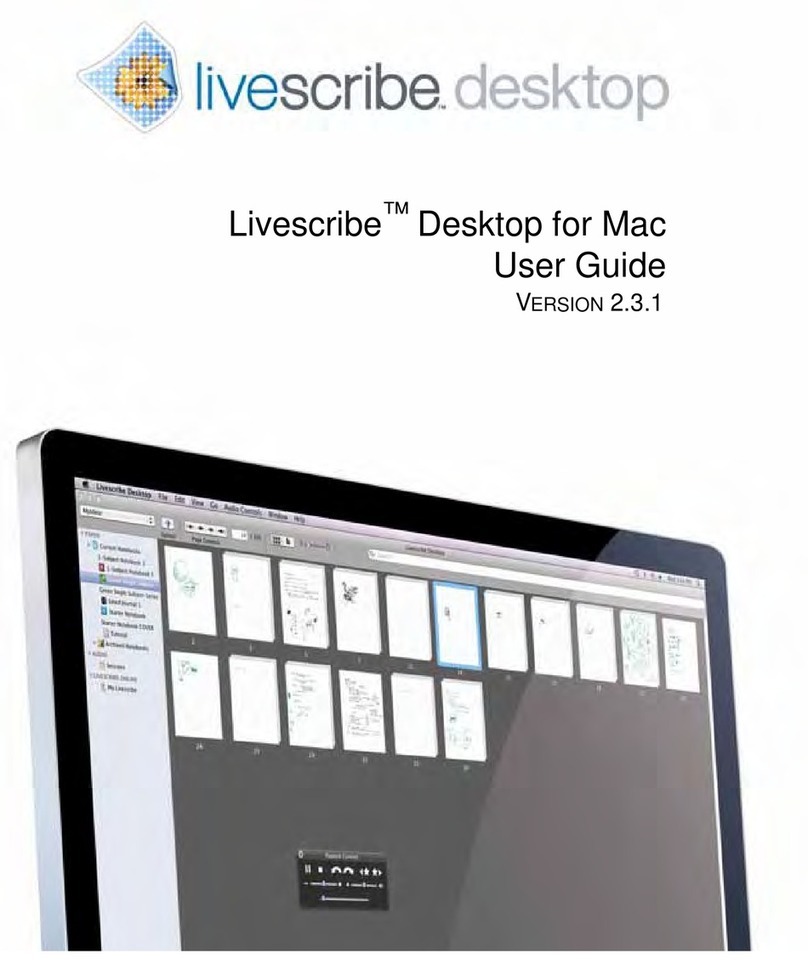
Livescribe DESKTOP VERSION 1.2 User manual

Livescribe Desktop User Manual
Version 1.4 for Windows

Copyright and Trademarks
LIVESCRIBE, PULSE, and PAPER REPLAY are trademarks or registered trademarks of
Livescribe, Inc. Anoto is a trademark of Anoto Group AB. Microsoft and Microsoft
Word are either registered trademarks or trademarks of Microsoft Corporation in the
United States or other countries. All other brand and product names are trademarks
of their respective owners.
Copyright © 2007-2008 Livescribe, Inc. All rights reserved.
205-00002-000-A-WINLD-01.40-LDUM-REV-A
11-Nov-2008 2:42 PM

Table of Contents
Livescribe Desktop.......................................................................................... 1
What's New in this Version?.......................................................................... 2
Using Livescribe Desktop.............................................................................. 2
View Pages.............................................................................................. 2
Listen to Sessions .................................................................................... 3
Upload Content to Livescribe Online............................................................ 3
Print, Manage, and Archive Paper Products.................................................. 3
Manage Applications................................................................................. 4
Manage Memory ...................................................................................... 4
About the Pulse Smartpen and Dot Paper........................................................ 4
Livescribe Dot Paper................................................................................. 4
How the Pulse Smartpen Works ................................................................. 5
Getting Started with Livescribe Desktop ......................................................... 6
Installing Livescribe Desktop ..................................................................... 6
Running Livescribe Desktop....................................................................... 7
Registering Your Pulse Smartpen................................................................ 8
Copying Content from Your Pulse Smartpen................................................. 9
Quitting Livescribe Desktop ..................................................................... 10

Uninstalling Livescribe Desktop ................................................................ 11
Getting to Know Livescribe Desktop ................................................................ 13
Views ...................................................................................................... 13
Page Viewer .......................................................................................... 13
Sessions View........................................................................................ 14
Livescribe Online.................................................................................... 15
Smartpen Manager................................................................................. 15
Page Viewer Windows ................................................................................ 16
Content Window .................................................................................... 16
Navigation Window................................................................................. 17
Menus and Tool Bars.................................................................................. 20
Main Menu ............................................................................................ 20
Main Tool Bar ........................................................................................ 21
Page Control Tool Bar............................................................................. 21
Audio Control Tool Bar............................................................................ 21
Memory Manager Tool Bar....................................................................... 22
Paper Replay in Livescribe Desktop ................................................................. 23
About Active Ink ....................................................................................... 23
Viewing Pages........................................................................................... 24
Paging through a Notebook ..................................................................... 24
Page iv Livescribe Desktop User Manual

Viewing Thumbnails................................................................................ 25
Viewing a Single Page............................................................................. 26
Playing Audio while Viewing Pages............................................................ 27
Zooming Pages...................................................................................... 29
Searching Pages .................................................................................... 31
Copying and Pasting Pages...................................................................... 33
Printing Pages ....................................................................................... 34
Using the Page Control Tool Bar............................................................... 35
Working with Sessions ............................................................................... 36
Viewing a List of Sessions ....................................................................... 37
Renaming a Session ............................................................................... 38
Deleting a Session from Livescribe Desktop ............................................... 38
Removing a Session from Your Pulse Smartpen.......................................... 39
Viewing a Session's Pages....................................................................... 40
Playing Audio from Sessions View............................................................. 41
Using the Audio Control Tool Bar.............................................................. 41
Uploading Content to Livescribe Online............................................................ 43
Connecting to Livescribe Online................................................................... 43
Uploading Pages........................................................................................ 44
Uploading a Session................................................................................... 45
Livescribe Desktop User Manual Page v

Uploading a Session in Sessions View ....................................................... 45
Uploading a Session in Page Viewer.......................................................... 45
Sharing Content (Pencasting)...................................................................... 46
Printing, Managing, and Archiving Paper Products ............................................. 47
Printing Your Own Notepads........................................................................ 48
Three Simple Steps for Managing Paper Products........................................... 49
Checking Paper Product Usage with the Notebook Status Label........................ 50
About Livescribe dot paper Product Naming .................................................. 50
Archiving Paper Products............................................................................ 52
Managing Paper Products with the Same Dot Pattern...................................... 53
Using Packs of Paper Products ................................................................. 54
Mapping Series Names to Groups and Numbers............................................. 54
Lined Notebooks .................................................................................... 54
Lined Black Journals............................................................................... 55
Unlined Black Journals............................................................................ 55
Unlined Red Journals .............................................................................. 56
Backing Up Your My Livescribe Folder........................................................... 56
Managing Your Pulse Smartpen....................................................................... 57
Managing Applications................................................................................ 57
Viewing Installed Applications and Software............................................... 57
Page vi Livescribe Desktop User Manual

Livescribe Desktop User Manual Page vii
Installing Software Updates..................................................................... 59
Installing New Applications and Software................................................... 59
Viewing Queued Applications and Software................................................ 59
Other Pulse Smartpen Commands ............................................................ 60
Managing Memory ..................................................................................... 61
Viewing Memory Usage........................................................................... 61
Freeing Memory..................................................................................... 62


Livescribe Desktop
Livescribe Desktop is software that runs on your computer to view and listen to the
content you create and capture using your Pulse™ smartpen. With Livescribe
Desktop, you can view your notes, listen to your recorded audio, manage
applications, and more. Livescribe Desktop is also a portal to Livescribe Online,
where you can upload and share content, purchase new applications and paper
products, and connect to the Pulse smartpen user community.
Livescribe Desktop is one component of a paper-based mobile computing platform.
This platform bridges the gap between the paper and digital worlds, and enables a
broad range of new applications in personal productivity, learning, communication,
and self expression.
The Livescribe mobile computing platform includes:
•Pulse smartpen: a pen-size computer with advanced processing power,
audio/visual feedback, and substantial memory for handwriting capture, audio
recording, and applications

•Livescribe™ Dot Paper: technology that enables interactive, “live” documents
using plain paper printed with micro-dots
•Livescribe Desktop, Livescribe Online, and Pulse™ smartpen applications: a
breadth of software and web solutions that leverage ink and audio capture,
handwriting recognition, and Internet connectivity to enhance personal
productivity, learning, communication, and self expression
•Development tools: easy-to-use tools for consumers and developers to
create, publish, and share or sell new applications and content online
What's New in this Version?
Livescribe made improvements to Livescribe Desktop to add new features, correct
known issues, and improve usability. New features include:
•Support for Windows Vista® 64-bit (see Installing Livescribe Desktop)
•Ability to print your own notepads using a qualified color laser printer that can
print 600 dpi or greater. (see Printing Your Own Notepads)
•Automatic launch of Livescribe Desktop when you dock your Pulse smartpen
(see Running Livescribe Desktop)
•To play a session from Sessions view, you need to double-click the session
you want to hear (see Playing Audio from Sessions View)
Using Livescribe Desktop
Livescribe Desktop provides many ways to view, listen to, and manage content you
capture with your Pulse smartpen. You can also use Livescribe Desktop to connect
with Livescribe online and manage applications on your Pulse smartpen. Here are the
typical things to do with Livescribe Desktop:
View Pages
•page through a notebook
Page 2 Livescribe Desktop User Manual
Table of contents
Other Livescribe Software manuals