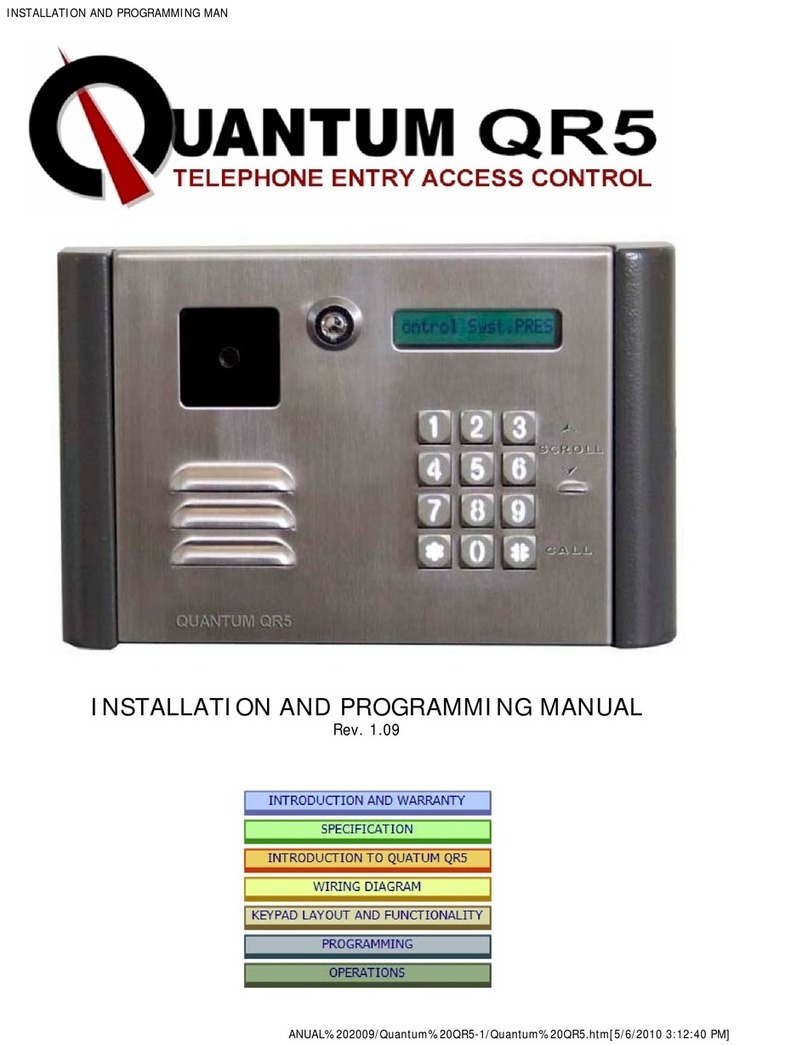
Enter User Settings Menu (Refer to 1.5), Press button on the menu. Enter the new
welcome text by using above Table-1. Use and to search through the letters. Use (C)
button to correct wrong entries. Once the first line “Apartment name” is done press
button to switch to 3-digit second line “Apartment number”. Press button to return back
to USER’S MENU and WELCOME SCREEN. The new text is now saved.
1.5.2 Change Door Pin
Enter User Settings Menu (Refer to 1.5), Press button on the menu : Change Door Pin .
“Enter the door pin” will be visible at the panel screen. Enter the default pin (1234) than press
button.”New pin” will be visible at the panel screen if the pin is correctly entered. Enter
the new 4 digit pin.Use (C) button to correct wrong entries.Once the new pin is written press
button. “Saving” will be visible at the panel screen and the new pin is set.
1.5.3 Change Settings Menu Pin
Enter User Settings Menu (Refer to 1.5), Press button on the menu: Change Settings
Menu Pin. “Enter the settings menu pin” will be visible at the panel screen. Enter the default
pin (0000) than press button. .”New pin” will be visible at the panel screen if the pin is
correctly entered. Enter the new 4 digit pin.Use (C) button to correct wrong entries.Once the
new pin is written press button. “Saving” will be visible at the panel screen and the new
pin is set.
1.5.4 Change Apartment Specific Pin
Enter User Settings Menu (Refer to 1.5), Press button on the menu: Change Apartment
Specific Pin. "Apartment Number" ” will be visible at the panel screen. Enter the Apartment
number than press button. If the pin will be assigned for the first time ”New pin” will be
visible at the panel screen Enter the new 4 digit pin.Use (C) button to correct wrong
entries.Once the new pin is written press button. “Saving” will be visible at the panel
screen and the new pin is set.
If a preset pin will be changed “Enter the old pin” will be visible at the panel screen. Enter
the 4 digit old pin than press button.”New pin” will be visible at the panel screen if the
pin is correctly enetered. Enter the new 4 digit pin.Use (C) button to correct wrong
entries.Once the new pin is written press button. “Saving” will be visible at the panel
screen and the new pin is set.
1.5.5 Change Name List . Add new name.
Enter User Settings Menu (Refer to 1.5), Press button on the menu: Change Name List .
Add new name. "Apartment Number" ” will be visible at the panel screen. Enter the
Apartment number than press button.Use (C) button to correct wrong entries.”Enter the
Name” wll be visible at the panel screen. Enter the name by using and to search
through the letters. Use (C) button to correct wrong entries. Press button after the name
is entered.
Follow the same steps to change an alreday assigned name.
1.5.6 See Last entries list
Enter User Settings Menu (Refer to 1.5). Press button on the menu: See Last entries list.
The list of last entries using Apartment specific pin will be visible at the panel screen. First
row shows the number of total entries, second row shows the last entry with the Apartment