manuals.online logo
Brands
  1. Home
  2. •
  3. Brands
  4. •
  5. Massenburg Design Works
  6. •
  7. Software
  8. •
  9. Massenburg Design Works MDW 2x2 User manual

Massenburg Design Works MDW 2x2 User manual

Popular Software manuals by other brands

Red Hat ENTERPRISE LINUX 4 -  FOR X86-ITANIUM AND... installation guide

Red Hat

Red Hat ENTERPRISE LINUX 4 - FOR X86-ITANIUM AND... installation guide

Avaya OAISYS NetSuite 4.2 Application notes

Avaya

Avaya OAISYS NetSuite 4.2 Application notes

Asante SmartBridge V1.0 user manual

Asante

Asante SmartBridge V1.0 user manual

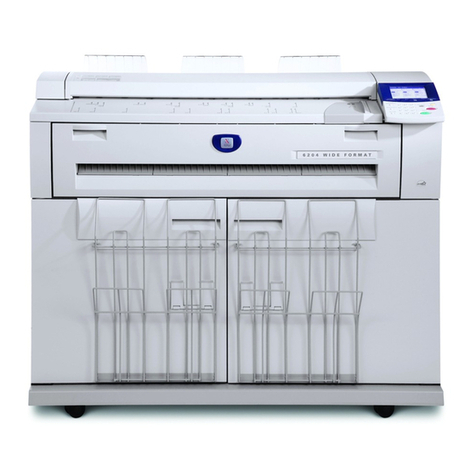
Xerox Wide Format 6204 installation guide

Xerox

Xerox Wide Format 6204 installation guide

SAS Scalable Performance Data Server 4.5 Administrator's guide

SAS

SAS Scalable Performance Data Server 4.5 Administrator's guide

Lucid FM2A85X Extreme6 installation guide

Lucid

Lucid FM2A85X Extreme6 installation guide

Juniper JUNOS PUS MOBILE SECURITY SUITE datasheet

Juniper

Juniper JUNOS PUS MOBILE SECURITY SUITE datasheet

GRASS VALLEY NETCONFIG V2.0.12 instruction manual

GRASS VALLEY

GRASS VALLEY NETCONFIG V2.0.12 instruction manual

Epson Stylus Pro 9880 ColorBurst Edition - Stylus Pro 9880... Getting started

Epson

Epson Stylus Pro 9880 ColorBurst Edition - Stylus Pro 9880... Getting started

COMPRO COMPROFM manual

COMPRO

COMPRO COMPROFM manual

Muratec OFFICEBRIDGE ONLINE user guide

Muratec

Muratec OFFICEBRIDGE ONLINE user guide

Oracle Contact Center Anywhere 8.1 installation guide

Oracle

Oracle Contact Center Anywhere 8.1 installation guide

Avaya NULL One-X for RIM Blackberry user guide

Avaya

Avaya NULL One-X for RIM Blackberry user guide

HP ProLiant BL420c user guide

HP

HP ProLiant BL420c user guide

PS Audio PowerPlay Programming manual

PS Audio

PS Audio PowerPlay Programming manual

Brady LOCKOUT PRO 3.0 Administrator's guide

Brady

Brady LOCKOUT PRO 3.0 Administrator's guide

Avaya Interaction Center user guide

Avaya

Avaya Interaction Center user guide

Texas Instruments TI-83 Plus Silver Edition Guide book

Texas Instruments

Texas Instruments TI-83 Plus Silver Edition Guide book

manuals.online logo
manuals.online logoBrands
  • About & Mission
  • Contact us
  • Privacy Policy
  • Terms and Conditions

Copyright 2025 Manuals.Online. All Rights Reserved.

USER’S GUIDE
MDW 2x2™
Massenburg’s High Resolution Parametric EQ
™
®
Plug-in for Mackie Digital Mixers
™
2
Massenburg EQ
Iconography
“Mackie” and the “Running Man” figure are trademarks or
registered trademarks of Mackie Designs Inc. All other brand
names mentioned are trademarks or registered trademarks of
their respective holders, and are hereby acknowledged.
Part No. 820-254-00 Rev. A 03/2001
© 2001 Mackie Designs Inc. All Rights Reserved.
This icon identifies a description of how to
perform an action with the mouse.
This icon identifies a description of how to
perform an action from the console.
This icon will lead you to some further
explanations of features and practical tips.
This icon marks information which is very
important, so please make sure you have a read.
3
User’s Guide
Note: Any future revisions of this guide will be available for
viewing and downloading from our website: www.mackie.com.
Contents
Introduction ----------------------------------------4
About Massenburg Design orks ---------------------------4
About the D8B UFX Card --------------------------------------4
About the MD Equalizer ------------------------------------ 5
Let’s Get Started ---------------------------------- 6
Requirements ----------------------------------------------------6
Authorizing the Plug-in----------------------------------------6
Unlock Procedure ----------------------------------------------- 7
Configuring the Plug-in --------------------------------------- 8
Using the MD EQ Plug-in -------------------- 10
Stereo and Mono Front Panels ----------------------------- 10
Level Control --------------------------------------------------- 11
Frequency Control --------------------------------------------- 11
Q Control --------------------------------------------------------12
EQ Types ---------------------------------------------------------12
Saving, Loading, and Resetting a Preset ------------------ 13
Automation and Snapshot Control ---------- 16
FX Routing -----------------------------------------17
4
Massenburg EQ
Note: Earlier D8Bs were fitted with 16 MB of memory. It is recommended that
you increase this to 32 MB (as fitted in newer D8Bs) if you install more than one
UFX card. Memory upgrade instructions are supplied with each UFX card.
Introduction
Thank you for purchasing this EQ plug-in from Massenburg
Design Works. It is one of the exciting new family of 24-bit plug-
ins for the D8B, specifically designed for the new Mackie
Universal Effects (UFX) card.
This high-resolution parametric EQ contains five discrete,
overlapping bands. Each band’s center frequency can be set
anywhere within the entire 16 Hz–21.5 kHz frequency range.
About Massenburg Design orks
Multiple Grammy and TEC Award-winner George Massenburg is
an internationally renowned producer, recording engineer, and
designer of audio equipment — and the creator of parametric
EQ! His stereo analog mastering equalizers have been dubbed
the best sounding EQs available anywhere at any price.
The goal of Massenburg Design Works is to create the best
sounding digital EQ ever designed. His first products are
specifically developed for the D8B, Sonic Solutions Mastering
System and the Sony Oxford console — obviously we are in good
company!
About the D8B UFX card
The UFX card provides robust processing power for computation-
heavy plug-ins. The UFX card is a 4-in/4-out architecture, which
means it can support four mono, two mono and one stereo, or
two stereo sends simultaneously. Up to four UFX cards can be
installed in the D8B, allowing up to sixteen simultaneous single-
channel effects, eight stereo plug-ins, or combinations thereof.

5
User’s Guide
About the MD Equalizer
The MDW High-Resolution Parametric Equalizer plug-in
provides a five-band stereo/mono EQ to the D8B master stereo
bus, any individual channel or the surround buses. It operates at
double sample rates (96 kHz) to deliver excellent clarity and
response with superlative smoothness in the high-frequency
audio spectrum.
The plug-in can be loaded as MDW Stereo EQ or MDW Mono EQ.
MDW Stereo EQ
MDW Mono EQ
6
Massenburg EQ
Requirements
• One or more Mackie UFX cards
• Mackie Real Time OS 3.0 Software
• Plug-in Software
We will assume you have successfully installed a Mackie UFX
card and Mackie Real Time OS 3.0 software upgrade. If you have
encountered problems with the installation of hardware or
software please see their associated user guides or contact
Mackie support (www.mackie.com).
Authorizing the Plug-in
If you have D8B v 3.0 b186 or greater, the plug-in is already
installed on the D8B hard drive, however an authorized unlock
code must be entered to unlock the plug-in for normal operation.
Note that the MDW plug-in has two versions to be unlocked:
MDW Stereo EQ and MDW Mono EQ.
1234-5167-89D1
Let’s Get Started
An Unlocked
Plug-in
D8B SETUP screen’s
LICENSING window
D8B Electronic Serial Number (ESN)
AUTHORIZE
LICENSING
MDW Stereo EQ
MDW Mono EQ
7
User’s Guide
Unlock Procedure
1. Locate your D8B’s Electronic Serial Number (ESN). This
is displayed at the bottom of the Licensing window
which is accessed from the Setup screen. The 12 digit
ESN is made from numbers 0–9 and letters A–F. It is
unique to the D8B processor, and is not the serial
number label on the rear of the control surface or CPU
chassis.
2. You will also need your plug-in’s serial number which is
printed on each floppy disk label.
3. To obtain the unlock code, have the ESN and plug-in
serial number ready. Then you have two options:
• Log on to the Mackie plug-in authorization web page:
(http://www.mackie.com/d8bauthorize.htm)
or
• Telephone Mackie Tech Support at 800-258-6883.
4. When you have obtained an unlock code for the Mono
EQ, and one for the Stereo EQ, open the D8B Setup
window, and click Licensing.
5. With your plug-in highlighted in the Licensing window,
click Authorize, and enter your unlock code in the
UNLOCK CODE box. Click Enter, and enjoy your newly
expanded console.
8
Massenburg EQ
Configuring the Plug-in
After booting the D8B you must assign the MDW plug-in to a
UFX card. See FX Routing on page 17 for more details.
Assign the MD Plug-in to a UFX card
1. Click the Plugins menu and
select Plugins, or use
the keyboard shortcut
Ctrl+P.
2. In the Plugin
Configuration window,
locate the card slot
that contains the UFX
card you wish to
assign to.
3. In the Mode column,
click the Mono/Stereo
toggle button and set
it to Mono or Stereo.
4. In the Plugin column, select MDW Mono EQ or MDW
Stereo EQ from the drop-down menu.
Note:Note:
Note:Note:
Note: A plug-in can also be loaded from the Setup section on the console.
9
User’s Guide
Removing the Plug-in
1. Select none from the associated plug-in
drop-down assignment menu.
2. Click OK in the Alert dialog
box.
Note:Note:
Note:Note:
Note: A plug-in can also be deleted
from the Setup section on the console.
Assign an Input Source to the Plug-in
• Click the plug-in’s INPUT menu button to select an input
source. In the example below, we have chosen the Aux 5
Bus as the input to the plug-in installed in slot 5.
When a plug-in is fed from
an aux bus, its output
appears on the FX Return
channels (faders in the
EFFECTS bank). The return
channel is determined by
the slot number and
whether the effect output is
mono or stereo. For
example, a reverb with a
mono input and stereo
output that is installed in
Slot 5 has its outputs on FX
5 and FX 6. Note: The
default state for all FX
channels is MUTE. You
won’t hear the effect until
you unmute its FX return
channel(s).
A plug-in can also receive its input from a channel pre- or post-
DSP insert or the main stereo left and right bus. When a plug-in
is inserted “in line” in this manner, its output is routed directly
back into the channel. See FX Routing on page 17 for more
details.
10
Massenburg EQ
Using the MD EQ Plug-in
Five Bands of
Parametric EQs
Graphical Display
(mouse active)
Menu
Preset Selection
& Display Memory
Input
Source
EQ In/Out
Meter Display
(In/Out) EQ In/Out
Buttons
EQ Type
Display
Band
Boundary
Markers
Expand Button
(display controls) Hide Plug-in
Window Button
Freq
Q
Level
MD Mono Front Panel
Both right
and left
EQ curves
displayed
Edit Channel
toggle button
Link for
stereo
control
Global In/Out
buttons for both
EQ channels EQ In/Out
Buttons
Global display
buttons for both
channels
MD Stereo Front Panel
EQ Type