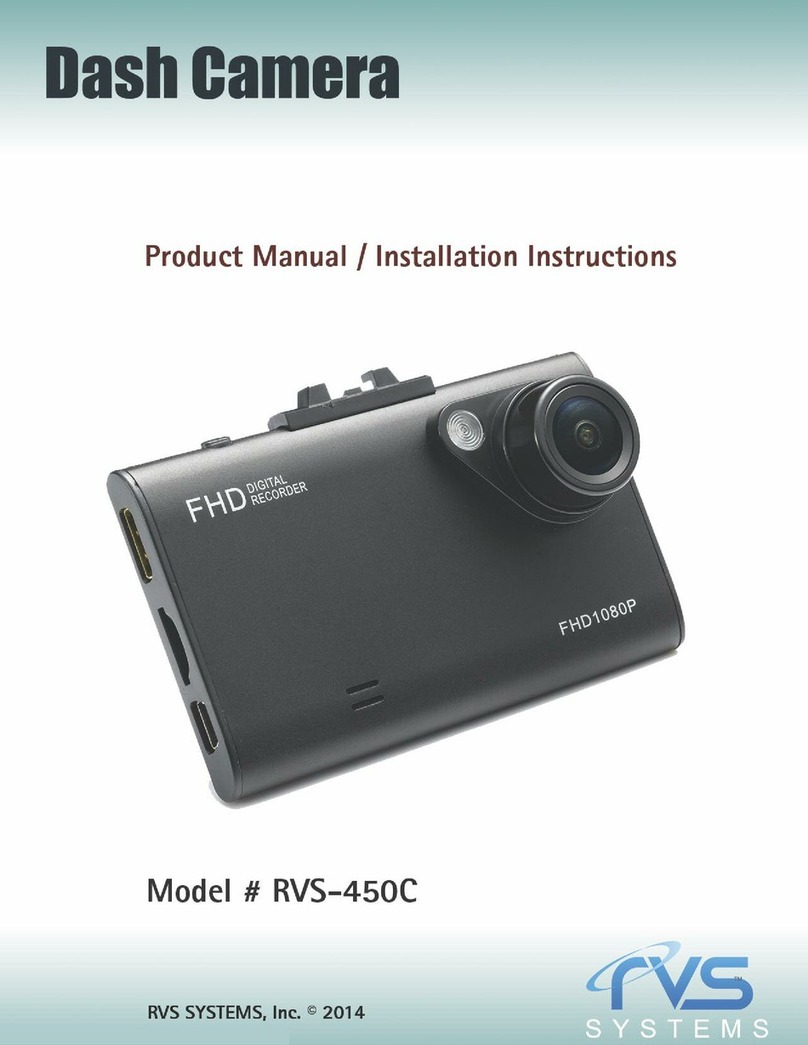
Mini 0826 User manual

Our Web Site: www.combi.org.uk
User Manual
Ambarella A7
Please read this manual carefully before using this product.
Please get this manual well-kept for future reference.
Please use it correctly based on a full understanding of the manual
Mini 0826 Super HD 1296P Dash Camera

2
Preface
Precautions
General precautions
·
Do not expose this product to dusty, dirty or sandy areas to reduce the risk of
damaging components.
· Do not expose the camera to high temperature. High temperature may shorten the
life span of electronic device, damage the battery and wind or melt specific plastic
parts.
· Do not situate the camera under cold environment. When the product is preheated
to its correct temperature, there will be moisture inside and damage the circuit.
· Do not try to disassemble or repair by yourself. Doing so may lead to electric shock
from the internal high-pressure components.
· Do not drop or punch the camera. Otherwise the internal components will be
damaged.
· Do not clean the camera with chemicals, cleaning solution or high concentration
detergent. Please wipe it with slightly damp soft cloth.
· Send the camera or any other accessories to the professional service center for
maintenance when they do not work well.
Operational condition
· According to the design, the camcorder should be operated within the temperature
range from 0 degree to 40 degree(32 to 104℉ ℉)

3
· Do not operate or expose the camcorder under following condition:
—Direct sunlight area
—High temperature or dusty area
—Near air conditioner or heaters or any other extreme temperature area
—In a closure car, especially parking in direct sunlight
—Violent vibration area
1 Brief Introduction of the Dash Camera
The features and functions are introduced in this chapter. In addition, PC system
requirement, list of items and description of the hardware components are included.
1.1 PC System Requirements
The PC system needs to meet the following requirements:
· Windows Vista/XP operating system
· Intel Pentium 4 2.8GHz CPU or above(recommended 3GHz)
· At least 512 MB RAM or above(recommended 1GB)
· Standard USB2.0 port or above
· At least 64MB PC video adapter or above
1.2 Camera appearance and feature icons

4
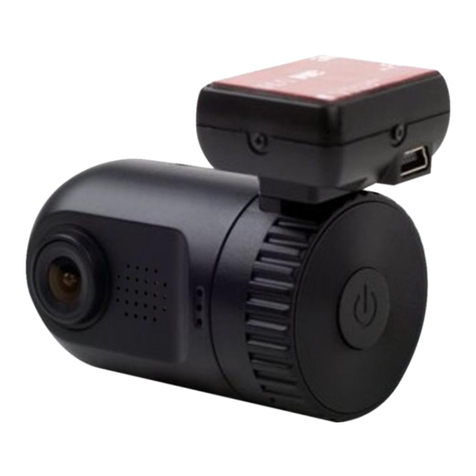
1. GPS tracker box also GPU (bracket), 3M sticker put here and then stick to car front
window.If no GPS, it is as a bracket only
2. USB port 3. AV port 4.Up button / Menu / Mute hot button
5. OK button 6. Down /SOS button 7. Light indicator
8. Lens 9. USB port (working only when with GPS tracker box)
10. Power on/off / Reset (Long press it as reset button)
11. HDMI port 12.TF card slot

5
Light indicator: Red, charging / Blue, stand by / Blue flashing, recording
Operation
Read this chapter to know how to operate the camera.
2.1 Inserting a TF card
Inserting a TF card into the camera provides more space to store videos, images or
other files.
Please use high-speed TF card meeting the specification of TFHC. (Class6 is
perfect .Class10 may be used but best rely on the max 48mb/s class 10 and not
faster. If using 64GB please format the card to Fat32 before use.
Copy function for backup video (8GB memory card built-in)
Optional
Video clip can be copied between external and internal storage, then you will have
backup after you hand over card to police or the court. (Optional)
First you should choose the card (see 2.1 how to choose card), then
1. Long press "DOWN" button and into Movie reviewing
2. Then long press "UP" button you can copy video to another card
2.2 Turning on your camera
Press Power button to turn ON / OFF the power. Or connect to the car charger
directly; it will turn on automatic when car start.

6
2.3 Take a picture
Taking a still picture
1. On recording, long press "OK" button and take a picture
2. On stand by, long press "OK" button and take a picture
2.4 Reviewing the pictures
1. Long press "Down" button and into Movie reviewing, then long press "Down"
button again that you can review the pictures.
2. Then long press "UP" button you can do something setting about the pictures:
delete file/ protect file/auto play/copy to another card / choose card
3. Press "OK" button to confirm.
4. Long press "Down" button to back to other mode
2.5 Before using
Before using the camera, it is necessary to do some basic settings such as Date and
Time, Language and Beep Tone etc.
2.5.1 Setting Date and Time
Power on the camcorder, Press Menu (Long press UP button), then press UP
and DOWN button to choose Date and Time, press OK button to confirm.
2.5.2 Setting Language
Power on the camcorder, Press Menu (Long press UP button), then press UP and
DOWN button to choose language, press OK button to confirm.

7
2.5.3 Loop recording setting
Off/1minutes/3minutes/5minutes
1. off mode
a. The device can not record automatically and can not record by recycled
b. Maximum length of each recorded video file is 3.66G. When it reaches the
maximum, the recording is automatically split and saved as another file
c. if the space is full, the previous files will not be deleted; when card is full , will
show "card full " and can not continue record
2.When the loop setting mode is "1 min", "3min", "5min", "off"
a. Power on , the device will record automatically
b. if the space is full, the previous saved file will be automatically cover and
overwrite
3. loop recording between external card and internal card.
2.5.4 Setting other features
Read this chapter to know how to configure the setup and fine-tune the functions
Power on the camera, Press Menu (Long press UP button), press UP and DOWN
button to choose the icons and press OK button to confirm.
1. Video resolution: 2560*1080 30P 21:9 / 2304*1296 30P16:9 / 1920*1080 45P 16:9
/ 1920*1080 30P 16:9 HDR 1920*1080 30P 16:9 / 1280*720 60P 16:9 / 1280*720
30P 16:9 1296*1080 60P (only A7LA70 have, optional)

8
2. EV:0/-0.3/-0.7/-1.0/-1.3/-1.7/-2.0/+2.0/+1.7/+1.3/+1.0+0.7/+0.3
3. Flicker: 50/60Hz
Use this function to set the flicker frequency in your area.
4. Lens: wide angle 135 degree+6G
5. White Balance
This item is for correction in different colors under different light conditions. When the
white balance is set as Auto, the camcorder compensates different light conditions
automatically.
AUTO/Sunny/Incandescent/ flvorescent /cloudy
6. ADAS: LDWS (Land Departure Warning System)
FCW (Forward Collision Warning)
FCMD (Forward Car Motion Detection)
7. TV type: NTSC/PAL
8. AUTO power off
9. Date time display: Date time/off/date/time
10. Motion detect: off/on
11. Power off screen: off/1minutes/3 minutes/5minutes
12Video camera mode: Video + audio / video
13. G-sensor precision: 2G/2.5G/3G/3.5G/4G/4.5G/CLOSE
14. WDR/HDR
15. USB Mode: Mass storage
16. Choose card: external card / internal card (this function is optional )

9
17. Language: English/Russian/Chinese
18. Default setting : Yes/No
This function will restore all the settings to the factory defaults.
19.Format: Yes/No (Please format micro SD card at first use, and format micro SD
card regularly to avoid storage problems. )
Use this function to Format the storage medium. Note that all the data stored in
the medium will be gone.
20. Speed Unit: OFF ; Km/h ; Mph (please choose speed unit before using GPS
function).
21. Firmware version
2.5.5 Stamp: Date time/time /date/car/driver number/off
a.When you choose date time and car, then driver number can not show, it is not
enough space.
Under car mode, it will display the location latitude and longitude after connect to
GPS
b.When you choose date time and driver number, then GPS information can not show,
it is not enough space.
C. Driver number is 9 character driver numbers, license plate
2.5.6 GPS: Open/close (Some model without GPS Function)
GPS tracking (effective with GPS-IN function) for the model with GPS. If NO GPS,
NO this function

10
1. Plug in the GPS module to the DVR, satellite searching will be start
automatically.
2. When GPS signal is located, will be showed on the display.
3. When taking picture in Camera mode, location will be recorded automatically.
2.6 Review/playing your video files
1. Long press "Down" button and into Movie reviewing to display the latest video
files on the LCD screen.
2. Then long press "UP" button you can do something setting about the video:
delete file/ protect file/auto play/copy to another card/ choose card
3. Press "OK" button to confirm.
4. Long press "DOWN" button twice to get back to other mode
2.7 Connecting PC
Connect the camera to computer with USB cable included. (Effective under recording
settings off)
2.8 Connecting the DVR to Standard TV. (Effective with AV-OUT function)
Connect your camera and Standard TV via Accessory AV cables (customized).
2.9 Connecting the DVR to HDTV
When connecting to HDTV, you can use high resolution to display video files or
pictures.
Use HDMI cable to connect the camcorder video or audio signal to HDTV.
Other Mini Dashcam manuals