manuals.online logo
Brands
  1. Home
  2. •
  3. Brands
  4. •
  5. MIRABELLA
  6. •
  7. Digital Camera
  8. •
  9. MIRABELLA Mirabella Bebe User manual

MIRABELLA Mirabella Bebe User manual

This manual suits for next models

1

Other MIRABELLA Digital Camera manuals

MIRABELLA Bullet 2S User manual

MIRABELLA

MIRABELLA Bullet 2S User manual

MIRABELLA I004775 User manual

MIRABELLA

MIRABELLA I004775 User manual

MIRABELLA I002867 User manual

MIRABELLA

MIRABELLA I002867 User manual

MIRABELLA E95A User manual

MIRABELLA

MIRABELLA E95A User manual

MIRABELLA Speed 14S User manual

MIRABELLA

MIRABELLA Speed 14S User manual

MIRABELLA E96F User manual

MIRABELLA

MIRABELLA E96F User manual

MIRABELLA Mini 16S User manual

MIRABELLA

MIRABELLA Mini 16S User manual

Popular Digital Camera manuals by other brands

Canon WP-DC35 user guide

Canon

Canon WP-DC35 user guide

Xiaomi 70mai Dash Cam Lite user manual

Xiaomi

Xiaomi 70mai Dash Cam Lite user manual

Samsung PL70 Quick start manual

Samsung

Samsung PL70 Quick start manual

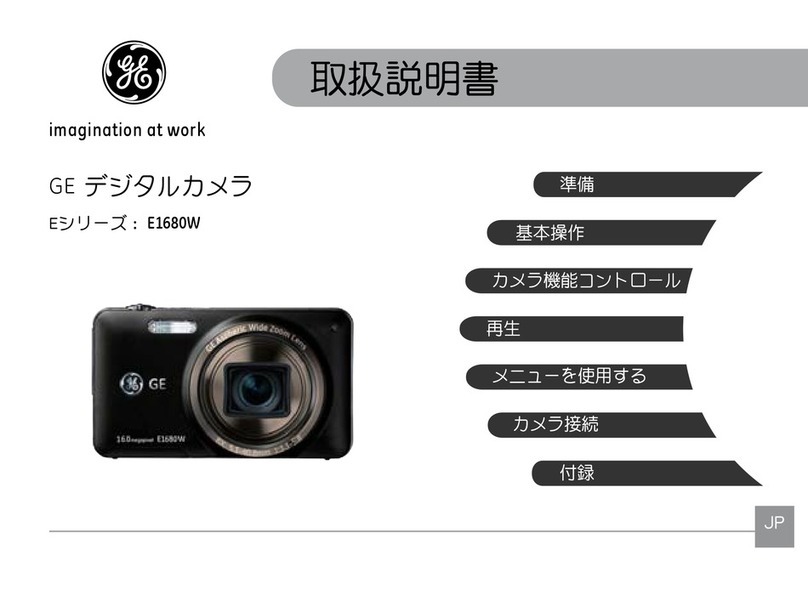
GE E1680W user manual

GE

GE E1680W user manual

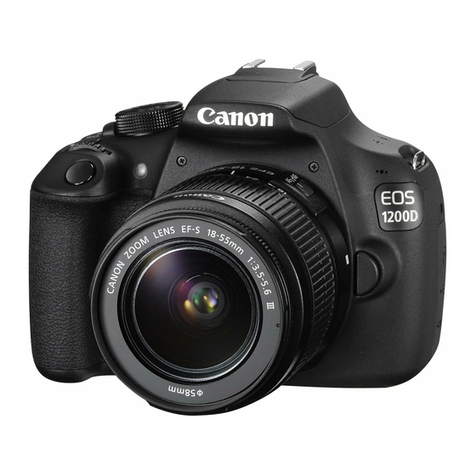
Canon EOS 1200D instruction manual

Canon

Canon EOS 1200D instruction manual

Tevion MD 86497 user guide

Tevion

Tevion MD 86497 user guide

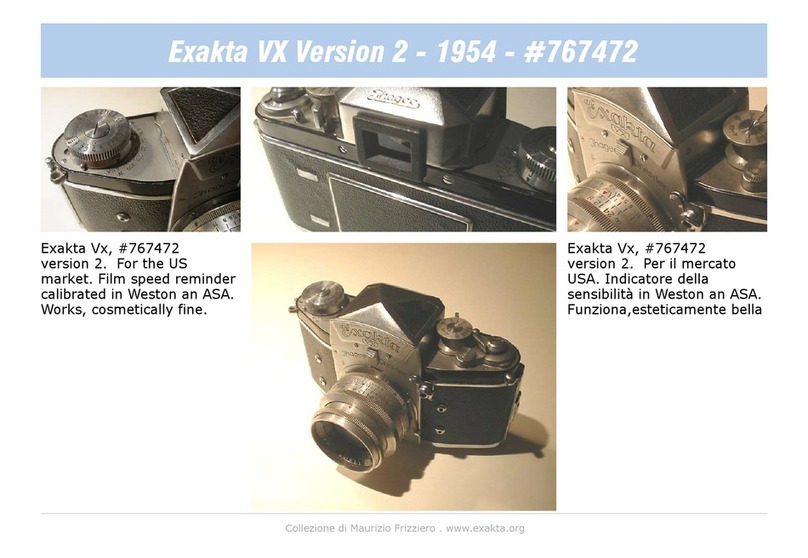
Exakta VX Features

Exakta

Exakta VX Features

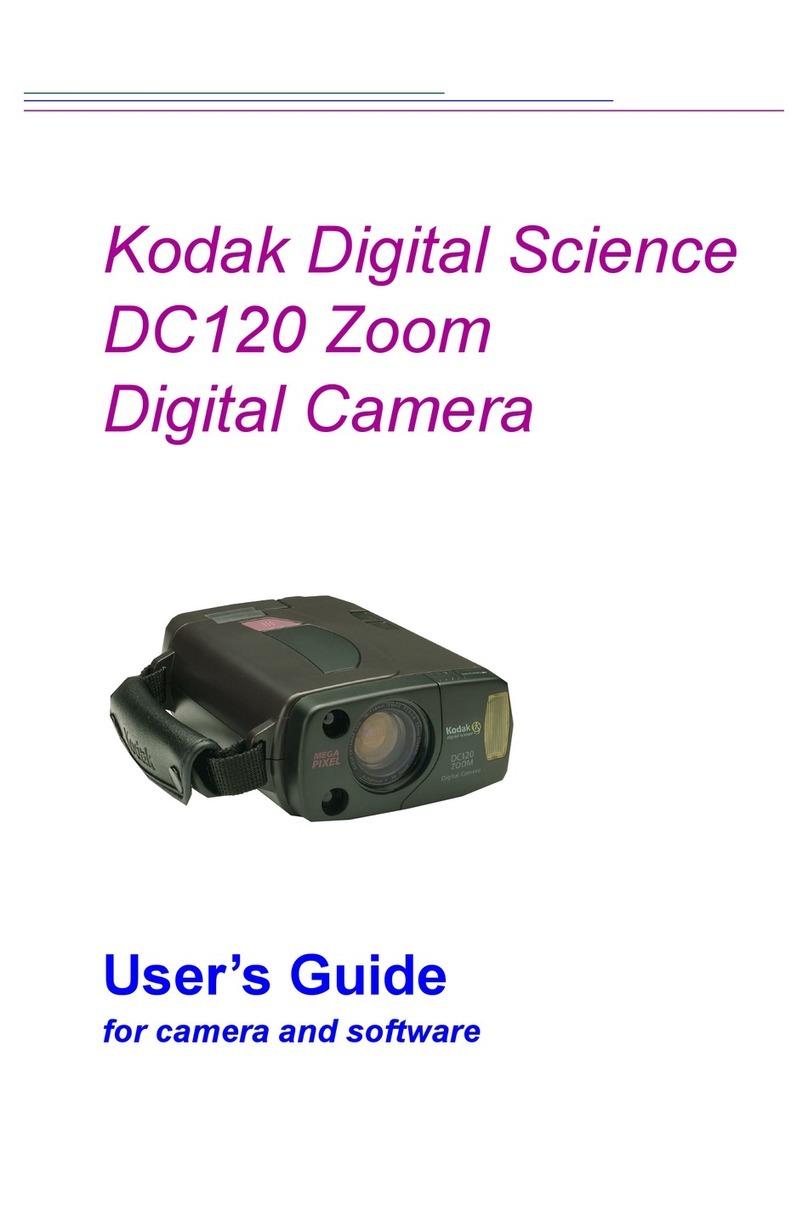
Kodak Digital Science DC120 user guide

Kodak

Kodak Digital Science DC120 user guide

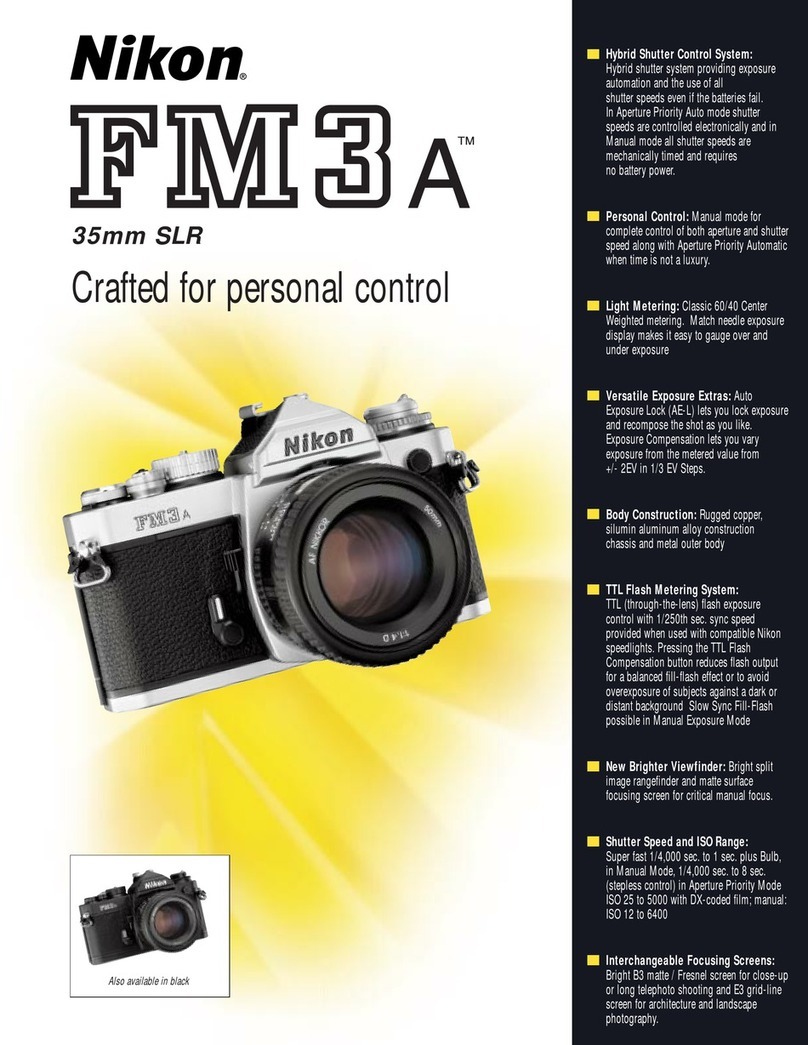
Nikon FM3A Specifications

Nikon

Nikon FM3A Specifications

Vectra Fitness H1 Quick reference guide

Vectra Fitness

Vectra Fitness H1 Quick reference guide

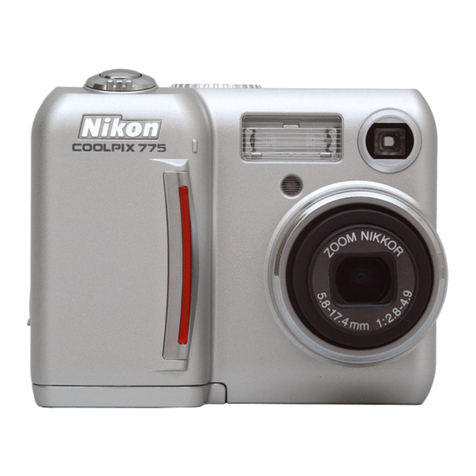
Nikon COOLPIX 775 quick start guide

Nikon

Nikon COOLPIX 775 quick start guide

Olympus IR 500 - 4MP Digital Solutions Camera Manuel de Référence

Olympus

Olympus IR 500 - 4MP Digital Solutions Camera Manuel de Référence

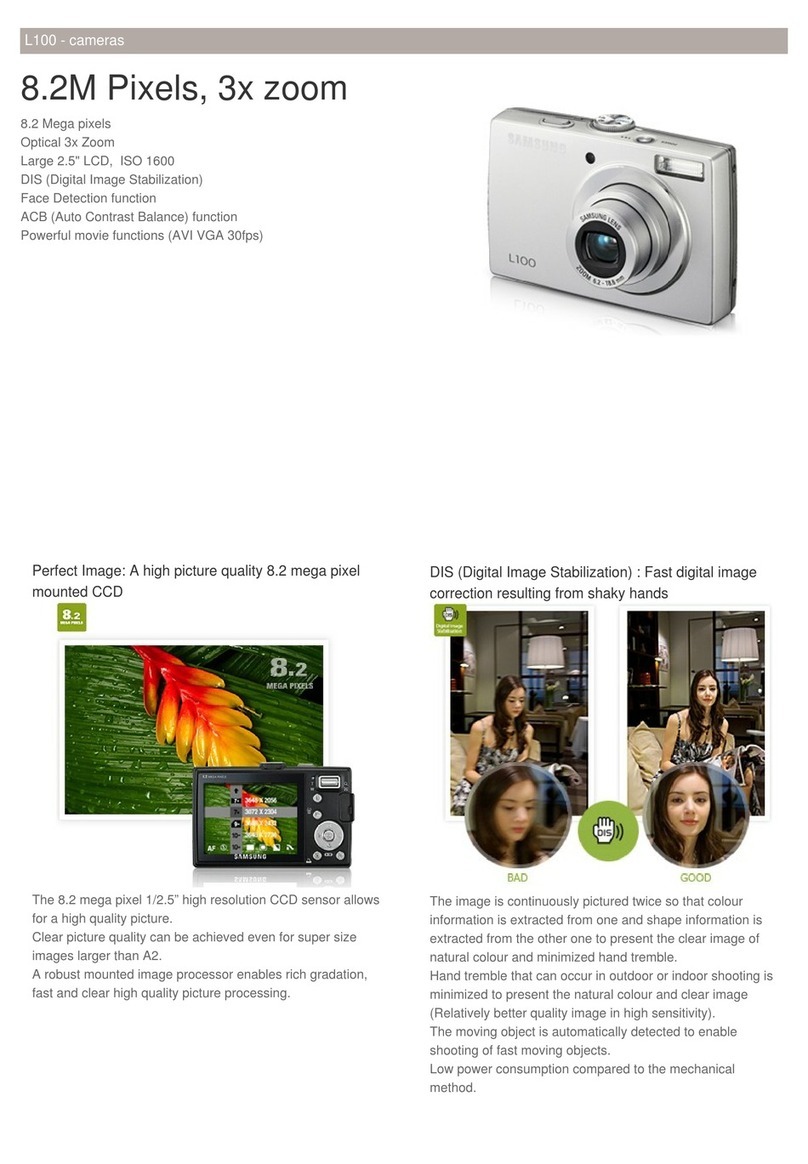
Samsung EC-L100ZBBA brochure

Samsung

Samsung EC-L100ZBBA brochure

FujiFilm FINEPIX BL01124-201 owner's manual

FujiFilm

FujiFilm FINEPIX BL01124-201 owner's manual

Panasonic DMC-L10KPP Service manual

Panasonic

Panasonic DMC-L10KPP Service manual

Hyundai Electric HYU-CC-CHBF12001 Quick installation guide

Hyundai Electric

Hyundai Electric HYU-CC-CHBF12001 Quick installation guide

Sony DSC-WX80 specification

Sony

Sony DSC-WX80 specification

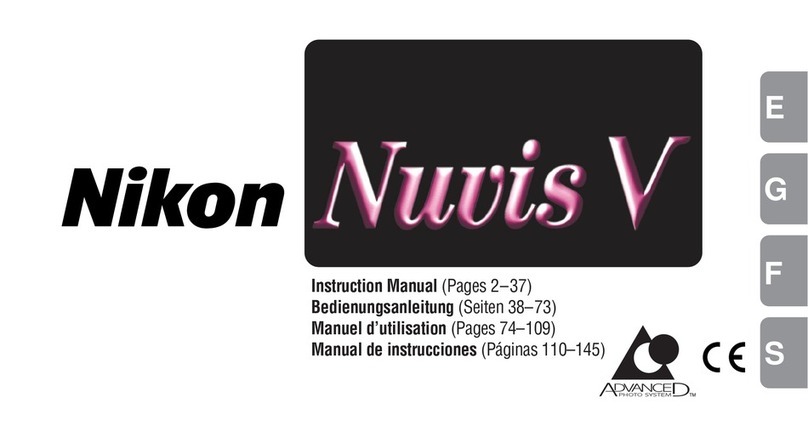
Nikon Nuvis S - Point & Shoot instruction manual

Nikon

Nikon Nuvis S - Point & Shoot instruction manual

manuals.online logo
manuals.online logoBrands
  • About & Mission
  • Contact us
  • Privacy Policy
  • Terms and Conditions

Copyright 2025 Manuals.Online. All Rights Reserved.

1|P a g e
Quick Start Guide
Mirabella Bebe Full HD Wi-Fi Pan & Tilt Baby
Camera
Model: I002867
2|P a g e
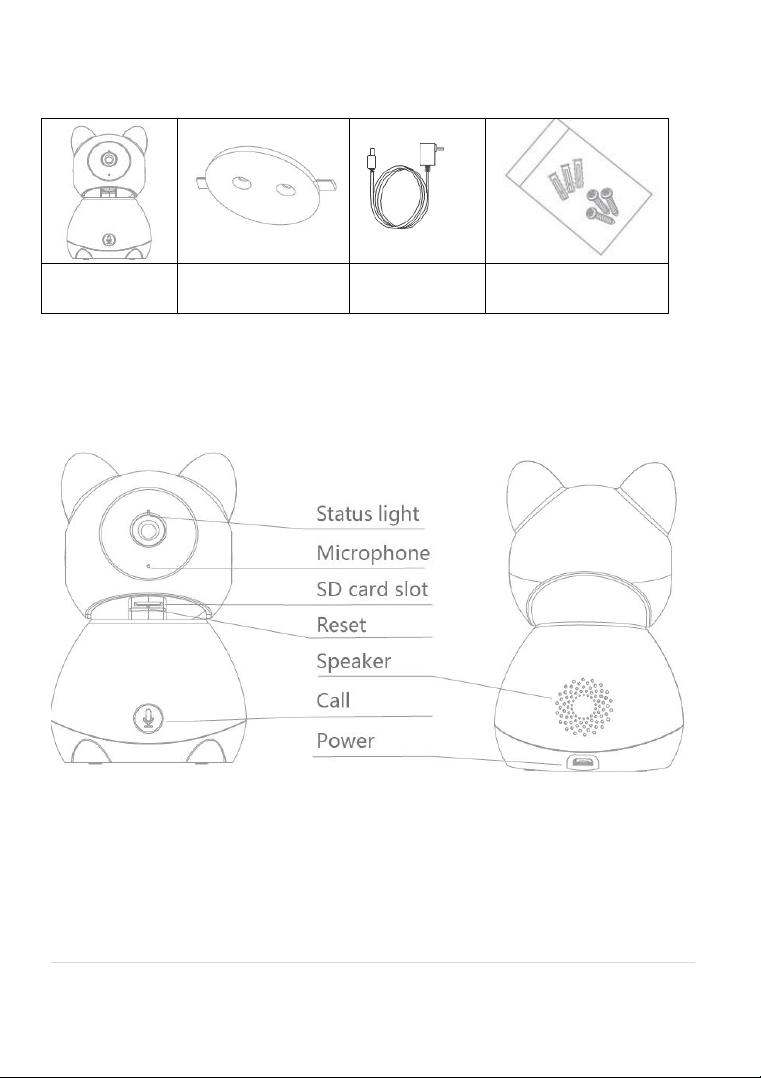
What’s included
Speed 9S
Bracket
Power
Adaptor
screw sets
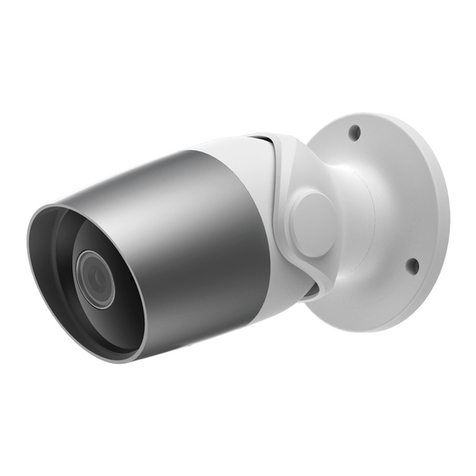
Product Details
3|P a g e
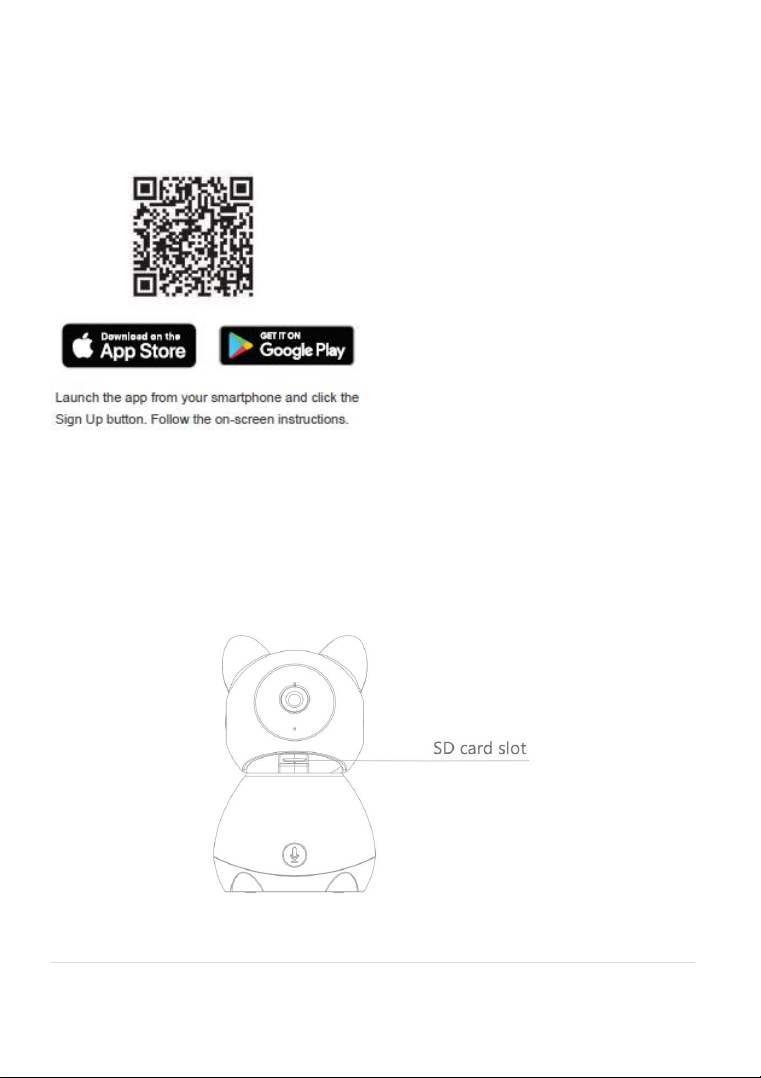
Install the APP and register Account
Download the "Mirabella Genio" APP to your smartphone from App Store or
Google Play, or you can also scan the QR code below, the APP icon will be
displayed after installed successfully
Insert the Micro SD card (not included) this is optional and the camera will
work without it. Insert the Micro SD card gently into the SD card slot. Please
pay careful attention to the orientation of the Micro SD card.
Micro SD card size needs >8GB and can support up to Max of 128GB, FAT32
format only. Does not support NTFS file system.
4|P a g e
1. Camera Installation
Use the included mounting bracket to fix the camera to a clean surface
Or put the camera on a flat surface
2. Pairing the camera using Mirabella Genio App
1. Connect the supplied 5V 2A adaptor to the camera and turn on the
power switch
2. Wait for 6-10 seconds, status light will begin to blink RED fast and then
camera will be in the pairing mode and is ready to pair.
5|P a g e
3. Please ensure your mobile phone is connected to your 2.4Ghz Wi-Fi
network (the baby cam is not compatible on 5GHz Wi-Fi network)
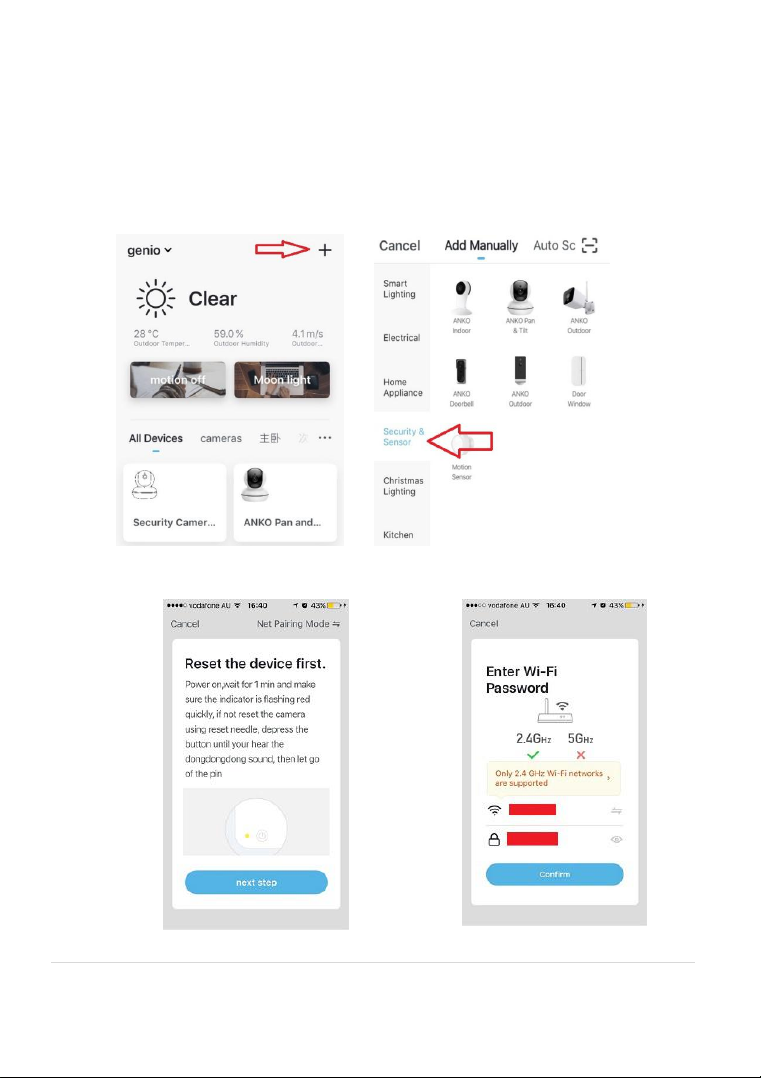
4. Launch Mirabella Genio APP, tap on +, then choose Security & Sensor ,
select your camera from the list of smart devices icon
5. Ensure the LED indicator light is blinking red fast, tap next step and
enter your 2.4GHz Wi-Fi name and password
6|P a g e
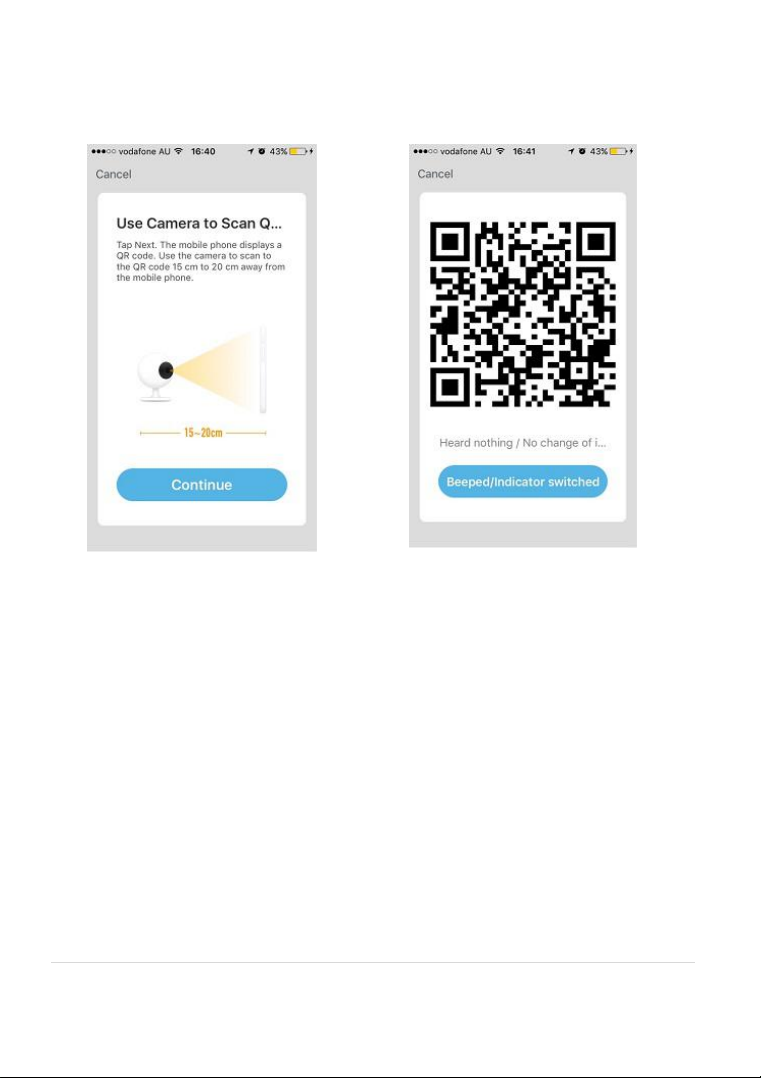
6. Tap continue and QR code will appear, face this QR code in front of the
camera approximate 15-20cm, until your hear a “dongdongdong”
sound,
7|P a g e
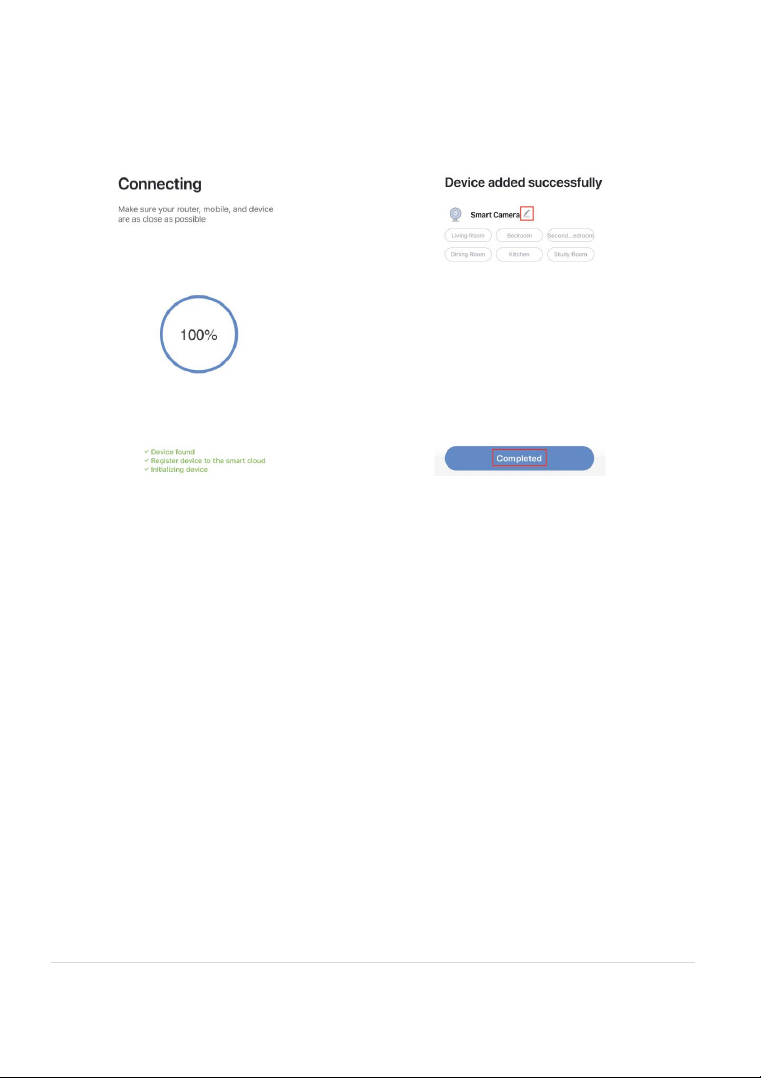
7. Please wait for indicator light to switch to solid blue, then tap the
beeped/indicator switch button
8. Camera is now successfully added into your APP. Please refer to the
FAQ section for troubleshooting if this method does not connect.
8|P a g e
Camera Guide Tips (the user interface is subject to slight alterations based on
firmware updates)
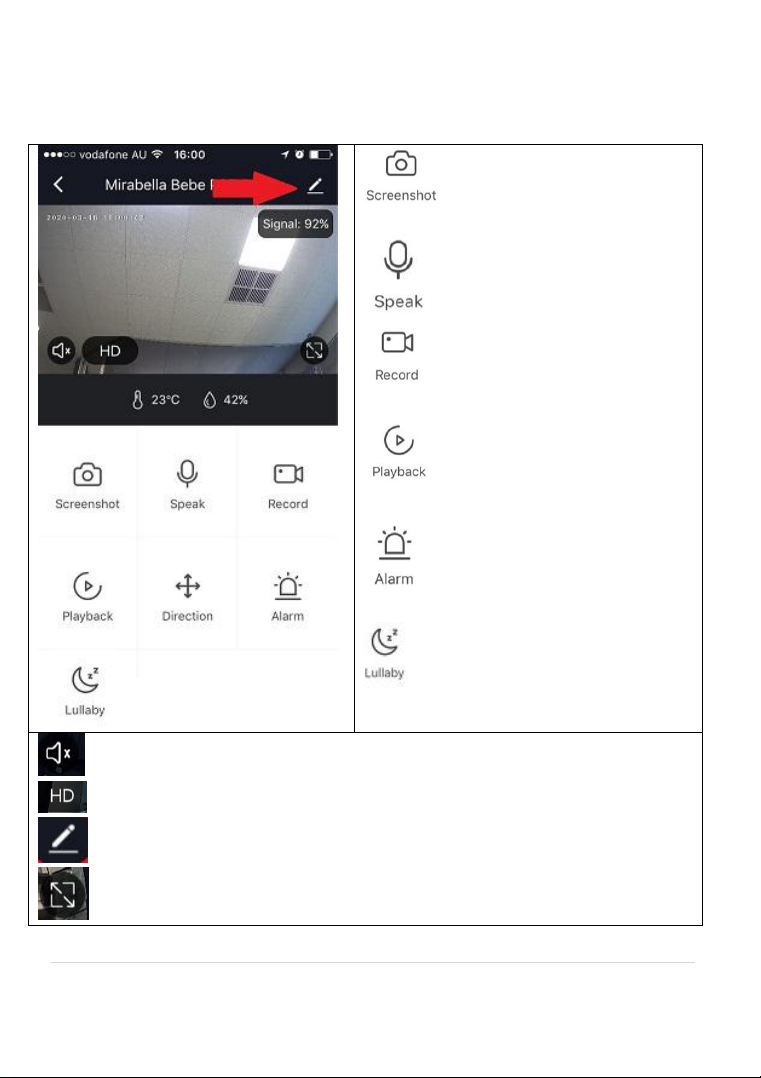
Tap on the pencil icon to access the cameras Settings
to take snapshot of the screen
and save it to phone’s camera roll
tap to speak to the camera
record live footage into your
phone’s internal storage
access to the footage recorded
on the Micro SD card
to turn on or off the motion
detection alarm
play the built in lullaby melodies
turn on/off the sound
change video quality , high definition HD or Standard definition SD
access to camera’s settings
switch to full screen view mode
9|P a g e
: Wi-Fi signal, if signal is less than 65% you should consider improving
your Wi-Fi network conditions
Device information: detailed
information for this camera, owner
information, Virtual ID, IP address etc
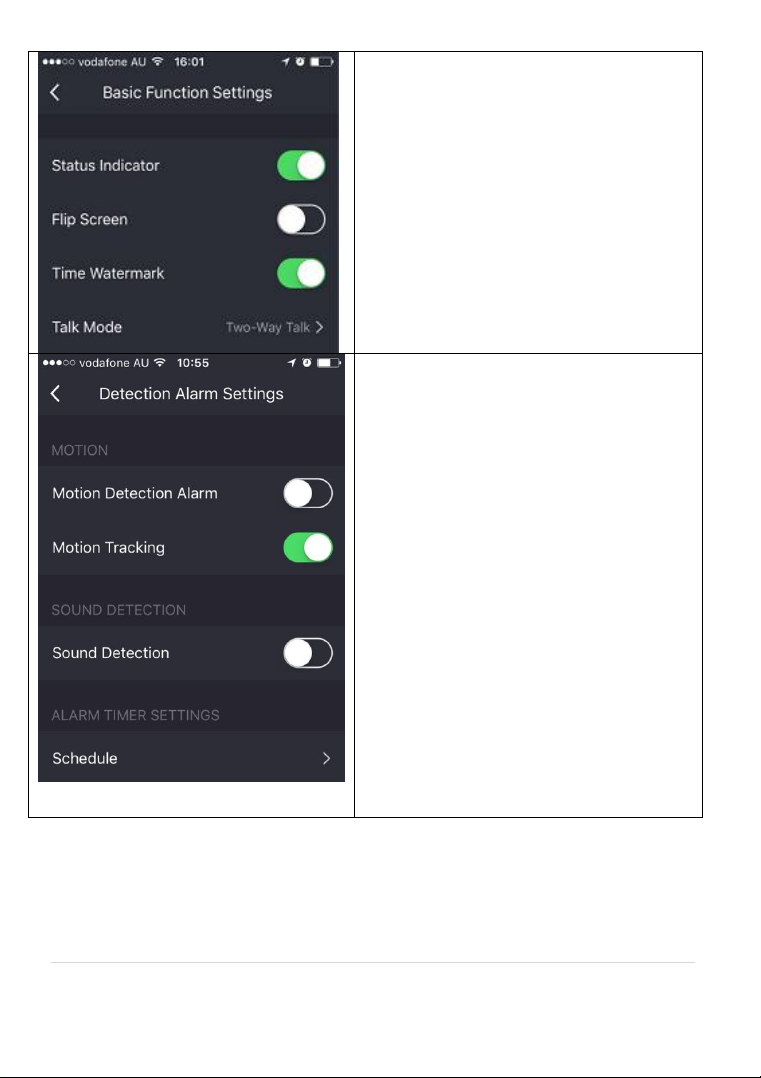
Basic Function Settings: access to status
indicator on/off, Flip screen, Time
Watermark option
IR Night Vision: on/off or Auto
Detection Alarm Settings: access to
motion detection, sound detection, cry
detection options
Memory Card Settings: this option will
only appear when 8GB-128GB FAT32
format Micro SD card is inserted
Share Device: sharing this camera with
other Genio accounts
FAQ & Feedback: read FAQ or sending
improvement suggestion or product
issue via online feedback system
Add to Home Screen: add a quick
access link to your phones home screen
Firmware information: when new
firmware is released for this camera you
will see a notification icon next to it.
Remove Device: remove the device
from current account so you can re-pair
it again or pair under a different
account or different Wi-Fi network

10 |P a g e
Status indicator: This is to turn off the
blue status indicator light on your
camera
Talk Mode: You can either select one
way or two way talk mode
Detection Alarm Settings
Motion Detection: turn on/off motion
detection or adjust the sensitivity level
Motion Tracking: camera will
automatically rotate keeping the
moving object in the centre of the
screen and give you the best view
Sound Detection: detects sound that is
less than 60dB, sensitivity level Low or
High
Detect Baby Crying:
Detect sound dB which is greater than
65dB