7
Preparation
Installing and setting up
the USB Adaptor Utility
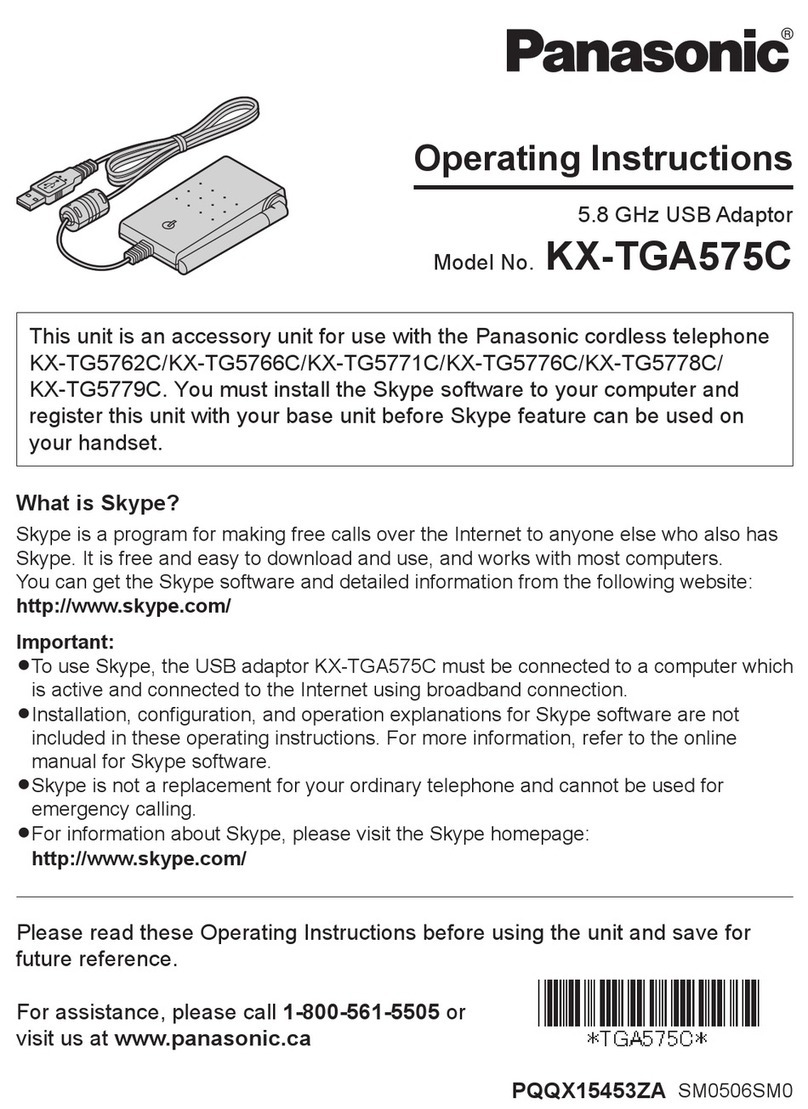
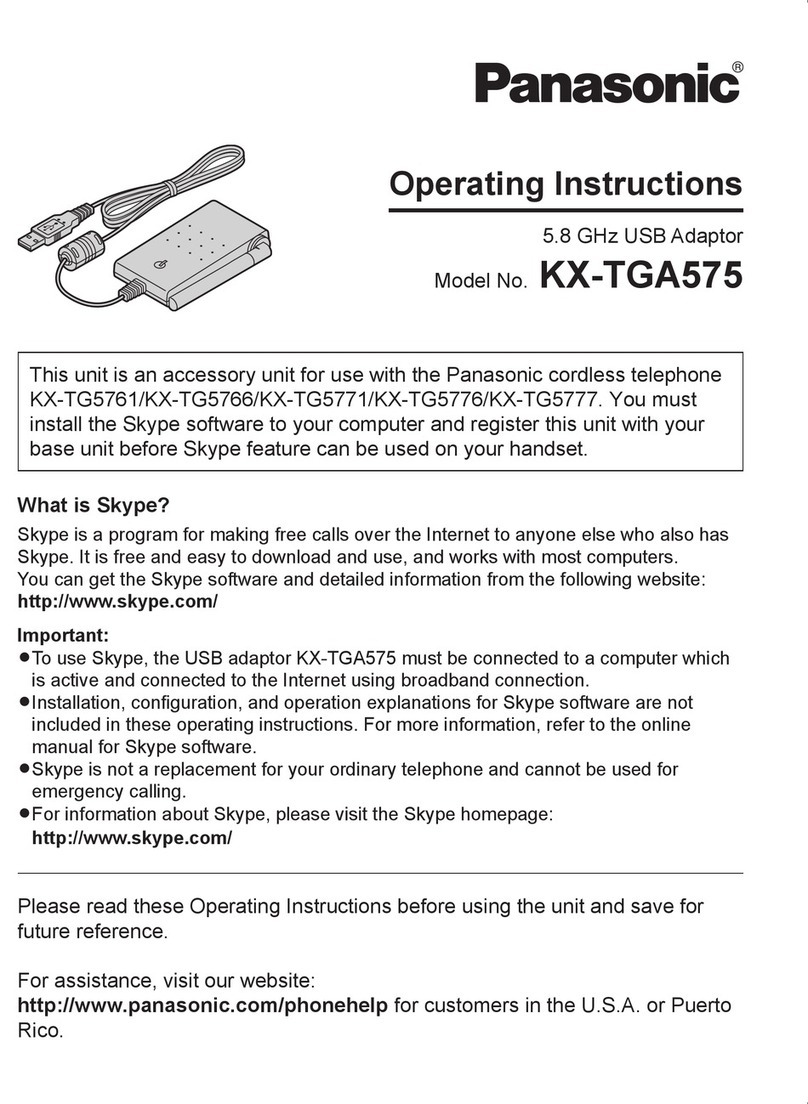
Before you use the USB adaptor, you must
install the USB Adaptor Utility from the
included CD-ROM to a computer installed
with the Skype software, and set up the USB
adaptor. The USB adaptor is registered as
an extension device of the base unit. Only
one USB adaptor can be registered to the
base unit.
Before you start to install the USB
Adaptor Utility, make sure that:
– Skype software has been already installed
in your computer. If the Skype software is
not installed to your computer, please visit
http://www.skype.com/ to download and
install the Skype software.
– Your computer is being connected to the
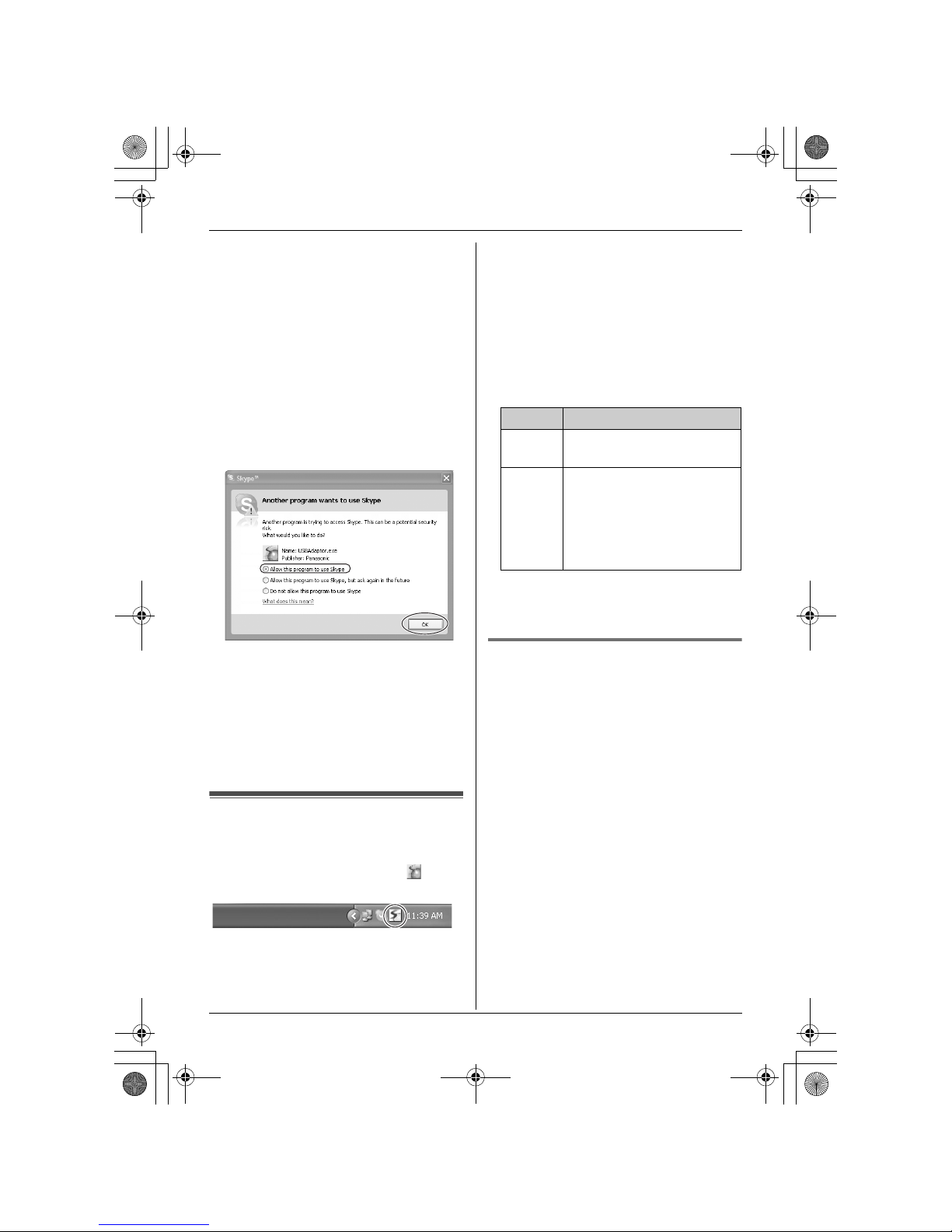
Internet correctly and active Skype icon
( ) is displayed in the system tray (page
8).
– The base unit and handset are powered
up nearby and are not being used.
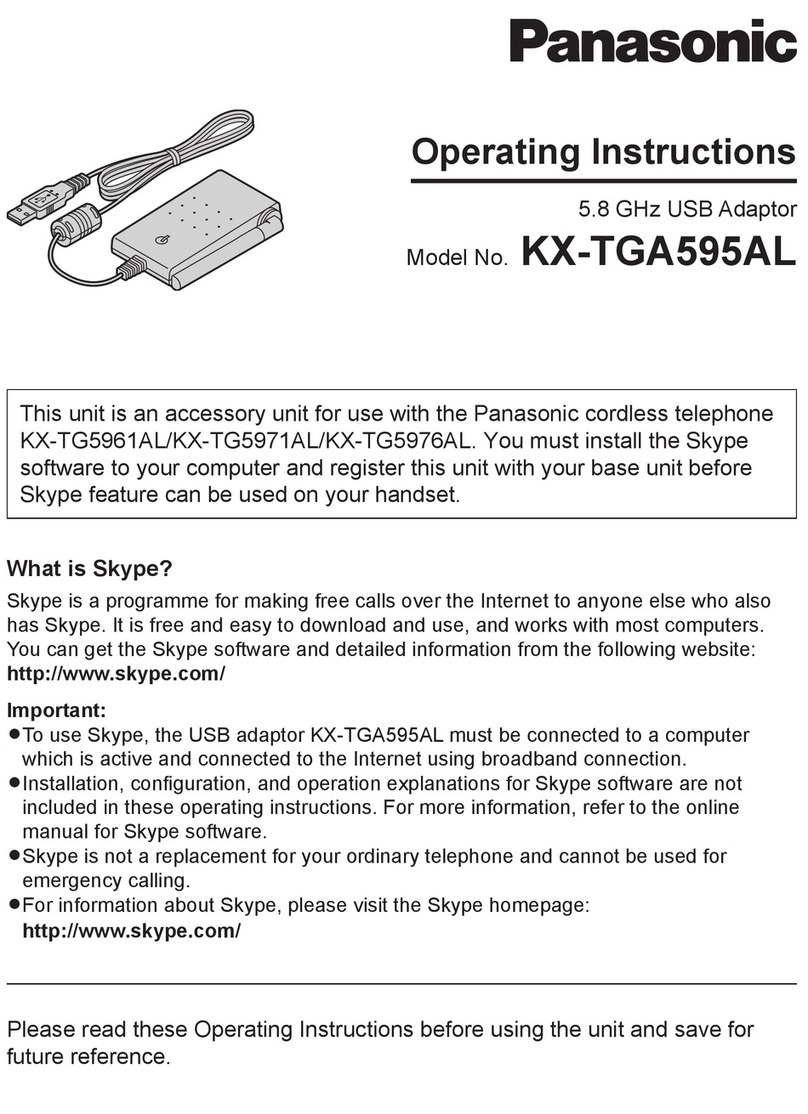
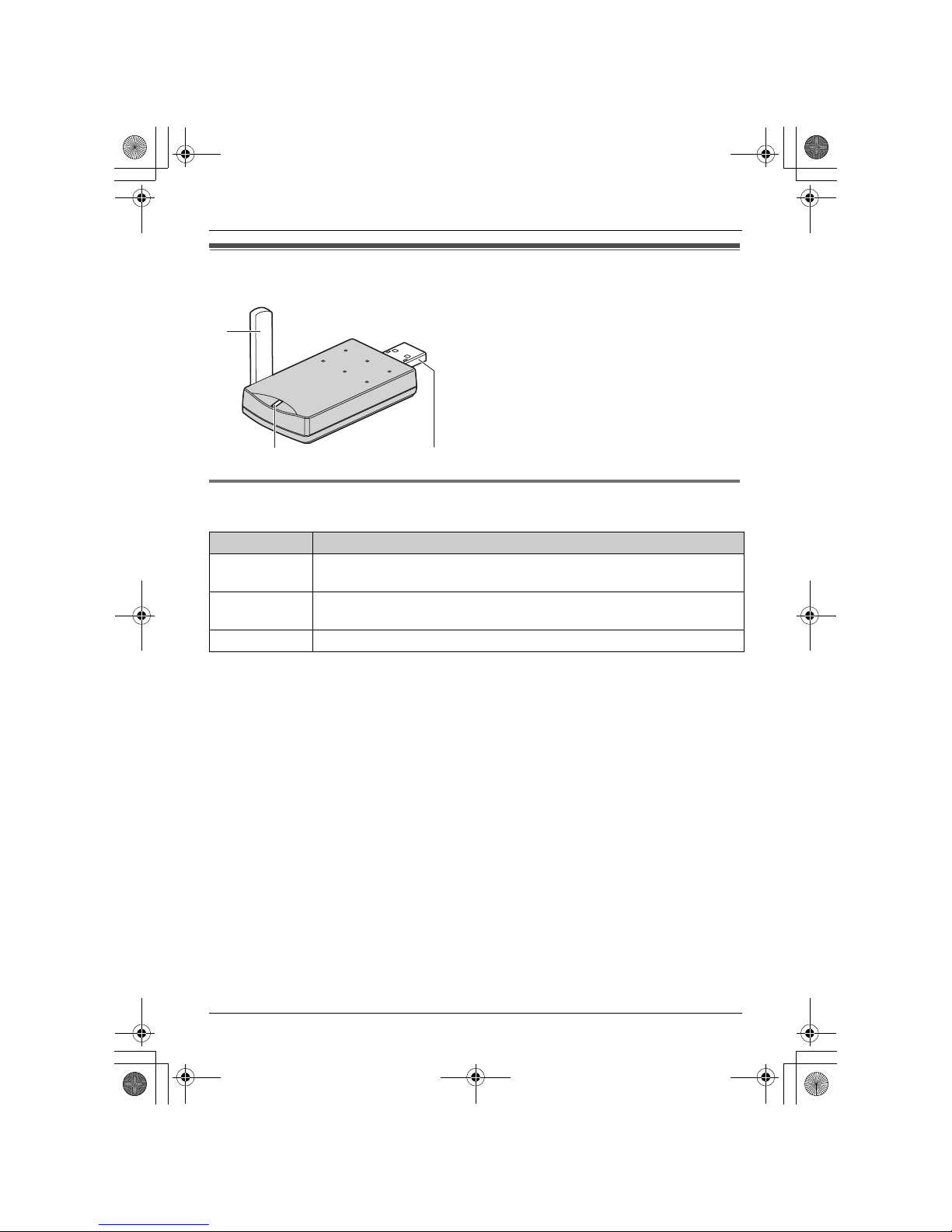
– The USB adaptor is being connected to
the USB port on your computer and the
status indicator is flashing.
These preparation will make your
installation simple and smooth.
Important:
LBefore installing the USB Adaptor Utility,
please be sure to back up the system
settings of your computer.
LAt the end of installation, you may perform
a Skype test call on your handset (page
8).
1Start Windows and the Skype software,
and exit all other applications.
LYou must be logged in as an
administrator in order to install the USB
Adaptor Utility.
LConfirm that the Skype status is online.
2Connect the USB adaptor to your
computer (page 5).
3Insert the included CD-ROM into your
CD-ROM drive.
4After the installer has started, follow the
on-screen instructions until all files have
been installed.
LIf the installer does not start
automatically:
Click [Start], then choose [Run...].
Type “D:\setup” (where “D” is the drive
letter of your CD-ROM drive). Click
[OK]. (If you are not sure what the drive
letter is for your CD-ROM drive, use
Windows Explorer and look for the CD-
ROM drive.)
5When installation is complete, the USB
adaptor setup window is opened.
Remove the included CD-ROM from your
CD-ROM drive.
LTo change the display language for the
USB Adaptor Utility, select the desired
language from the pull-down menu on
the upper right of the setup window.
(Available languages: English,
German, French, Italian, Spanish,
Greek, Russian, Turkish, and Dutch)
USB adaptor for TG9150EX.book Page 7 Tuesday, August 8, 2006 10:37 AM