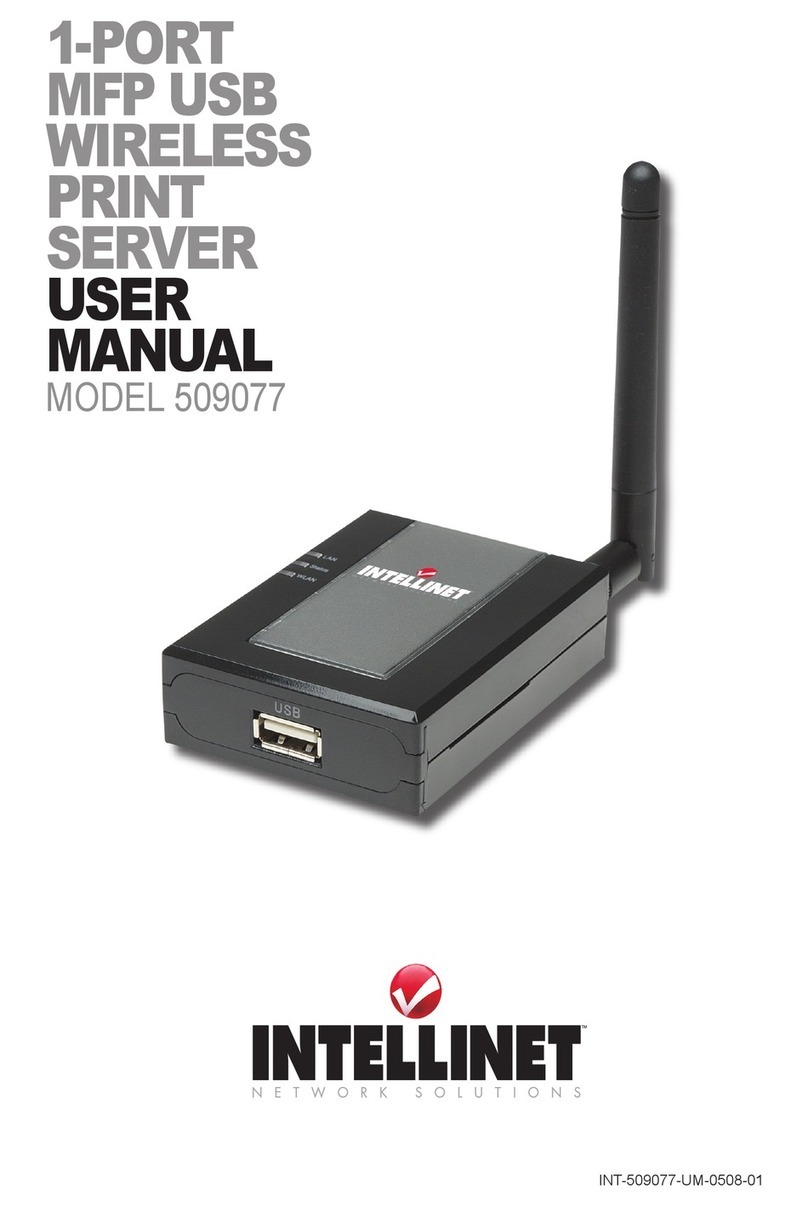
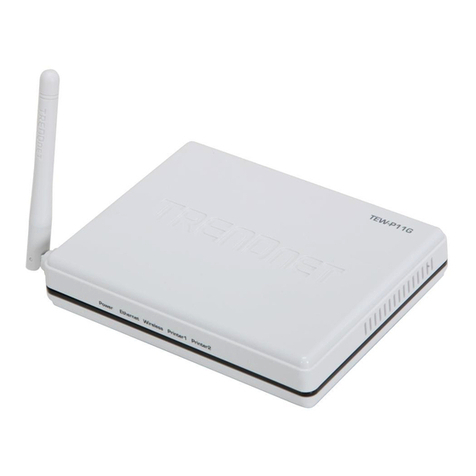
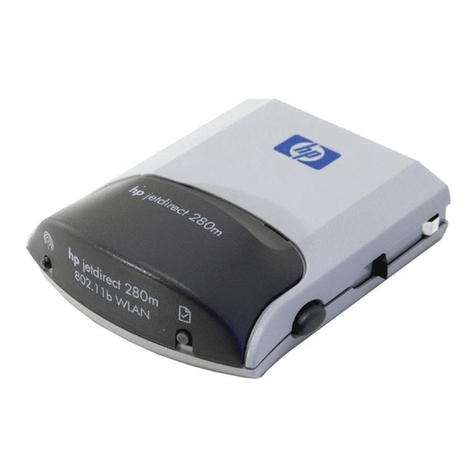
PCI mini-102mg User manual

User's Manual Version : Mini-102MG_QIG_EU-A_V1
Quick Installation Guide
Mini-102MG
( MFP Server)

1
1. Product Introduction
Thank you for purchasing and using our 802.11b/802.11g Wireless LAN MFP
server. This MFP server allows your Multi-function, all-in-one printer (called for
short: MFP) or printer to become a shared device on the network. Unlike
many print servers, it can communicate with MFP and printer as if it is
connected directly to your computer. Because of the features, all users can
share print, scan, card reader and fax functions through the network.
Furthermore, the MFP Server can build the bi-directional communication with
MFPs and Printers so that it can help to monitor important information such as
ink levels and paper levels.
The MFP server supports print, scan, card reader and fax sharing functions in
the most popular operating systems: Windows 2000 SP4 above, Windows XP
SP1 above and Windows Vista. It also supports Windows XP and Vista
scanning utility and MFP vendors’ scanning utilities. When you want to scan in
the Windows XP or Vista, you can choose one of the utilities.
Not only be a MFP Server, this MFP Server can also be a traditional print
server. It supports TCP/IP network protocol and LPR and IPP printing
protocols. It can share print function in the various common network operating
systems including Windows 2000/XP/Vista and Mac OS 10.4.x above.
This MFP Server provides IEEE 802.11g/b wireless LAN (up to 54Mbps data
transfer rate), an Ethernet network port (10/100Mbps Ethernet) and one USB
2.0/1.1 port for MFP or printer. The MFP Server can be connected to your
802.11g/b wireless network or wired network. It is very convenient and flexible
to build up the MFP Server to your network environment.
The MFP server is the best solution for users to share MFP or printer
conveniently and easily. It offers the most flexibility and manageability for MFP
or printer on your Local Area Network at an extremely low cost and with an
absolute minimum setup and maintenance required.

2
2. About This Product
2.1 Product Package
This package contains the following components:
One MFP Server
One Antenna
One Power Adapter
One CD-ROM (Including all the software utilities, drivers, Quick Installation
Guide and User’s Manual)
One LAN cable
One Double-faced tape
One Safety Instructions/Warranty Card
2.2 Part names and functions
The part name of this product is described below.
■Front view
USB port USB cable is connected.

3
■Rear view
LAN port LAN cable is connected.
Power connector Attached AC adapter is connected.
Reset button This product can be initialized (deletion of the setup
information) by keeping the Reset button depressed
for 10 seconds or more with the state of that this
product is turned on.
Antenna connector Attached wireless antenna is mounted.
■Side view
LED
WLAN Lighting or blinking when the wireless LAN function
is enabled.
Status Lighting or blinking while printing.
LAN It lights up when the link of LAN port is established. It
blinks while communicating.

4
3. Getting Started
Before you start, you should have:
One computer with Windows 2000 SP4 above, Windows XP SP1 above or
Windows Vista (32-bit).
One MFP or printer with USB port and an installation CD
One Category 5 Ethernet Cable
One USB Cable
3.1 Hardware Installation Procedure
1. Unpack the MFP Server package and verify that all the items listed in the
previous section are provided.
2. Plug the USB cable to the MFP Server with the MFP or printer that you
want to share on the network.
3. Connect the MFP Server to your network by attached the network cable to
the network port of the MFP server.
4. Connect the power adapter to the MFP Server. The MFP Server will
perform the Power-On-Self-Test (POST) after it is powered on. When the
Status LED is unlighted, the MFP Server is ready.
Note:
1. You must use the power adapter shipped along with the MFP Server,
do NOT use any other power adapter from other sources.
2. To prevent the compatibility problem between MFP Server and a few
MFP or printer, it is recommended that you power on the MFP Server
before the MFP or printer.

5
3.2 Software Installation Procedure
Before you start, you should check your computer’s operating system. This
program can be run in Windows 2000 SP4 above, Windows XP SP1 above
and Windows Vista. The following procedures are running in Windows XP, for
Windows 2000 and Windows Vista, the procedures are similar.
Tip: You have to uninstall all the MFP server drivers and utilities if you have
installed the previous version.
1. Insert the CD shipped along with the MFP Server into your CD-ROM drive.
The Autorun.exe program should be executed automatically. If not, run
AutoLoader.exe manually from CD-ROM drive’s root directory
2. The following screen will be displayed. Click “Start Install”.

6
3. The “MFP Server Utilities - InstallShield Wizard” is displayed, click "Next".

7
4. Click “Next” to install the MFP Server utilities in the default folder or click
“Change” to specify the destination folder where you would like to install
the MFP Server utilities.

8
5. The system starts installing the MFP Server Utilities.

9
6. The “MFP Server Configuration” screen is displayed. If you want to
configure the MFP Server, please click “”Next” directly. Or you can select
“No, I will configure the MFP Server later” and click “Next” to complete the
installation.
The following steps are for MFP Server Configuration.
Other manuals for mini-102mg
1
Table of contents
Other PCI Print Server manuals