manuals.online logo
Brands
  1. Home
  2. •
  3. Brands
  4. •
  5. Perimeter
  6. •
  7. Wireless Router
  8. •
  9. Perimeter PWF-100 User manual

Perimeter PWF-100 User manual

Other manuals for PWF-100

1

Popular Wireless Router manuals by other brands

NETGEAR Zing user guide

NETGEAR

NETGEAR Zing user guide

Proroute GEM420 user manual

Proroute

Proroute GEM420 user manual

ICP DAS USA WF-2000 Series Faq

ICP DAS USA

ICP DAS USA WF-2000 Series Faq

SMC Networks 7904WBRA-N FICHE user guide

SMC Networks

SMC Networks 7904WBRA-N FICHE user guide

Hamlet HRDSL300N user manual

Hamlet

Hamlet HRDSL300N user manual

Icidu NI-707517 Quick installation guide

Icidu

Icidu NI-707517 Quick installation guide

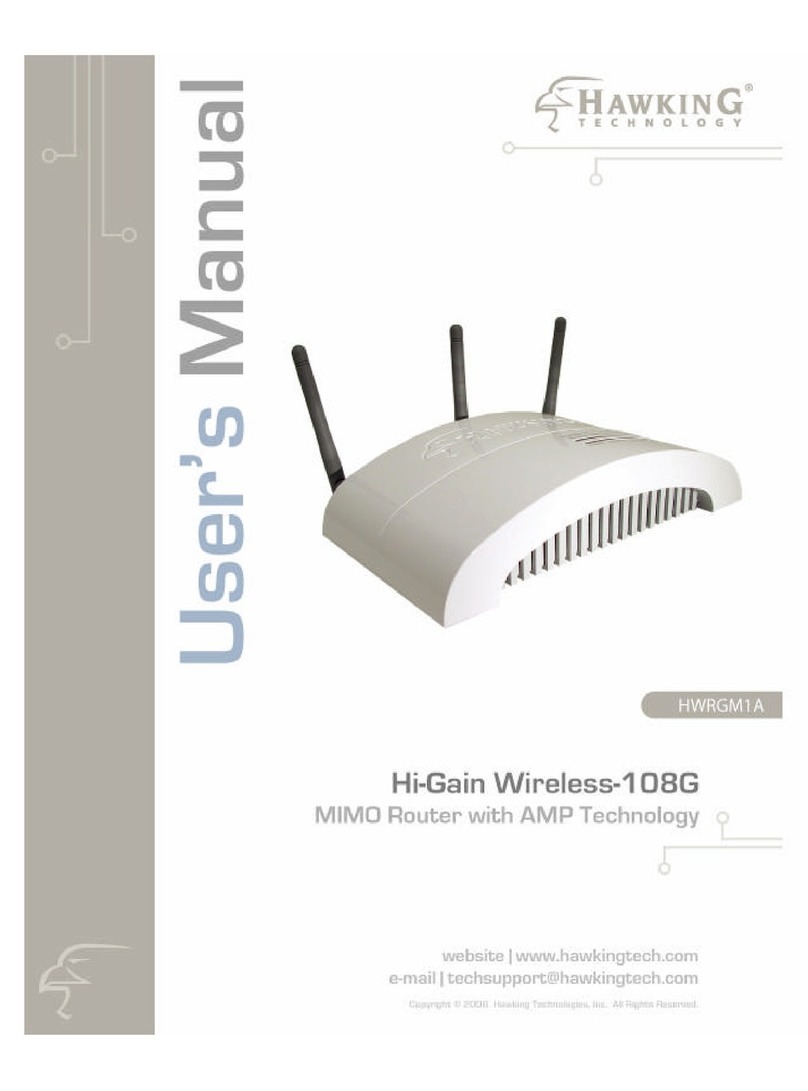
Hawking HWRGM1A user manual

Hawking

Hawking HWRGM1A user manual

Airlogic AirSync Class 1 Features

Airlogic

Airlogic AirSync Class 1 Features

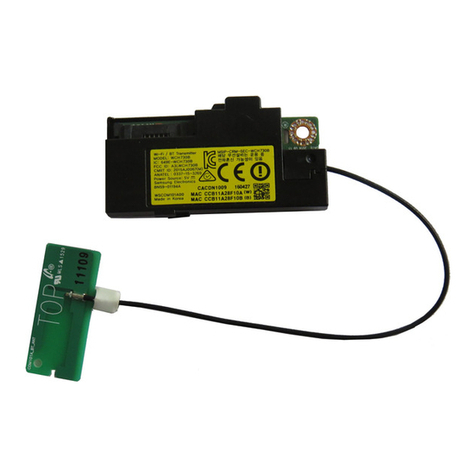
Samsung WCH730B user manual

Samsung

Samsung WCH730B user manual

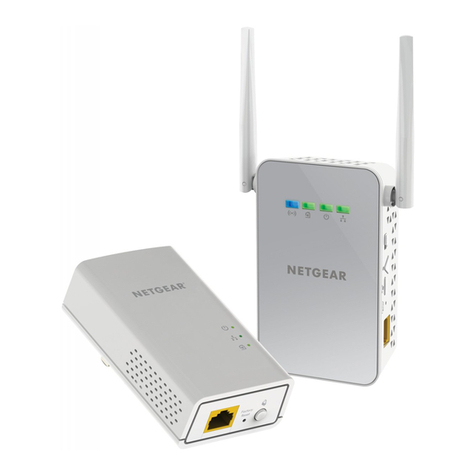
NETGEAR PowerLINE WiFi 1000 Series quick start

NETGEAR

NETGEAR PowerLINE WiFi 1000 Series quick start

TRENDnet TEW-211BRP user manual

TRENDnet

TRENDnet TEW-211BRP user manual

Cisco Valet M10 user guide

Cisco

Cisco Valet M10 user guide

Alloy WLF2454AP-S user guide

Alloy

Alloy WLF2454AP-S user guide

TELEFONICA USB Adapter quick start guide

TELEFONICA

TELEFONICA USB Adapter quick start guide

TP-Link TL-WR542G user guide

TP-Link

TP-Link TL-WR542G user guide

Hama 53120 Operating	 instruction

Hama

Hama 53120 Operating instruction

Asus RT-N10P user guide

Asus

Asus RT-N10P user guide

D-Link DIR-506L Quick installation guide

D-Link

D-Link DIR-506L Quick installation guide

manuals.online logo
manuals.online logoBrands
  • About & Mission
  • Contact us
  • Privacy Policy
  • Terms and Conditions

Copyright 2025 Manuals.Online. All Rights Reserved.

Perimeter Technologies, Inc.
1-866-900-2007
www.buyperimeter.com
©2009 Perimeter Technologies, Inc.
All rights reserved. Patents pending 13010033 Rev. E 0609
Owner’s Guide
PWF-100
PT.WF-Guide2-booklet.indd 1PT.WF-Guide2-booklet.indd 1 6/3/09 9:40:04 AM6/3/09 9:40:04 AM
Owner’s Guide PWF-100
WARNING: No user-serviceable parts inside. Contact manufacturer or authorized service personnel for service.
WARNING: Risk of fire or electric shock. Connect only to UL listed Class 2 transformer for supply connection.
Caution: Risk of electric shock. Install transmitter indoors. Do not expose to rain.
NOTE: This equipment has been tested and found to comply with the limits for a Class B digital device, pursuant to
Part 15 of the FCC rules. These limits are designed to provide reasonable protection against harmful interference
in a residential installation. This equipment generates, uses and can radiate radio frequency energy and, if not
installed and used in accordance with the instructions, may cause harmful interference to radio communications.
However, there is no guarantee that interference will not occur in a particular installation. If this equipment does
cause harmful interference to radio or television reception, which can be determined by turning the equipment off
and on, the user is encouraged to try to correct the interference by one or more of the following measures:
• reorient or relocate the receiving antenna
• increase the separation between the equipment and the receiver
• connect equipment to an outlet or a circuit different from that to which the receiver is connected
• consult the dealer or an experienced radio / TV technician for help.
Caution: Changes or modifications to any component, not expressly approved by Perimeter Technologies, Inc.,
could void the user’s authority to operate this equipment.
LIMITED LIFETIME WARRANTY
Call Customer Care First. We Can Help.
1-866-900-2007
Perimeter Technologies®, Inc. warrants that its products to the original retail purchaser
will be free from defects in material and workmanship, under normal use, for a period of
one year from the date of the original retail purchase at no cost. Shipping to repair center
not included. This coverage does not include accidental damage or misuse. After one
year from date of original consumer purchase, Perimeter will, at our option repair, replace
or upgrade the defective component at a fixed rate based on the component, for the life of
the original owner. Owner must provide proof of purchase. Cost of shipping is not covered
under the limited lifetime warranty. Some shipping charges may apply.
Perimeter Technologies offers a hassle-free replacement program. Simply call 1-866-
900-2007 and let us help you with your problem. Please do not return this product to your
retailer.
PT.WF-Guide2-booklet.indd 2PT.WF-Guide2-booklet.indd 2 6/3/09 9:40:06 AM6/3/09 9:40:06 AM
20
Owner’s Guide PWF-100
1
Owner’s Guide PWF-100
NOTES:
Boundary
Flags AC Adapter
Indoor
SmartStation
™
PetLink
™
Collar
Congratulations! You have purchased the most technologically
advanced pet fencing system in the world for your cherished companion.
Wire-Free – The Wifi Fence™was developed by the industry’s most
experienced pet fencing product development team to provide years of
worry-free freedom for both you and your pet.
Should you have any difficulty along the way, help is available by calling
the Customer Care Center at 1-866-900-2007.
www.buyperimeter.com
PT.WF-Guide2-booklet.indd 3PT.WF-Guide2-booklet.indd 3 6/3/09 9:40:06 AM6/3/09 9:40:06 AM
2
Owner’s Guide PWF-100
19
Owner’s Guide PWF-100
1. Frequently Asked Questions Page 3
2. System Features Page 5
3. System Alerts Page 6
4. System Precautions Page 6
5. Menu Map Page 7
6. Charging the PetLink™Collar Battery Page 4
7. First Use Setup Page 8
STEP 1: Plug in the SmartStation™
STEP 2: Charge Batteries
STEP 3: Install Batteries in Collar
STEP 4: Match the Collar & the SmartStation™
STEP 5: Locating the SmartStation
STEP 6: Setting the Boundary
8. Training Your Dog Page 13
9. Troubleshooting Page 17
Your new Pet Fencing System
AT A GLANCE NOTES:
PT.WF-Guide2-booklet.indd 4PT.WF-Guide2-booklet.indd 4 6/3/09 9:40:08 AM6/3/09 9:40:08 AM
18
Owner’s Guide PWF-100
3
Owner’s Guide PWF-100
NOTES: Frequently Asked Questions
Does the Wire-Free™WiFi Fence require
a computer or internet service?
Wire-Free is a self contained fencing
system that requires no computer or
outside internet services. The Wire-Free
WiFi Fence utilizes WiFi-like radio signal
protocol 802.15 and operates completely
independent of your computer, WiFi router
or other computer devices.
Will the Wire-Free Fence interfere with
my home’s wireless computer router?
Wireless routers do operate on the same
2.4GHz radio frequency, however they
are utilizing a different signal protocol
– 802.11. The Wire-Free WiFi Fence uti-
lizes WiFi-like radio signal protocol 802.15
and operates completely independent of
computer router or other WiFi devises.
Is the PetLink™Collar waterproof?
The PetLink™collar is submergible in wa-
ter, however it should never be placed in a
dishwasher or washing machine to clean.
Does the terrain affect the fence range or
performance?
Unlike other wireless systems, the Wire-
Free radio frequency signal is not affected
by most terrain. The Wire-Free Fence’s
effective range will be reduced over hilly
terrain only if the indoor SmartStation™
base station loses direct line of sight
(such as over a steep hill) with the dog’s
collar.
However, unlike all other wireless sys-
tems, the indoor SmartStation™will actu-
ally benefit from a higher location in the
house, such as a second story, to improve
its “line of sight” with the pet’s fencing
collar when dealing with difficult terrain
issues or other obstacles.
What is the maximum fence range or
coverage area?
Radio frequency device performance can
be influenced by any number of different
variables, so it is impossible to predict
exactly the range provided in your home.
However, given optimal circumstances,
the Wire-Free system has demonstrated
the ability to provide a radius of 200 ft. or
a total area of 2.5 acres with an unob-
structed direct line of sight between the
dog and the indoor SmartStation™. Your
results may vary.
What could negatively influence the
products coverage area or general
performance?
Any large object or terrain that limits
or obstructs the line of sight between
the indoor SmartStation™and your pet’s
PetLink™collar can reduce the effective
range or coverage area of the Wire-Free
Fence. Even with natural obstructions
such as trees and hilly terrain, you will
find that the Wire-Free system will out
perform any other wireless pet fence on
the market, however due to the number
of variables within your particular house
and property, Perimeter can not predict or
guarantee coverage area.
There are some obstructions you will need
to make particular note of when determin-
ing if a wireless fence is right for you. No
radio signal will pass through or will be
obstructed by large metal objects which
could include cars, metal studs and sid-
ing, metal sheds and water heaters. The
closer the metal object, the greater the
potential for unwanted interference and
will result in the reduction of or erratic
performance.
PT.WF-Guide2-booklet.indd 5PT.WF-Guide2-booklet.indd 5 6/3/09 9:40:08 AM6/3/09 9:40:08 AM
4
Owner’s Guide PWF-100
17
Owner’s Guide PWF-100
How long does the battery last and is it
expensive to replace?
WARNING: THE BATTERIES THAT ARE
USED IN THIS SYSTEM ARE NOT MEANT
TO BE A DIRECT REPLACEMENT FOR AA
ALKALINE/NIMH BATTERIES IN OTHER
CONSUMER DEVICES. THESE LITHIUM
ION BATTERIES OPERATE AT MORE THAN
TWICE THE VOLTAGE OF AN ALKALINE
BATTERY AND 3 TIMES THE VOLTAGE
OF A NIMH CELL AND MAY DAMAGE OR
DESTROY YOUR DEVICE WHICH OPER-
ATES ON STANDARD AA BATTERIES. DO
NOT USE PRIMARY/DISPOSALABLE BAT-
TERIES IN THE WIRE-FREE SYSTEM. USE
MANUFACTURER APPROVED RECHAR-
GABLE CELLS ONLY!
The rechargeable 3.6v lithium ion battery
should take 300 recharge cycles. Even
with frequent weekly charging the battery
will last years. For optimal battery life,
it is recommended to only charge the
collar battery when alerted to do so by
the indoor SmartStation™. This consumer
replaceable battery is inexpensive and
readily available.
Will my dog continue to be shocked when
outside of the safe area?
No. When exceeding the boundary area
that you set, the PetLink™collar will sound
a one second warning tone, followed by
five seconds of stimulation at the level you
have set from the SmartStation™. This is
followed by another five seconds of warn-
ing tone. This sequence is repeated three
times until the dog returns to the safe
area. Should your dog stay out of the safe
area the tone only will continue to sound.
Troubleshooting
Pairing Collar Failed! Ensure that the PetLink™collar battery was fully charged before
first use.
These steps must be done in sequence:
Unplug and again plug in the SmartStation™. Press any key.
Insert battery in PetLink™Collar. Ensure that the (+) is facing out.
The positive side will have the indented ring around the top.
Calibration Failed! Jiggle the PetLink™collar while holding to ensure the units are
sending continuous stream of data.
Before calibrating to 3, 6 or 12 feet, try walking 10 paces away
and returning each time to the distance you are attempting to
calibrate.
Choose another location with less interference.
SmartStation™distance
does not exactly match
the distance to the
PetLink™collar.
The distance indicated on the SmartStation™is accurate to ap-
proximately 3 feet or one meter provided the unit was properly
calibrated.
Attempt calibration process again.
SmartStation™screen is
frozen or I can’t get out of
the calibration mode.
With the end of a paper clip, press the RESET button located in
the hole on the upper right of the back of the SmartStation™. The
SmartStation™will shut off. Press and hold the center red button
on the key pad to turn on.
The system is behaving
erratically!
Recharge the PetLink™collar battery and ensure to charge
before first use.
Check for large metal objects such as cars, sheds, metal doors,
studs or siding. Relocate SmartStation™away from objects that
can interfere.
PetLink™collar will
“tone” but there is no
stimulation.
Change the Stimulation setting in the setup menu to levels 1 – 8.
The factory setting is 0 or tone only for training purposes.
How do I stop the LOST
RECEPTION alarm when I
recharge the battery?
Press and hold the center button on the SmartStation™keypad to
cancel audible alarm.
My PetLink™Collar Bat-
tery only lasts 12 hours.
Ensure that your SmartStation™is always on. If the PetLink™col-
lar has the battery installed and the SmartStation™has no power,
the collar battery life will be significantly reduced.
SmartStation™won’t turn
on.
Press and hold the center SELECT button for 3 seconds. Check
power outlet.
PT.WF-Guide2-booklet.indd 6PT.WF-Guide2-booklet.indd 6 6/3/09 9:40:08 AM6/3/09 9:40:08 AM
16
Owner’s Guide PWF-100
5
Owner’s Guide PWF-100
LESSON 6
Removing the Flags
After two weeks of successful contain-
ment, you can begin removing the flags.
Start by removing every other flag, every
other day until all of the flags are gone.
The leash, trainers, flags and the elec-
tronic training collar are all clues for your
dog to learn the boundaries. They are all
removed gradually except the electronic
training collar.
It’s essential that you observe whether
you’re off leash, unsupervised dog still
avoids and retreats from the unmarked
boundary. If your dog’s response is
anything but immediate retrace your steps
through the training process.
Thank you for choosing Perimeter Pet
Fencing Systems.
Wire-Free
PetLink™Collar
System Features
PT.WF-Guide2-booklet.indd 7PT.WF-Guide2-booklet.indd 7 6/3/09 9:40:08 AM6/3/09 9:40:08 AM
6
Owner’s Guide PWF-100
15
Owner’s Guide PWF-100
System Precautions
IMPORTANT! YOUR
PERIMETER WIRE-
FREE – THE WIFI
FENCE COMES WITH
ADDITIONAL RUB-
BER TIPS FOR YOUR
PET’S COMFORT
CONTACTS. THE COMFORT CONTACTS®
WILL LOSE CONDUCTIVITY OVER TIME
AND NEED TO BE CHANGED TO MAIN-
TAIN THE PERFORMANCE OF YOUR
FENCING COLLAR. IF USING THE RUBBER
COMFORT CONTACTS, PLEASE CHANGE
RUBBER TIPS WITH EACH COLLAR BAT-
TERY CHANGE. ADDITIONAL RUBBER
TIPS CAN BE PURCHASED AT
www.buyperimeter.com
• Any tight collar or consistent pres-
sure on the skin can cause a condition
known as Pressure Necrosis (bed sores)
which if left untreated can be severe.
To help reduce the likelihood of pres-
sure necrosis please do the following:
Remove the pets training collar every
12 hours. Look for any skin irritation and
discontinue product use until healed.
Wash pet’s neck and PetLink™ collar
frequently with warm soap and water.
Do not attempt to wash the PetLink™col-
lar in washing machine or dish washer.
• No containment method is foolproof and
your Wire-Free system is not a substi-
tute for responsible pet ownership and
close supervision of your pet. Do not
use this product when away from home.
• Never use this product if you believe
your pet poses any danger to people,
other animals or itself.
• Keep your dog safely contained and on
a leash during the training process.
System Alerts
Charging Port
Indicators
Boundary Setting
Press and hold the center
button to cancel audible alerts.
Distance to Dog
PetLink™Collar
Battery Level Indicator
Press to EXIT
Menu & Return
to Home Screen
Press and hold center
button to turn unit on
after plugging in.
helper should ignore your dog and never
coax the dog out of the fenced area.
Your dog will most likely forget earlier les-
sons and attempt to leave the safe area.
The moment your dog reacts to the fence
correction, immediately retreat to the safe
part of the yard and lavish your dog with
praise. Please note, it is very important
that your helper not stop, look back or
acknowledge the dog in any way.
Continue this lesson at a number of differ-
ent areas around the boundary.
Should your
dog not appear
to have felt
the collar cor-
rection, check
to ensure the
collar is making
contact with
the skin. It may
be necessary to use one of the longer
metal contacts provided for dogs with a
dense coat.
LESSON 3
Distractions
If your dog is avoiding the boundary at
multiple locations around your boundary,
you are ready to add more tempting dis-
tractions. Remember, never pull or coax
your dog into the boundary area.
This lesson teaches your dog that he must
resist all temptations to leave the yard.
You can’t assume that if your dog won’t
chase a ball out of the yard,
He won’t chase a bicycle.
Or favorite neighbor.
Your training has been successful at this
point if your dog has resisted the urge
to cross the boundary on leash with any
distraction you can dream up.
LESSON 4
Off Lead With Supervision
After several sessions of distractions,
your dog should be ready for off leash
play. You must stay in the yard for off leash
training.
The more your dog stays on the property
for the first month, the less chance of your
dog ever attempting to leave the area.
Continue to supervise and play with your
dog outside for a period of one week.
Should your dog bolt out of the property
for any reason during this phase, retrace
your last training steps with distractions
with your dog on a leash.
LESSON 5
Off Lead Unsupervised
When your dog resists all manner of
distractions, both on and off the leash, he
can be left unattended in the yard.
Keep a close eye on your dog for two
weeks from inside the house. This
freedom should be brief at first and the
amount of time increased gradually.
Before and after each unsupervised
session, you must continue the play and
praise routine to reinforce that the yard is
a happy, fun and safe place to be.
PT.WF-Guide2-booklet.indd 8PT.WF-Guide2-booklet.indd 8 6/3/09 9:40:12 AM6/3/09 9:40:12 AM
14
Owner’s Guide PWF-100
7
Owner’s Guide PWF-100
• Start every session playing with a
favorite toy and plenty of praise. Make
sure your dog is comfortable and hav-
ing fun.
• Do boundary work at locations around
the entire boundary of your yard.
• Always end sessions with your dog
successfully avoiding the fence and
with more play and praise.
• If you are training more than one dog,
train each dog in separate training ses-
sions.
LESSON 1
Back Away From the Fence!
Start the first phase of training with the
Wire-Free System level set on LEVEL 0.
This is the training or “tone only setting”.
This is to ensure that your dog can hear
the training tone at the boundary, but
there is no chance of correction.
Put the elec-
tronic training
collar on your
dog and make
sure indoor
SmartStation
is on and your
pet’s boundary
has been set.
The first lesson is to introduce your dog to
the boundary and to help her understand
to back away from the fence when the
training tone is heard.
With your dog on a leash, casually walk to
the boundary. When your dog reaches the
signal field and hears the training beep,
immediately spin around and briskly jog
back into the yard. Your dog will feel the
tug and run after you. Praise enthusiasti-
cally.
On days two and three repeat the same
lesson in different part of the yard. As the
training sessions of the next three days
progress, you’ll see that your dog will start
to anticipate the signal and retreat without
your prompting.
Day three is successful if your dog
retreats without your prompting and
refuses to approach the boundary as you
approach. For each successful attempt be
sure to praise, praise and praise again.
LESSON 2
Respect the Fence
Although your dog is learning fast and
avoiding the boundary, he will forget
or attempt to break the rules with an
interesting distraction beyond your yard.
To prevent this, your dog must experience
what happens if the fence boundaries are
not respected.
For the next lesson, you will want to
change the TRAINING LEVEL 0 – TONE
ONLY to a level of stimulation that will
discourage your dog from leaving the
yard. The level that is appropriate for your
dog is determined by your dog’s personal-
ity and the level of interesting distractions
outside of the safe area. See CHANGING
THE STIMULATION LEVEL in this manual.
Choose from level one - low to the highest
setting of 8.
With your dog still on a leash, walk to the
boundary with your dog. Have a helper
walk on the outside of the fence area. The
SmartStation™Menu Screen Map
Home Screen - Dog 1
ProcessMenu: Calibration
Meters/FeetMenu: Units
Levels 1-9
Menu: Stim Levels
Menu: Boundary Process
SELECT
EXIT
Press Left Arrow
to EXIT Menu
Locking and Unlocking the
Menu Options
To keep from accidently altering the
system boundaries and functions, it is a
good idea to lock the menu from being
accessed.
• Press and hold the UP arrow on the
SmartStation™for three (3) seconds. A
beep will sound.
• The display will read LOCKED and
return to the HOME SCREEN
• If the menu options are attempted to
be accessed by pushing the SELECT
button, the display will read LOCKED
for 5 seconds and return to the HOME
SCREEN.
• To unlock the display, simply press and
hold the UP arrow for 3 seconds and a
beep will sound. The display will read
UNLOCKED and return to the HOME
SCREEN.
PT.WF-Guide2-booklet.indd 9PT.WF-Guide2-booklet.indd 9 6/3/09 9:40:13 AM6/3/09 9:40:13 AM
8
Owner’s Guide PWF-100
13
Owner’s Guide PWF-100
Plugging in the SmartStation™
Plug the supplied 12v adapter in the back
of the SmartStation™. Plug the adapter into
any household 110v outlet. The Smart-
Station™display will glow blue and read
PERIMETER TECHNOLOGIES. Should the
display not come on, press and hold the
center SELECT button for 3 seconds to
turn unit on.
The next screen will read NO COLLAR
PAIRED, PRESS ANY KEY.
Prior to proceeding with the setup, take
this time to charge the supplied recharge-
able battery in the SmartStation™. Batteries
must be charged 6 hours before first use.
Charging the PetLink™Collar
Battery
WARNING: THE BATTERIES THAT ARE
USED IN THIS SYSTEM ARE NOT MEANT
TO BE A DIRECT REPLACEMENT FOR AA
ALKALINE/NIMH BATTERIES IN OTHER
CONSUMER DEVICES. THESE LITHIUM
ION BATTERIES OPERATE AT MORE THAN
TWICE THE VOLTAGE OF AN ALKALINE
BATTERY AND 3 TIMES THE VOLTAGE
OF A NIMH CELL AND MAY DAMAGE OR
DESTROY YOUR DEVICE WHICH OPER-
ATES ON STANDARD AA BATTERIES. DO
NOT USE PRIMARY/DISPOSALABLE BAT-
TERIES IN THE WIRE-FREE SYSTEM. USE
MANUFACTURER APPROVED RECHAR-
GABLE CELLS ONLY!
The supplied 3.6v lithium ion battery re-
quires 6 – 8 hours of charging prior to first
use. The lithium ion battery will provide
300 recharge cycles in its useful life.
Even with frequent weekly recharging, it
should last years. The batteries are readily
available and inexpensive. You can call
Perimeter Technologies for more informa-
tion and availability.
Remove the charge station compartment
in the back of the indoor SmartStation™.
Insert the rechargeable battery with the
position side (+) in the up position. The
circular indent on the top of the battery
indicates the positive (+) end. You can
charge up to two additional batteries
at one time. Charging will take approxi-
mately 6 – 8 hours. The battery icon on the
SmartStation™will flash when charging is
in progress. Icon is steady when charging
is complete or no battery is currently in
the charge port. During the first charging
session, there will be no battery charg-
ing icons and the SmartStation™display
will continue to read NO COLLAR PAIRED
– PRESS ANY KEY.
IMPORTANT: DO NOT USE PRIMARY/DIS-
POSALABLE BATTERIES IN THE WIRE-
FREE SYSTEM. USE MANUFACTURER AP-
PROVED RECHARGABLE CELLS ONLY! For
optimal battery life, recharge the battery
only when alerted to do so by the indoor
SmartStation™. You can view the PetLink™
collar battery status in the SmartStation™
display.
Primary
Charge
Port
Charge Port
and Battery
Backup
Location
STEP 1
STEP 2
First Use Setup Setting the PetLink™Collar Stimulation
Your pet’s collar can be programmed to
fit most any dog’s personality and training
requirements. You can select from any
one of eight stimulation levels and one
tone only setting. Level one setting is very
light and ten being the highest for difficult
dogs. Your system has been factory pro-
grammed to TRAINING LEVEL 0 – or TONE
ONLY. To change the factory setting:
• Press and release the SELECT button.
• Press the DOWN arrow until you reach
MENU: STIMULATION 1 in the program-
ming menu. Press and release the
RIGHT arrow (>)
• To change the level, press the RIGHT
(>) or LEFT (<) arrows until the desired
level is displayed. Level 1 is the lowest
level of stimulation, where level 8 is the
highest.
• Press and release the SELECT button
to save your changes and return to the
HOME SCREEN.
Training Your Dog
Please take your time training your dog
and complete each step of the process
to enjoy optimal performance from your
system. If you have questions along the
way, expert advise is only a call away
(1-866-900-2007).
The goal of fence training is to help you
teach your dog to identify and respect her
new fence, to make the training fair—so
your dog will understand the consequenc-
es of leaving and to make the training
fun—so your dog will enjoy staying and
playing on your property.
Completely trusting your dog with his WiFi
Fence will take place over the course of
about 3 weeks. The training is a small part
of the three weeks, the rest of the time is
just close supervision.
Time should be set aside to work with your
dog for 10-15 minutes, two times per day.
Both you and your dog will appreciate
short, fun lessons and make the training
more effective. There are six phases to
the training lessons:
LESSON 1: Back Away From the Fence!
6 Sessions
LESSON 2: Respect the Fence
1 Session
LESSON 3: Adding interesting distractions
8 Sessions
LESSON 4: Off Lead With Supervision
1 Week
LESSON 5: Off Lead Unsupervised
2 Weeks
LESSON 6: Flag Removal
Every other day until gone
• Use a calendar so you can keep track
of the training process. Your dog’s
behavior will tell you when it is time to
proceed to the next level.
• A training session includes putting the
PetLink™collar on your dog, making
sure that the collar has the proper fit
high on the dog’s neck and the collar is
making contact with the skin.
PT.WF-Guide2-booklet.indd 10PT.WF-Guide2-booklet.indd 10 6/3/09 9:40:13 AM6/3/09 9:40:13 AM