manuals.online logo
Brands
  1. Home
  2. •
  3. Brands
  4. •
  5. Planet Audio
  6. •
  7. Car Receiver
  8. •
  9. Planet Audio Red Line P5200T User manual

Planet Audio Red Line P5200T User manual

Other Planet Audio Car Receiver manuals
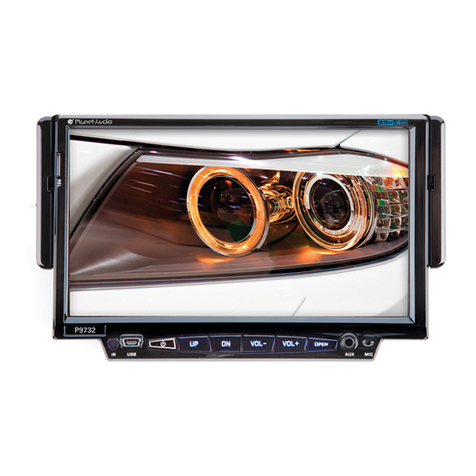
Planet Audio P9732 User manual

Planet Audio

Planet Audio P9732 User manual
Planet Audio P9692B User manual

Planet Audio

Planet Audio P9692B User manual

Planet Audio P9615BI User manual

Planet Audio

Planet Audio P9615BI User manual

Planet Audio P9725B User manual

Planet Audio

Planet Audio P9725B User manual

Planet Audio P9686 User manual

Planet Audio

Planet Audio P9686 User manual

Planet Audio P255B User manual

Planet Audio

Planet Audio P255B User manual

Planet Audio PNV9620I User manual

Planet Audio

Planet Audio PNV9620I User manual

Planet Audio Car Audio System User manual

Planet Audio

Planet Audio Car Audio System User manual

Planet Audio P9689 User manual

Planet Audio

Planet Audio P9689 User manual

Planet Audio P9752B User manual

Planet Audio

Planet Audio P9752B User manual

Planet Audio P9725B User manual

Planet Audio

Planet Audio P9725B User manual

Planet Audio P9689 User manual

Planet Audio

Planet Audio P9689 User manual

Planet Audio P9628B User manual

Planet Audio

Planet Audio P9628B User manual

Planet Audio PI9758B User manual

Planet Audio

Planet Audio PI9758B User manual

Planet Audio P9640B User manual

Planet Audio

Planet Audio P9640B User manual

Planet Audio P9685B User manual

Planet Audio

Planet Audio P9685B User manual

Planet Audio P300DVD User manual

Planet Audio

Planet Audio P300DVD User manual

Planet Audio P375UA User manual

Planet Audio

Planet Audio P375UA User manual

Planet Audio PB475RGB User manual

Planet Audio

Planet Audio PB475RGB User manual

Planet Audio P9950CPA User manual

Planet Audio

Planet Audio P9950CPA User manual

Planet Audio PI9760 User manual

Planet Audio

Planet Audio PI9760 User manual
Planet Audio P9690B User manual

Planet Audio

Planet Audio P9690B User manual

Planet Audio PCD2485 User manual

Planet Audio

Planet Audio PCD2485 User manual
Planet Audio PC3.5B User manual

Planet Audio

Planet Audio PC3.5B User manual

Popular Car Receiver manuals by other brands

Linear Series LS5050 Operation and installation manual

Linear Series

Linear Series LS5050 Operation and installation manual

Kenwood KRC-160 instruction manual

Kenwood

Kenwood KRC-160 instruction manual

Sony XR-CA430X Service manual

Sony

Sony XR-CA430X Service manual

T+A Elektroakustik K1 CD-RECEIVER operating instructions

T+A Elektroakustik

T+A Elektroakustik K1 CD-RECEIVER operating instructions

SoundMax SM-CDM1052 instruction manual

SoundMax

SoundMax SM-CDM1052 instruction manual

Xtrons HD107HD user manual

Xtrons

Xtrons HD107HD user manual

Mopar RB3 manual

Mopar

Mopar RB3 manual

Clarion ADDZEST DMZ615 owner's manual

Clarion

Clarion ADDZEST DMZ615 owner's manual

Sony XAV-601BT Specifications

Sony

Sony XAV-601BT Specifications

PIE GM12-POD/S Operation manual

PIE

PIE GM12-POD/S Operation manual

Hyundai H-910H instruction manual

Hyundai

Hyundai H-910H instruction manual

Sony XR-C6100 Service manual

Sony

Sony XR-C6100 Service manual

Sony CDX-L600X - Fm/am Compact Disc Player Installation/connections

Sony

Sony CDX-L600X - Fm/am Compact Disc Player Installation/connections

Motorola VWA63 Service manual

Motorola

Motorola VWA63 Service manual

Sound Storm STM93R user manual

Sound Storm

Sound Storm STM93R user manual

Nextar D3201 instruction manual

Nextar

Nextar D3201 instruction manual

Alpine CDE-163BT owner's manual

Alpine

Alpine CDE-163BT owner's manual

Kenwood KDC-X303 quick start guide

Kenwood

Kenwood KDC-X303 quick start guide

manuals.online logo
manuals.online logoBrands
  • About & Mission
  • Contact us
  • Privacy Policy
  • Terms and Conditions

Copyright 2025 Manuals.Online. All Rights Reserved.

47
ACCESSORY
Accessory Quantity
User Manual 1PC
Wire 1PC
USB Cable 1PC
Keys 2PCS
Install metal bar 1PC
Remote controller 1PC
Warranty card 1PC
INSTRUCTIONS
3
4
4
5
6
7
8
11
12
13
14
16
17
18
20
22
23
33
36
38
39
40
41
43
44
45
46
47
CONTENTS
In-Dash DVD/MP3/CD Receiver
With 5.2” Widescreen
Touch Screen TFT Monitor
And Front Panel A/V Aux Input
P5200T
Welcome
Warning
Note
Features
Basic Operation
Panel Arrangement
Main Menu Touch Operation
OSD Setup
Adjust Mode
Remote Control Function
Loading
Touchscreen Display For Disc playback
DVD Mode
ouch Operation
Radio Operation
DVD Basic Operation
VCD Basic Operation
CD/MP3 Basic Operation
Music Surroundings Setting
EQ Setting
Audio Frequency/Tone
TV MODE
Other Play Mode
Trouble Shooting
Wiring Diagram
Specifications
Accessory
RDS T
46
SPECIFICATIONS:
Power supply
Power range
Max operate current
Install size
Ground system
Amp Rating
DC 12V
10.8-16.0V DC
10A
155X182X53mm
Negative ground
80Wattsx4Channels
FM tuner
EuropeanFrequencyrange
USAfrequencyrange
Signal/Noise ratio
Stereoseparation
Search station volt
Distortion rate
87.5-108MHz
87.5-107.9MHz
55dB
30dB
20-30dBuv
1.5%
DVD PLAYER
Signal/Noise ratio
Frequency response
70dB
20Hz-20KHz
AM tuner
522-1620KHz
530-1710KHz
32dB
EuropeanFrequencyrange
USAfrequencyrange
Limit noise sensitivity
TV tuner
Signal 48.25-863.25MHz
INSTRUCTIONS
WELCOME
To properly use this product, please go through this instruction manual for installation
and operation, put it in a safe place for future use!
WARNING
NOTE:
We keep improving this product all the time. There may be some changes in it that are
not in this manual.
Thank you for enjoying our series of digital car A/V product.
1. Please keep the disc slot clean, wipe it off when there is some dirt on it. You should
wipe off any dirt on the disc before you place it into the unit. If the disc is dirty and you
place it inside the unit, it will cause the unit to go into an error and will not play the disc.
Please ask professional to clean the laser.
2. Playing the radio at higher volumes for a long period of time may cause hearing
issues. You should play this unit at a moderate listen level.
3. This unit is set up by precision parts. If you open up this unit, you will void any and
all of your warranty.
4. Please do not touch LCD display with any hard object so that you prevent it from
getting scratched or damaged.
5. To avoid an accident caused by watching the LCD screen. This unit has a vehicle
lock out wire so that you will not be allowed to watch a video while driving down
the road.
6. This unit is meant for a 12V power and negative ground system from a vehicle.
INSTRUCTIONS
4 45
INSTRUCTIONS
WIRING DIAGRAM
This player is equipped with ISO standard connector, please follow below instruction:
● Yellow – 12 V Constant
● Black – Ground wire
● Blue - Power Antenna / Remote Amp Turn On
● Orange – Back-Up Camera Trigger (+) ● Pink – Parking Brake (-)
● White/White black - Left front speaker (+-)
● Purple/Purple black - Right rear speaker (+/-)
● Green/Green black - Left rear speaker (+/-)
● Red - ACC ON (+12V) ● Grey/Grey black - Right front speaker (+/-)
Note:
The “PARKING BRAKE” wire must be connected to the parking brake system
of your car. When the parking brake is engages, the LCD will be allowed to view
your video.If not, the screen will produce an image saying, “PARKING BRAKE”.
This is a safety feature designed for the driver not to watch a video while driving.
The video output on this unit will not be affected by this.
INSTRUCTIONS
NOTE
● This unit can play the following disc
Note: 1. This unit is compatible with MP4/DVD/VCD1.0/2.0/3.0 version,
DVD, CD-R, CD-RW, MP3, WMA, JPEG.
2. When playing a DVD, VCD, MP3, CD disc the display will auto
identify the disc and show corresponding word. When appears
on the display, that means that there is no function, please choose
another mode.
MODE
DVD
VCD
MP3
CD
ICON CONTENT DISC SIZE
Sound,image
Sound,image
Soundonly
Soundonly
12cm
12cm
12cm
12cm
5
44
INSTRUCTIONS
TROUBLE SHOOTING
After ignition
switch off, setting
information all lose
Remote control no
function
Poor performance
of radio station
Can not load disc
Can not play disc
Can not switch
language/subtitle
No image
PROBLEM
Can not power on
CAUSE
Check whether power fuse
blew or not
Some factor cause MPU wrong
operation
No enough power supply
from battery
Disc is scratched
Put wrong side of disc into unit
Lens has dirty
There is only one language/
subtitle in disc
Video line between unit and
TV is not properly connected
SOLUTION
Change fuse same as the old one
Press RESET button on the panel by pen
point, then, power on
Check whether antenna is connected or not,
or poor connection
Change new disc
Slot in the disc with sign side up
Clean lens by lens clean disc
If disc is not with multi-language/subtitle, it
cannot switch language/subtitle
Reconnect lines
Improper length of antenna,
poor connection of antenna
grounding
The disc will not go in all
the way
Change the wiring around
Change battery in remote control
Remove the 2 screws on top of the radio
Wrong connection between
ignition line ACC and
Constant 12 Volt wire
INSTRUCTIONS INSTRUCTIONS
6 43
OTHER PLAY MODE
AUX IN:
AUX IN OPERATION
1) Press “Source” button on remote control or touch “AUX” on the touch screen, to
switch to AUX mode.
2) This will allow you to listen and or watch any source that you have plugged into this
section of the radio.
3) This unit has 1 - Video RCA input & 1 pair of Audio RCA’s for this feature.
CCD (Back-Up Camera)
1) If there is a back-up camera installed onto your car, you will need to connect it to
the CCD video input.
2) When you are backing up the car there you will see this image on your screen.
3) You can set CCD image according to your car's own position in general setting mode.
RADIO
1.AM/FM Radio Tuner
2.30 Radio Preset Stations(18FM,12AM)
DVD PLAYER
1.MPEG-4 Decoder Technology
2.Compatible with Mp4(AVI/5.X),DVD(DVD-R/DVD-RW),VCD,
SVCD,CD-RW,WMA,MP3,JPG
3.Supporting Multiple Subtitles,Angles,Languages
4.Child lock funcion
5.4-Channel Audio Output
6.pause,Play,Up/Down,Stop,Zoom,PBC Function
LCD DISPLAY
1.5.2 inch,16:9 TFT LCD display
2.Touchscreen
3.Auto adotoried panel
4.Angle turn adjustable
TV TUNER
Signal: 48.25-863.25MHz
FEATURES
INSTRUCTIONS INSTRUCTIONS
7
42
BASIC OPERATION
1. SOURCE ON/OFF
Press SRC button on panel or PWR button on remote control quickly to power on.
Press SRC button on panel or PWR button on remote control longer to power off.
2. PLAYING SOURCE CHOOSE
Press SOURCE button on remote control, unit will switch sources in the following
→
3. MUTE CONTROL
Press MUTE button on panel or MUTE button on remote control shortly to turn off
sound output, press again to back to sound output.
4. VOLUME ADJUSTMENT
1) Press VOL+/VOL- button on panel, VOL+/VOL- button on remote control or touch
button on display to adjust volume level.
2) The volume setting on this unit is 0 - 39.
TONE MODE ADJUSTING (SEL)
Press SEL button on remote control or SEL button on the panel to choose your desired
tune mode:
NOTE:
1) DVD playing mode, MBP & User will be automatically activated.
2) After 5 seconds you choose desired mode, do not adjust volume button. The mode
will automatically take you back to status before adjustment.
5. RESET
1) If unit is not working correctly, you should press the RES button. This will reset the
radio and should start working correctly afterwards.
2) After reset, all settings will resume back to the factory default settings.
Sequence:RADIO DVD AUX TV
→
→
VOL BAS TRE L/R F/R
→ → →
→
INSTRUCTIONS INSTRUCTIONS
8 41
1.SRC Button
2.MENU Button
3.BAND/P.N Button
4.APS/Play/Pause Button
5.MUTE Button
6.REL Button
7.SEEK- Button
8.SEEK+ Button
9.VOL+ Button
10.VOL- Button
11.Aux External Input
12.OPEN Button
13.USB Socket
14.SD Socket
15.Remote control receiver
1
2
3
4
5
6
7
8
9
10
11
12
13
14
15
INSTRUCTIONS INSTRUCTIONS
9 40
BASIC FUNCTION
2.MENU Button
Press this button to back to the main menu.
5.MUTE Button
Press this button to shut off the sound output, re-press this button can resume the
sound output.
6.REL Button
Press this button to release the panel;
AUDIO FREQUENCY
This function shows that the effect of standard audio output.
TONE
Note: You can change the timbre of the sound in DVD mode. We suggest keep it in the
original place.
1.SRC Button
Short press this button to power on.
Long press this button to power off.
Every button-press activates mode
change as follows:
Note: When the device without connecting
to USB, SD, CDC or DVD no disc inside,
the system will automatically skip these
related working mode.
4.APS / Play/Pause Button
In radio state,short press this button to browse the radio stations which stored on
the no Button for 5 seconds,long press this button to auto scan & store radio
station.In playing state,press this button to select meno stereo;
Press this button at vioce playing state to execute play/pause functions.
7.SEEK- Button
At radio state, short press this button to manual seek radio frequency to forward direction,
long press this button to automatically seek radio frequency to forward direction;
At voice playing state, short press this button to select the previous song;
At TV state, short press this button to select TV channels to forward direction single steply,
long press this button to select TV channels to forward direction continuously.
3.BAND/P.N Button
In radio mode,press this button to switch hank,every time to choose band,the
sequence is as follows: FM1 FM2 FM3 AM1 AM2
In playing state,press this button to switch video system AUTO,NTISC,PAL
In TV mode, shortly press this button to switch TV sound system. The sequence is as
SECAM PAL M PAL N NTSC PAL I
TV
INSTRUCTIONS INSTRUCTIONS
10 39
11.Aux External Input
External connected audio input;
14.SD Socket
Connect the SD memory card to this socket, and the unit can play MP3 music.
15.Remote control receiver
It can receive infrared message of remote control.
9.VOL+ Button
Press this button to increase the volume.
10.VOL- Button
Press this button to reduce the volvme.
EQ SETTING
User defined
Classic
Standard
Rock
Jazz
Pop
13.USB Socket
Connect the USB memory to this socket, and the unit can play music format files
supported by this unit in the USB memory.
12.OPEN Button
Press this button can eject the disc.
Slot indicator light RESET Light
RESET Button Disk slot
8.SEEK+ Button
At radio state, short press this button to manual seek radio frequency to backward direction,
long press this button to automatically seek radio frequency to back ward direction'
At voice playing state, short press this button to select the next song;
At TV state, short press this button to select TV channels to backward direction single steply,
long press this button to select TV channels to backward direction continuously.