Introduction
Win XP Service Pack 2 users – please read Note 1
This guide assumes that you are familiar with PC hardware, installing
software from a CD-ROM, mobile phone configuration and possibly
even Bluetooth. If not please see the User Manual on the CDROM.
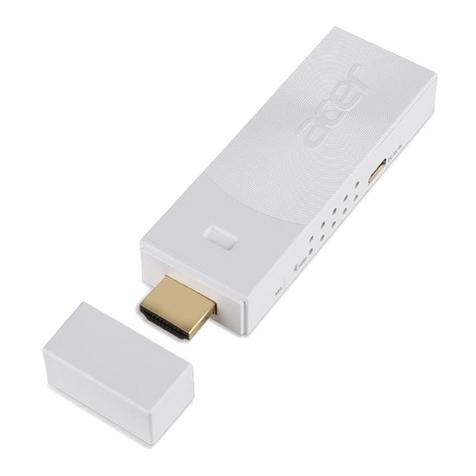
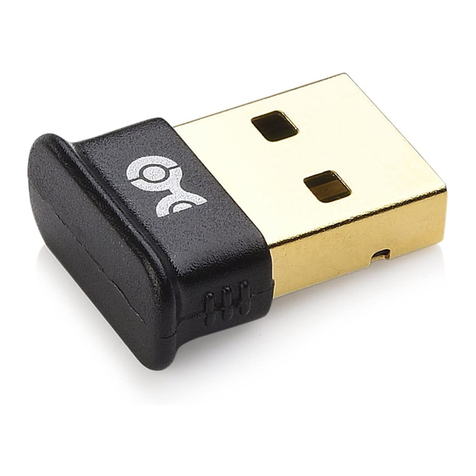
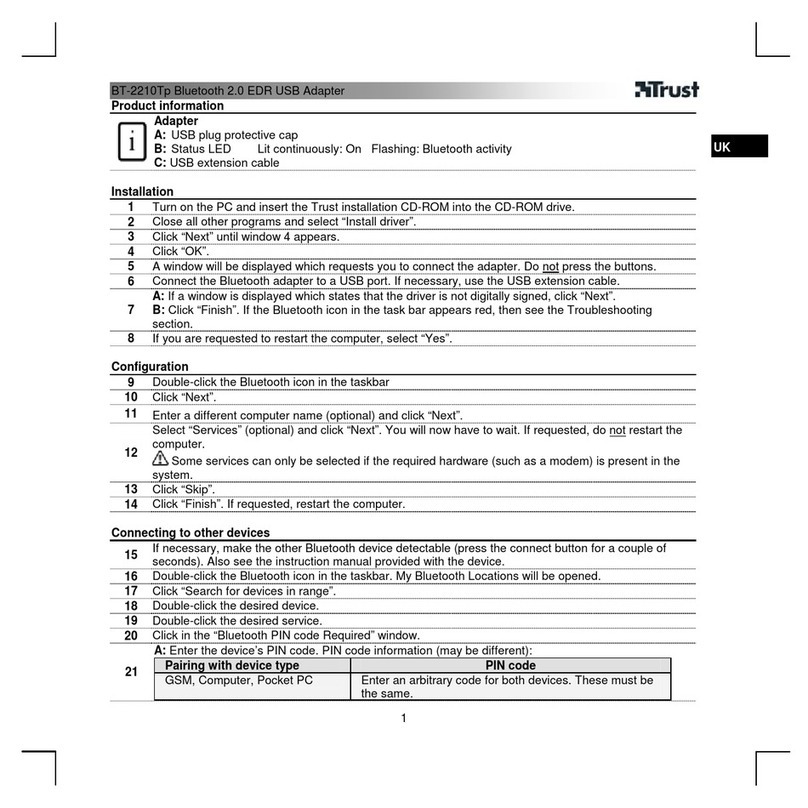
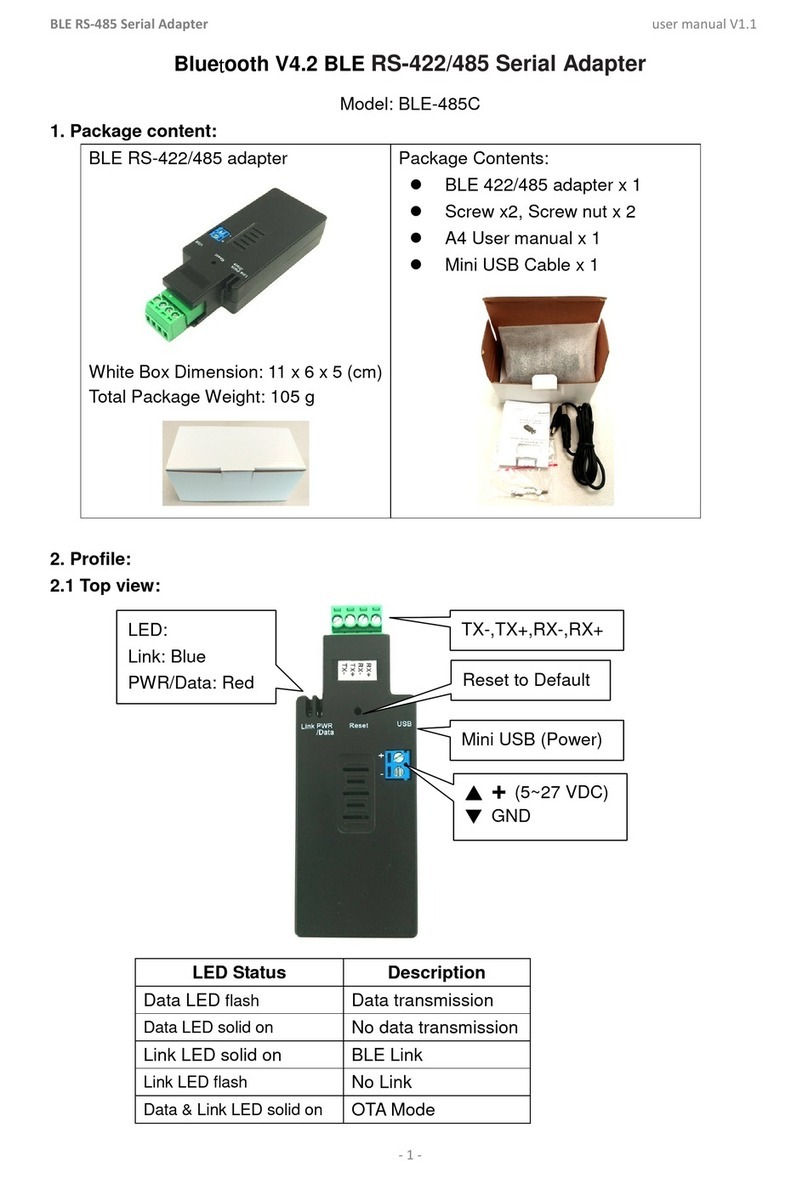
The PMR Bluetooth USB dongle allows you to make wireless
connections between your computer and other computers, mobile
phones, PDAs or any Bluetooth device which supports compatible
services. For example, even with your mobile phone in your pocket or
in your briefcase, you can still use your laptop or PDA to make data
calls and pick up your email or surf The Internet. Provided your laptop
(or PDA) and your mobile phone have been “paired” and they are
within a few metres of each other, they will be able to connect
together.
Note 1: IMPORTANT- Windows XP Service Pack 2
If you are running Windows XP SP2 then you may NOT need to
install the Windigo Blue Manager software supplied on the CDROM.
Windows XP SP2 has built-in Bluetooth drivers and application
software that will recognize the dongle. If you DO want to use
Windows XP SP2 driver then you can ignore the rest of this
Quick Start Guide and see the following link for an example of using
the Nokia6230: www.esktech.com/WinXPSP2NokiaPCSuite.pdf
If you want to use BOTH Blue Manager and the XP SP2 Bluetooth
driver (not at the same time) then Windigo supply a small
SwitchDriver utility to help you manage the drivers. See Note 2.
If you DON’T want to use the Windows XP SP2 driver at all or you
want to use BOTH then continue to the next section below.
Audio profile: XP SP2 driver does NOT support Headset profile. If
you wish to connect to your Bluetooth Headset for VOIP applications
please use Blue Manager software.
What kind of PC do you need?
Any recent PC with a USB Port and the following operating system:
* Windows XP / Windows XP Professional
* Windows 2000
* Windows ME / Windows 98 (2nd Edition only)
Get started – Install Blue Manager on your PC
1. Don’t plug your Bluetooth device in yet!
Start by installing the Blue Manager software from the CD or from a
download. If it does not start automatically then find the file
“Setup.exe” or “XTNDConnect Blue Manager.exe” and double-click
on it. Follow the on-screen instructions accepting the defaults or the
choices to suit your mobile phone.
2. Choose your language and click Next
3. Blue Manager prompts you to plug in the adapter
Blue Manager will detect that your USB or PCMCIA adapter is not
plugged in to your computer and ask you to plug it in. Don’t worry if
you don’t have it to hand. Just continue and plug it in later.
4. Restart your computer
Connect a mobile phone/PDA/computer
5. Prepare the other (remote) Bluetooth device
Not only must your PC be within range of other Bluetooth devices but
those devices must be configured to allow connections (i.e. be
‘Discoverable’ from your PC).
6. Start the main Bluetooth software on your PC
Start the XTNDConnect Blue Manager application
(double-click on the new shortcut on your desktop).
7. Checking it’s working and the driver
If the installation is OK you should see a version of the above icon in
your System Tray (bottom right-hand corner of your PC screen) like
this:
If the adapter is not plugged in correctly or there is a problem with the
driver you might see the same icon but with a red cross on it like
this:
7. Checking it’s working and the driver (XP SP2 users only)
If you are trying to use Blue Manager and nothing appears to be
happening it’s probably because the Windows XP SP2 Bluetooth
driver has grabbed control of the Windigo Bluetooth USB adapter.
Use the Windigo SwitchDriver utility (on your CDROM or available as
a free download) to swap the driver and let you continue.
8. Discovering devices.
You should now see a Bluetooth icon in your system tray and the
Blue Manager window should appear. Blue Manager will
automatically search for ‘In range’ devices. If no devices were
displayed on startup then check the configuration of the remote
devices and click on the Refresh icon.
9. Trusting/Pairing/Bonding
If Bluetooth security has been selected on the remote device then,
before you can connect to and use the services on that device, you
should ‘Trust’ it and ensure that it Trusts your PC with Blue Manager.
This is usually only one operation. You may need to find out the PIN
code used by the remote device. To trust a remote device, use Blue
Manager to right-click on the device icon and select Trust Device.
Enter the PIN code for the remote device. The words (Trusted) should
now appear on the status column. You may need to accept a prompt
and enter the PIN number on the remote device too.
Note: PIN Numbers If the device you are trusting does not have a
pre-assigned code, then normally you can create your own 4 digit
code (e.g. ‘1234’). You must use the same four digit code for both
devices in order to trust.
Please note for PMR Headsets the pre-assigned code is 0000
10. Discovering Services
Once you have some remote devices in the Blue Manager window
you can find out what services those devices offer by right-clicking on
the device and selecting Display Services.
11. Configuring Blue Manager
Open the settings dialogue box using: Tools/ Options/Settings.
Change settings as required.
Services
At the time of writing, Blue Manager 3.1C directly supports the
following services:
Dialup Networking, LAN Access Using PPP, OBEX File Transfer,
OBEX Object Push, Serial Port, Audio
Other services may be configured through COM ports. See the online
help in Blue Manager itself – expand the ‘Contents/XTND Connect
Blue Manager for Windows’ help section. See also the User Manual
as well as other EskTech guides at: www.esktech.com/support
Using Blue Manager
1. Default folders
Operations such as Browse, Send File, Get File and Exchange
Business Cards use default folders and locations selected under
Tools/Options/Settings.
2. Browse Folders
If a remote device has shared folders then this operation will allow you
to view the files and folders within the remote shared folder. Right-
click on the device you want to browse and select Browse Folders.
3. Exchange Business Cards
Right-click on a remote device and select Exchange Business Cards.
Business cards will be placed in default folders locally and on the
remote device. Prepare business cards first.
4. Send File to / Get File …
This operation allows you to send or receive files and folders between
your PC and the remote device. If no folder on the remote device is
open then any sent files will be placed in the Inbox of the remote
device. You can also simply drag and drop files or Copy and Paste.
5. New Folder
Note that new folders are created in the current directory.
6. Find Device
If you know the Bluetooth address of a device that you would like to
connect to without searching through a lot of addresses then this
option allows a direct search.
X