manuals.online logo
Brands
  1. Home
  2. •
  3. Brands
  4. •
  5. PORT
  6. •
  7. DVD Player
  8. •
  9. PORT Noteworthy Slim Line CD/DVD User manual

PORT Noteworthy Slim Line CD/DVD User manual

Popular DVD Player manuals by other brands

Yamaha DVD S540 - Progressive Scan DVD Player Service manual

Yamaha

Yamaha DVD S540 - Progressive Scan DVD Player Service manual

Yamakawa DVD-MP12i user manual

Yamakawa

Yamakawa DVD-MP12i user manual

Philips DVP3042/12 user manual

Philips

Philips DVP3042/12 user manual

Philips DVP5900/37B Quick use guide

Philips

Philips DVP5900/37B Quick use guide

Roadstar DVD-2020H Service manual

Roadstar

Roadstar DVD-2020H Service manual

Beko DVD 2006 user manual

Beko

Beko DVD 2006 user manual

Atak DVDA2015 instruction manual

Atak

Atak DVDA2015 instruction manual

LG DV257K owner's manual

LG

LG DV257K owner's manual

auna 10005069 manual

auna

auna 10005069 manual

Philips MCD700/61 user manual

Philips

Philips MCD700/61 user manual

Sony DVP-F11 Service manual

Sony

Sony DVP-F11 Service manual

Toshiba SD-2300U owner's manual

Toshiba

Toshiba SD-2300U owner's manual

LENCO DVP-740 X2 user manual

LENCO

LENCO DVP-740 X2 user manual

Tevion 44330 user guide

Tevion

Tevion 44330 user guide

Aiwa XD-DV370 operating instructions

Aiwa

Aiwa XD-DV370 operating instructions

Sony DVP S530D operating instructions

Sony

Sony DVP S530D operating instructions

Denon DVM-1805 - DVD Changer operating instructions

Denon

Denon DVM-1805 - DVD Changer operating instructions

Toshiba SD-3815 owner's manual

Toshiba

Toshiba SD-3815 owner's manual

manuals.online logo
manuals.online logoBrands
  • About & Mission
  • Contact us
  • Privacy Policy
  • Terms and Conditions

Copyright 2025 Manuals.Online. All Rights Reserved.

1
PORT-Noteworthy
Slim Line CD/DVD
www.port.com
2
PORT-Noteworthy Slim Line CD/DVD
Warning!
All rights reserved. The products named in this manual are only used for identification
purposes and may be trademarks or registered trademarks of the respective companies.
This device was designed for home or office use.
Warning! This device is equipment according to EN55022 class A. This equipment can
cause radio disturbances in a residential area. If this is the case, the user has to take
appropriate measures and assume all responsibility and costs. It may not be used near or
with any life-sustaining systems.
The manufacturer is not liable for any damages that may occur from the use of a PORT
DVD system. All rights reserved. We reserve the right to make changes as technology
requires.
Dear user!
Welcome to the PORT DVD installation. Before you install the device, we
would like to ask you to carefully read the following items and take them into
account, if applicable, when making changes to your system.
With the purchase of this device you have acquired a drive that can be
connected to any PC with the approriate interface.
FEDERAL COMMUNICATIONS COMMISSION - DECLARATION OF CONFORMITY
This equiqment has been tested and found to comply with the limits for a Class B digital device, pursuant to part 15 of the
FCC Rules, and RS 210 Regulations (Canada). These limits are designed to provide reasonable protection against harmful
interference in a residential area. This equiqment generates, uses, and can radiate radio frequency energy and if, not
installed and used in accordance with the instructions, may cause harmful interference to radio communications. However,
there is no guarantee that interference will not occur in a particular installation. If this equipment does cause harmful
interference to radio or television reception, which can be determined by running the equipment off and on, the user is
encouraged to try to correct the interference by one or more of the following measures:
 Reorient or relocate the receiving antenna.
 Increase separation between the equipment and receiver.
 Connect the equipment to an outlet on a circuit different from that to which the receiver is connected.
 Consult the dealer or an experienced radio technician for help.
3
USERSMANUAL
General Information ......................................................................... page 4
Safety measures and operating hints .............................................. page 5
CHAPTER 1:
Hardware Installation ....................................................................... page 6
CHAPTER 2:
Device description ............................................................................. page 7
CHAPTER 3:
Software Installation ......................................................................... page 8
under Windows 95/98 ................................................................ page 8
under Windows NT 4.0 .............................................................. page 10
CHAPTER 4:
Daily use of the PORT DVD ............................................................... page 12
CHAPTER 5:
Reference Section .............................................................................. page 13
Specifications of the PORT DVD ....................................................... page 15
Table of Contents
4
PORT-Noteworthy Slim Line CD/DVD
General
Reliable performance of the PORT DVD can not be guaranteed for configura-
tions that do not meet the following requirements.
Hardware Requirements
In order to use the PORT DVD you need a computer system with the following
minimum requirements:
 486DX PC or higher
 8 MB RAM or higher, depending on the operating system
 at least a floppy disk drive and a hard disk
 PCMCIA Card interface (type II or higher)
Software Requirements
The PORT DVD is set up for use of the following operating systems:
 Windows 95/98
 Windows NT 4.0
Media Formats
The PORT DVD reads formats according following CD and/or DVD standards:
 MS-DOS data CDs (High Sierra, Mode 1 & Mode 2 complying with ISO 9660)
 Data  CDs (Joliet)
 CD ROM XA
 Mixed Mode CDs
 Kodak Photo CDs (single and multisession)
 UDF (Universal Disc Format)
 Audio CDs
 DVD ROM
 DVD-R, CDI, CD-Midi, CD-R, CD-RW
Contents
The contents of the PORT DVD for PCs includes:
 PORT DVD drive
 an AC Adapter
 a manual
 PCMCIA Card connection cable
 installation software on 3.5 floppy disk
5
Safety measures and operating hints
 The tray of the media can be opened in the following modes with the Eject
button :
- in the running mode (Drive is supplied with power from the PC via PORT
cable attached to the computer);
Additionaly, the tray can be opened at any time and in any mode by cautious
insertion and pressing the emergency-eject (e.g. with a pointed object like
a bent paper clip).
 The PORT DVD can be operated in either upright or horizontal state. It should
possibly not be moved during operation.
 Operating the device should only take place within temperature ranges of
10  45 °C.
 After transporting the device, especially in low temperatures which can
cause condensation to form, allow the PORT DVD unit to reach room
temperature before operating.
 The PORT DVD should not be used in dusty and humid surroundings.
 Use only the included AC Adapter power cable, otherwise damage to the
unit could occur.
 The PORT DVD should not be operated near other RF emitting devices such
as consumer electronics as there is a potential for interference.
 The PORT DVD should not be operated near strong electromagnetic radiation
source (loud speakers, Port DVD phones etc.)
 Please note that the DVD-ROM drive takes longer to identify the media, after
placing it inside.
Safety:
 Never attempt to disassemble, adjust or repair the DVD-ROM drive
as exposure to laser light or other safety hazards may result.
 This is a Class 1 Laser Product. This product complies with all
applicable safety standards, DHHS Rules 21 CFR Chapter 1,
Subchapter J. The laser beam generated is totally enclosed during
all modes of normal operation, and no hazardous laser light is
emitted from the drive.
Safety measures and user interface
6
PORT-Noteworthy Slim Line CD/DVD
CHAPTER 1: Hardware installation
1. Turn off the computer and all attached components.
2. Connect the included power supply cable to the rear panel of the device.
Do not yet plug the power supply into the power outlet.
3. Connect the drive connector of the cable to the device.
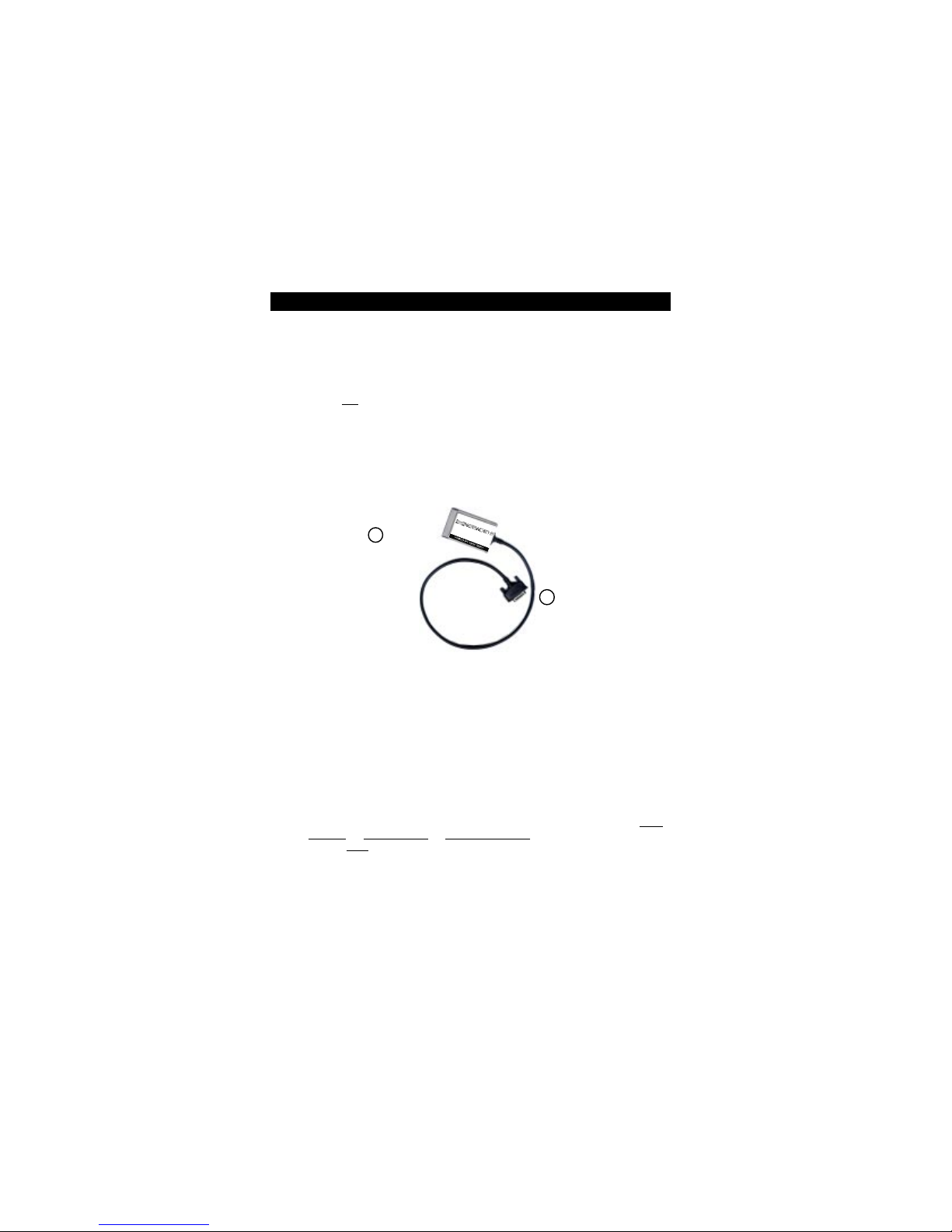
4. Plug the PCMCIA Cable into any PCMCIA slot of your computer.
5. Now, plug the power supply of the device into a power outlet.
6. Turn on your computer again.
7. You can now begin installing the software.
Plug&Play with the PCMCIA Cable for Windows 95/98
To use the PORT DVD drive for Windows 95/98, primary installation must be
carried out only once, according to the following software installation.
The PORT PCMCIA Cable is Plug&Play compatible. If you work with Windows 95/
98, you can attach the PCMCIA while the drive is in use. Your PORT DVD drive
then appears under "My Computer". Likewise, you can remove the PCMCIA
Cable while the drive is in use, by first cancelling it. The PORT DVD drive then
disappears from "My Computer". To cancel the PCMCIA Cable, click on Start,
Settings, Control Panel, PC Card (PCMCIA). Highlight the PCMCIA and
click on Stop. The PCMCIA Cable can be removed when the command "You
may now safely remove the card" appears.
1
2
Computer
connection
connection to drive
7
Device description
CHAPTER 2: Device description
Please note the following important details:
The specific mode is indicated by an LED on the upper side of the device; see the
following table for mode interpretations.
1. ON/OFF - Switching:
The PORT DVD will be always on when the unit is plugged into the AC
Adapter and the switch is in the DC position. When the PORT DVD is not
plugged into the AC Adapter and it is being powered through the PC Card
slot then PORT DVD is on as long as the notebook is on, the PCMCIA Card is
inserted, and the switch is in the "PC" position.
2. Power supply via AC Adapter:
The PORT DVD is powered from the external AC Adapter when switch (5) is
in the "DC" position and the AC Adapter is connected.
3. Power supply from the Notebook:
Set the switch to the "PC" position. The PORT DVD will only receive power
now from the notebooks PC Card slot.
4. Playing Audio-CDs
You can play audio CDs on your PORT DVD by using the CD Player application
in Windows. To hear the audio you do need to connect either headphones
to socket (6) of the PORT DVD or an audio cable to socket (6) of the PORT DVD
and the Line In of your notebook.
1 tray 5 selection of the power supply
2 access indicator 6 Audio out (line out) / headphone connection
3 CD/DVD-eject button 7 power cord connection
4 emergency eject 8 PCMCIA Cable
9 LED display of the operational state
9
87654213
8
PORT-Noteworthy Slim Line CD/DVD
Power display mode of the PORT DVD
The LED-Display of the PORT DVD blinks when the drive either is powered by the
AC Adapter or by the Notebook. The LED-display blinks also, when the power
supply of the computer is not sufficient. Operation is not possible.
Switch positions and drive operation
With the switch "PC" (5), the type of power supply can be selected. Please note
the points in the Section Device Description on page 7.
 The tray for the media opens after pressing the eject button (3) on the front
side of the device (abt 1cm), and thereafter fully opend per hand to change
the media.
 Should you wish to insert or remove a media when the drive is not in stand-
by mode, you can unlock the tray by inserting a bent-open paper clip, or a
similar pointed object, into the emergency eject hole (see page 7) until you
feel resistance (a light touch does it). When pulling out the paper clip, the
tray is unlocked and can be fully opened by hand.
CHAPTER 3: Software installation
3.1 Software installation under Windows 95/98
After connecting your PORT DVD for the first time, Windows 95/98 will inform
you that new hardware has been found.
Note: If Windows 95/98 does not display this message, check whether your
computer's PCMCIA slot has been properly set. Open the "Control Panel" by
clicking "Start" - "Settings" Double-click the icon "System" and select the tab
"Device Manager". Under the entry "PCMCIA plug connection" ensure that
the driver for your PCMCIA slot has been installed and activated and that no
device conflict is displayed.
Please observe the various installation procedures described below for diffe-
rent Windows versions.
Windows 98
1. Insert the PORT DVD disk containing the Windows 95/98 software.
2. Plug the PCMCIA Cable into any PCMCIA slot of your computer.
3. The dialog box "Add New Hardware Wizard" appears. Click on "Next".
4. The next dialog box shows the standard command "Search for the best driver
for the device". Click on "Next".

9
Software installation
5. In the next dialog box, the search for the driver is carried out. The standard
command "Floppy disk drive" appears. Click on "Next".
6. The driver is then loaded from the disk. Click on "Next" to install the driver.
Click "Finish" to complete the installation.
7. At the end of the installation procedure, a new icon for your PORT DVD will
appear with a new drive letter in the folder "My Computer".
Windows 95b
1. Insert the PORT DVD disk containing the Windows 95/98 software.
2. Plug the PCMCIA Cable into any PCMCIA slot of your computer.
3. The window "Updated Device Driver Wizard" appears. Confirm by pressing
the button "Next".
4. Start the copy procedure by clicking "Finish". If prompted, insert the disk,
click "OK", and then type "A:\" in the space provided and click "OK" again.
5. Click on "Yes" to restart the computer.
6. The folder "My Computer" will now have an icon for your PORT DVD device.
Windows 95a
1. Insert the PORT DVD disk containing the Windows 95/98 software.
2. Plug the PCMCIA Cable into any PCMCIA slot of your computer and continue
with "OK".
3. After the dialog box"New Hardware Found" appears, click the option"Driver
from disk provided by hardware manufacturer".
4. Confirm the next window "Install from Disk" by clicking the button "OK".
5. The message "Insert disk" may appear prompting you to insert the PORT DVD
installation disc Windows 95/98. Make sure that the disk is in the drive and
confirm by clicking "OK".
6. Another window "Copying files" shows you from which path the installation
is to be performed. Type into the input box "A:\", whether it is empty or
contains another entry and then confirm by clicking "OK".
7. The copy procedure begins and you will be continuously informed about the
installation status.
8. At the end of the installation procedure, a new icon for your PORT DVD drive
will appear with a new drive letter in the folder "My Computer".
Note: Before you can start the setup program, you must have carried out the
Software Installation for Windows 95/98 in point 3.1.
10
PORT-Noteworthy Slim Line CD/DVD
Assigning the drive letter under Windows 95/98
After successfully completing the installation of the PORT DVD drive, a new
drive letter is assigned automatically (the first available letter after the internal
hard drives). This can shift the drive letter of an internal drive (for example, 'D'
to 'E'). If this leads to problems, it is possible to change the drive letter
assignment as follows.
1. Click "Start" - "Settings" - "Control Panel".
2. Click "System".
3. Click "Device Manager" and then click "CD-ROM".
4. Click the PORT DVD drive, and then "Properties" - "Settings". (The currently
assigned drive letter as well as the reserved drive letters will then be
displayed).
5. Under Reserved Drive Letter enter a drive letter, for example, 'F' for the
PORT DVD as the "Start drive letter" and 'F' again as the "Last drive letter".
6. Confirm your selection with "OK". When you restart your computer, the
PORT DVD drive will be assigned the letter 'F' in the folder "MyComputer".
3.2 Software installation under Windows NT 4.0
1. Insert the PORT DVD installation disk for Windows NT 4.0 operating system
into your standard floppy drive.
2. Click "Start", "Run" and type "a:\setup.exe".
3. When you have accepted the agreement, a new window will appear. The
setup program suggests "C:\Program\PORTDVD" as the standard default
directory. (If you wish to copy the files into another directory, click "Browse"
and enter the path name.) Confirm the chosen folder with "Continue".
PORTDVD
PORTDVD
PORTDVD