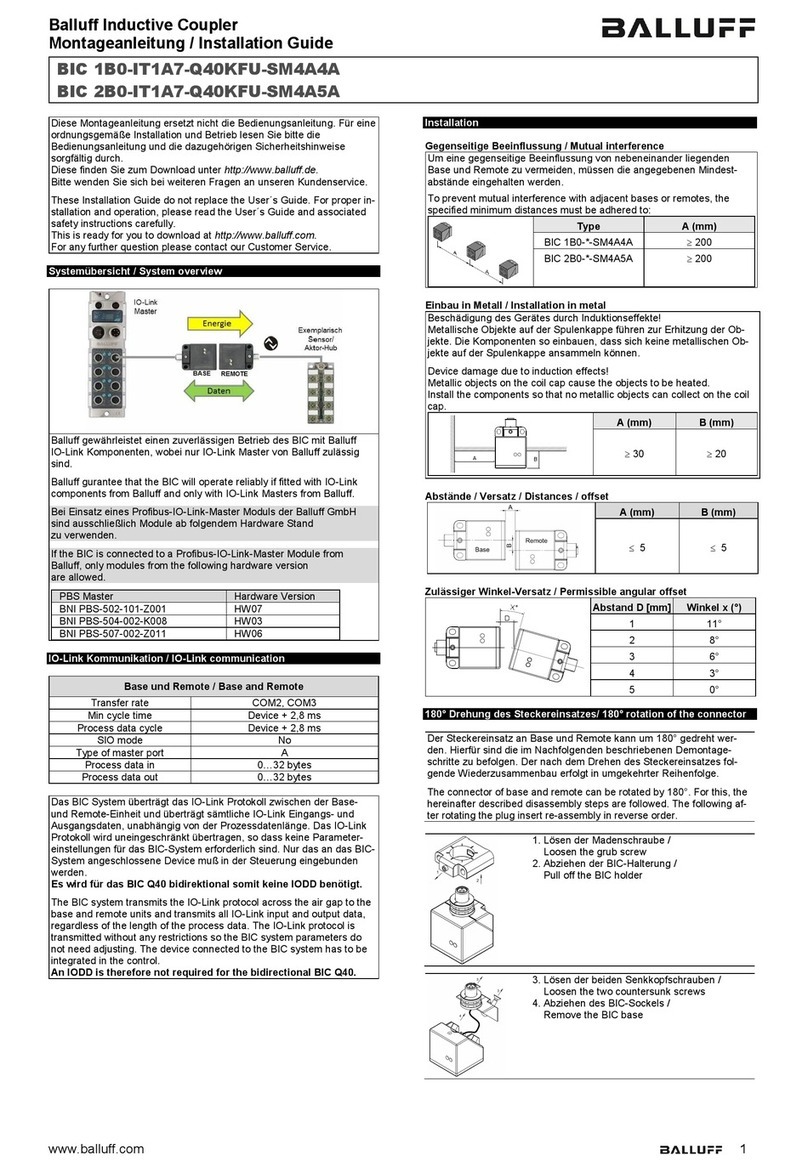
Robotis USB2Dynamixel User manual


User’s Manual
contents
1. Introduction··························· 2
1-1. Functions································ 2
1-2. Composition ······························ 3
1-3. System Requirements ·························· 3
1-4. USB2Dynamixel Connection ······················· 4
1-4-1. USB2Dynamixel Structure ························· 4
1-4-2. Connection of AX series Dynamixel ···················· 5
1-4-3. Connection with DX/RX series Dynamixel ················· 6
1-4-4. Transformation of an USB port into a Serial port·············· 7
1-4-5. Pin Figure ································ 8
1-4-6. How to Supply Power··························· 9
1-5. Installation ·······························10
1-5-1. Installation of Driver ··························· 10
1-5-2. Installation and Implementation of the Dynamixel Manager ········· 12
2. Dynamixel Manager ······················· 15
2-1. Connection ·······························15
2-2. List···································16
2-3. Operation································17
2-4. Configure ·······························20
2-5. Network ································21
2-6. Information ·······························22

2
User’s Manual
1. Introduction
1-1. Functions
The USB2Dynamixel is a device used to directly drive the
dynamixel on a PC. The USB2Dynamixel is used by
connecting to a USB port of a PC, and is equipped with 3p
and 4p connectors to be connected with a variety of
dynamixels.
In addition, the USB2Dynamixel can be used to transform a
USB port into a serial port for a PC without a serial port
such as a lap-top computer. This function can be used
effectively when dynamixel exclusive controllers such as
the CM-2, CM-2+ and CM-5 are connected to an UBS port
or when the ZIG2Serial is connected to an USB port to
control a robot by radio.
Following pictures show how to use the USB2Dynamixel:
◎Control of the USB2Dynamixel using a PC
USB
Power line
◎Transformation of a Serial Port
USB
◎Wireless Network
ZIG2Serial
USB

User’s Manual
1-2. Composition
◎USB2Dynamixel
The USB2Dynamixel is used when a dynamixel is directly driven on a
PC without a dynamixel exclusive controller such as the CM-2, CM-2+
and CM-5. It is also used to transform an USB port to a serial port.
◎Software
A software that can directly drive a dynamixel on a PC only with the
USB2Dynamixel without a dynamixel exclusive controller such as CM-
2, CM-2+ and CM-5 is provided. There are two types of software
provided:
1. USB2Dynamixel driver
2. Dynamixel Manager
Downloadable from our website (www.robotis.com/usb2dynamixel)
◎Manual
This manual describes how to install and use the USB2Dynamixel /
Dynamixel Manager.
Downloadable from our website (www.robotis.com/usb2dynamixel)
1-3. System Requirements
(required)
◎
lo XP 1GHz or higher ded)
◎PC : PC compatible with IBM
USB 1.1 or higher (required)
OS : Windows 2000 or Windows XP (required)
◎CPU : Intel Pentium III 1GHz , AMD Ath n (recommen
◎RAM : 256MB or higher (recommended)
3

User’s Manual
1-4. USB2Dynamixel Connection
1-4-1. USB2Dynamixel Structure
Status Display LED
Function Selection Switch
Serial Connector
3P Connector
4P Connector
Status Display LED : Displays the status of power supply, TxD (writing data), and RxD
(reading data)
Function Selection Switch : Selects how TTL, RS-485 and RS-232 communicates
3P Connector : Connects toAX series dynamixel using TTL network
4P Connector : Connects to DX or RX series dynamixel using RS-485 network
Serial Connector : Transforms a USB port into a serial port using RS-232 network,
4

User’s Manual
1-4-2. Connection of AX series Dynamixel
Set the function selection switch to TTL
mode
Connect the 3P cable to the 3P connector of
USB2Dynamixel and the connector of the
dynamixel (There are two connectors on the
dynamixel, any of which can be connected).
Dynamixels can be connected in series
using a 3P cable.
Connect the power line to the last dynamixel.
Caution
The USB2Dynamixel does not supply power to a dynamixel. For further information on
how to supply power, please refer to 1-4-6 How to Supply Power.
POWER (DC 7 to 10V)
5

User’s Manual
1-4-3. Connection with DX/RX series Dynamixel
Set the selection function switch to RS 485
mode
Connect the 4P cable to the 4P connector of
USB2Dynamixel and the connector of the
dynamixel (There are two connectors on the
dynamixel, any of which can be connected).
Dynamixels can be connected in series
using a 4P cable.
Connect the power line to the last dynamixel.
POWER
(RX-10: DC10 to 12V)
(RX-28: DC12 to 16V)
(RX-64: DC15 to 18V)
(DX-117: DC12 to 16V)
6

User’s Manual
1-4-4. Transformation of an USB port into a Serial port
he USB2Dynamixel can be used to transform an USB port into a serial port for a PC without a serial
function selection switch to RS 232
ode.
etwork with CM-5 can be made even using
n USB port of a PC. For further information
n this, please refer to the CM-5 manual
be used as an USB port
the ZIG2Serial can be used
ithout additional power supply. For further
formation lease refer to the
IG2Serial
T
port such as a laptop computer.
Set the
m
The CM-5 communicates using a serial port.
When the USB2Dynamixel is used, the
n
a
o
The ZIG2Serial can
using USB2Dynamixel. For this type of
operation,
w
in on this, p
Z manual.
Caution
Do not connect to an equipment that consumes more than 500mA, which may
damage the USB board.
7

User’s Manual
1-4-5. Pin Figure
, the user should only use them after being familiarized with the usage
The following pictures show the usage of the connector pins used in the USB2Dynamixel. To make them
suitable for the intended purpose
of each pin.
Pin Figure of 4P/3P Cable Connector
Pin No. Signal Pin Figure Pin No. Signal Pin Figure
1GND 1GND
2 NOT Connected 2 NOT Connected
3 DATA + (RS-485) 3 DATA (TTL)
4 DATA - (RS-485)
4 Pin Cable 3 Pin Cable
321
4321
Pin Figure of Serial Connector
Pin No. Signal Pin Figure
1 Data (TTL)
2 RXD (RS-232)
3 TXD (RS-232)
4 D+ (RS-485)
5GND
6 D- (RS-485)
7 Short with No. 8
8 Short with No. 7
9 USB power (5V)
8

User’s Manual
1-4-6. How to Supply Power
USB2Dynamixel does not supply power to a dynamixel. Thus, additional power is needed to drive a
◎Power Connection to the Dynamixel
Based on the “1-4-5 Pin Figure”,
connect the plus (+) power to the No. 2
pin of the connector, and the minus (-)
power to the No. 1 pin (Since two
connectors of the dynamixel are
identical, the power can be connected to
any one of them).
◎Power Connection between the USB2Dyanmixel and Dynamixel
If the power cannot be connected to the
dynamixel as above, connect the power
between the USB2Dynamixel and the
dynamixel as shown on the left.
Separate the wire connected to the No.
2 pin of the UBS2Dynamixel connector,
and connect the plus (+) power to it.
Connect additional wire via the Y
winding to the wire connected to the No.
1 pin of the USB2Dynamixel connector,
and connect the minus (-) power to it.
The
dynamixel as shown below. For proper voltage to be provided to each dynamixel model, please refer to
the dynamixel manual.
PIN#1: -
PIN#2: +
PIN#1: -
PIN#2: +
PIN#2: +PIN#1: -
9
Other manuals for USB2Dynamixel
1
Table of contents
Other Robotis Adapter manuals