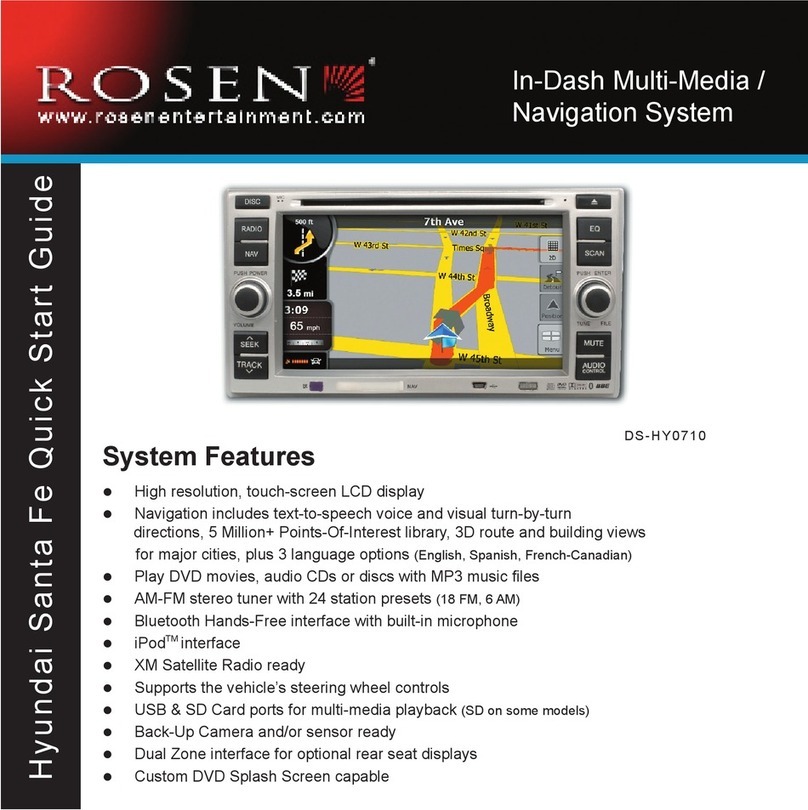
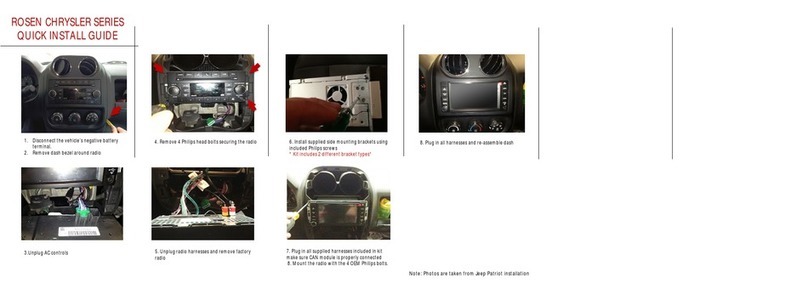
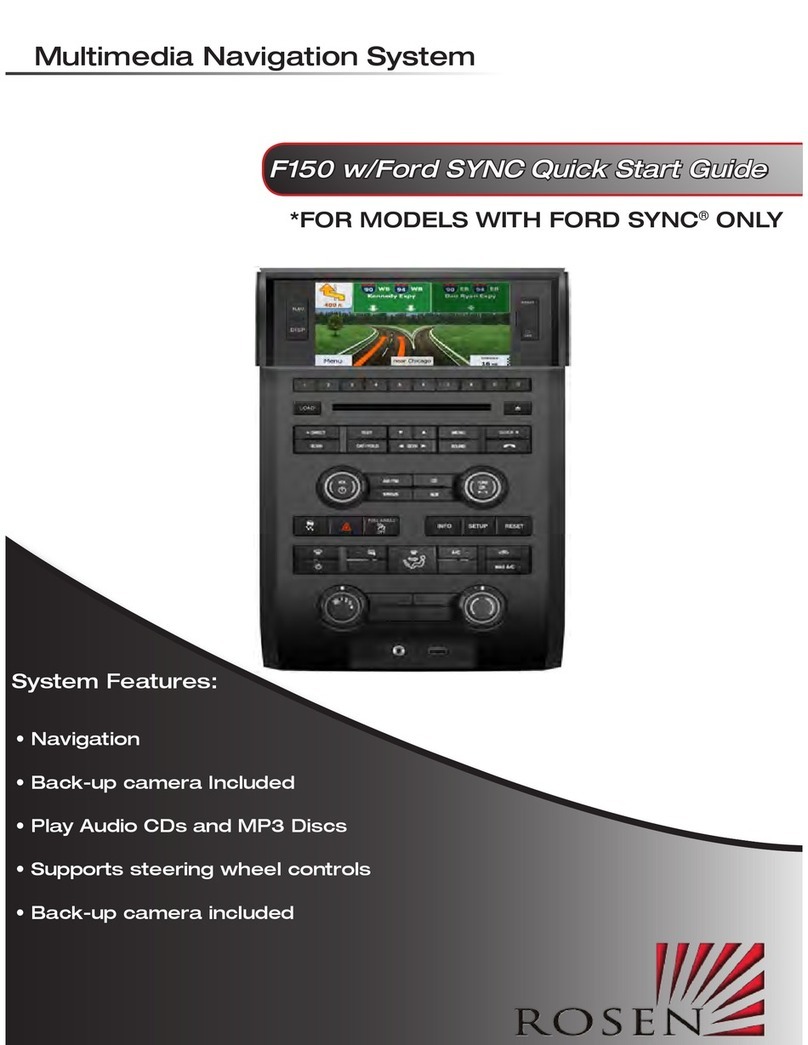
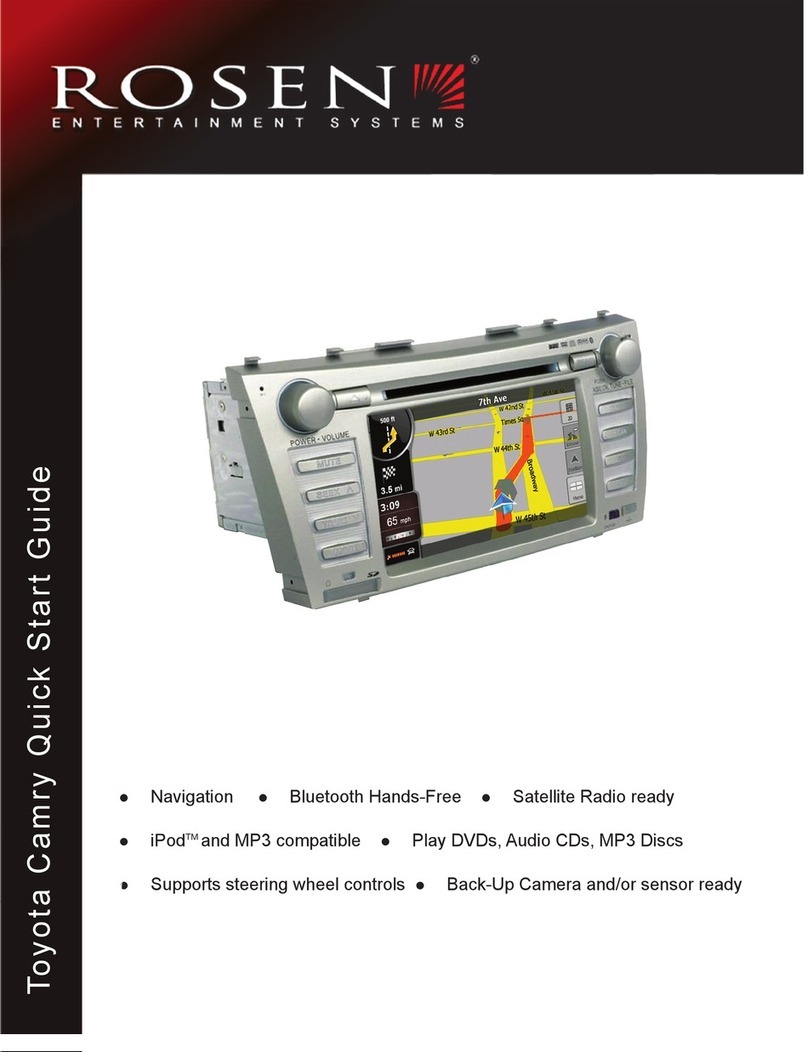
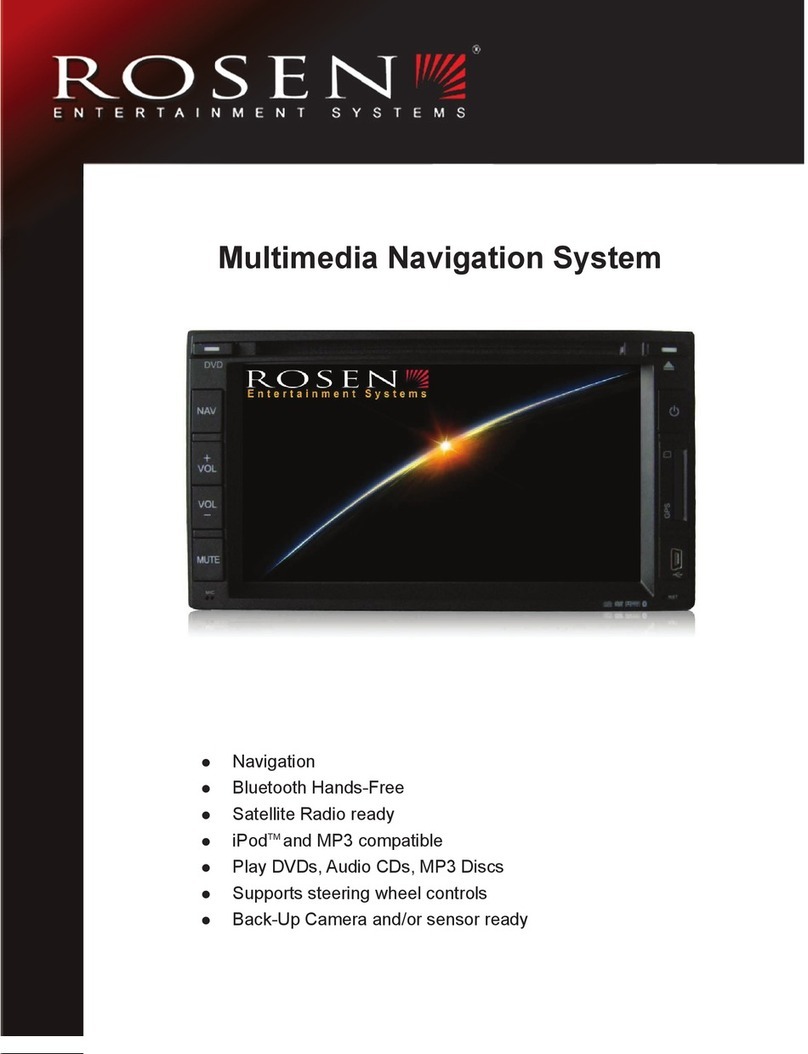
Rosen Multimedia Navigation System User manual

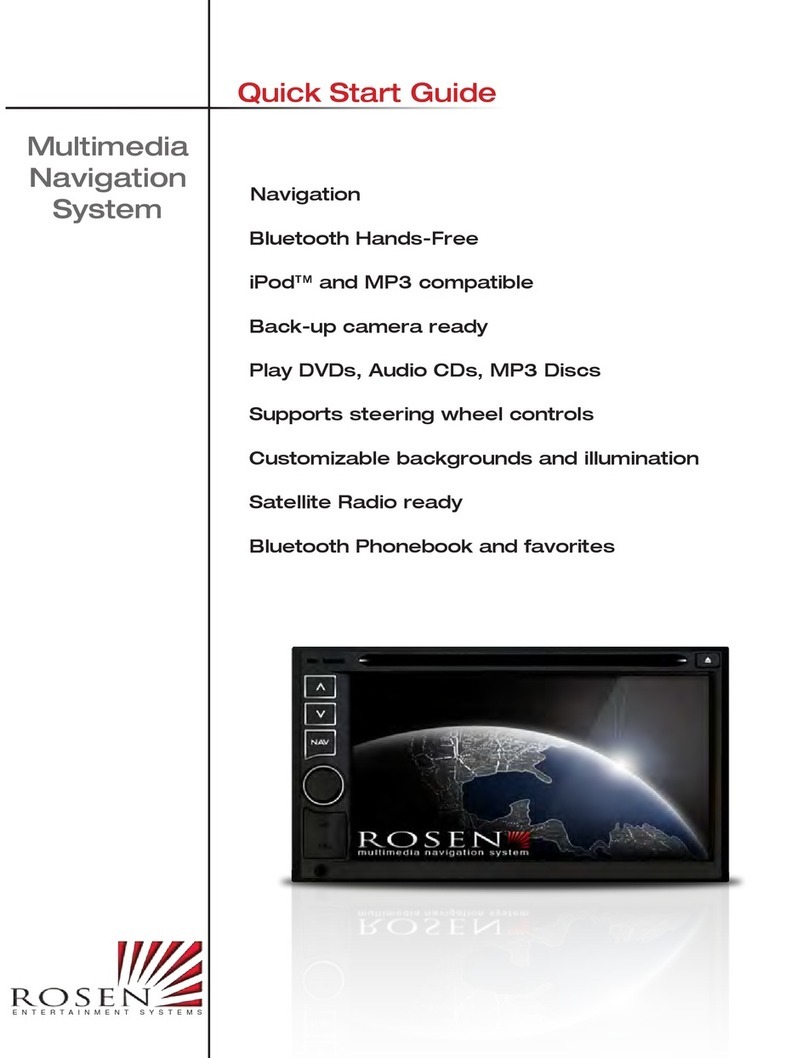
Navigation
Bluetooth Hands-Free
iPod™ and MP3 compatible
Back-up camera ready
Play DVDs, Audio CDs, MP3 Discs
Supports steering wheel controls
Customizable backgrounds and illumination
Satellite Radio ready
Bluetooth Phonebook and favorites
Multimedia
Navigation
System
Owner’s Manual
ENTERTAINMENT SYSTEMS

Operational Panel
Functions of Buttons
1. [PREVIOUS] Button
• Press this button to choose the previous track/chapter.
• Press this button in radio mode to auto search down.
2. [NEXT] Button
• Press this button to choose the next track/chapter.
• Press this button in radio mode to auto search up.
3. [NAV] Button
• Press this button to enter navigation mode; press again to return current source.
4. [PWR] [VOL] Knob
• Press this knob to turn on the unit.
• Long press this knob to turn off the unit.
• Rotate the knob to increase or decrease the volume.
• Press this knob in radio mode, Rotate the knob within 3 second to tune forward or tune
backward.
5. [RESET] Button / Micro SD card slot / USB slot
• Press [RESET] button to reset the unit.
6. AUX IN
• Av-1 input.
7. Internal microphone for Bluetooth mode
8. Receiver for IR-remote control
9. Disc indicator
• Disc inside: blue.
• No disc inside: white.
10. DVD/CD slot
1
2
3
4
5
6
7
8
9
10
9
11

• Insert a disc with the label on the top side into the DVD/CD slot until it will be inserted
automatically.
11. EJECT
• Press this button to insert or eject a disc.
Remote Control
Replacing the batteries
1. Press the retention tab and pull out the battery tray and remove the old battery.
2. Insert the new CR2025 battery and slide the battery tray back in the remote control
the same direction that you removed it.
Please ensure the tray is inserted in the correct direction.
Note:
Using batteries improperly can cause them to explode. Take note of the following
points:
• When replacing batteries, replace both batteries with new ones.
• Do not short-circuit, disassemble or heat batteries.
[ / ]
[OPEN]
[Power/SRC]
Signal transmitter
Operating rang : 30°in all directions
[VOLUME]
[SEL]
[NAV/AV]
[BAND]
[MENU]
[PIC]
[ENT]
[TAG]
[RPT]
[ROOT]
[
][ ]
[AUDIO]
[MUTE]
[0-9]
[SRCH]
[ANGLE]
[BACK]
[TITLE]
[ZOOM]
[SUB.T]

• Do not dispose of batteries into fire or flames.
• Dispose of spent batteries properly.
Note:
• The wireless remote control operation may not be optimal in direct sunlight.
Functions of Remote Control Buttons
[ / ] Button
• Press this button to play or pause video and audio media.
• Press this button more than 1 second to stop video and audio media.
[MUTE] Button
Mute or release mute the speaker.
•The symbol on upper right area of the screen indicates that speaker is muted.
[OPEN] Button
•Press this button to eject the disc.
[POWER/SRC] Button
• Press this button to change source.
• Press this button to power on when the unit is power off.
• Press this button more than 1 second to power off when the unit is power on.
[0 - 9] Buttons
• Use in the Key Pad screen to select the radio or satellite radio.
• Use to select the track in the track list screen.
• Press to enter DVD video chapters/titles in the Key Pad screen.
[VOLUME] Button
Increase and decrease volume.
[NAVI/AV] Button
Press this button to switch between current source and current position on navigation
map.
[SRCH] Button
Press this button to open chapter or title search window while playing DVD.
[BAND] button
Switch to next band alternately.
[SET] Button
Press this button to open the Audio setting menu in any mode.
[BACK] Button
Press this button to quit main menu if current screen is main menu.
Button
Press this button for cursor movement in main menu or Setting mode.
From the main menu, you can select your desired source or change your settings.
[MENU] Button
Press this button to enter the MAIN MENU or return current resource.
[PIC] Button
No function.

[ENT] Button
Press to fix the entered data in the Key Pad screen or enter the item the cursor is on.
[TAG] Button
No function.
[TITLE] Button
Press to go to the title menu on the DVD.
[ROOT] Button
Press to go to the root menu on the DVD.
[RPT] Button
• Press to perform chapter repeat / title repeat / repeat off while playing DVD mode.
• Press to perform track repeat/repeat off while playing CD.
• Press to perform repeat track /repeat folder/ repeat off while playing MP3/WMA, or
video files on disc.
• Press to perform repeat track /repeat folder/ repeat off while playing MP3/WMA,
or video files in USB memory.
Buttons
• Press to seek the next available higher or lower station in Tuner mode.
• In SAT Radio mode, you will scroll through the categories.
• Press to select the next higher or lower chapter number in DVD video mode.
• Press to select the next higher or lower track in DVD Audio, USB Video, USB
Audio mode.
• Press for movement of background source in Navigation mode.
Buttons
• Press to manually select the next higher or lower station in Tuner and Satellite Radio
modes.
• Press to perform fast-forward or fast-backward searching. Press again to change the
speed to 2x, 4x, 8x or 16x.
• Press for movement of background source in Navigation mode.
[ZOOM] Button
Press to turn on and zoom in while playing DVD. You can zoom in up to 3x. (No all
DVD disc supports this function)
[AUDIO] Button
Press to switch the AUDIO channel of the disc while playing DVD.
[SUB-T] Button
• Press to switch next available subtitle while playing DVD.
•Press to display Video menu in iPod mode.
[ANGLE] Button
• Press to switch the different ANGLE while playing DVD. (No all DVD disc
supports this function)
• Press to display Audio menu in iPod mode.

Radio Operations
Select the Radio mode
Touch the [AM/ FM] key on the shortcut in any source to select radio mode.
1. Main Menu Key
2. System time display.
3. PS name display.
4. LOC/DX display
5. Touch the [RDS] key to set RDS.
6. Voice dialing key.
7. Screen brightness key.
8. Mute key.
9. Seek Up key.
10. Seek Down key.
11. The current playing channel/PS name display.
12. Preset list.
13. Band changed key.
14. Source shortcut keys.
Return to Main Menu
Touch the [MENU] key to display Main menu screen. Touch the [BACK] key can return in Main
Menu screen.
Scan Tuning
Touch the PS name to scan the channel. Touch again to stop.
9
12
10
11
13
14
1
2
4
5
6
7
8
3

Step Tuning
1. Touch the [AM/ FM] key to select the radio band (FM1->FM2->FM3->AM1->AM2-> FM1).
2. Long touch the [ ]/[ ] key to search backward or forward frequency fast.
3:Short touch the [ ]/[ ] key to tune backward or forward one step.
Preset list
If some channels are great favorites of yours. Touch a preset key for two seconds,the channel will
be stored.
LOC/DX Setting
The DX / LOC setting changes the tuner sensitivity in order to separate closely spaced stations.
This feature is useful in areas that have many radio stations in close proximity.
1. Touch the [LOC] key to switch to DX tuner sensitivity.
2. Touch the [DX ] key to switch to LOC tuner sensitivity.
RDS Setting
Touch the [RDS] key to open RDS function.
6
5
3
4
1
2

1. Touch the [TA] key to activate the TA function.
Touch to activate/deactivate the TA function. When TA is activated, the unit will auto seek an
available TP or TA station. When TA is activated and a traffic announcement is received, the
current playing source is overridden by the traffic announcement automatically, if the tuner
was last set to the FM band but not, if it was last set to the AM band. When traffic
announcement is over ,the current playing source will be resumed.
2. Select different PTY.
3. Touch the [PTY] key to activate the PTY function.
Touch to select a choice in PTY list, the unit will auto seek the next available PTY by
increasing tuning frequency unit the program type matches the PTY, if no match is found ,
the tuner will return to the position where starts.
4. Select different PTY.
5. PTY display.
6. RDS Text display.
SD/USB Mode
•SD/USB Audio Operations
This system can play audio files (MP3/WMA) stored in an SD/USB memory which is recognized
as "SD/USB Mass Storage Class device". You can use your SD/USB memory as an audio device
by simply copying desired audio files into it.
Note:
• This system will not operate or may operate improperly with some SD/USB memory.
• Files protected with any DRM cannot be played.
Notes on using SD/USB memories
• General notes
• When no support files, the file list display nothing.
• When no files(SD/USB is empty), SD/USB will not be recognized by system.
• Notes on the MP3/WMA files
• This system can play the MP3/WMA files stored in the SD/USB memory.

• Set the Sampling Frequency to:
For MP3 files:
• MPEG1 Layer3: 32, 44.1, or 48 kHz
• MPEG2 Layer3: 16, 22.05, or 24 kHz
• MPEG2.5 Layer3: 8, 11.025, or 12 kHz
For WMA files: 32, 44.1, or 48 kHz
• Set the Bit Rate to:
For MP3 files:
• MPEG1 Layer3: 32 to 320 kbps (VBR)
• MPEG2 Layer3: 16 to 160 kbps (VBR)
• MPEG2.5 Layer3: 16 to 160 kbps (VBR)
For WMA files: 32, 48, 64, 80, 96, 128, 160, or 192 kbps
• Add the following file extension using single byte characters:
For MP3 files: ".MP3" or ".mp3"
For WMA files: ".WMA" or ".Wma"
• Notes on the folder structure
• The folder hierarchy must be within 8 hierarchical levels. Otherwise, playback may be
impossible.
• The maximum allowable number of folders is 512 (including root directory and folders with
no MP3/WMA file).
• The maximum allowable number of files in a folder is 255.
• You can store the MP3 files, WMA files together in a folder.
• The system may become slow if the files or folders exceed the limitation above.
Select SD/USB Audio mode
Connect your SD/USB memory with MP3/WMA files to the SD/USB connector. The system will
automatically detect the connected device, and the [SD/USB] button on main menu will be
enabled.
• When an SD/USB memory is already connected
Touch [SD/USB] button to select the SD/USB Audio mode.
The system changes to the SD/USB Audio mode and starts playback from the previous position or
from the beginning.
NOTE:
If you reconnect the same device that you disconnected last, the system will play back where it left
off.
The Audio 、Video and Picture root screen

1. Press the Audio [ ] button to display Audio files list.
2. Press the Video [ ] button to display Video files list.
3. Press the Picture [ ] button to display Picture files list.
SD/USB Play mode screen
1. Return to the Main Menu button.
2. Previous Track /Fast Backward button.
3. System time.
4. Play/Pause button.
1
3
2
4
5
6
7
8
12
14
15
16
13
9
10
11
Other manuals for Multimedia Navigation System
3
Table of contents
Other Rosen GPS manuals
Rosen
Rosen TYO860-H11 User manual
Rosen
Rosen Toyota Navigation User manual

Rosen
Rosen DS-TY0860 Toyota Rav 4 User manual
Rosen
Rosen Toyota Corolla Navigation User manual
Rosen
Rosen Multimedia Navigation System User manual

Rosen
Rosen DS-TY0710 User manual
Rosen
Rosen Navigation User manual
Rosen
Rosen Hyundai Santa Fe User manual

Rosen
Rosen Subaru Legacy User manual
Rosen
Rosen Honda Navigation User manual