EnglishDeutsch
 logo
Brands
  1. Home
  2. •
  3. Brands
  4. •
  5. Samsung
  6. •
  7. Camcorder
  8. •
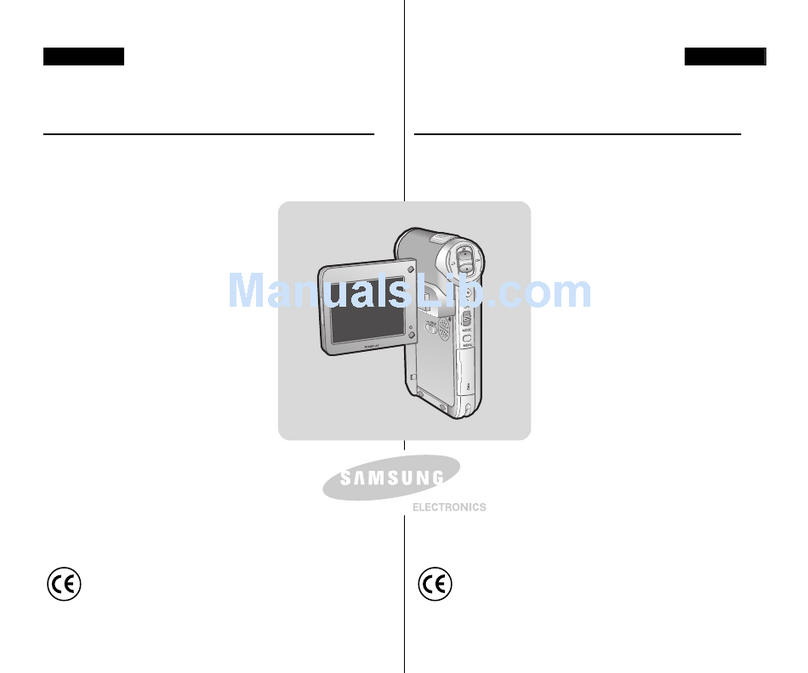
  9. Samsung VP-X110L Owner's manual

Samsung VP-X110L Owner's manual

Other manuals for VP-X110L

3

This manual suits for next models

3

Other Samsung Camcorder manuals

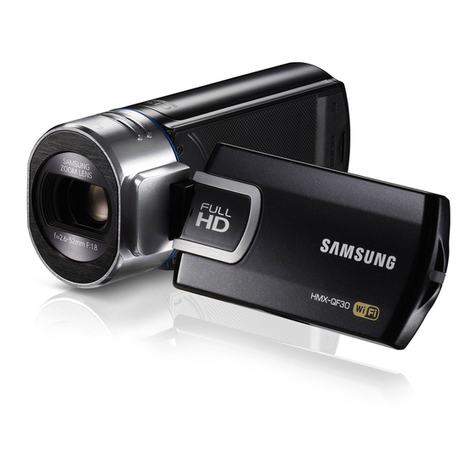
Samsung HMX-QF30 User manual

Samsung

Samsung HMX-QF30 User manual

Samsung VP-D200(i) Owner's manual

Samsung

Samsung VP-D200(i) Owner's manual

Samsung SC-M102 Owner's manual

Samsung

Samsung SC-M102 Owner's manual

Samsung HMX-Q10BN User manual

Samsung

Samsung HMX-Q10BN User manual

Samsung SCD33, SCD34, SCD39 Owner's manual

Samsung

Samsung SCD33, SCD34, SCD39 Owner's manual

Samsung HMX-Q10BN User manual

Samsung

Samsung HMX-Q10BN User manual

Samsung SC-X210L Owner's manual

Samsung

Samsung SC-X210L Owner's manual

Samsung VP-D200(i) User manual

Samsung

Samsung VP-D200(i) User manual

Samsung HMX-S16BN User manual

Samsung

Samsung HMX-S16BN User manual

Samsung VP-X110L User manual

Samsung

Samsung VP-X110L User manual

Samsung SC-HMX20C User manual

Samsung

Samsung SC-HMX20C User manual

Samsung VP-L900 User manual

Samsung

Samsung VP-L900 User manual

Samsung VP-MX20 User manual

Samsung

Samsung VP-MX20 User manual

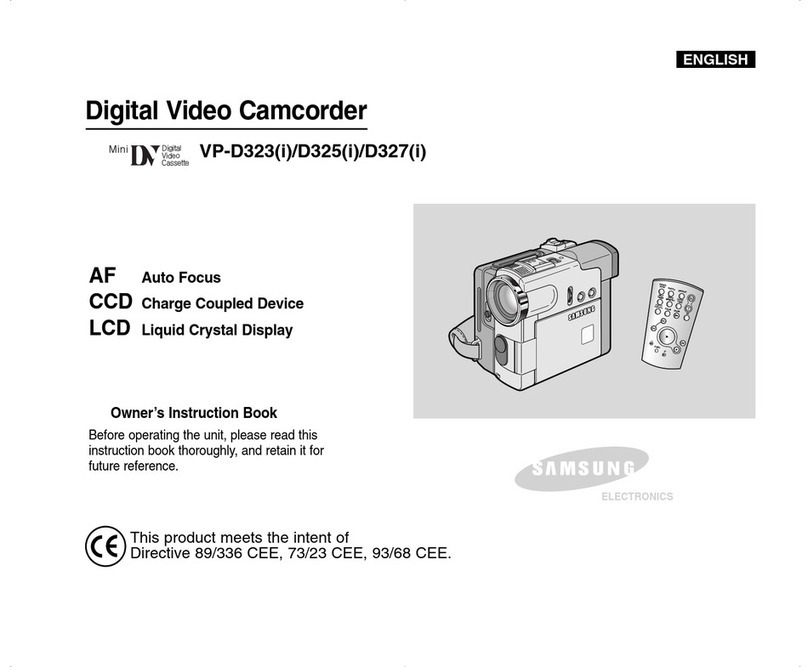
Samsung D327(i) Owner's manual

Samsung

Samsung D327(i) Owner's manual

Samsung M52 Owner's manual

Samsung

Samsung M52 Owner's manual

Samsung SC-D371 Owner's manual

Samsung

Samsung SC-D371 Owner's manual

Samsung SC-L901 Setup guide

Samsung

Samsung SC-L901 Setup guide

Samsung VP-W60 User manual

Samsung

Samsung VP-W60 User manual

Samsung VP-X300L Owner's manual

Samsung

Samsung VP-X300L Owner's manual

Samsung VP-D455 User manual

Samsung

Samsung VP-D455 User manual

Samsung VP-D73 Owner's manual

Samsung

Samsung VP-D73 Owner's manual

Samsung VP-M2050B Owner's manual

Samsung

Samsung VP-M2050B Owner's manual

Samsung SCD 5000 Setup guide

Samsung

Samsung SCD 5000 Setup guide

Samsung SMX-F500BN/SMX-F500RN/SMX-F500SN/SMX-F500UN User manual

Samsung

Samsung SMX-F500BN/SMX-F500RN/SMX-F500SN/SMX-F500UN User manual

Popular Camcorder manuals by other brands

JVC GR-FX16 null

JVC

JVC GR-FX16 null

Toshiba CAMILEO Z100 user guide

Toshiba

Toshiba CAMILEO Z100 user guide

Panasonic NV-VS40B operating instructions

Panasonic

Panasonic NV-VS40B operating instructions

Canon RC 260 instructions

Canon

Canon RC 260 instructions

Sony Handycam DCR-DVD7E operating guide

Sony

Sony Handycam DCR-DVD7E operating guide

Brinno TimeLapse TLC200 user manual

Brinno

Brinno TimeLapse TLC200 user manual

JVC GR-SXM68AC Schematic diagram

JVC

JVC GR-SXM68AC Schematic diagram

Panasonic AG-HMC152EN operating instructions

Panasonic

Panasonic AG-HMC152EN operating instructions

MYDLINK DCS-6100LH Quick installation guide

MYDLINK

MYDLINK DCS-6100LH Quick installation guide

Sony video Hi8 Handycam CCD-TR555 operating instructions

Sony

Sony video Hi8 Handycam CCD-TR555 operating instructions

SECURECOM V-5014B installation guide

SECURECOM

SECURECOM V-5014B installation guide

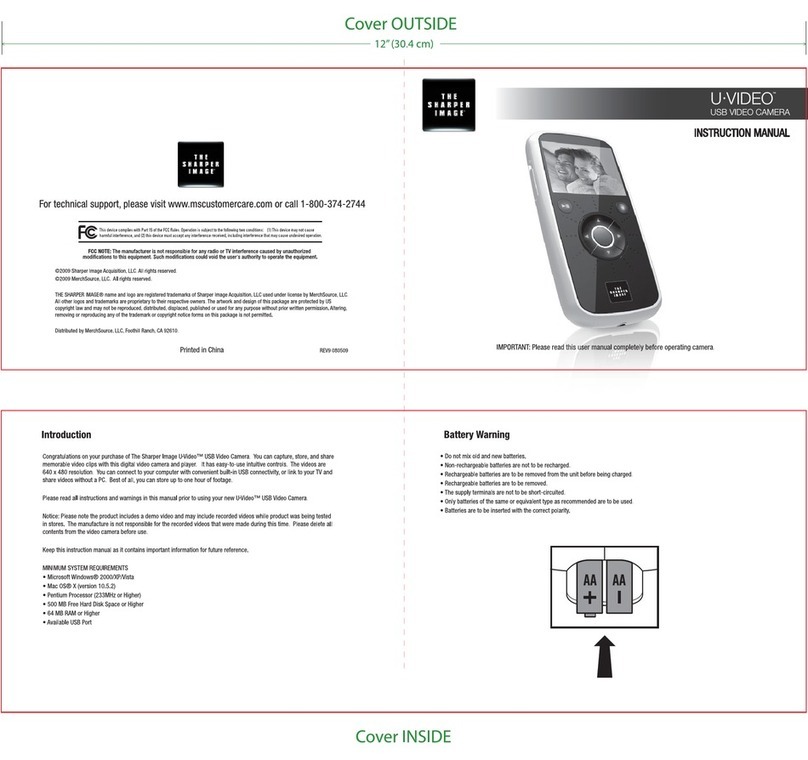
Sharper Image U-VIDEO instruction manual

Sharper Image

Sharper Image U-VIDEO instruction manual

JVC AA-V15EG instruction manual

JVC

JVC AA-V15EG instruction manual

Canon LEGRIA HV40 instruction manual

Canon

Canon LEGRIA HV40 instruction manual

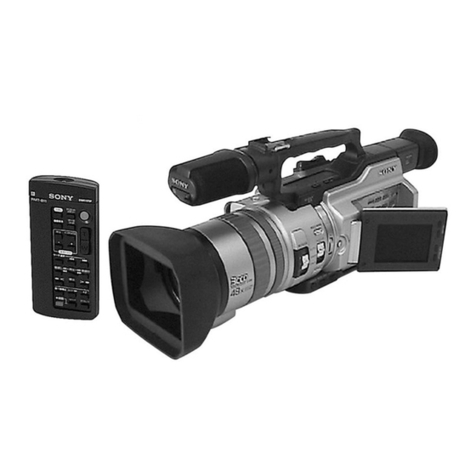
Sony Handycam DCR-VX2000 Service manual

Sony

Sony Handycam DCR-VX2000 Service manual

RCA CC616 user guide

RCA

RCA CC616 user guide

Insignia NS-DCC5HB09 - Camcorder - 720p user guide

Insignia

Insignia NS-DCC5HB09 - Camcorder - 720p user guide

Panasonic NVM40 Service manual

Panasonic

Panasonic NVM40 Service manual

https://manuals.online logo
https://manuals.online logoBrands
  • About & Mission
  • Contact us
  • Privacy Policy
  • Terms and Conditions

Copyright 2026 Manuals.Online. All Rights Reserved.

ELECTRONICS
Digital Camcorder
Owner’s Instruction Book
Before operating the unit, please read this
Instruction Book thoroughly, and retain it for
future reference.
This product meets the intent of
Directi e 89/ 336 CEE, 73/ 23 CEE, 93/ 68 CEE.
AF Auto Focus
CCD Charge Coupled Device
LCD Liquid Crystal Display
VP-X105(L)/X110(L)
ENGLISH
Use only appro ed battery packs.
Otherwise, there is a danger of o erheating, fire or explosion.
Samsung is not responsible for problems occurring due to using unappro ed batteries.
SpiderX_00876G_UK2_ Contents 7/20/05 8:20 PM Page C
ENGLISH
Contents
22
Precautions on the CAM Care ....................................................................................................................................................................................8
Notes Regarding COPYRIGH ....................................................................................................................................................................................9
Notes Regarding Moisture Condensation.................................................................................................................................................................9
Notes Regarding the CAM...........................................................................................................................................................................................9
Notes Regarding the Battery Pack...........................................................................................................................................................................10
Notes Regarding a rademark..................................................................................................................................................................................10
Notes Regarding the Lens.........................................................................................................................................................................................11
Notes Regarding the LCD Display ...........................................................................................................................................................................11
Precautions Regarding Service ................................................................................................................................................................................11
Precautions Regarding Replacement Parts............................................................................................................................................................11
Features.......................................................................................................................................................................................................................12
Accessories Supplied with the CAM .......................................................................................................................................................................13
Rear & Left View.........................................................................................................................................................................................................14
Right & Bottom View..................................................................................................................................................................................................15
External Camera Module View (VP-X105L/X110L only) .........................................................................................................................................16
LCD Display ................................................................................................................................................................................................................17
OSD(On Screen Display in Video Record Mode / Video Play Mode) ..................................................................................................................17
OSD(On Screen Display in Photo Capture Mode/ Photo View Mode)................................................................................................................18
OSD(On Screen Display in MP3 Play Mode/ Voice Record / Play Mode) ...........................................................................................................19
Battery Pack Installation / Ejection ..........................................................................................................................................................................20
Maintain the Battery Pack .........................................................................................................................................................................................21
Charging the Battery Pack ........................................................................................................................................................................................24
Notices and Safety Precautions 8
Getting to Know Your CAM 12
Name of Each Part 1
How to Use the Battery Pack 20
SpiderX_00876G_UK2_ Contents 7/20/05 8:20 PM Page 2
ENGLISH
Contents
33
he Colour of the LED ...............................................................................................................................................................................................25
Using Hardware Reset Function ..............................................................................................................................................................................25
Before You Start Operating the CAM.......................................................................................................................................................................26
Using the Function Button........................................................................................................................................................................................27
Using the Display Button ..........................................................................................................................................................................................28
Adjusting the LCD Monitor .......................................................................................................................................................................................29
Structure of the Folders and Files ...........................................................................................................................................................................30
Recording ime and Capacity .................................................................................................................................................................................31
Selecting the Memory ype.......................................................................................................................................................................................33
Using the Memory Stick (Optional Accessory) ......................................................................................................................................................34
Mode and Menu Selection.........................................................................................................................................................................................35
Recording....................................................................................................................................................................................................................37
Recording ..............................................................................................................................................................................................................37
Zooming In and Out ..............................................................................................................................................................................................38
Setting the Video In...............................................................................................................................................................................................39
Playing .........................................................................................................................................................................................................................40
Playing on the LCD Monitor..................................................................................................................................................................................40
Selecting File Options ...............................................................................................................................................................................................42
Deleting Video files ...............................................................................................................................................................................................42
Locking Video files ................................................................................................................................................................................................43
Copying Video files ...............................................................................................................................................................................................44
Setting the PB Option ...........................................................................................................................................................................................45
Setting Various Functions.........................................................................................................................................................................................46
Setting the Video file Size.....................................................................................................................................................................................46
Setting the Video file Quality.................................................................................................................................................................................47
Setting the Focus ..................................................................................................................................................................................................48
Setting the EIS (Electronic Image Stabilizer) .......................................................................................................................................................49
Setting the White Balance ....................................................................................................................................................................................50
Getting Started 25
Video Mode 36
SpiderX_00876G_UK2_ Contents 7/20/05 8:20 PM Page 3
ENGLISH
44
Setting the Program AE (Programmed Auto Exposure) ......................................................................................................................................51
Setting the BLC (Backlight Compensation)..........................................................................................................................................................52
Setting the Effect...................................................................................................................................................................................................53
Setting the Digital Zoom .......................................................................................................................................................................................54
Capturing.....................................................................................................................................................................................................................56
Capturing Images..................................................................................................................................................................................................56
Zooming In and Out ..............................................................................................................................................................................................57
Viewing ........................................................................................................................................................................................................................58
Viewing Photo files on the LCD Monitor...............................................................................................................................................................58
Selecting File Options ...............................................................................................................................................................................................59
Deleting Photo files ...............................................................................................................................................................................................59
Locking Photo files................................................................................................................................................................................................60
Setting DPOF(Digital Print Order Format) Function ............................................................................................................................................61
Copying Photo files ...............................................................................................................................................................................................62
Setting Various Functions.........................................................................................................................................................................................63
Setting the Photo file Size ....................................................................................................................................................................................63
Setting the Light ....................................................................................................................................................................................................64
Setting the Focus ..................................................................................................................................................................................................65
Setting the EIS (Electronic Image Stabilizer) .......................................................................................................................................................66
Setting the White Balance ....................................................................................................................................................................................67
Setting the Program AE (Programmed Auto Exposure) ......................................................................................................................................68
Setting the BLC (Backlight Compensation)..........................................................................................................................................................69
Storing Music in the CAM .........................................................................................................................................................................................72
Copying Music files to the CAM ...........................................................................................................................................................................72
Playing .........................................................................................................................................................................................................................73
Playing Music files ................................................................................................................................................................................................73
Selecting Play Options ..............................................................................................................................................................................................74
Contents
Photo Mode 55
MP3/Voice Recorder Mode/Using File Browser 71
SpiderX_00876G_UK2_ Contents 7/20/05 8:20 PM Page 4
Setting Repeat Play ..............................................................................................................................................................................................74
Selecting File Options ...............................................................................................................................................................................................75
Deleting Music files ...............................................................................................................................................................................................75
Locking Music files................................................................................................................................................................................................76
Copying Music files ...............................................................................................................................................................................................77
Recording....................................................................................................................................................................................................................78
Recording Voice....................................................................................................................................................................................................78
Playing .........................................................................................................................................................................................................................79
Playing Voice files .................................................................................................................................................................................................79
Selecting File Options ...............................................................................................................................................................................................80
Deleting Voice files................................................................................................................................................................................................80
Locking Voice files ................................................................................................................................................................................................81
Copying Voice files................................................................................................................................................................................................82
Deleting Files or Folders ...........................................................................................................................................................................................83
Locking Files...............................................................................................................................................................................................................84
Copying Files or Folders...........................................................................................................................................................................................85
Viewing File Information............................................................................................................................................................................................86
Adjusting the LCD Monitor .......................................................................................................................................................................................88
Adjusting the LCD Brightness...............................................................................................................................................................................88
Adjusting the LCD Colour .....................................................................................................................................................................................89
Adjusting Date/ ime...................................................................................................................................................................................................90
Setting Time ..........................................................................................................................................................................................................90
Setting Date ..........................................................................................................................................................................................................91
Setting Date Format..............................................................................................................................................................................................92
Setting Time Format..............................................................................................................................................................................................93
ENGLISH
Contents
55
Voice Recorder Mode 78
Using File Browser 83
Setting the CAM 87
SpiderX_00876G_UK2_ Contents 7/20/05 8:20 PM Page 5
Setting the System .....................................................................................................................................................................................................94
Setting the Auto Shut off .......................................................................................................................................................................................94
Setting the Demo Function ...................................................................................................................................................................................95
Setting Start-up Mode ...........................................................................................................................................................................................96
Setting the File No. Function ................................................................................................................................................................................97
Setting the Beep Sound........................................................................................................................................................................................98
Viewing Version Information ................................................................................................................................................................................99
Setting Memory ........................................................................................................................................................................................................100
Selecting the Storage Type ................................................................................................................................................................................100
Formatting the Memory.......................................................................................................................................................................................101
Viewing Memory Space ......................................................................................................................................................................................102
Using USB Mode ......................................................................................................................................................................................................103
Storing Files to the External Memory .................................................................................................................................................................103
USB Speed depending on the System ..............................................................................................................................................................104
System En ironment...........................................................................................................................................................................................104
Using PC Cam ....................................................................................................................................................................................................105
Connecting the CAM to a Printer .......................................................................................................................................................................106
Connecting the External Camera Module .............................................................................................................................................................108
Connecting the External Camera Module to CAM.............................................................................................................................................108
Recording Video Using the External Camera Module .......................................................................................................................................108
Wearing the External Camera Module...................................................................................................................................................................109
Connecting the extension cable while the set is in the Carrying Case .............................................................................................................109
Mounting the External Camera Module on Rubber Mount................................................................................................................................109
Using the Short and Long Mount Bands ............................................................................................................................................................110
Connecting the CAM with other Devices ..............................................................................................................................................................112
Connecting the CAM to TV ................................................................................................................................................................................112
Connecting the CAM to VCR..............................................................................................................................................................................113
ENGLISH
66
Using the External Camera Module (VP-X105L/X110L only) 107
Miscellaneous Information 111
Contents
SpiderX_00876G_UK2_ Contents 7/20/05 8:20 PM Page 6
Copying Video files to a VCR Tape ....................................................................................................................................................................114
Recording unscramble contents from other digital de ices ...............................................................................................................................115
Connecting the CAM to a PC using the USB cable...........................................................................................................................................116
Installing Programmes.............................................................................................................................................................................................117
Installing Image Mixer .........................................................................................................................................................................................117
Installing for using PC-Cam ................................................................................................................................................................................119
Installing Windows98SE Dri er(For Windows98SE only)..................................................................................................................................120
Printing Photos.........................................................................................................................................................................................................122
Printing with PictBridge Function........................................................................................................................................................................122
Printing Photos with DPOF Files ........................................................................................................................................................................123
Cleaning and Maintaining the CAM .......................................................................................................................................................................124
After using the CAM............................................................................................................................................................................................124
Cleaning the Body .............................................................................................................................................................................................125
Using the Built-in Rechargeable Battery ............................................................................................................................................................125
Regarding the Battery.........................................................................................................................................................................................126
Using the CAM Abroad .......................................................................................................................................................................................127
Self Diagnosis Display ............................................................................................................................................................................................128
ENGLISH
77
Specifications 132
Index 13
Power Sources (United Kingdom Only) 136
Using the Menu 130
Maintenance 12
Troubleshooting 128
Contents
SpiderX_00876G_UK2_ Contents 7/20/05 8:20 PM Page 7
ENGLISH
Notices and Safety Precautions
88
Precautions on the CAM Care
Do not place your device in a wet place. Moisture and water may cause the device to malfunction.
To avoid electric shock, do not touch your device or power cable with wet hands.
Do not use the flash close to another’s eyes. The flash emits a strong light that may cause damage similar to direct
sunlight on one’s eyesight. Particular care should be observed if photographing infants, when the flash should be no less
than 3 feet from your sub ect.

If the device is not working properly, please consult your nearest dealer or authorized Samsung service facility.
Disassembling the device yourself may cause irrecoverable damage which will be difficult to repair.
Clean the device with a dry, soft cloth. Use a soft cloth moistened with a mild detergent solution for removing stains.
Do not use any type of solvent, especially benzene, as they may seriously damage the finish.
Keep your device away from rain and saltwater. After using, clean the device. Saltwater may cause the parts to corrode.
✤Please note the following precautions for use:
✤Please keep this device in a safe place. The device contains a lens that can be damaged by shock.
Keep away from the reach of the children.
SpiderX_00876G_UK2_0-Start 7/20/05 8:21 PM Page 8
ENGLISH
Notices and Safety Precautions
99
1. A sudden rise in atmospheric temperature may cause condensation to form inside the CAM.
For Example:
✤Entering or leaving a heated place on a cold day might cause condensation inside the product.
✤To prevent condensation, place the product in a carrying case or a plastic bag before exposing it to a sudden change of
temperature.
✤Television programmes, movie video tapes, DVD titles, films and other programme materials may be copyrighted.
Unauthorized recording of copyrighted materials may infringe on the rights of the Copyright owners and is contrary to
copyright laws.
✤All the trade names and registered trademarks mentioned in this manual or other documentation provided with your
Samsung product are trademarks or registered trademarks of their respective holders.
Notes Regarding the CAM
Notes Regarding COP RIGHT
Notes Regarding Moisture Condensation
1. Do not leave the CAM exposed to high temperature (above 60
°
C or 1 0
°
F).
For example, in a parked closed car in summer or exposed to direct sunlight.
2. Do not let the CAM get wet.
Keep the CAM away from rain, salt water, or any other form of moisture.
The CAM will be damaged if immersed in water or sub ected to high levels of moisture.
SpiderX_00876G_UK2_0-Start 7/20/05 8:21 PM Page 9
ENGLISH
Notices and Safety Precautions
1010
Notes Regarding the Battery Pack
✤It is recommended to use original battery pack that is available at SAMSUNG service centre.
✤Make sure the battery pack is fully charged before starting to record.
✤To preserve battery power, keep the CAM turned off when you are not operating it.
✤If your device is left in STBY mode without being operated for more than 5 minutes, it will automatically turn itself off to
protect against unnecessary battery discharge.
✤Make sure that the battery pack is attached firmly in place.
✤The new battery pack provided with the product is not charged.
Before using the battery pack, you need to fully charge it.
✤Do not drop the battery pack. Dropping the battery pack may damage it.
✤Fully discharging a Lithium Polymer battery damages the internal cells. The battery pack may be prone to leakage when
fully discharged.
✤To avoid damage to the battery pack, make sure to remove the battery when no charge remains.
✤Clean the terminal to remove foreign substance before inserting the battery pack.
Note Regarding a Trademark
✤The logos regarding DivX, DivX Licensed are the trademark of DivX, Network, Inc and can be used after contracting
license.
✳
When the battery reaches the end of its life, please contact your local dealer.
Batteries must be disposed of as chemical waste.
✳
Be careful not to drop the battery pack when you release it from the CAM.
SpiderX_00876G_UK2_0-Start 7/20/05 8:21 PM Page 10