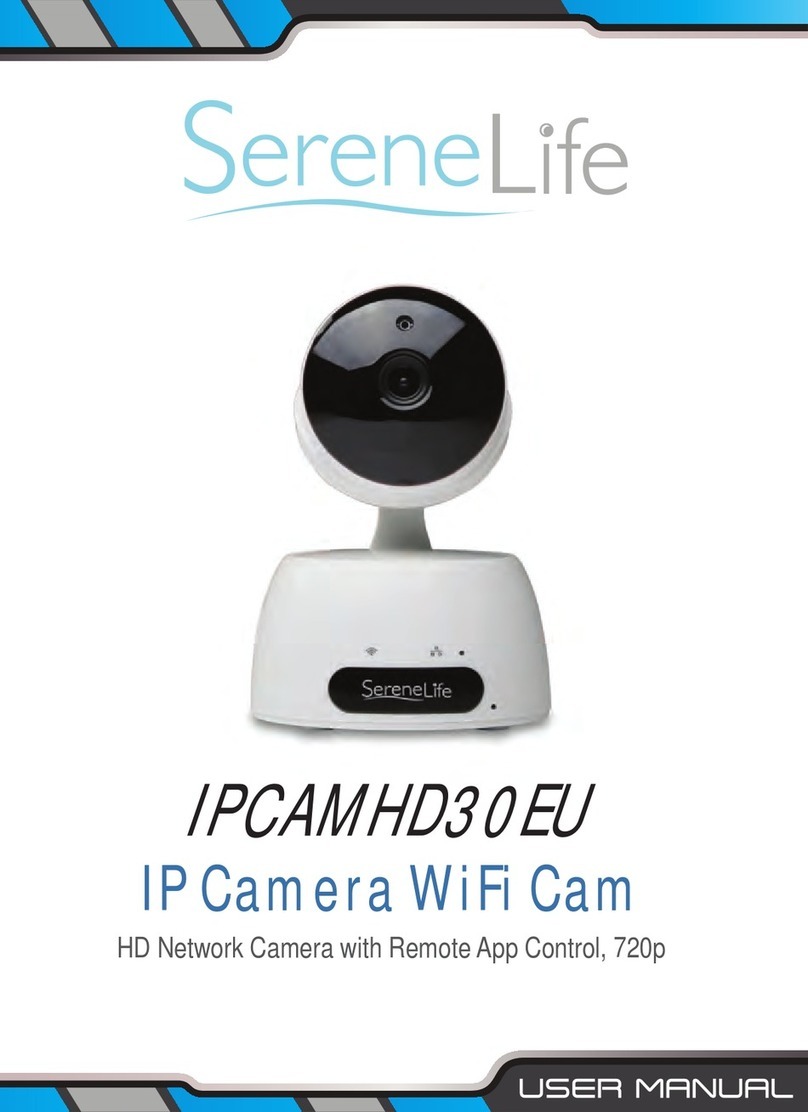
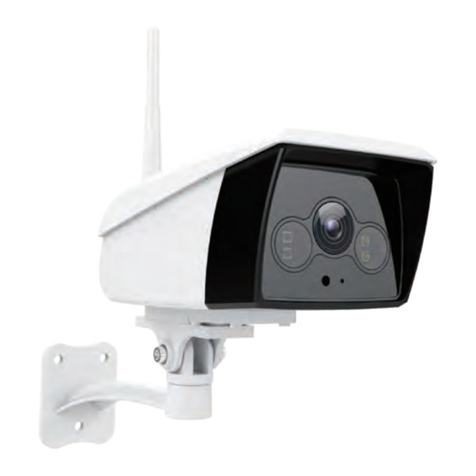
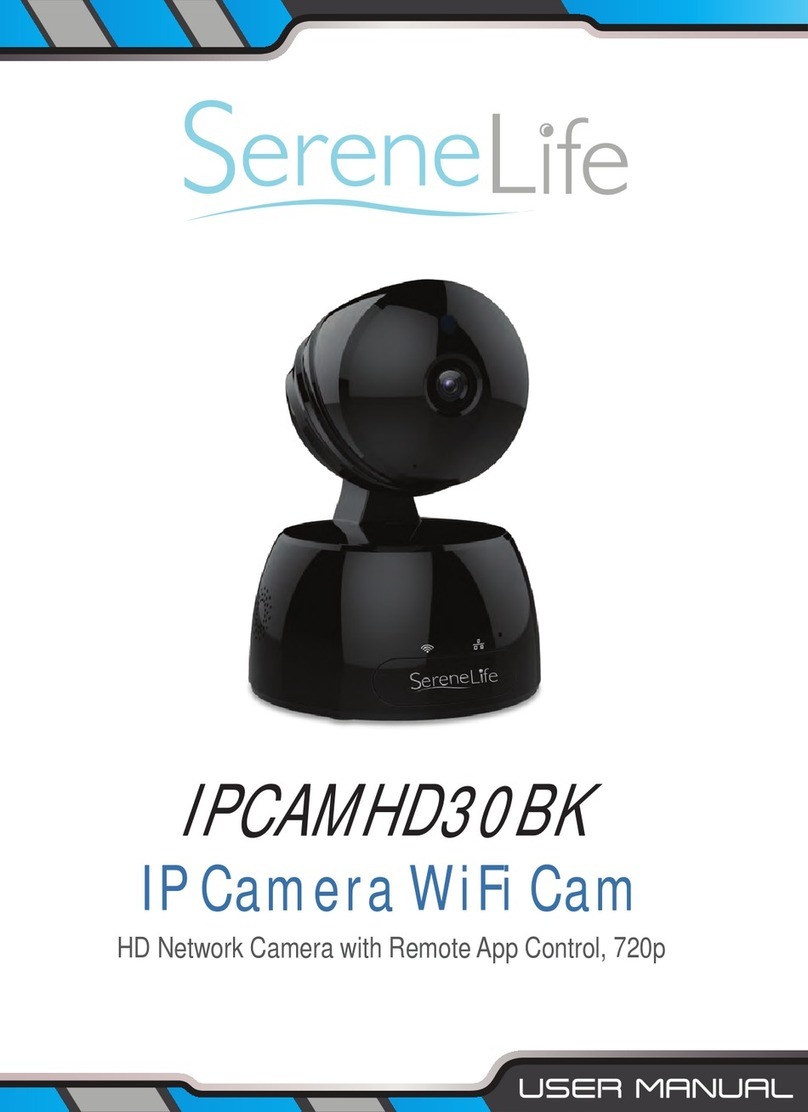
SereneLife IPCAMHD45 User manual

IPCAMHD45 - IPCAMHD50 - IPCAMHD80 - IPCAMHD85
IP Camera WiFi Cam
HD Network Camera with Remote App Control, 720p
IPCAMHD80 IPCAMHD85
IPCAMHD45 IPCAMHD50

www.SerenLifeHome.com
TABLE OF CONTENTS:
PRODUCT STRUCTURE DIAGRAM 1
SETUP AN ACCOUNT USERNAME 2
ADD CAMERA TO APP 3
CONNECT TO YOUR NETWORK 4
WEB ACCESS 5
PASSWORDS 5
MOBILE APP LAYOUT 5
CAMERA VIEW PAGE 7
CAMERA RECORDINGS 8
DEVICE SETTINGS 9
RECORDING YOUR CAMERA 10
MOTION DETECTION
AND NOTIFICATION SETTINGS EXPLAINED 11
HOW TO IMPROVE PLAYBACK PERFORMANCE 12
DECREASE THEVIDEO STREAM QUALITY 13
HOW TO EVALUATE YOUR HOME WIRELESS NETWORK 14
HOW TO CHECK AND INSTALL FIRMWARE UPDATES 15
TROUBLESHOOTING 17
FEATURES AND TECHNICAL SPECS 19

www.SerenLifeHome.com
1
Product Structure Diagram

www.SerenLifeHome.com
2
Don't forget to register your camera with us online to get a free 1 year
manufacturer's warranty!
Just go to www.SereneLifeHome.com
`SereneViewer’ APP Installation
A. Scan 'SereneViewer' APP QR code or search to download the app.
Setup an Account Username
Note:
This user name will be used to access all of your cameras from the app or PC.
iOS Andriod
Click "Sign Up" Create your camera username
- 6 characters min
- Do not use email address

www.SerenLifeHome.com
3
Create an account password - Click "Sign Up"
Note: This will be used to log in to all of the cameras on your account
and can be separate from the camera password
Add Camera to APP
1. Enter 'Device List' and click '+' icon at the top of left corner.
Then scan the device ID QR code.

www.SerenLifeHome.com
4
Connect to Your Network
Choose method 1 or 2 for setup
Method 1: Wired Setup
-Connect power, Ethernet cable as above.
-Wait 50 seconds for ( ) indicator on the camera to ash green
-After scanning QR code - select the “Ethernet Connection” option
Method 2: Wi-Fi Connection
• Make sure you are in the same room as your wireless router and plug
camera into power.
QR Code Method:
• Wait 1-2 min for camera boot up, scanning QR Code,watch for the
WiFi indicator on the front of the camera to ash red and green
alternating. Click the Wi-Fi connection icon,operate it under the APP
instructions.
P hone
R outer
P ower
Moden/Router

www.SerenLifeHome.com
5
Web Access:
After setting up your camera on the mobile phone - you can use your
account username and password to access the cameras from any
device with an internet browser
Log on to the website:
http://cloud.serenelifehome.com/
Passwords
Should you happen to forget a camera's individual password you can
reset it by performing a hardware reset. Just use a pin to press and
hold the reset switch for 12 - 15 seconds. The camera will reboot and
run through pan and tilt.
If you forget your account password you will need to register a new
account and pair the cameras again.
Accounts are never associated with an email address for password
recovery

www.SerenLifeHome.com
6
Mobile App Layout
The main screen is your device list. You will see a thumbnail preview
for all cameras added to your account.
Use this menu to
• Switch between dierent cameras
• Add new devices
• Access and change app global settings
Add Device
Add your cloud
camera to your
account through
the icon. Alarm Messages
Shows which cameras
have detected motion.
App Settings
You can change your
user admin and guest
password and check
the app software
version.

www.SerenLifeHome.com
7
Camera View Page
This page give you access to all camera specic actions and settings
• Hold the phone vertically or horizontally to switch between full
screen mode
• Swipe left and right on the video to reposition the camera
• Spread two ngers apart to zoom in
Sound
Activate to hear your
cameras surroundings
Microphone
Activate to talk through
your camera's speaker.
Snap Photo
Saves a photo to your
phone's local memory
View the Video Records
and alarm messages
Click the icon to view the
video recording and alarm
message.
Image Settings
Set color, contrast,
image res and more.
Local Video
Records the live video
direct to phone memory.
This feature only works
while app is open.
See "SD recording" for
background recording
options.

www.SerenLifeHome.com
8
Camera Recordings
Enter into the interface of "information and video viewing" can see the
alarm information and video of storage device (Micro SD or cloud box),
users can quickly search the information and video by choose the time
or category.
Calendar Icon
Skip to a specic
date and time..
Local
Shows photos and
videos recorded to
the phone memory
Records
Shows photos and
videos stored on the
SD memory card.
Drag the screen down
to load.
This manual suits for next models
3
Table of contents
Other SereneLife Security Camera manuals