2
1 Installation
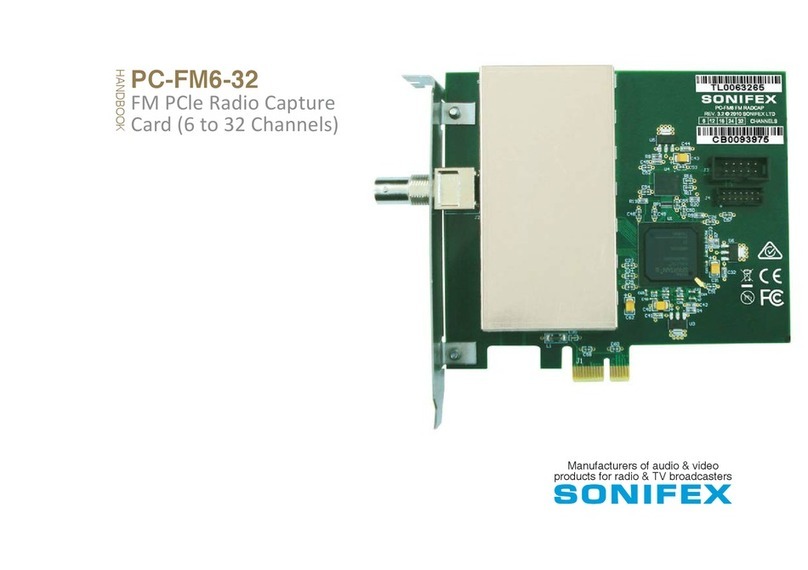
Specifications
No. of stations: 6, 12, 18, 24 or 32 (factory-configured but needs
licensing on your PC hardware. End-user
expandable)
Tuning range: 87.5MHz to 108.5MHz in 25kHz steps
Sensitivity: 10uV for 40dB S/N (mono)
Maximum input: 150mV RMS
RF input impedance: 75Ω
Audio bandwidth: 15kHz
De-emphasis: Configurable as 50us or 75us
Audio distortion: < 0.01%
Audio sampling rates: 48kHz native rate (other rates supported
automatically through the Windows sampling
rate converter)
Installation
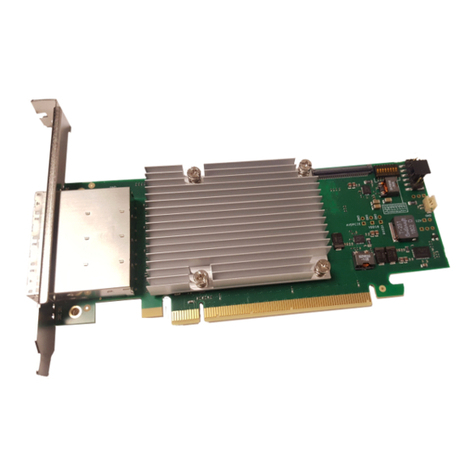
The FM Radcap PCIe card uses static-sensitive components. Observe the
usual precautions against static electricity when handling the card and do
not touch the edge connector contacts.
The FPGA and regulators generate a significant amount of heat, especially
when configured for a large number of stations. If possible, the cards should
be mounted vertically, or alternatively placed where there is forced air flow
over both sides of the card. Avoid placing the card close to other sources of
heat (such as a high-performance video card).
Ensure that Windows XP (with SP2) or a later platform is installed on the PC.
The FM Radcap PCIe card cannot be used on Windows 95, 98, ME, 2000 or
versions of XP prior to SP2. It is recommended that the latest Service Pack
and security updates be installed.
Switch off the PC and unplug the power lead. Insert the card into any vacant
PCI Express slot. While this is a single-lane card, it can be used in multi-lane
sockets as the PCIe protocol automatically negotiates the lane width.
Restart the PC and allow Windows to boot up.
Windows XP, Server 2003, Vista, Server 2008 - Windows will report that new
hardware has been found and the New Hardware wizard will start. Insert
the driver CD supplied with the card and proceed through the wizard. Allow
Windows to search for the driver – do NOT specify a driver location or file
name.
Windows 10, Server 2016, 8, 7, Server 2012, Server 2008-R2 – Windows no
longer searches removable media for drivers. Open Device Manager, where
the PC-FM6-32 card will be shown under ‘Other Devices’ as a Multimedia
Audio Controller. Right-click on it, select Update Driver Software, then click
on Browse my computer for driver software and click on the Browse button
to navigate to the driver’s location. Click on Next to install the driver.
Windows may warn that the driver being installed has not been certified
by Microsoft, which is true. Click on Continue to complete the installation.
The drivers are digitally signed by Innes Corporation as required by 64-bit
Windows Vista and later systems.
Installing on Windows Server 2012 & Server 2016 – For any audio devices to
function correctly on this platform, the following steps need to be performed.
• Open the Add Roles and Features Wizard and, under User Interfaces and
Infrastructure, select Desktop Experience and install it.
• After rebooting, go to Control Panel – System and Security – Administrative
Tools – Services and scroll down to Windows Audio Service. Right-click on
this, select Properties and change the Startup type to Automatic.
• Do the same for the Windows Audio Endpoint Builder.
• Close the Service Manager and reboot the system. Check that the speaker
symbol in the bottom right hand corner of the screen is enabled.
Antenna
The FM Radcap requires an external antenna to receive the stations. The
type of antenna needed depends on the signal levels in the area in which it
is being used. A splitter may be used to feed a single antenna into multiple
cards, but a masthead amplifier may then be needed to compensate for
the splitter losses. If using an amplifier, take care not to overdrive the cards