manuals.online logo
Brands
  1. Home
  2. •
  3. Brands
  4. •
  5. Sony
  6. •
  7. Laptop
  8. •
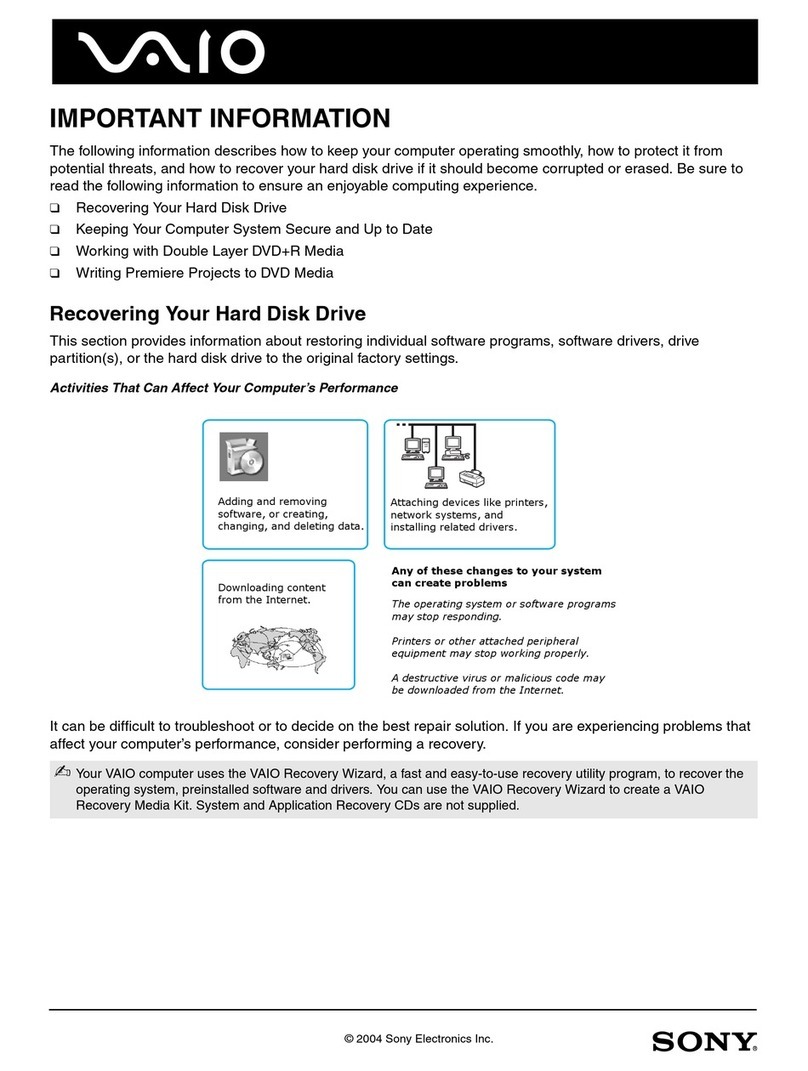
  9. Sony VGN-FZ240E - VAIO - Core 2 Duo GHz User manual

Sony VGN-FZ240E - VAIO - Core 2 Duo GHz User manual

Other manuals for VGN-FZ240E - VAIO - Core 2 Duo GHz

1

This manual suits for next models

1

Other Sony Laptop manuals

Sony VPCEB46FX/BJ User manual

Sony

Sony VPCEB46FX/BJ User manual

Sony VGN-C150P User manual

Sony

Sony VGN-C150P User manual

Sony VAIO VGN-CR390E/B User manual

Sony

Sony VAIO VGN-CR390E/B User manual

Sony VAIO VGN-AR230G User manual

Sony

Sony VAIO VGN-AR230G User manual

Sony VAIO VGN-FW490JEB User manual

Sony

Sony VAIO VGN-FW490JEB User manual

Sony VGN-TT190EJX/C User manual

Sony

Sony VGN-TT190EJX/C User manual

Sony VAIO PCG-C1XS User manual

Sony

Sony VAIO PCG-C1XS User manual

Sony Vaio PCG-808 User manual

Sony

Sony Vaio PCG-808 User manual

Sony VAIO VPCEA21FX/T User manual

Sony

Sony VAIO VPCEA21FX/T User manual

Sony Vaio VPCEG36FX/W User manual

Sony

Sony Vaio VPCEG36FX/W User manual

Sony VPCEB1GGX User manual

Sony

Sony VPCEB1GGX User manual

Sony VAIO VPCEH24FXW User manual

Sony

Sony VAIO VPCEH24FXW User manual

Sony VAIO VPCF123FX User manual

Sony

Sony VAIO VPCF123FX User manual

Sony Vaio PCG-F340 User manual

Sony

Sony Vaio PCG-F340 User manual

Sony VAIO VGN-Z790DND User manual

Sony

Sony VAIO VGN-Z790DND User manual

Sony VAIO VGN-SZ200 Series User manual

Sony

Sony VAIO VGN-SZ200 Series User manual

Sony VAIO VPCF226FMB User manual

Sony

Sony VAIO VPCF226FMB User manual

Sony VPCEB43FX/WI User manual

Sony

Sony VPCEB43FX/WI User manual

Sony VAIO VPCSA4SGX/X User manual

Sony

Sony VAIO VPCSA4SGX/X User manual

Sony VAIO VPCCW23FX/R User manual

Sony

Sony VAIO VPCCW23FX/R User manual

Sony VAIO PCG-FX215 User manual

Sony

Sony VAIO PCG-FX215 User manual

Sony VAIO VGN-AR230G Original instructions

Sony

Sony VAIO VGN-AR230G Original instructions

Sony VPCEB13FX User manual

Sony

Sony VPCEB13FX User manual

Sony VAIO PCV-W10 User manual

Sony

Sony VAIO PCV-W10 User manual

Popular Laptop manuals by other brands

Lenovo ThinkPad X201 Tablet null

Lenovo

Lenovo ThinkPad X201 Tablet null

Lenovo THINKPAD X31 null

Lenovo

Lenovo THINKPAD X31 null

Lenovo THINKPAD X60S null

Lenovo

Lenovo THINKPAD X60S null

Lenovo ThinkPad X230 Tablet null

Lenovo

Lenovo ThinkPad X230 Tablet null

Lenovo IdeaPad N585 null

Lenovo

Lenovo IdeaPad N585 null

Lenovo ThinkPad Z61E null

Lenovo

Lenovo ThinkPad Z61E null

Lenovo ThinkPad Edge E220s null

Lenovo

Lenovo ThinkPad Edge E220s null

Lenovo V200 null

Lenovo

Lenovo V200 null

Lenovo ThinkPad Edge E120 null

Lenovo

Lenovo ThinkPad Edge E120 null

Lenovo ThinkPad X230 Tablet null

Lenovo

Lenovo ThinkPad X230 Tablet null

Lenovo V200 null

Lenovo

Lenovo V200 null

Lenovo ThinkPad L430 null

Lenovo

Lenovo ThinkPad L430 null

Lenovo ThinkPad R61e null

Lenovo

Lenovo ThinkPad R61e null

Lenovo ThinkPad Edge E320 null

Lenovo

Lenovo ThinkPad Edge E320 null

Lenovo THINKPAD R40 null

Lenovo

Lenovo THINKPAD R40 null

Lenovo ThinkPad Edge E335 null

Lenovo

Lenovo ThinkPad Edge E335 null

Lenovo R50 null

Lenovo

Lenovo R50 null

Lenovo ThinkPad T430s null

Lenovo

Lenovo ThinkPad T430s null

manuals.online logo
manuals.online logoBrands
  • About & Mission
  • Contact us
  • Privacy Policy
  • Terms and Conditions

Copyright 2025 Manuals.Online. All Rights Reserved.

3-275-488-11 (1) © 2007 Sony Corporation Printed in USA
3
2
1
4
213
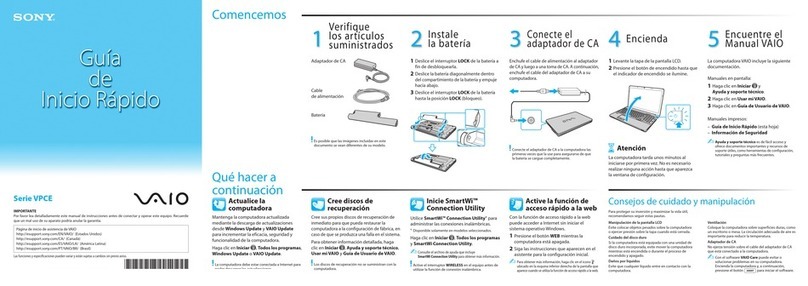
1Install Battery Pack
1Slide the battery LOCK/UNLOCK switch 1to the UNLOCK position.
2Slide the battery pack diagonally into the battery compartment until the
projections 2on either side of the battery compartment fit into the
U-shaped cuts 3on either side of the battery pack.
3Rotate the battery pack in the direction of the arrow, and push the
battery pack down into the compartment until it clicks into place.
4Slide the battery LOCK/UNLOCK switch to the LOCK position to secure
the battery pack on the computer.
2Connect AC Adapter
1Plug one end of the power cord 1into the AC adapter 2and the other
end into an AC outlet 3.
2Plug the AC adapter cable into the DC IN port 4on the computer.
1Installez la batterie
1Faites glisser le LOCK/UNLOCK de batterie 1à la position UNLOCK.
2Faites glisser la batterie en diagonale dans le compartiment de la
batterie jusqu'à ce que les 3encoches en forme de U sur chaque côté
de la batterie s'enclenchent bien chaque côté du compartiment de la
batterie 2.
3Faites pivoter la batterie dans la même direction que la flèche, puis
poussez la batterie dans le compartiment jusqu'à ce qu'il s'enclenche
bien en place.
4Faites glisser le LOCK/UNLOCK de batterie à la position LOCK pour
bien fixer la batterie à l'ordinateur.
2Branchez l'adaptateur secteur
1Branchez une extrémité du cordon d'alimentation 1dans l'adaptateur
c.a. 2, puis l'autre extrémité dans une prise secteur 3.
2Branchez le câble de l'adaptateur c.a. dans le port DC IN 4de
l'ordinateur.
To turn on your computer
Before starting your computer for the first time, do not connect any other
hardware that did not originally come with your computer. Make sure to start
up your computer with only the supplied accessories connected and set up
your system. Upon completion, connect one device (for example, a printer,
an external hard disk drive, a scanner, and so on) at a time, following the
manufacturers’ instructions.
Meet your
VGN-FZ200 Series
personal computer
Voici votre ordinateur personnel de la
Série VGN-FZ200
Main unit and supplied items
Unité principale et articles fournis
AMain unit
Unité principale
BAC adapter
Adaptateur c.a.
CPower cord
Cordon d'alimentation
DRechargeable battery pack
Batterie rechargeable
3Ouvrez le couvercle et mettez
l'ordinateur en marche
1Soulevez le couvercle avec écran ACL.
2Appuyez sur le bouton de mise en marche jusqu'à ce que le témoin de
mise en marche s'allume.
Pour mettre votre
ordinateur en marche
Avant de démarrer votre ordinateur pour la première fois, ne branchez
aucun autre matériel qui n'a pas été originalement livré avec l'ordinateur.
Assurez-vous de ne démarrer votre ordinateur qu'avec les accessoires
fournis, puis procédez à la configuration de votre système. Une fois cette
opération terminée, branchez un seul périphérique à la fois (par exemple,
une imprimante, un disque dur externe, un scanneur, etc.) en respectant les
instructions du fabricant.
3Open Lid and Power On
1Lift the LCD screen lid.
2Press the power button until the power indicator turns on.
The illustrations in this document may appear different from your model, depending on the country or area of your purchase.
Les illustrations du présent document peuvent différer de votre modèle, selon le pays ou la région où vous avez fait votre achat.
ABC
D
Enregistrer votre
ordinateur
Vous pouvez enregistrer votre ordinateur en ligne en visitant les
adresses suivantes :
http://www.sony.com/vaioregistration/ pour les clients au États-Unis
http://www.sonystyle.ca/registration/ pour les clients au Canada
http://vaio.sony-latin.com/ pour les clients en Amérique latine
L'enregistrement des produits de Sony n'est pas obligatoire. Votre
garantie limitée ne sera pas affectée si vous n'enregistrez pas votre
produit.
To register your
computer
You can register your computer online at the following URLs:
http://www.sony.com/vaioregistration/ for customers in USA
http://www.sonystyle.ca/registration/ for customers in Canada
http://vaio.sony-latin.com/ for customers in Latin American
countries or areas
Sony product registration is voluntary. Failure to register will
not diminish your limited warranty rights.
Pour repérer le Guide de
l'utilisateur
1Cliquez sur Démarrer > Aide et support.
2Cliquez sur Manuels & fiches techniques.
3Cliquez sur Guide d'utilisation VAIO.
To locate the User Guide
1Click Start > Help and Support.
2Click Manuals & Specifications.
3Click VAIO User Guide.
HDD recovery
Your computer is equipped with the VAIO®Recovery Center, a
utility program that recovers your computer’s operating system
and preinstalled software to their original factory-installed
settings.
System and/or application recovery media are not delivered
with your computer.
For on-screen information about hard
disk recovery:
1Click Start > Help and Support.
2Click Manuals & Specifications.
3Click VAIO Recovery Center User Guide.
To access
the VAIO Recovery Center utility
from the Windows Vista®operating
system:
1Click Start > Help and Support.
2Click Backup & Recovery.
3Click VAIO Recovery Center.
Récupération du
disque dur
Votre ordinateur est équipé de l'utilitaire VAIO®Recovery Center,
un programme qui récupère le système d'exploitation de votre
ordinateur et les logiciels préinstallés en fonction des réglages
effectués en usine.
Les supports de récupération du système d'exploitation ou des
applications ne sont pas fournis avec votre ordinateur.
Pour afficher plus de renseignements à
l'écran sur la récupération des fichiers
du disque dur :
1Cliquez sur Démarrer > Aide et support.
2Cliquez sur Manuels & fiches techniques.
3Sélectionnez le VAIO Recovery Center Guide d'utilisation.
Pour accéder à l'utilitaire VAIO
Recovery Center dans le système
d'exploitation Windows Vista®:
1Cliquez sur Démarrer > Aide et support.
2Cliquez sur Sauvegarde & réinstallation.
3Cliquez sur VAIO Recovery Center.
Troubleshooting
What should I do if my computer
does not start?
The power indicator on your computer is off when the computer
is not securely attached to a source of power. Make sure the
computer is plugged into the AC adapter and the adapter is
plugged into an outlet. If you are using battery power, make
sure the battery pack is installed properly and charged.You
may check the power source by disconnecting the AC adapter
and removing the battery pack. Wait three to five minutes
before reattaching the AC adapter and reinstalling the battery
pack.
Additional suggestions include:
■If your computer is plugged into a power strip or an
uninterruptible power supply (UPS), make sure the power
strip or UPS is turned on and working.
■If your computer is connected to an external display, such
as a multimedia monitor, make sure the display is plugged
into a power source and turned on. The brightness and
contrast controls may need to be adjusted. See the manual
that came with your display for more information.
■If your computer is booting from a floppy disk, eject the disk
from the floppy disk drive (if applicable).
■If you notice condensation on your computer, do not use the
computer for at least one hour. Condensation may cause
the computer to malfunction.
How do I keep my computer
updated?
Download and install the latest updates regularly using the
preinstalled software applications, such as Windows Update
and VAIO Update 3 so that the computer can run more
efficiently.
To download and install the updates, your computer must be
connected to the Internet.
Dépannage
Que dois-je faire si mon ordinateur
ne démarre pas?
Le témoin sur l'ordinateur est éteint quand l'ordinateur est mal
raccordé à une alimentation électrique. Assurez-vous que
l'ordinateur est branché dans l'adaptateur secteur et que
celui-ci est bien branché dans une prise secteur. Si votre
ordinateur est alimenté par batterie, vérifiez si la batterie est
correctement installée et chargée. Vous pouvez vérifier
l'alimentation électrique en débranchant l'adaptateur secteur et
en retirant la batterie. Attendez de trois à cinq minutes avant de
rebrancher l'adaptateur c.a. et de réinstaller la batterie.
Autres suggestions :
■Si votre ordinateur est branché à une barre d'alimentation
ou à une alimentation électrique sans coupure,
assurez-vous que la barre ou l'alimentation est sous tension.
■Si votre ordinateur est branché à un écran externe, comme
un écran multimédia, assurez-vous que cet écran est
branché à une alimentation électrique et allumé. Il faudra
peut-être ajuster les commandes de luminosité et de
contraste. Pour de plus amples renseignements, veuillez
consulter le manuel de l'écran.
■Si l'ordinateur démarre avec une disquette insérée, éjectez
la disquette de son lecteur (le cas échéant).
■Si vous constatez de la condensation sur votre ordinateur,
ne l'utilisez pas pendant au moins une heure. La
condensation peut causer un dysfonctionnement de
l'ordinateur.
Comment garder mon ordinateur à
jour?
Téléchargez et installez les dernières mises à jour
régulièrement à l'aide des applications préinstallées, comme
Windows Update et VAIO Update 3 afin d'améliorer l'efficacité
de votre ordinateur.
Pour télécharger et installer les mises à jour, vous devez
disposer d'une connexion Internet.