manuals.online logo
Brands
  1. Home
  2. •
  3. Brands
  4. •
  5. Stealth Cam
  6. •
  7. Digital Camera
  8. •
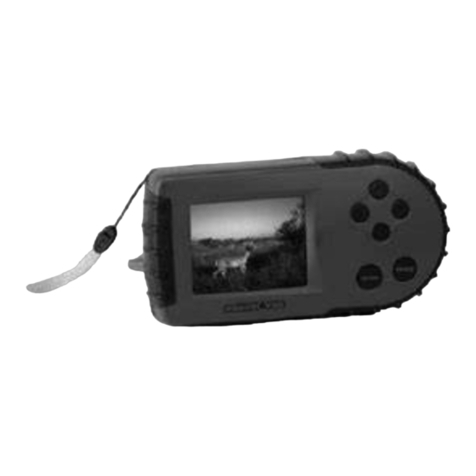
  9. Stealth Cam STC-CRV20 User manual

Stealth Cam STC-CRV20 User manual

Other manuals for STC-CRV20

1

Other Stealth Cam Digital Camera manuals

Stealth Cam STC-V550MTR User manual

Stealth Cam

Stealth Cam STC-V550MTR User manual

Stealth Cam STC-V550MTR User manual

Stealth Cam

Stealth Cam STC-V550MTR User manual

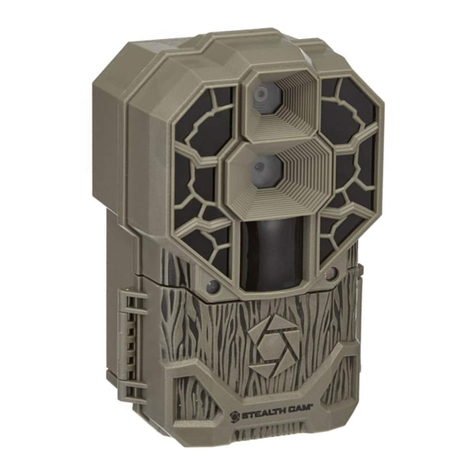
Stealth Cam DS4K Use and care manual

Stealth Cam

Stealth Cam DS4K Use and care manual

Stealth Cam XV4 Use and care manual

Stealth Cam

Stealth Cam XV4 Use and care manual

Stealth Cam STC-CRV20 User manual

Stealth Cam

Stealth Cam STC-CRV20 User manual

Stealth Cam STC-GX45NG User manual

Stealth Cam

Stealth Cam STC-GX45NG User manual

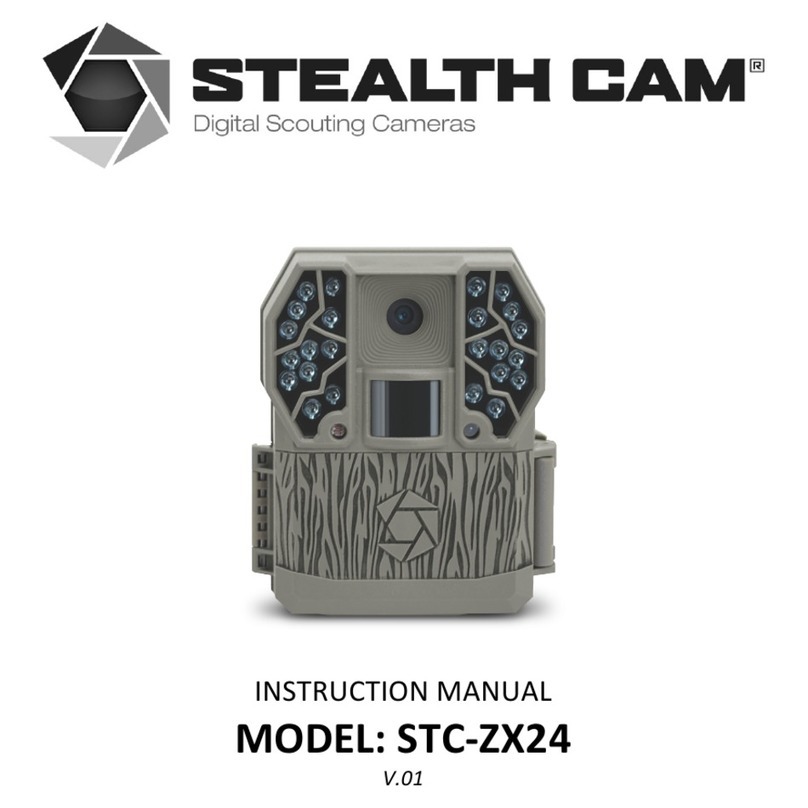
Stealth Cam STC-ZX24 User manual

Stealth Cam

Stealth Cam STC-ZX24 User manual

Stealth Cam FUSION User manual

Stealth Cam

Stealth Cam FUSION User manual

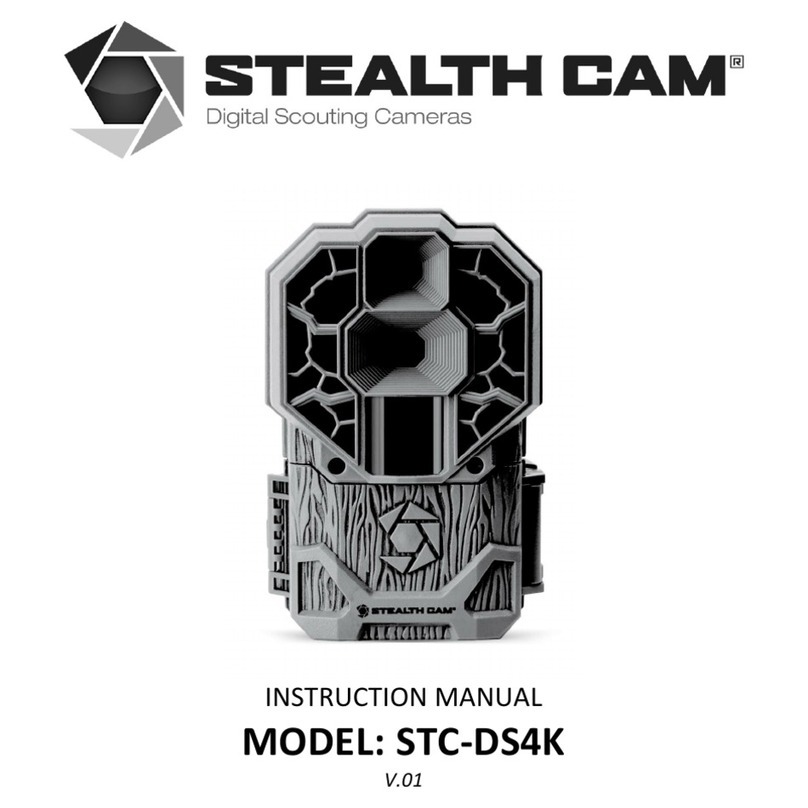
Stealth Cam STC-DS4K User manual

Stealth Cam

Stealth Cam STC-DS4K User manual

Stealth Cam STC-DS4KMAX User manual

Stealth Cam

Stealth Cam STC-DS4KMAX User manual

Popular Digital Camera manuals by other brands

Canon WP-DC35 user guide

Canon

Canon WP-DC35 user guide

Xiaomi 70mai Dash Cam Lite user manual

Xiaomi

Xiaomi 70mai Dash Cam Lite user manual

Samsung PL70 Quick start manual

Samsung

Samsung PL70 Quick start manual

GE E1680W user manual

GE

GE E1680W user manual

Canon EOS 1200D instruction manual

Canon

Canon EOS 1200D instruction manual

Tevion MD 86497 user guide

Tevion

Tevion MD 86497 user guide

Exakta VX Features

Exakta

Exakta VX Features

Kodak Digital Science DC120 user guide

Kodak

Kodak Digital Science DC120 user guide

Nikon FM3A Specifications

Nikon

Nikon FM3A Specifications

Vectra Fitness H1 Quick reference guide

Vectra Fitness

Vectra Fitness H1 Quick reference guide

Nikon COOLPIX 775 quick start guide

Nikon

Nikon COOLPIX 775 quick start guide

Olympus IR 500 - 4MP Digital Solutions Camera Manuel de Référence

Olympus

Olympus IR 500 - 4MP Digital Solutions Camera Manuel de Référence

Samsung EC-L100ZBBA brochure

Samsung

Samsung EC-L100ZBBA brochure

FujiFilm FINEPIX BL01124-201 owner's manual

FujiFilm

FujiFilm FINEPIX BL01124-201 owner's manual

Panasonic DMC-L10KPP Service manual

Panasonic

Panasonic DMC-L10KPP Service manual

Hyundai Electric HYU-CC-CHBF12001 Quick installation guide

Hyundai Electric

Hyundai Electric HYU-CC-CHBF12001 Quick installation guide

Sony DSC-WX80 specification

Sony

Sony DSC-WX80 specification

Nikon Nuvis S - Point & Shoot instruction manual

Nikon

Nikon Nuvis S - Point & Shoot instruction manual

manuals.online logo
manuals.online logoBrands
  • About & Mission
  • Contact us
  • Privacy Policy
  • Terms and Conditions

Copyright 2025 Manuals.Online. All Rights Reserved.

Stealth Cam
STC-CRV20
User’s Manual
Toll Free Customer Support 1-877-269-8490
.stealthcam.net
Version 1.1 08/08
STC-CRV20
www.stealthcam.net Toll Free 877-269-8490
2
For Customer Service or Warranty Information Call Toll Free
877-269-8490
Stealth Cam, LLC
P. . Box 539504
Grand Prairie, TX 75053-9504
www.stealthcam.net
Stealth Cam Limited Warranty
Your Stealth Cam scouting camera is covered by a 90 day Limited Warranty on
parts and labor from the date of original purchase, and purchases must be
made through an authorized dealer. The warranty covers defects in
workmanship and materials. The warranty does not apply to units, which have
been damaged or abused intentionally or unintentionally. A purchase from
individuals or unauthorized internet sites voids the warranty.
Tampering with or altering the unit will void the warranty. Any unauthorized
service will void warranty. riginal sales receipt must be produced for any
warranty service and a Return Authorization (RA) number must be obtained
from customer service at 877-269-8490 prior to returning product.
STC-CRV20
www.stealthcam.net Toll Free 877-269-8490
3
Manual Contents
Warranty 2
Picture Viewer verview 4
Picture Viewer Contents 5
Battery Installation 6
Memory Card Compatibility 8
Features 9
perations 10
Information Display 17
Use as Memory Card Reader 18
Specifications 21
General Information 22
STC-CRV20
www.stealthcam.net Toll Free 877-269-8490
4
Picture Player Overvie
STC-CRV20
www.stealthcam.net Toll Free 877-269-8490
5
Picture Player Contents
• Model STC-CRV20 Picture Viewer
• CDR M (Contains camera driver for Win 98 and Win 98SE
operating system)
• User Manual
• USB cable
• Barrel Plug Converter Cable
• Carry Strap
STC-CRV20
www.stealthcam.net Toll Free 877-269-8490
6
Battery Installation
The Stealth Cam STC-CRV20 picture viewer is designed to operate
using two different types of battery power options.
Batteries “AAA” cell
The internal battery compartment accepts 4 “AAA” cell batteries. Be
sure to use high quality brand name alkaline batteries. Install batteries
in correct polarity (+/-) as noted inside battery compartment.
6V Lead Acid external battery
The STC-CRV20 is equipped with an external power jack designed to
accept a barrel plug cable to attach to a sealed lead acid battery. (sold
separately). Complete 6V Lead Acid battery kits is available wherever
Stealth Cam scouting cameras are sold or call toll free 877-269-8490.
Warning:
Do not use different Voltage lead acid battery
other than the one specified in this section. Doing so
will damage the unit and will void the warranty.
STC-CRV20
www.stealthcam.net Toll Free 877-269-8490
7
nly Stealth Cam external battery accessories are recommended
Attach the barrel plug from the 6V Lead Acid Battery kit to the receiving
end of the Barrel Plug Converter Cable. Insert the small barrel plug
from the Barrel Plug Converter Cable to the external power jack on the
side of the picture viewer.
 Please make sure the voltage and polarity (+/-) are correct
before connection. Incorrect voltage or polarity (+/-) will
damage the unit.
STC-CRV20
www.stealthcam.net Toll Free 877-269-8490
8
Memory Card Compatibility
The STC-CRV20 picture viewer is designed to accept SD memory card
that was used in storing images from any of the Stealth Cam and
Wildview digital camera models. Except from models with Audio.
Please note: Do not alter the file name that is used in storing the
image capture by your Stealth Cam or Wildview Digital camera.
Leave it in its original file name format and folder.
Inserting SD card
ake sure the unit is in OFF position whenever inserting or
removing memory card.
• When using only 1 SD card, insert your SD memory card into
slot A completely and in the direction that is shown on the unit
or refer to the over view diagram shown in page 4.
• If you have 2 SD card, insert your 2
nd
SD card into slot B.
• To eject SD card, push in the card and pull out the card gently.
STC-CRV20
www.stealthcam.net Toll Free 877-269-8490
9
Features
• Zoom: Magnify the image up to 4 times its normal size.
• Memory Card: If you have 2 SD card insert in the viewer at the
same time, you can choose which card you want to view the
image.
• Delete One: To delete one image at a time in the memory card.
• Delete All: To delete all image in the memory card.
• Format: To format your memory card.
• Copy and move: To copy or move from SD card A to SD card
B. Please note this is a one way copy or move from A to B.
STC-CRV20
www.stealthcam.net Toll Free 877-269-8490
10
Operations
• Po er On/Off: Push and hold the Power/Mode button for
approximately 5 seconds or until you see the Stealthcam logo
on the screen to power on the unit. To turn the unit off, push
and hold the button for approximately 2 seconds or until the
screen is turned off.
• If you are only using 1 SD card, the viewer will display the
image stored in this card in sequence.
• If you have 2 SD card inserted in the viewer simultaneously,
the first screen shown on the viewer will request you to choose
which card you want to view. SD_A or SD_B. Use the
UP/D WN arrow button to choose your options. Your option is
highlighted in purple color. nce you made your selection use
RIGHT arrow button to confirm your selection. The viewer will
now display the image stored in this card in sequence.
• Use the RIGHT/LEFT arrow button to scroll through your image
files.
• Zoom: If you have still photo, you may zoom in the image for
closer look. Press Z M bottom once to zoom in the image
x2. If press zoom button again, the image will be zoom in x3.