manuals.online logo
Brands
  1. Home
  2. •
  3. Brands
  4. •
  5. Swann
  6. •
  7. Security Camera
  8. •
  9. Swann Black & White Dome Cam User manual

Swann Black & White Dome Cam User manual

Other Swann Security Camera manuals

Swann Wireless OutdoorCam SW231-WCX User manual

Swann

Swann Wireless OutdoorCam SW231-WCX User manual

Swann Color dome camera User manual

Swann

Swann Color dome camera User manual

Swann C-500R User manual

Swann

Swann C-500R User manual

Swann SW215-DMD User manual

Swann

Swann SW215-DMD User manual

Swann MaxiBrite SW212-MXB User manual

Swann

Swann MaxiBrite SW212-MXB User manual

Swann Memory Camera Series User manual

Swann

Swann Memory Camera Series User manual

Swann BulletCam User manual

Swann

Swann BulletCam User manual

Swann IP3G1000 User manual

Swann

Swann IP3G1000 User manual

Swann ADW-300 User manual

Swann

Swann ADW-300 User manual

Swann Imitation Security Device User manual

Swann

Swann Imitation Security Device User manual

Swann SWO-SVC01K SoundView User manual

Swann

Swann SWO-SVC01K SoundView User manual

Swann SW-C-C510R User manual

Swann

Swann SW-C-C510R User manual

Swann SW331-PR6 User manual

Swann

Swann SW331-PR6 User manual

Swann DVR16-8600 Combo Quick start guide

Swann

Swann DVR16-8600 Combo Quick start guide

Swann PRO-series User manual

Swann

Swann PRO-series User manual

Swann PRO-770 User manual

Swann

Swann PRO-770 User manual

Swann Maxi-Brite PNP-150 User manual

Swann

Swann Maxi-Brite PNP-150 User manual

Swann SW-P-DDNC User manual

Swann

Swann SW-P-DDNC User manual

Swann PRO-751 User manual

Swann

Swann PRO-751 User manual

Swann BulldogCam SW224-BDC User manual

Swann

Swann BulldogCam SW224-BDC User manual

Swann MicroCam II User manual

Swann

Swann MicroCam II User manual

Swann ADS-450 User manual

Swann

Swann ADS-450 User manual

Swann 900TVL User manual

Swann

Swann 900TVL User manual

Swann SWWHD-PTCAM User manual

Swann

Swann SWWHD-PTCAM User manual

Popular Security Camera manuals by other brands

ADEMCO RapidDome Owners Operating & Installation Guide

ADEMCO

ADEMCO RapidDome Owners Operating & Installation Guide

EverFocus EBA2880 user manual

EverFocus

EverFocus EBA2880 user manual

Honeywell OptiCAM-IR Installation and setup guide

Honeywell

Honeywell OptiCAM-IR Installation and setup guide

Uniq UC-600 user manual

Uniq

Uniq UC-600 user manual

OPTICOM NVD-120-S datasheet

OPTICOM

OPTICOM NVD-120-S datasheet

Steren CCTV-221 instruction manual

Steren

Steren CCTV-221 instruction manual

Arm Electronics C420BCDNVFIR Features

Arm Electronics

Arm Electronics C420BCDNVFIR Features

Eneo PLD-2036PTZ installation guide

Eneo

Eneo PLD-2036PTZ installation guide

Axis AXIS M20 Series installation guide

Axis

Axis AXIS M20 Series installation guide

Panasonic KX-HCM230 operating instructions

Panasonic

Panasonic KX-HCM230 operating instructions

COP-USA CC15NV-SL Specifications

COP-USA

COP-USA CC15NV-SL Specifications

Active Silicon HARRIER H.264 quick start guide

Active Silicon

Active Silicon HARRIER H.264 quick start guide

Motorola Avigilon 1.3C-H5SL-BO1-IR installation guide

Motorola

Motorola Avigilon 1.3C-H5SL-BO1-IR installation guide

INSTEON 2864-232 user manual

INSTEON

INSTEON 2864-232 user manual

Wisenet XNB-6002 quick start guide

Wisenet

Wisenet XNB-6002 quick start guide

Axis M5525-E user manual

Axis

Axis M5525-E user manual

Vitek VTC-IR62NZ922 user guide

Vitek

Vitek VTC-IR62NZ922 user guide

Panasonic WV-SF342 Specifications

Panasonic

Panasonic WV-SF342 Specifications

manuals.online logo
manuals.online logoBrands
  • About & Mission
  • Contact us
  • Privacy Policy
  • Terms and Conditions

Copyright 2025 Manuals.Online. All Rights Reserved.

Black&White Dome Cam
Easy Mount
English
If this device does not work when you first plug it in,
do not take it back to the store.
Contact the Swann Helpdesk using our fast e-mail service
[email protected] or call us on one of the Toll-Free
numbers shown on the back cover of this booklet.
Most problems can be quickly and easily fixed with a simple
e-mail or a quick chat with one of our friendly technical staff.
(Toll-Free available in the US and Australia only)
Installation Guide
Swann Technical Support
All Countries E-mail: [email protected]
Telephone Helpdesk
UNITED STATES toll free
877-274-3695
(Sun-Thurs, 2pm-10.30pm PST)
800-627-2799
(Mon-Fri, 9am-1pm PST)
USA Exchange & Repairs
562-777-2551
(Mon-Fri, 9am-5pm PST)
AUSTRALIA toll free
1300 13 8324
(Mon-Fri, 9am-5.30pm Aus EST)
International
+61 3 8412 4610
(Mon-Fri, 9am-5.30pm Aus EST)
See http://www.worldtimeserver.com for information on different time zones
and the time in Melbourne Australia compare to your local time.
Swann Communications warrants this product against defects in workmanship and material for
a period of one (1) year from it’s original purchase date. You must present your receipt as
proof of date of purchase for warranty validation. Any unit which proves defective during the
stated period will be repaired without charge for parts or labour or replaced at the sole
discretion of Swann. The repair or replacement will be warranted for either ninety days or the
remainder of the original one year warranty period, whichever is longer. The end user is
responsible for all freight charges incurred to send the to Swann’s repair centres.
shipping from and to any country
other than the country of origin. The warranty does not cover any incidental, accidental or
consequential damages arising from the use of or the inability to use this . Any costs
associated with the fitting or removal of this product by a tradesman or other person or any
other costs associated with its use are the responsibility of the end user. This warranty applies
to the original purchaser of the only and is not transferrable to any third party.
Unauthorised end user or third party modifications to any component or evidence of misuse or
abuse of the device will render all warranties void.
product The
end user is responsible for all shipping costs incurred when
product
product
Help Desk / Support Details
Warranty Information
www.swannsecurity.com
4
1. Once you have chosen the best position for the camera, switch the power to the camera off, and unplug
the power lead from the camera.
2. Turn the clear top of the dome anti-clockwise to release it from the base.
3. Hold the base in the position you wish to mount it and mark the holes for drilling. Using a suitable drill bit
for the material you are mounting the camera to, drill holes to suit your fastening method. Make a hole
under where the base will be located in the mounting surface for the cables to run through. (For mounting
to drywall or plaster ceilings consult your local hardware store for information on the best method of
securing the camera base)
4. When mounting the B&W Dome Cam to your ceiling or wall, please ensure that you swing the camera


mounting so that the top of the camera lens is ‘up’, otherwise you will find that your pictures are displayed

upside down.
5. Pass the cables through the hole you created under the base and mount the camera base in the chosen
location using suitable fasteners then place the dome back on and turn clockwise to lock it into the base.

9
6. Run the camera cable back to the TV/VCR noting that any holes that you drill need to be at least / ”
16
(14mm) in diameter to allow the connectors to pass through. Reconnect the power lead to the camera and
switch the camera power back on.
it
Please Note: The camera must not be placed where it looks directly into the sun or any other bright light
source, as this will not only result in a poor image, but will eventually damage the electronics of the camera.
Areas with a high degree of contrast in the light levels may require re-positioning of the camera in order to
obtain the best image.
For night-time use or when situated in a dimly-lit environment the camera requires the aid of suitable exterior
lighting to ensure a good picture is achieved.
The B&W Dome Cam is designed for use with any TV, VCR, Security Monitor or computer with a
video capture card. The camera can be used indoors or in a sheltered position outside. The B&W
Dome Cam can be used for a variety of purposes including monitoring callers at the door, keeping
your car, yard, shop or warehouse under observation or used as a camera to monitor your baby.
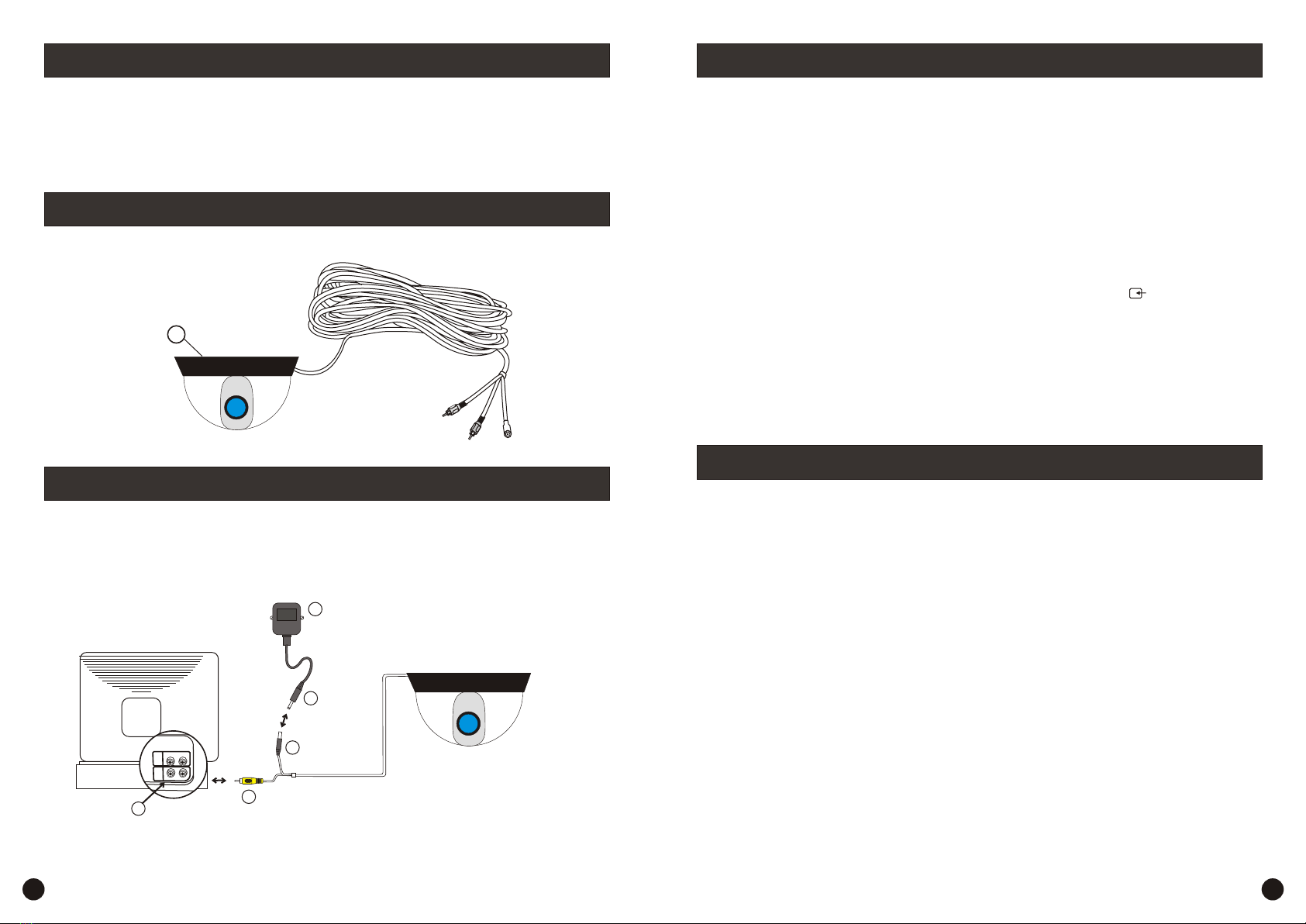
1. B&W Dome Security Camera with fixed cable*
2. Instructions (this sheet)
* To extend the operating distance from your TV or VCR you will need to purchase an A/V extension cable
(sold separately) which are available at most electronics stores.
YELLOW
VCR, TV or MONITOR
T
OU
IN
VO
D
IE
IDO
E
V
D
A O
I
U
D
AIO
U
VIDEO IN
Your is designed to transmit quality Black&White images to your
television and is operated by mains power.
To power the camera you will need a 9-12V DC 100 - 300mA power adaptor that has centre pin as positive.
To help guide you through the process of setting up the , we have outlined
the steps and numbered each of the components required in the diagram below.
B&W Dome Cam
B&W Dome Cam
1
WHITE BLACK
POWER
PLUG
B&W DOME CAM
2
3
4
1
POWER
ADAPTOR
(Not Supplied)
5
Step 1: At the end of your B&W Dome Cam cable you will find three B&Wed plugs:
Yellow (Video RCA) ~ Black (DC Power)
Step 2: Plug the yellow RCA plug into the "Video In" input (2) (usually located at the back of your TV or
VCR).
Step 4: Connect the black plug (3) at the end of your B&W Dome Cam into the black plug at the end of the
power adaptor (4).
Step 5: Plug the power adaptor (5) into the mains power point in your wall.
Step 6: If you have an A/V TV with RCA sockets you will need to switch the TV to the AV channel to view
the camera. To connect the camera to your VCR, you will need to turn the VCR to the A/V Input selection
and turn your TV onto the channel you would normally use to view a tape or movie on your VCR. This
channel may be activated by a button on your remote that is marked with this symbol , or L1 or L2 or
possibly AV, AV1 or AV2 .Please read the instructions for your VCR or TV for more information on using
their A/V inputs.
Step 7: If the picture is not clear, you will need to focus the camera by loosening the small locking screw below
the lens, and turning the lens in a clockwise or anti-clockwise direction until the image is clear. Once the lens
is focussed correctly, tighten the locking screw to hold it in place.
Installation Instructions
Contents and Parts Identification
How to connect B&W Dome Cam to your TV or VCR
2 3
How to connect B&W Dome Cam to your TV or VCR
Mounting the camera on your wall or ceiling