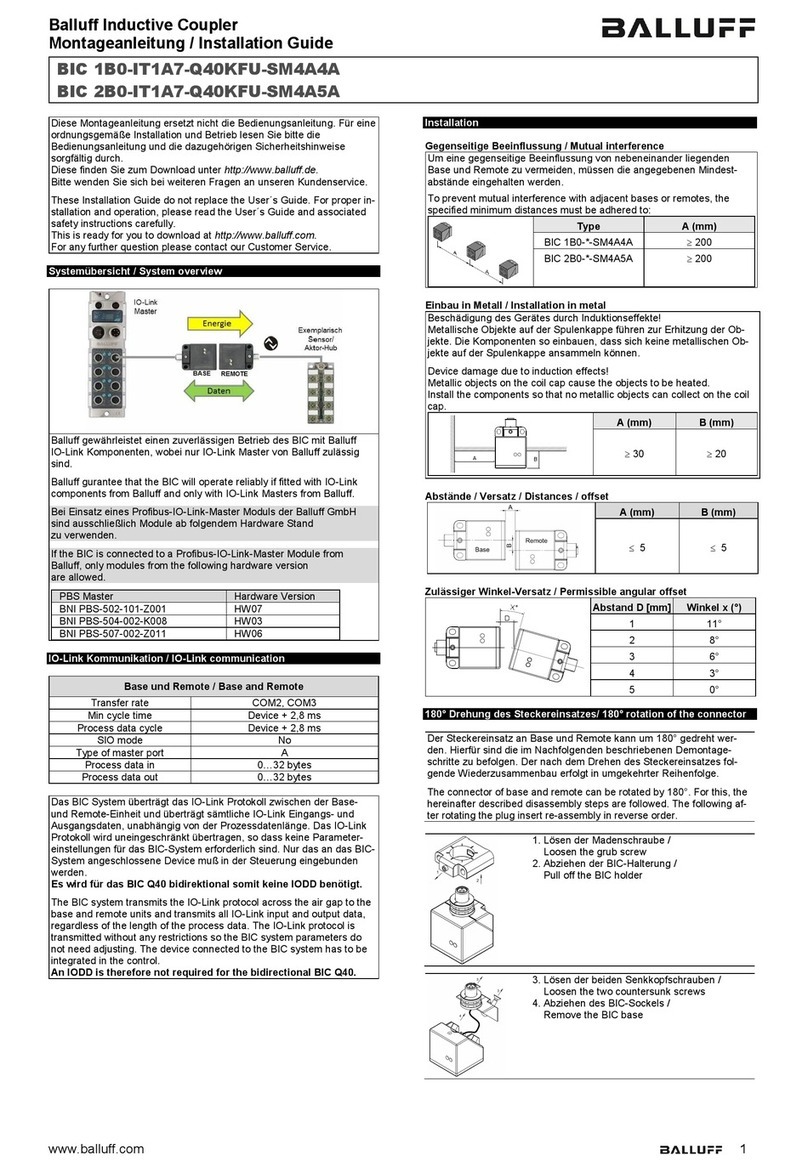
Downloading Data Using the IR to USB Adapter
IMPORTANT: YOU MUST SELECT THE IRDA PRINTER (2-22566) IN
THE UTILITY MENU BEFORE PROCEEDING. SEE PAGE 6.
Click start>All Programs> Techno Tools> Techno Tools Software to
open the IR to USB Adapter program.
1. The following screen will appear:
2. Turn on the B500 by pressing the MENU/ON-OFF button. To
print, press NEXT + until the display shows PRINT LAST TEST.
3. Press ENTER ←. The display will show the message ALIGN
THE PRINTER. Align the B500 Ir transceiver located at the top
of the tester with the adapter’s IR receiver (see figure 1). Note:
The B500 must be approximately 18-24 in. or closer to the
adapter.
4. Press the ENTER ←button. The last data stored in the
memory will begin downloading to the computer.
Note: The alignment between the tester and the IR printer must be
proper for data to download to the computer.
Using the IR to USB Program
To set up shop name, address, and phone number on the print out,
click on Setup. The following screen will appear:
This information will show at the top of the print out page each time the
data is printed and only needs to be entered once.
Using the IR to USB Program Cont.
When the data is recognized by the IR to USB program, the
following screen will appear:
Enter the customer, technician name, car make/model, etc. Click on
OK. The data will automatically display in the appropriate columns.
Note: If it is not necessary to track the customer, technician, or
other information on this screen, leave blank and click OK without
entering their names.
The data will appear as below:
To view all columns scroll to the right using arrow keys or mouse
wheel.
To save the data, click on Save As. The data will be saved as a
.btd file. To view the file at a later date, click on Load and select
the file name desired. Note: to save and view all test data stored,
keep all test data in the same file. Each new data downloaded will
always be added to the next row. Note: To delete any row of data-
Click mouse to highlight and press delete key on keyboard.
Otherwise, individual data can be saved as a separate file as long
as no new data is added and saved to that file.
Printing the Data on your PC Printer
To print the data using your PC printer, click on the row or rows
containing the Data you wish to print. The row or rows will be
highlighted.
Click on the PRINT button. The data on the highlighted row(s)
will print out on standard 81/2 x 11 size computer paper.
NOTE: To properly test the Electrical System (Full Test) the test
sequence should be Battery Test, Starter Test, and then
Charging System Test. The battery must be in good condition
to properly test the Starter and Charging system. Therefore, the
Starter Test Data and/or Charging Test Data may not show on
the printout if either test is skipped.
System Requirements:
Windows XP Service Pack 2 Minimum (Home or Ultimate) or
Vista (Home or Ultimate)
1. Insert the CD into your CD-Rom
2. Follow the simple onscreen instructions. The software will
prompt you through each step of the installation.
3. If the software does not start automatically:
Click START on the Windows Taskbar
Chose RUN
Type D:\setup.exe (where D is your CD-ROM
drive
Click OK.
Note: The software installation requires Microsoft
Framework 3.5. This will be automatically installed if
required. In this case installation may take about 10 to 12
minutes to install although older systems may take longer.
4. When the installation finishes, connect the IR to USB
adapter to one of the USB ports on your computer. The
computer will show the prompt “Found New Hardware”.
Follow the directions in the new hardware Wizard to
complete the driver installation.
5. When the new hardware installation is complete, double
click on the Techno Tools Software program to open the
IR to USB Adapter program.
3
Header information is
entered in Setup (see
page 3)
Date and Technician
(see page 4)
Car information entered
(see page 4)
Data from battery
tester