TomTom ECLIPSE User manual

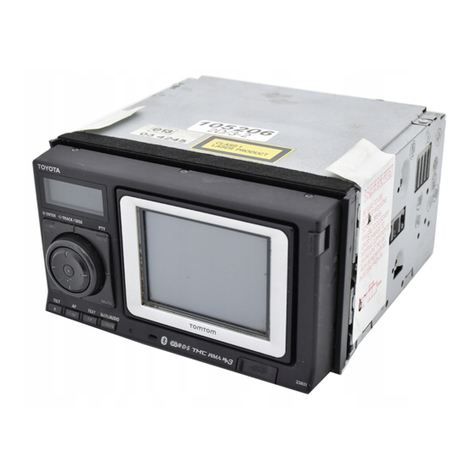
TomTom Eclipse

What’s in the box1.
2
What’s in the box
aYour TomTom
ACharging light
BOn/Off button
CTouchscreen
DConnector
ESpeaker
FUSB connector
GReset button
HMemory card slot
bMemory card (SD
card)
cUSB cable
dConnector cover eSleeve
fDocumentation pack
AB C
DE
FGH

Before you start2.
3
Before you start
Switching on
Follow the instructions at the start of this manual to dock your TomTom in
your car stereo. Your TomTom can also be used without docking it in your car
stereo. A mount is available as an accessory so that you can use your
TomTom in other cars.
The first time you switch on your TomTom, it may take up to 20 seconds to
start. To switch off your TomTom, press and hold the On/Off button for 2
seconds.
Setting up
To set up your navigation device, you need to answer a few questions by
tapping the screen.
Important: Take care to select the correct language, since the language you
choose will be used for all menus and written instructions.
Troubleshooting
Always make sure that you are using the latest version of the TomTom
application on your TomTom. You can update the application using TomTom
HOME.
If you have problems turning on your TomTom, try resetting your TomTom.
To reset your TomTom, use a straightened paper clip, or something similar, to
push the reset button. The reset button is next to the memory card slot, on the
bottom of your TomTom. Then turn on your TomTom.
Improving reception
If your TomTom takes longer than 5 minutes to find your current position,
make sure that the device is in an open space away from tall objects such as
buildings or trees.

4
When you connect your TomTom to your computer, you can use TomTom
HOME to download information about GPS satellite positions during the next
7 days. This helps your TomTom to find your position faster.
Take care of your TomTom
Never leave your TomTom or accessories in view when you leave the car or
they may become an easy target for thieves.
You can set a password for your TomTom which must be entered every time
you start your TomTom.
It is important to take care of your TomTom.
• Your TomTom is not designed for use in extreme temperatures and any
such exposure may cause permanent damage.
• Do not open the casing of your TomTom under any circumstances. Doing
so may be dangerous and will invalidate the warranty.
• Wipe or dry the screen of your TomTom using a soft cloth. Do not use any
liquid cleaners.
Night view
When you switch on the headlights in your car, your TomTom will switch to
night view. In night view, the brightness of the screen on your TomTom is
dimmed so it’s easier to see when it’s dark outside.
Night view on your TomTom is linked to the dimmer setting on your car
stereo. See the manual for your car stereo for information about the dimmer
setting.
To manually control the brightness of the screen, select not to link the night
view to the dimmer setting in the Docking preferences in the Preferences
menu. To switch to night view manually, tap Use night colors in the
Preferences menu.

Driving View3.
5
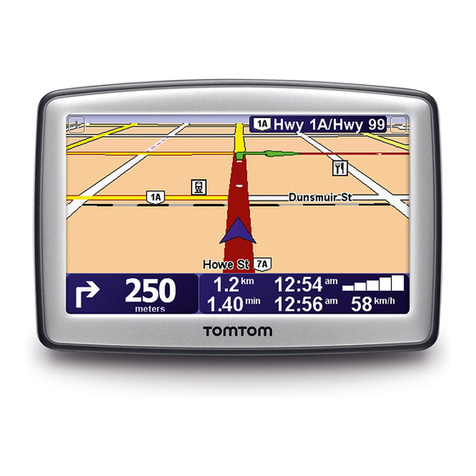
Driving View When your TomTom starts, you are shown the Driving View along with
detailed information about your current location.
Tap the center of the screen at any time to open the Main Menu.
Note: The Driving View is shown in black and white until your TomTom
locates your current position.
ATap + and - to zoom in and out.
BYour current position.
CThe name of the next major road or road sign information, if applicable.
DNavigation instruction for the road ahead.
Tap this area to repeat the last spoken instruction and to change the
volume.
EThe name of the street you are on.
FInformation about your trip such as trip time, remaining distance and arrival
time.
To change the information shown, tap Status bar preferences in the
Preferences menu.
GGPS signal strength.

Making your first trip4.
6
Making your first trip Planning a route with your TomTom is easy. To plan your first route, follow the
steps below.
Important: You should always plan your journey before you start driving. It is
dangerous to plan a route while driving.
1. Tap the screen to bring up the main menu.
Note: The buttons on your TomTom are shown in full color unless a button is
currently unavailable. For example, the button named Find alternative... in
the Main Menu is not available until you have planned a route.
2. Tap Navigate to...
3. Tap Address.
When you enter an address, you can choose from the following options:
•City center - tap this button to set your destination as the center of a city
or town.
•Street and house number - tap this button to set an exact address as your
destination.
•ZIP code - tap this button to enter a ZIP code as your destination.
•Cross street or intersection - tap this button to set your destination as the
point where two streets meet.

7
In this example, we will enter an exact address.
4. Tap Street and house number.
Note: When planning a trip for the first time your TomTom asks you to choose
a state or country. Your choice is saved and used for all routes you plan.
You can change this setting at any time by tapping the state symbol or country
flag.
5. Start to type the name of the town where you want to go.
As you type, the names of the towns that match what you have typed are
shown. When your destination appears in the list, tap the name of the town
to set the destination.
6. Start to type the name of the street and select it when it is shown.
As with the name of the town, the names of the streets that match what you
have typed are shown. When your destination appears in the list, tap the
name of the street to set the destination.
7. Now enter the house number of your destination and then tap Done.
8. Your TomTom asks if you need to arrive at a particular time. For this
exercise, tap NO.
The route is calculated by your TomTom.
9. When the route has been calculated, tap Done.

8
Your TomTom will immediately begin to guide you to your destination, using
both spoken instructions and on-screen directions.
Arrival times
When you plan a route, your TomTom asks you if you need to arrive at a
particular time.
Tap YES to enter a preferred arrival time.
Your TomTom calculates your arrival time and shows you whether you will
arrive on time.
You can also use this information to work out when you need to leave. If your
TomTom shows that you will arrive 30 minutes early, you can wait and leave
in 30 minutes time, rather than arrive early.
Your arrival time is constantly recalculated during your trip. The status bar
shows whether you will arrive on time or if you are going to be late, as shown
below:
You will arrive 55 minutes before the arrival time you entered.
If the estimated arrival time is more than five minutes before
the time you entered, it is shown in green.
You will arrive 3 minutes before the arrival time you entered.
If the estimated arrival time is less than 5 minutes before the
time you entered, it is shown in yellow.
You will arrive 19 minutes late.
If the estimated arrival time is later than the time you entered,
it is shown in red.
Status bar
preferences
Tap Status bar preferences in the Preferences menu, to enable or disable
arrival time notifications.
Select the required options on the first menu screen and then tap Done.
To enable arrival time notifications, select Show leeway to arrival time.

9
What are the other navigation options?
When you tap Navigate to..., you can set your destination in many ways, not
just by entering the address. The other options are listed below:
Home
Tap this button to navigate to your Home location.
You will probably use this button more than any other.
Favorite
Tap this button to select a Favorite as your destination.
Address
Tap this button to enter an address as your destination.
Recent
destination
Tap this button to select your destination from a list of places you have
recently used as destinations.
Point of
Interest
Tap this button to navigate to a Point of Interest (POI).
Point on map
Tap this button to select a point on the map as your destination using the
map browser.
Latitude
Longitude
Tap this button to enter a destination using latitude and longitude values.
TomTom
Buddy
Tap this button to navigate to the last known position of a TomTom Buddy.
Don’t forget that the Buddy may move before you reach him.
Position of
last stop
Tap this button to select your last recorded position, as your destination.
2
3
1
2

10
Planning a route in advance
You can also use your TomTom to plan trips in advance by selecting both your
starting point and your destination. You could, for example, do the following:
• Find out how long a trip is going to take before you start.
• Check the route of a trip you are planning.
• Check a route for someone who is coming to visit you so you can explain
the route to them.
To plan a route in advance, follow these steps:
1. Tap the screen to bring up the main menu.
2. Tap the arrow button to move to the next menu screen and tap Prepare
route.
3. Select the starting point for your trip in the same way that you would select
your destination.
4. Set the destination for your trip.
5. Choose the type of route that should be planned.
•Fastest route - the route which takes the least time.
•Shortest route - the shortest distance between the locations you set. This
may not be the quickest route, especially if the shortest route is through
a town or city.
•Avoid freeways - a route which avoids freeways.
•Walking route - a route designed for making the trip on foot.
•Bicycle route - a route designed for making the trip on a bicycle.
•Limited speed - a route for a vehicle which can only be driven at a limited
speed. You have to specify the maximum speed.
6. Your TomTom plans the route between the two locations you selected.
More information about a route
You can access these options for the route you last planned by tapping View
route in the Main Menu or the Details button on the route summary screen.
You can then select from the following options:
Prepare route
Browse as
text
Tap this button for a list of all the turn instructions on the route.
This is very useful if you need to explain a route to someone else.
Browse as
images
Tap this button to see each turn in the trip. Tap the right and left arrows to
move forwards and backwards through the trip.
Tap the screen to turn off the 3D display and view the map from above.

Other manuals for ECLIPSE
2
Table of contents
Other TomTom GPS manuals

TomTom
TomTom VIA Specification sheet

TomTom
TomTom Mobile User manual

TomTom
TomTom Go 920 User manual

TomTom
TomTom One XLS User manual

TomTom
TomTom RIDER User manual

TomTom
TomTom Rider Pro User manual

TomTom
TomTom XL 30 User manual

TomTom
TomTom ONE User manual

TomTom
TomTom RIDER User manual

TomTom
TomTom GO PROFESSIONAL Series User manual

TomTom
TomTom Hands-Free Car Kit User manual

TomTom
TomTom 2004 User manual

TomTom
TomTom ONE XL HDT User manual

TomTom
TomTom navigation module User manual

TomTom
TomTom GO 950 User manual

TomTom
TomTom GO User manual

TomTom
TomTom LINK 201 User manual

TomTom
TomTom RIDER User manual

TomTom
TomTom One XL User manual

TomTom
TomTom START User manual