manuals.online logo
Brands
  1. Home
  2. •
  3. Brands
  4. •
  5. Toshiba
  6. •
  7. Digital Camera
  8. •
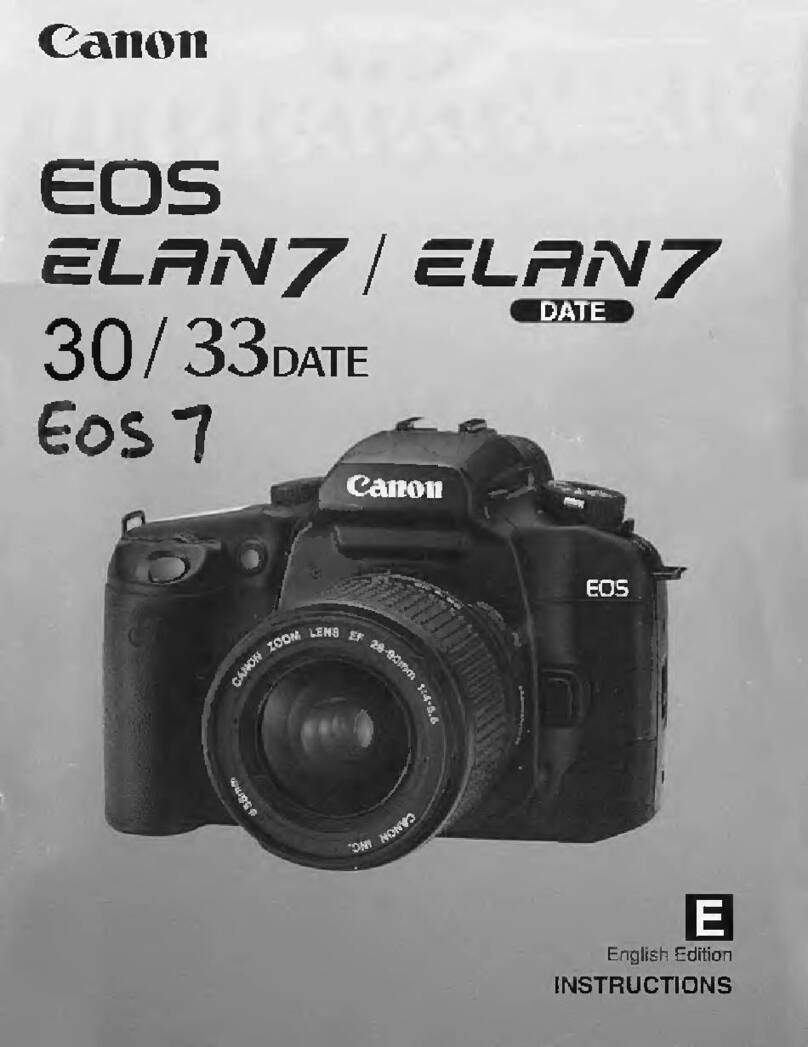
  9. Toshiba PDR-M700 User manual

Toshiba PDR-M700 User manual

Other manuals for PDR-M700

1

Other Toshiba Digital Camera manuals

Toshiba Sora PDR-T10 User manual

Toshiba

Toshiba Sora PDR-T10 User manual

Toshiba PDR-M1 User manual

Toshiba

Toshiba PDR-M1 User manual

Toshiba IK-HR1D User manual

Toshiba

Toshiba IK-HR1D User manual

Toshiba PDR-T20 User manual

Toshiba

Toshiba PDR-T20 User manual

Toshiba PDR-4300 User manual

Toshiba

Toshiba PDR-4300 User manual

Toshiba PDR-M11 Mounting instructions

Toshiba

Toshiba PDR-M11 Mounting instructions

Toshiba PDR-M65 User manual

Toshiba

Toshiba PDR-M65 User manual

Toshiba PDRM5 - PDR M5_duplicate Web Camera User manual

Toshiba

Toshiba PDRM5 - PDR M5_duplicate Web Camera User manual

Toshiba BU406M User manual

Toshiba

Toshiba BU406M User manual

Toshiba IK-M50H User manual

Toshiba

Toshiba IK-M50H User manual

Toshiba PDR-M61 User manual

Toshiba

Toshiba PDR-M61 User manual

Toshiba PDR-M500 User manual

Toshiba

Toshiba PDR-M500 User manual

Toshiba PDR-M60 User manual

Toshiba

Toshiba PDR-M60 User manual

Toshiba PDR-M61 Mounting instructions

Toshiba

Toshiba PDR-M61 Mounting instructions

Toshiba PDR-M25 User manual

Toshiba

Toshiba PDR-M25 User manual

Toshiba IK-527A User manual

Toshiba

Toshiba IK-527A User manual

Toshiba PDR-M60 User manual

Toshiba

Toshiba PDR-M60 User manual

Toshiba BU302MG User manual

Toshiba

Toshiba BU302MG User manual

Toshiba PDR-M81 User manual

Toshiba

Toshiba PDR-M81 User manual

Toshiba Sora PDR-T10 User manual

Toshiba

Toshiba Sora PDR-T10 User manual

Toshiba IK-WB11 User manual

Toshiba

Toshiba IK-WB11 User manual

Toshiba BU205M User manual

Toshiba

Toshiba BU205M User manual

Toshiba PDR-3300 - 3.2MP Digital Camera User manual

Toshiba

Toshiba PDR-3300 - 3.2MP Digital Camera User manual

Toshiba PDR-M4 Mounting instructions

Toshiba

Toshiba PDR-M4 Mounting instructions

Popular Digital Camera manuals by other brands

Canon WP-DC35 user guide

Canon

Canon WP-DC35 user guide

Xiaomi 70mai Dash Cam Lite user manual

Xiaomi

Xiaomi 70mai Dash Cam Lite user manual

Samsung PL70 Quick start manual

Samsung

Samsung PL70 Quick start manual

GE E1680W user manual

GE

GE E1680W user manual

Canon EOS 1200D instruction manual

Canon

Canon EOS 1200D instruction manual

Tevion MD 86497 user guide

Tevion

Tevion MD 86497 user guide

Exakta VX Features

Exakta

Exakta VX Features

Kodak Digital Science DC120 user guide

Kodak

Kodak Digital Science DC120 user guide

Nikon FM3A Specifications

Nikon

Nikon FM3A Specifications

Vectra Fitness H1 Quick reference guide

Vectra Fitness

Vectra Fitness H1 Quick reference guide

Nikon COOLPIX 775 quick start guide

Nikon

Nikon COOLPIX 775 quick start guide

Olympus IR 500 - 4MP Digital Solutions Camera Manuel de Référence

Olympus

Olympus IR 500 - 4MP Digital Solutions Camera Manuel de Référence

Samsung EC-L100ZBBA brochure

Samsung

Samsung EC-L100ZBBA brochure

FujiFilm FINEPIX BL01124-201 owner's manual

FujiFilm

FujiFilm FINEPIX BL01124-201 owner's manual

Panasonic DMC-L10KPP Service manual

Panasonic

Panasonic DMC-L10KPP Service manual

Hyundai Electric HYU-CC-CHBF12001 Quick installation guide

Hyundai Electric

Hyundai Electric HYU-CC-CHBF12001 Quick installation guide

Sony DSC-WX80 specification

Sony

Sony DSC-WX80 specification

Nikon Nuvis S - Point & Shoot instruction manual

Nikon

Nikon Nuvis S - Point & Shoot instruction manual

manuals.online logo
manuals.online logoBrands
  • About & Mission
  • Contact us
  • Privacy Policy
  • Terms and Conditions

Copyright 2025 Manuals.Online. All Rights Reserved.

M700-FWE1
DIGITAL STILL CAMERA
PDR-M700
INSTRUCTION MANUAL (SUPPLEMENT)
Introduction
Thank you for buying the PDR-M700 TOSHIBA Digital Still Camera.
By updating the firmware (internal software) of your PDR-M700 to Ver. 1.10,
you can use three new functions: Large Icons, Manual Focus, and High-Speed
Image Scrolling.
The procedure for updating your camera’s firmware is described on the
TOSHIBA Digital Still Camera web site. Be sure to read the instructions carefully
before you start. Updating the camera’s firmware should be done with care,
since the camera may fail to operate normally unless the instructions are
followed exactly.
TOSHIBA Digital Still Camera web site: www.dsc.toshiba.com/
This Instruction Manual explains how to use the new functions of Ver. 1.10.
Refer to the camera’s Instruction Manual for safety precautions and other
information about using your camera. In particular, please read the following
pages carefully.
Safety Precautions pages 6 to 10
Handling Your Camera page 12
Names of the Parts pages 18 to 19
Using the New Functions
After updating your camera’s firmware to Ver. 1.10, you can use the following
three new functions.
•Large icons
Icons and text are enlarged in LCD monitor, making them easier to see.
•Manual focus
You can set the focus manually. The camera does not need to make Auto
focus adjustments, so it can capture images as soon as you press the shutter.
•High-speed image scrolling
By holding down the button or button, you can scroll at high speed
through images in the Thumbnail display and in the PROTECT, DPOF, and
RESIZE image selection displays.This makes it easier to find the image you
are looking for, especially when there are relatively a large number of images.
Large icons
Icons and text in the LCD monitor are enlarged, making them easier to see.
•Icons and text are enlarged in the following screens.
Auto photography mode screen, movie mode screen, playback mode
screen, erase mode screen, enlarged playback screen, slideshow playback
screen, folder numbers, file numbers, date and time (date only in the auto
photography mode and movie mode screens).
•Icons and text are not enlarged in the following screens and menus.
Manual photography mode screen, PC mode screen, SET-UP mode
screen, photography menu, playback menu, LCD brightness adjustment
screen, messages, etc.
Turn the mode dial to [ ].
OWER
The SET-UP menu appears.
Select [CUSTOMIZE] with the button, and
press the button.
The customize screen appears.
Select [ICON SIZE] with the button, and
press the button.
The tab menu appears.
Select [ENLARGED] with the button, and
press the OK button.
This fixes the setting.
(example) Auto photography mode display
Icon size: ENLARGED Icon size: NORMAL

M700-FWE1
Manual focus
You can set the focus manually. The camera does not need to make Auto
focus adjustments, so it can capture images as soon as you press the shutter.
Manual focus is convenient for shooting images like the following.
•Images of sports and other fast-moving subjects.
•Macro images and other images where you want to adjust the focus
yourself.
•Images where the Auto focus function does not provide the focus that you
want.
Note that the camera does not return automatically from Manual to Auto
focus. To return to Auto focus, repeat the procedure below to select Auto
focus.
Turn the mode dial to one of [ ] [ ] [ ].
OWER
Press the OK button.
The camera enters the photography tab
menu mode.
Select [FOCUS] with the button, and press
the button.
A list of focus mode icons is displayed.
Select [MF] with the button, and press the
OK button.
This fixes the setting. A manual focus icon
appears at the bottom of the screen, and
the digital zoom bar changes to manual
focus bar.
Press the OK button.
Manual focus bar
You can now take manual focus images.
The zoom function is not available when
the manual focus bar is displayed. To
display the digital zoom bar, half press and
release the shutter button.
Adjust the focus with the Tele button or the
Wide button.
Check the focus by viewing the image in
the LCD monitor as you use the buttons.
When [FOCUS] is set to [MF], you can display the digital zoom bar by half
pressing and then releasing the shutter button.The Manual focus function is
not available when the digital zoom bar is displayed.
High-speed image scrolling
You can scroll images at higher speeds in the Thumbnail display and in the
PROTECT, DPOF, and RESIZE image selection displays by holding down
the or button. This makes it easier to find the image you want,
especially when there are relatively a large number of images.
Turn the mode dial to [ ].
OWER
The last image appears on screen.
Press the OK button or the Wide button.
The images are displayed in the thumbnail
display.
Press and hold down the or button.
Images scroll at a higher speed.
In the PROTECT, DPOF, and RESIZE image selection displays, the
button work in the same way. Press and hold down the button to scroll
images at a higher speed.
The scrolling speed changes in three steps.
In the Thumbnail display, the color of the cursor changes as follows:
Green (normal speed) →Red →Yellow (highest speed)