Trident PRO-S User manual

Instructions for connecting Trident PRO-S to the Switch
Console

Buttons on the front of the
controller
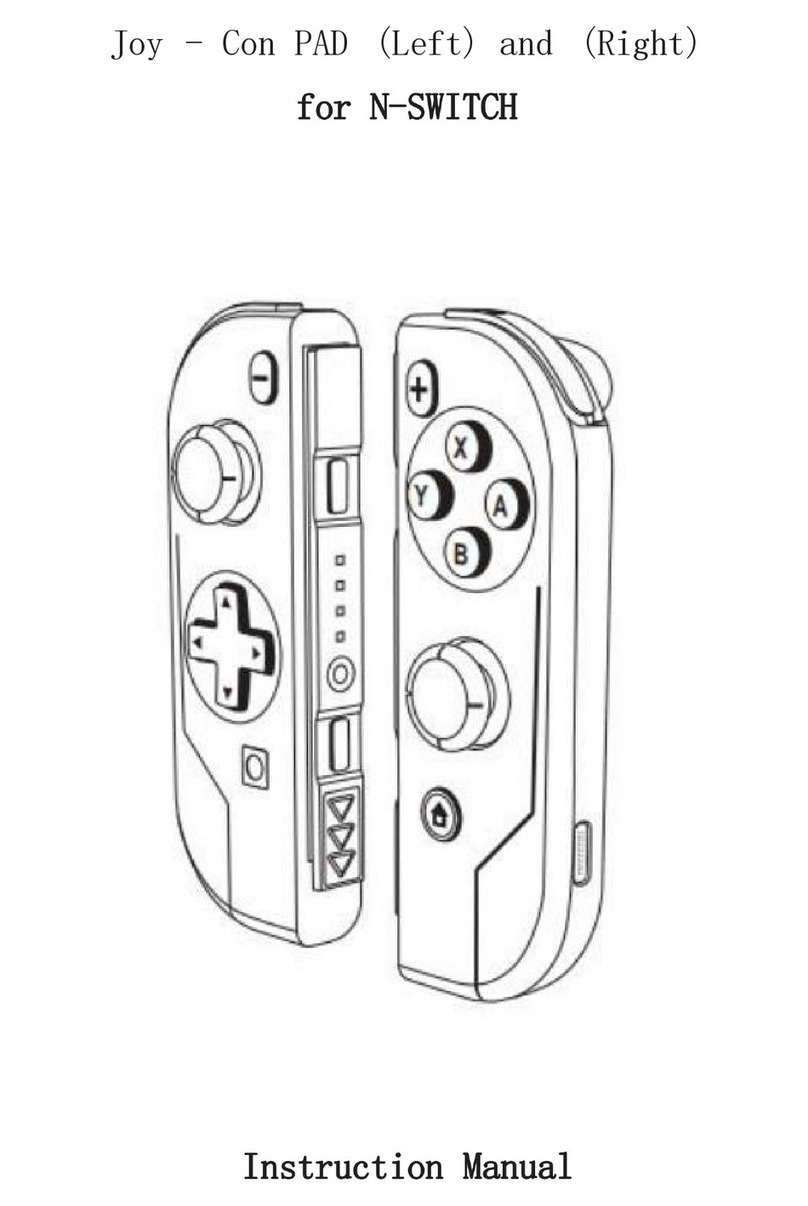
1. Directional Pad (changeable D-pad)
2. Action Buttons (Y, X, B, A) = X, =
B
3. Left Analog Stick and L3 button
4. Right Analog Stick and R3 button
5. HOME Button
6. LED Indicator 1, 2, 3, 4
7. Turbo Button: Activate & Deactivate:
press and hold any
button and then press Turbo
8. Screenshot /SHARE
9. Menu selection
10. Menu selection
11. L Button
12. R Button

Buttons on the shoulder and the back of the
controller
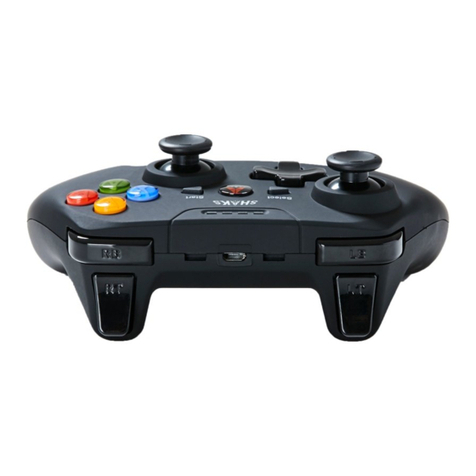
13. RZ Trigger
14. LZ Trigger
15. There is a hole for the RESET button
at the back of the controller
How to connect the controller to the
console and how to start a game:
1. When connecting the device for the first time,
please follow the instructions below:
A) To detect and match the controller, hold the
HOME button for 5 seconds; all LED Indicators
will blink quickly.
B) When LED Indicator 1 is lit up and steady,
matching is successful.
2. When connecting the device a second time or
more, simply hold the HOME button to turn
the controller on and it will get
automatically connected.
3. To enter a game: Press HOME to enter the game
menu. Choose a game that you have
already played. Press A to start a game.
4. To turn the controller off: Hold the HOME
button for 10 seconds.
Connection Instructions:
1. Press the Power button to turn the
Switch console on

2. Press A or the HOME button to enter the main menu.
3. Choose “Controllers.”
4. After entering the “Controllers”page, click “Change Grip/Order”.

5. After entering the “Change Grip/Order page”, press and hold the HOME button for 5 seconds to search and sync.
**Note: The controller’s 4 Led indication lights will be flashing fast while searching is in progress.
6. You will see the image of a controller on the page. Once connected, it will be displayed on the “Grip/Order”page.
**Note: Once the connection is made, only the first LED light (the furthest to the left) will be on.
7. Lastly and most importantly: press A to complete the connection process. After this, the Switch console will go back to the “Controllers”
page and you are all set!

If the controller does not work with the Nintendo SwitchTM console:
1. Some games are not compatible with the Pro Controller or the Trident PRO-S Controller.
2. For other games:
a) If using the Nintendo SwitchTM with the dock: both the Pro Controller and the Trident PRO-S Controller are compatible when connected to
a TV.
b) If using the Nintendo SwitchTM in handheld mode: Joy-ConTM needs to be switched off or removed in order to use the Pro Controller or the
Trident PRO-S Controller.
Instructions for the 4 LED lights on the Nintendo SwitchTM Controller:
1. Connecting the controller to the games console:
a) When the HOME button is pressed to connect, the four LED lights will flash quickly. Once connected the relevant LED will stay ON
b) When the HOME button is pressed to connect but connection is unsuccessful, the four LED lights will flash slowly
2. LED light indications:
When connected, the first LED light on the left will be on (indicating Player 1). The second LED light on the left indicates Player 2, and
so on.
3. Charging indication: All four LED lights will flash slowly. If the controller is charging whilst playing,
only one LED will flash slowly.
4. Low battery alert: If the controller battery is low, the relevant LED light will flash slowly
Other remarks:
1) Using the HOME button on the Trident PRO-S Controller will NOT turn on the console.
2) Motion control and NFC functions are not supported on Game Devil Nintendo SwitchTM Trident PRO-S
3) Please try to reset the controller if it gets stuck at any time. You will find the reset button in a small
hole on the back of the controller.
4) To hard boot your console, press and hold the POWER button for 12 seconds.
SAFETY PRECAUTIONS
• Do NOT expose the product to hot or cold temperatures or close to any heat source such as elements,
ovens or direct sunlight, high humidity
• Do NOT use in areas of high humidity or if wet from water or other liquids
• Do NOT open, bend, service else trying to modify the product in any way, as this can cause electrical shocks,
fire or damage.
• Only clean with a soft, dry cloth, not using any type of solvents or chemicals

HEALTH PRECAUTIONS
• If you experience any discomfort from the use of the product, stop using it and seek medical help. If it caused
by the vibration function of the product, switch this function of in your console settings, if it is caused by strong
lights, stop playing and turn off the console and seek medical help
• Don’t forget to take breaks when playing for a long time
Table of contents