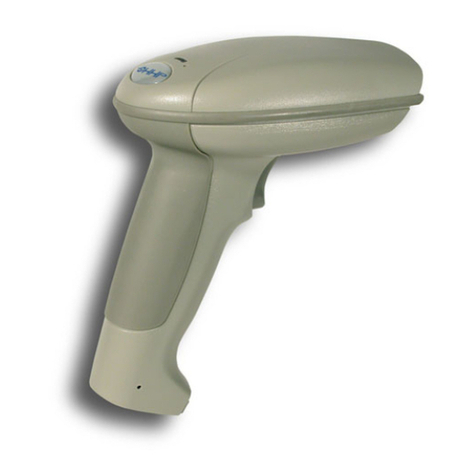
UBI ScanPlus 1800 User manual

SP/XX/IG/12/E/980228
ScanPlus
Installation Guide
Edition 1.2

SP/XX/IG/12/E/980228
Notice
The ScanPlus products described in this manual comply with CE directives for electromagnetic
emission levels and electrical immunity.
The information contained in this manual is for informational purposes only and is subject to
change without notice. No part of this manual may be copied or reproduced in any manner without
the prior written permission of United Barcode Industries.
ScanPlus products are covered by patents issued or pending in the USA and other countries.
ScanPlus is a trademark of United Barcode Industries.
This Installation Guide can be used with all ScanPlus products except the ScanPlus CL.

SP/XX/IG/12/E/980228 iii
Scanner Technology Center
DECLARATION OF CONFORMITY
We,
UBI Scanner Technology Center
Immeuble Le Naurouze, Rue Carmin
Voie No.3, Innopole - BP 187
31676 Labège Cedex
France
declare under our sole responsibility1that the product(s)
ScanPlus SP / ER / XP / PDF
Cable Management Modules
to which this declaration relates
is (are) in conformity with the following standards:
Emission: EN 50081-1 (1992)
EN 55022 (1987) Class B
Immunity: EN 50082-1 (1992)
IEC 801-2 (1984 -91) 8kV in the air
IEC 801-3 (1984) 3 V/m
IEC 801-4 (1988) 1kV
Lowvoltage: EN 60950 (1993)
following the provisions of Directives
89/336/EEC
73/23/EEC
Toulouse 30/11/1996
...................................................................
Sven Skarendahl
President
1UBI assumes no responsibility as regards fulfilling the CE Directive if the product(s) is (are)
handled, modified or installed in other manners than those described in UBI's manuals.
UBI Scanner Technology Center
Immeuble Le Naurouze, Rue Carmin
Voie No.3, Innopole - BP 187, 31676 Labège Cedex, France
Tel: +33 (0)5 61 39 98 58 •Fax: +33 (0)5 61 39 20 00

iv SP/XX/IG/12/E/980228

SP/XX/IG/12/E/980228 v
What you are going to do . . .
This Installation Guide tells you how to install and set up your ScanPlus to operate
successfully in most working situations.
The present guide does not cover all the configuration capabilities of your ScanPlus. The
full set of configuration options is provided in the
ScanPlus Reference Manual
.
Step by step how to install and set up your ScanPlus
1 Check you have everything you need........................................................1-1
2 Switch off the host system and connect up the ScanPlus..........................2-1
3 Switch on the host system........................................................................3-1
4 Enter the interface number for your host system.......................................4-1
5 Set up the data transmission parameters..................................................5-1
6 Set up the symbology parameters ............................................................6-1
7 Set up the operating parameters—Activate the pushbutton.......................7-1
Additional information is provided in the Appendix
A Pin assignments—Single-output RS-232 CMM.........................................A-1
B Jumper settings—Dual-output RS-232 CMM.............................................B-1
C If you have a problem . . ..........................................................................C-1
D Test codes ...............................................................................................D-1

What you are going to do . . .
vi SP/XX/IG/12/E/980228

SP/XX/IG/12/E/980228 1-1
1Check you have everything you need
Checklist of items for your installation
all systems
the right ScanPlus model
this
ScanPlus Installation Guide
ScanPlus user's leaflet if applicable
options
external power supply
keyboard wedge CMM and associated keyboard/system cables
single-output or dual-output RS-232 CMM and associated cables if applicable
ScanPlus Reference Manual
external power supply
5V or 12V mains power supply adapter—necessary if the host
system does not provide enough electrical power to drive the
ScanPlus
keyboard wedge
ScanPlus connected between a keyboard and the host system—
data from the ScanPlus is transmitted in keyboard emulation mode
to provide instant software compatibility (an external power supply
may be necessary)
CMM
Cable Management Module—cable adapter used to connect the
ScanPlus to the host system if a direct connection is not possible
(some keyboard wedge configurations, need for an external power
supply, ...)
single-output RS-232 CMM
CMM for RS-232 configuration with external power supply
dual-output RS-232 CMM
CMM for ScanPlus connected between two systems communicating
through an RS-232 link (external power supply necessary)

1. Check you have everything you need
SP/XX/IG/12/E/9802281-2

SP/XX/IG/12/E/980228 2-1
2Switch off the host system and
connect up the ScanPlus
Direct connection or Cable Management Module (CMM) ?
Depending on your system configuration, you will either be able to
connect your ScanPlus directly to the host system or you will need to
use a CMM cable adapter.
Host interfaces
Keyboard wedge—ScanPlus with Y cable (PC AT and compatible)...........2-2
Keyboard wedge—CMM and external power supply (if required)...............2-3
RS-232—Direct connection ......................................................................2-4
RS-232—Single-output CMM and external power supply...........................2-4
RS-232—Dual-output CMM and external power supply.............................2-5
IBM 46xx cash registers............................................................................2-6
OCIA cash registers.................................................................................2-6
Laser emulation........................................................................................2-7
Wand emulation.......................................................................................2-7

2. Switch off the host system and connect up the ScanPlus
SP/XX/IG/12/E/9802282-2
Keyboard wedge—ScanPlus with Y cable (PC AT and compatible)
ScanPlus with
keyboard wedge
Y cable
DIN/mini-DIN
adaptor
4. If your host system requires an external power supply:
•Connect the power supply to the ScanPlus Y cable.
•Plug the power supply into the mains socket.
The jack connector of the external power supply has been designed to fit tightly
in the Y cable socket—tilt the jack slightly to ease insertion (1) and then push
hard vertically (2).
0
0
Do not switch on the host computer until you have connected up and
plugged in the external power supply.
Ö
use double-sided adhesive to
fix the Y cable overmold to
the worktop or PC if required
1. Switch off the host system.
2. Disconnect the keyboard from the host
computer.
3. Connect the ScanPlus Y cable between
the keyboard and the host computer.
keyboard
cable
host computer
power supply
(if required)
21
use the DIN / mini-DIN
adaptor if applicable
keyboard input
connector
Other manuals for ScanPlus 1800
1
This manual suits for next models
5
Table of contents
Other UBI Barcode Reader manuals