manuals.online logo
Brands
  1. Home
  2. •
  3. Brands
  4. •
  5. VINCI
  6. •
  7. Tablet
  8. •
  9. VINCI Tab II User manual

VINCI Tab II User manual

Other VINCI Tablet manuals

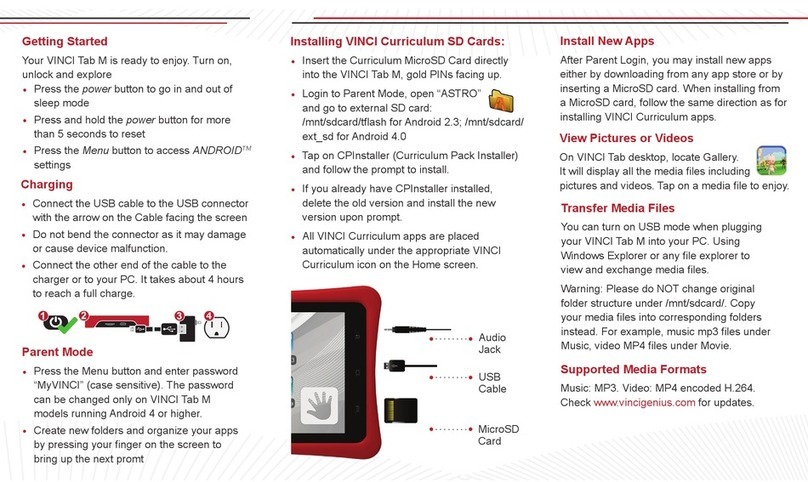
VINCI Tab M User manual

VINCI

VINCI Tab M User manual

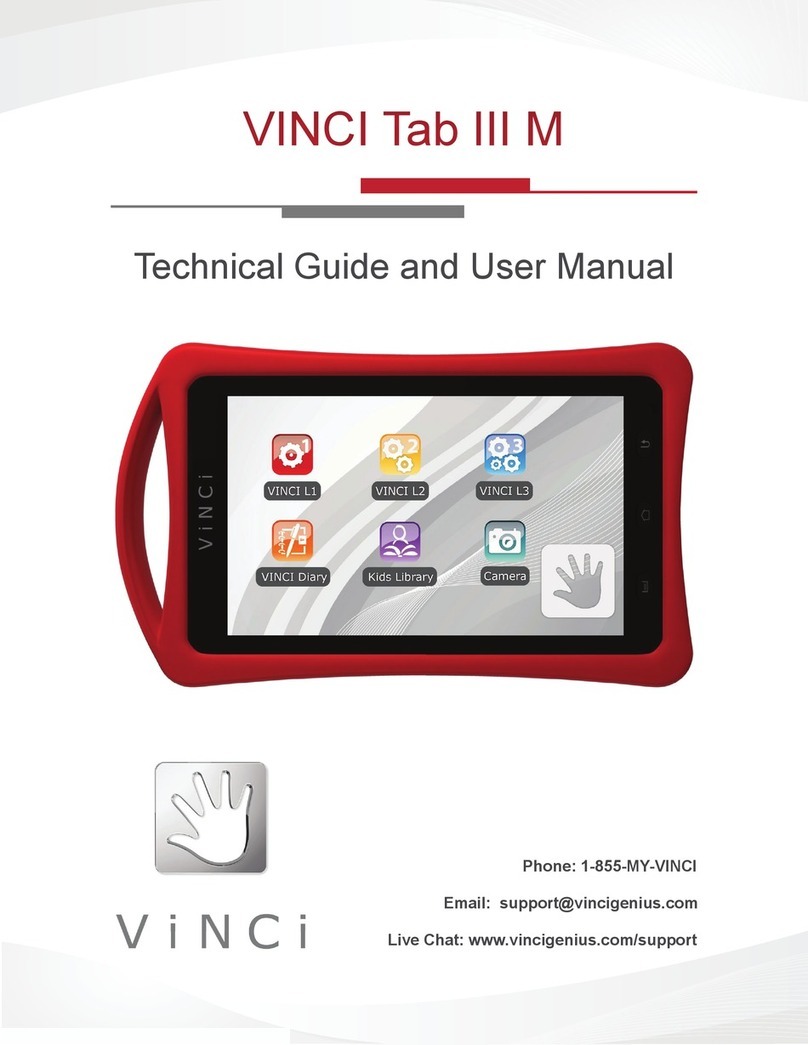
VINCI VINCI Tab III M Quick start guide

VINCI

VINCI VINCI Tab III M Quick start guide

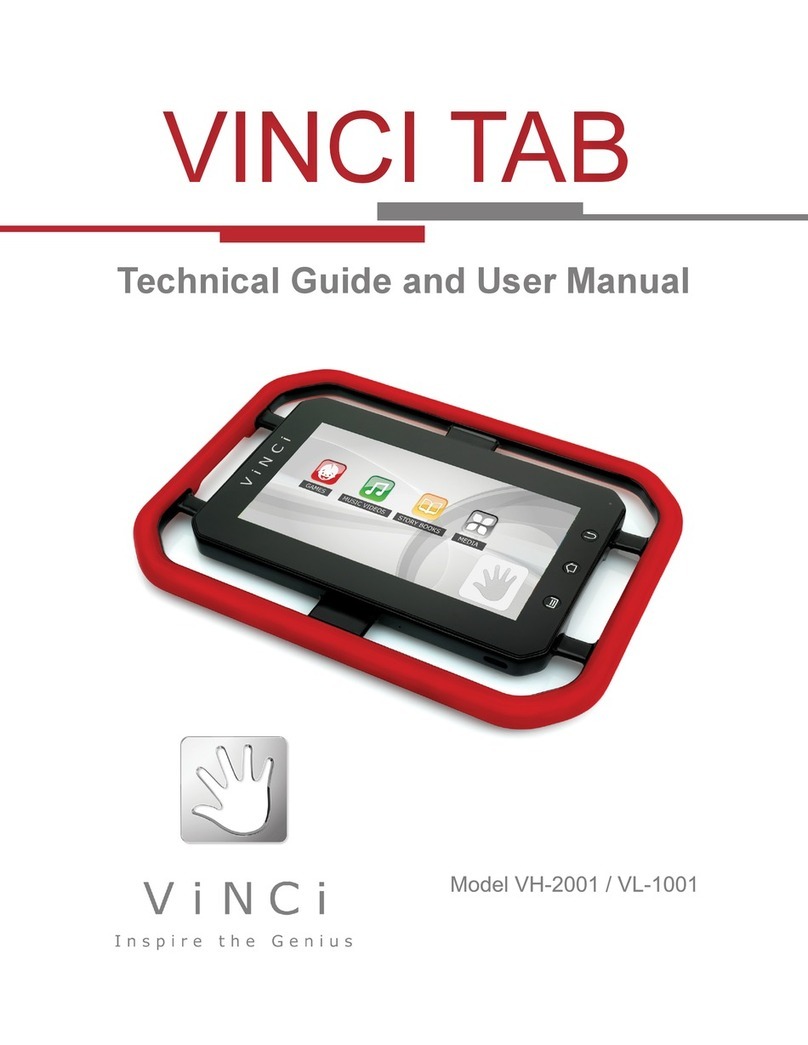
VINCI VH-2001 Quick start guide

VINCI

VINCI VH-2001 Quick start guide

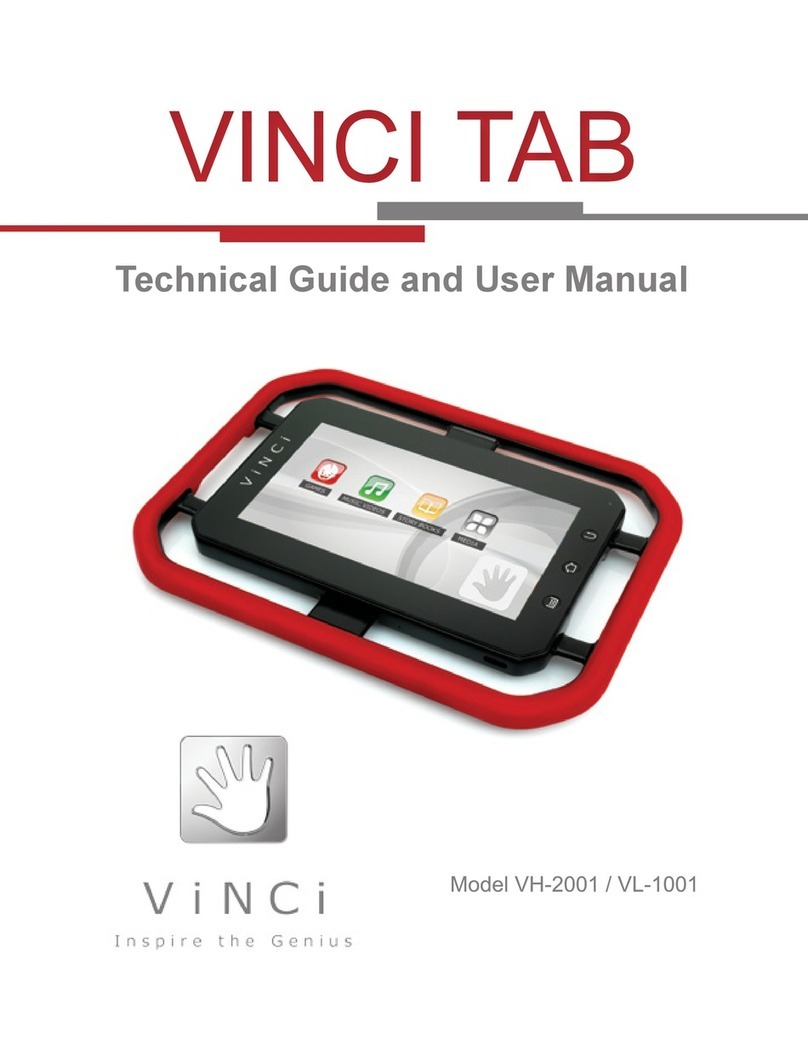
VINCI VH-2001 Quick start guide

VINCI

VINCI VH-2001 Quick start guide

VINCI Tab MV Quick start guide

VINCI

VINCI Tab MV Quick start guide

Popular Tablet manuals by other brands

Fujitsu Stylistic ST5021D Specifications

Fujitsu

Fujitsu Stylistic ST5021D Specifications

Samsung Galaxy Tab S2 user manual

Samsung

Samsung Galaxy Tab S2 user manual

Venstar 4050 user manual

Venstar

Venstar 4050 user manual

TabLines TWE Mounting instructions

TabLines

TabLines TWE Mounting instructions

Fujitsu LifeBook T902 user guide

Fujitsu

Fujitsu LifeBook T902 user guide

Coby Kyros MID1042 Series quick start guide

Coby

Coby Kyros MID1042 Series quick start guide

Porto S908ET quick guide

Porto

Porto S908ET quick guide

Samsung Galaxy Tab A user manual

Samsung

Samsung Galaxy Tab A user manual

Laser MID-1060 Quick operation guide

Laser

Laser MID-1060 Quick operation guide

MUNBYN IRT09J Easy setup guide

MUNBYN

MUNBYN IRT09J Easy setup guide

Motorola MC3090R - Win CE 5.0 Professional 520 MHz quick start guide

Motorola

Motorola MC3090R - Win CE 5.0 Professional 520 MHz quick start guide

Dell Latitude ST Setup and features information

Dell

Dell Latitude ST Setup and features information

Samsung Galaxy Tab S2 user manual

Samsung

Samsung Galaxy Tab S2 user manual

Samsung GT-P8510 user manual

Samsung

Samsung GT-P8510 user manual

Venturer WT9L11 quick start guide

Venturer

Venturer WT9L11 quick start guide

EDUGEAR UnoBook user guide

EDUGEAR

EDUGEAR UnoBook user guide

Zeki TBDB763B user guide

Zeki

Zeki TBDB763B user guide

TwinMOS TwinTAB-T102D1 user guide

TwinMOS

TwinMOS TwinTAB-T102D1 user guide

manuals.online logo
manuals.online logoBrands
  • About & Mission
  • Contact us
  • Privacy Policy
  • Terms and Conditions

Copyright 2025 Manuals.Online. All Rights Reserved.

GETTING STARTED USING VINCI TAB
Install New Apps
After Parent Login, you may install new apps either through WIFI (WIFI
Model Only) or by inserting a MicroSD card. When the MicroSD card is
inserted, go to the Android app list and nd the program “ASTRO” which is
a le browser. Locate tash under SDCard (path: /mnt/sdcard/tash), tap on
the app you want to install, and follow the prompt. Note: SDCard in the le
path means internal storage space.
Installing VINCI Curriculum SD Cards:
If it is your rst time installing VINCI Curriculum package,
please follow the instructions:
• Insert the Micro SD Card directly into the VINCI Tab. Gold PIN
should be facing up.
• Login to Parent Mode, open “ASTRO” (path: /mnt/sdcard/
tash)
• Tap on CPInstaller (Curriculum Pack Installer) and follow
the prompt to install. If it has been installed before, launch it
directly from the Android App List.
• When install is complete, open the app and it will automatically
scan for the relevant curriculum apps. Follow the prompt
to nish
• All VINCI Curriculum apps are placed automatically under the
appropriate VINCI Curriculum icon on the Home screen
Parent Mode
• Press Menu button and enter password “MyVINCI”. Password cannot be
changed and is case sensitive
• Create new folders by pressing your nger on the screen, and move apps
from Android app list to your new folder by pressing the app icon
Transfer Media Files
You can turn on USB mode by dragging your nger on the App List
screen from the top to the bottom. Follow the prompt.
Warning: Please do NOT change original folder structure under /mnt/
sdcard/. Copy your media les into corresponding folders instead. For
example, music mp3 les under Music, video MP4 les under Movie.
Supported Media Formats
Music: MP3. Video: MP4 encoded H.264. Check www.vincigenius.com
for updates.
Getting Started
Your VINCI Tab is ready to enjoy. Turn on, unlock and explore
• Press the power button to go in and out of sleep mode
• Press and hold the power button for more than 5 seconds to reset
• Press the Menu button to access ANDROID settings
USB Connection
• Connect the USB cable to the USB connector (the arrow on the USB
Cable should be facing the Tab’s screen)
• Carefully slide in the USB connector into the VINCI Tab. Do not force or
tug the connector
• USB connector may become damaged or malfunction if bent
USB
Cable
Micro
SD Card
Technical Support:
www.vincigenius.com/support
Phone: 1-855-MY-VINCI
Email: [email protected]
VINCI Tab is certied per FDA standard ASTM F963, Consumer Safety
Specication for Toy Safety, Handle Material is certied per FDA Code of
Federal Regulations (CFR) Section 21, Parts 170-199: USP Class VI, ISO
10993, Housing Material is certied per RoHS, UL 94 and FDA standard
ASTM D 2863
FCC Statement: This device has been tested and found to comply with the limits for a Class B digital device pursuant to
Part 15 of the FCC Rules. These limits are designed to provide reasonable protection against harmful interference in a
residential installation. This device generates, uses, and can radiate radio frequency energy and, if not installed and used
in accordance with the instructions, may cause harmful interference to radio communications.
However, there is no guarantee that interference will not occur in a particular installation. If this device does cause
harmful interference to radio or television reception, which can be determined by turning the device off and on, the user is
encouraged to try to correct the interference by one or more of the following measures: reorient or relocate the receiving
antenna; increase the separation between the device and receiver; connect the device into an outlet on a circuit different
from that to which the receiver is connected; or consult the dealer or an experienced radio/television technician for help.
Note: The manufacturer is not responsible for any radio or TV interference caused by unauthorized modications to this
equipment. Such modications could void the user’s authority to operate the equipment.
Conditions of Use: This device complies with Part15 of the FCC Rules. Operation is subject to the following two
conditions: (1) This device may not cause harmful interference,and (2) This device must accept any interference
received, including interference that may cause undesired operation.
WARNING: The inside of your VINCI Tab contains fragile components. Do not twist,
disassemble or drop from a high place or onto a hard surface. Avoid extreme heat and
do not submerge in water.
QUICK
GUIDE
VINCI Tab II (WIFI or no WIFI)
SafetyCertications
Register your VINCI Tab today at www.vincigenius.com to:
• Validate your warranty
• Obtain timely support
• Download VINCI Diary for free to track your child’s developmental
milestones and design your child’s personal story book.
Warning:
• Do not play while charging.
• Make sure the MicroUSB connecter is positioned correctly to ensure
proper charging.
• Do not use liquids, chemicals or detergents to clean your VINCI Tab.
Only use a dry, lint-free cloth.
12 months parts and labor only. Accidental damage of the touch screen is
not covered under the regular warranty. Please review the complete details
of the Return & Warranty Policy at
http://www.vincigenius.com/support/downloads
Return & Warranty