manuals.online logo
Brands
  1. Home
  2. •
  3. Brands
  4. •
  5. Vizio
  6. •
  7. Flat Panel TV
  8. •
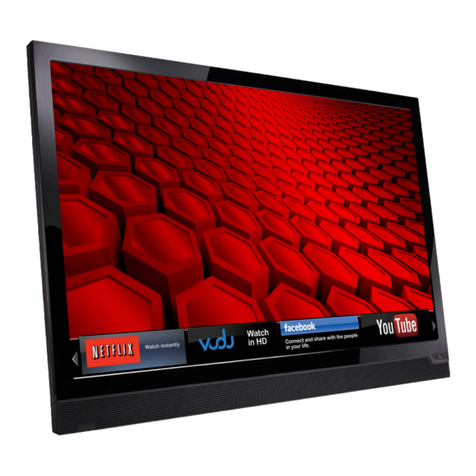
  9. Vizio M321i-A2 User manual

Vizio M321i-A2 User manual

Other manuals for M321i-A2

3

This manual suits for next models

12

Other Vizio Flat Panel TV manuals

Vizio M422i-B1 User manual

Vizio

Vizio M422i-B1 User manual

Vizio M190MV Use and care manual

Vizio

Vizio M190MV Use and care manual

Vizio VF551XVT1A User manual

Vizio

Vizio VF551XVT1A User manual

Vizio E551i-A2 User manual

Vizio

Vizio E551i-A2 User manual

Vizio GV46L FHDTV20A User manual

Vizio

Vizio GV46L FHDTV20A User manual

Vizio E550i-A0E User manual

Vizio

Vizio E550i-A0E User manual

Vizio VX52LF User manual

Vizio

Vizio VX52LF User manual

Vizio E320-B0E User manual

Vizio

Vizio E320-B0E User manual

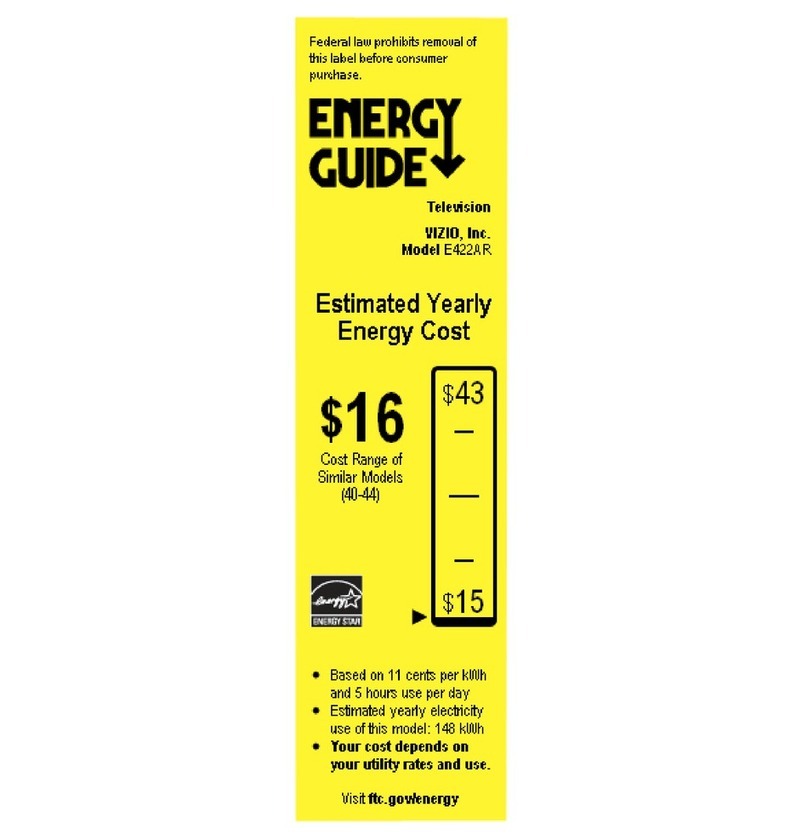
Vizio E422AR Assembly instructions

Vizio

Vizio E422AR Assembly instructions

Vizio E601i-A3E User manual

Vizio

Vizio E601i-A3E User manual

Vizio P42HDTV10A - 42" Plasma TV User manual

Vizio

Vizio P42HDTV10A - 42" Plasma TV User manual

Vizio E390VL User manual

Vizio

Vizio E390VL User manual

Vizio E500d-A0 User manual

Vizio

Vizio E500d-A0 User manual

Vizio VO47LF - 47" LCD TV User manual

Vizio

Vizio VO47LF - 47" LCD TV User manual

Vizio E500i-B1E User manual

Vizio

Vizio E500i-B1E User manual

Vizio E320AR User manual

Vizio

Vizio E320AR User manual

Vizio E550i-A0E User manual

Vizio

Vizio E550i-A0E User manual

Vizio E291i-A1 User manual

Vizio

Vizio E291i-A1 User manual

Vizio E601i-A3E User manual

Vizio

Vizio E601i-A3E User manual

Vizio E551VA User manual

Vizio

Vizio E551VA User manual

Vizio E291i-A1 User manual

Vizio

Vizio E291i-A1 User manual

Vizio E241i-A1W User manual

Vizio

Vizio E241i-A1W User manual

Vizio E500i-B1E User manual

Vizio

Vizio E500i-B1E User manual

Vizio XVT323SV User manual

Vizio

Vizio XVT323SV User manual

Popular Flat Panel TV manuals by other brands

Philips 32PFL7602D - annexe 1 Specifications

Philips

Philips 32PFL7602D - annexe 1 Specifications

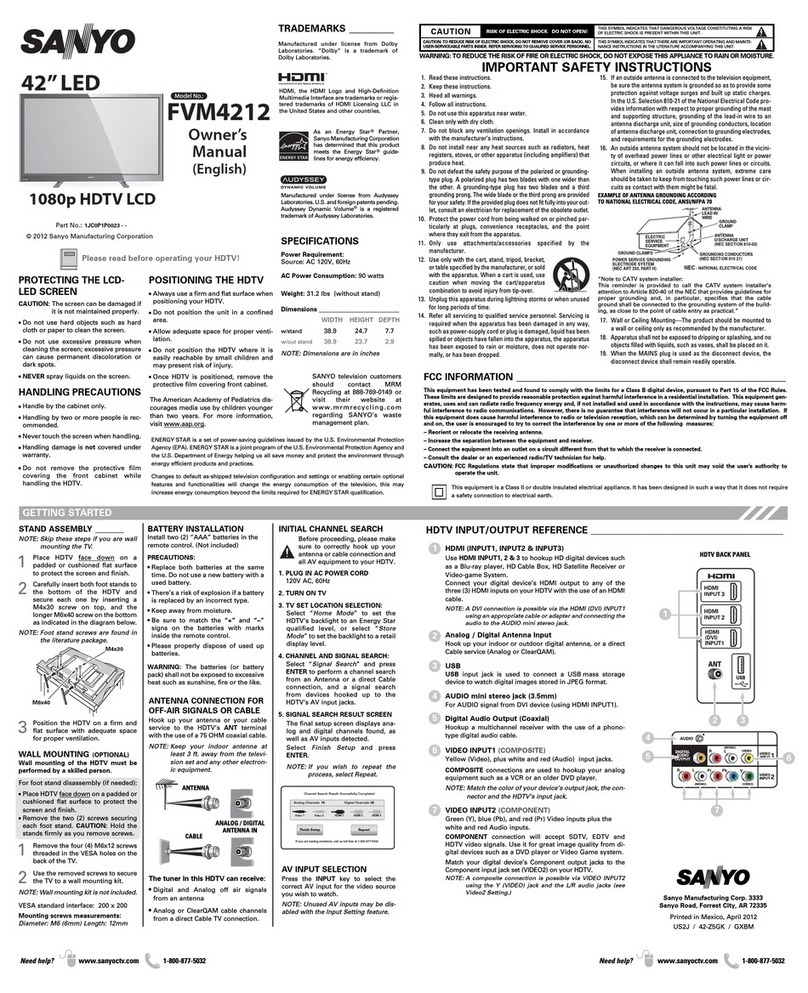
Sanyo FVM4212 owner's manual

Sanyo

Sanyo FVM4212 owner's manual

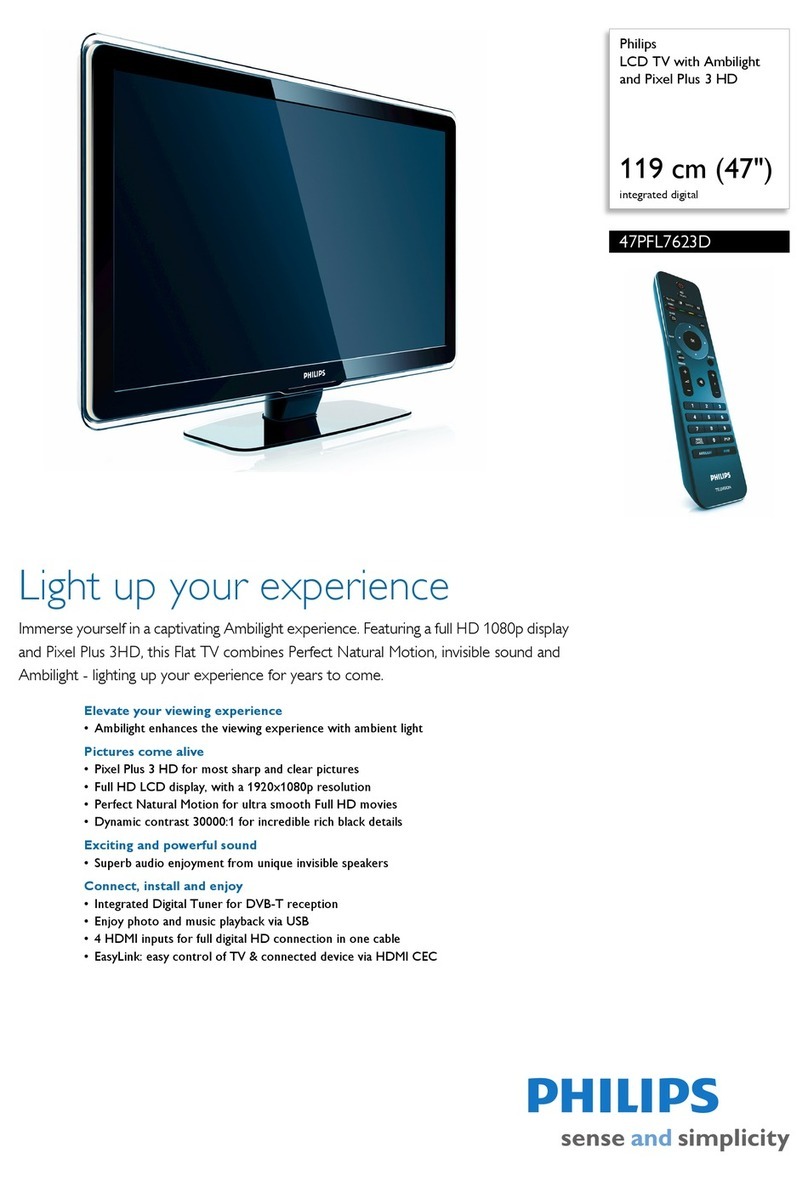
Philips 47PFL7623D Specification sheet

Philips

Philips 47PFL7623D Specification sheet

JVC LT-32Z48 instructions

JVC

JVC LT-32Z48 instructions

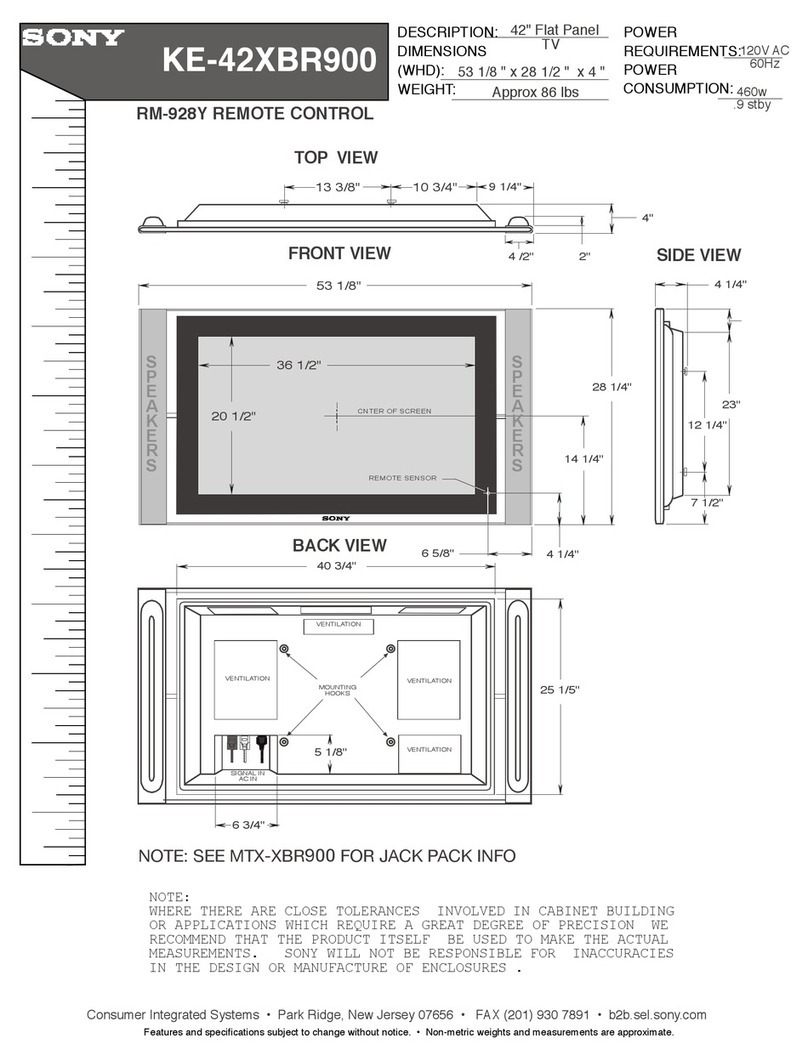
Sony KE-42XBR900 - 42" Xbr Plasma Wega™ Integrated... Dimension Guide

Sony

Sony KE-42XBR900 - 42" Xbr Plasma Wega™ Integrated... Dimension Guide

Philips Brilliance 298X4 user manual

Philips

Philips Brilliance 298X4 user manual

Samsung UN55F7050AF quick start guide

Samsung

Samsung UN55F7050AF quick start guide

Philips 1EMN26039A user manual

Philips

Philips 1EMN26039A user manual

RCA TruFlat F20TF30 Brochure & specs

RCA

RCA TruFlat F20TF30 Brochure & specs

Samsung LW32A33W Connecting guide

Samsung

Samsung LW32A33W Connecting guide

Philips 37PF5520D brochure

Philips

Philips 37PF5520D brochure

Sony FD Trinitron Wega KV-30HS420 Specifications

Sony

Sony FD Trinitron Wega KV-30HS420 Specifications

Philips 32PFL7782D Specifications

Philips

Philips 32PFL7782D Specifications

Sanyo CA21KS2 instruction manual

Sanyo

Sanyo CA21KS2 instruction manual

Samsung PN50A550S1F manual

Samsung

Samsung PN50A550S1F manual

Philips 37PFL7662D Specifications

Philips

Philips 37PFL7662D Specifications

NEC X461HB - MultiSync - 46" LCD Flat Panel... Setup manual

NEC

NEC X461HB - MultiSync - 46" LCD Flat Panel... Setup manual

Philips 50PF9830A Specifications

Philips

Philips 50PF9830A Specifications

manuals.online logo
manuals.online logoBrands
  • About & Mission
  • Contact us
  • Privacy Policy
  • Terms and Conditions

Copyright 2025 Manuals.Online. All Rights Reserved.

Network Setup
There are two ways that your smart device can be connected
to your network:
1 . Wired - using Ethernet cables to connect the router and
Internet-capable devices, or
2 . Wireless - using radio waves, also known as Wi-Fi,
transmitted through a router.
You can connect your smart device using either of these
methods. However, VIZIO recommends using a wired network
connection for the most reliable connection and the best
performance.
How fast should my Internet connection be?
VIZIO recommends high-speed Internet service with speeds of
1.5mbps or higher.
Video Streaming FAQs
Your smart VIZIO devices allow you to stream TV, movies, and
games over the Internet.The information in this FAQ will help you
determine the best way to set up your network and get the best
video streaming experience available. If you are unfamiliar with
some of the terms used in this FAQ, see the glossary on page 4.
Network Setup — Wired vs Wireless?
BEST GOOD
Some apps and high-definiton video may require
higher connection speeds to function properly.
(Check the app’s documentation for
more information.)
I don’t know how fast my Internet connection is. How do
I find out?
If you don’t know what your connection speed is, you can test
it here: www.speedtest.net, or contact your Internet Service
Provider (ISP).
My video keeps pausing or freezing.What should I do?
Your video may be stopping momentarily to re-buffer.
Re-buffering is caused by changes in your Internet connection
speed. Streaming a movie online requires a stable high-speed
Internet connection to avoid freezing and re-buffering. Make
sure you have a consistent connection of at least 1.5mbps or
higher while streaming movies.
My Internet connection is fast, but I’m not getting high-
definition video.What should I do?
If you’ve confirmed that your network speed is 1.5mbps or
higher, you may need to:
1. Increase your bandwidth:
• Stop other online activity, like online gaming, file
sharing, or other video streaming.These activities can
significantly decrease your bandwidth.
• If using Wi-Fi, make sure your network is secure. If your
network is unsecured, you may be unknowingly sharing
your signal with other people in your area.
2. Adjust the video quality settings on the streaming app.
Try switching the setting to a lower quality to eliminate
interruptions in the video stream.
Your VIZIO smart device may not support all of these
applications. See the device’s user manual for more
information.

Netflix
To manage Netflix Video Quality:
1. Go to www.netflix.com.
2. Sign in to your Netflix Account.
3. Click on Your account & Help.
4. Click Manage video quality.
5. Select Good, Better or Best.
6. Allow 30 minutes for settings to be applied.
Hulu
To adjust Hulu Playback Quality:
1. Go to www.hulu.com.
2. Sign into your Hulu Account.
3. Click on your user name in the top right-hand corner.
4. Select the Privacy and Settings tab.
5. Scroll down to Player Settings.
6. Select low, medium, high, HD or auto (recommended) as
the Playback Quality.
Hulu
Vudu and Amazon Instant Video
When you rent a movie, select the format that your Internet
connection supports. For example, if you have a fast Internet
connection with optimal bandwidth, you can rent a movie in
High Definition (HD or HDX [Vudu only]). If you have a slower
connection speed, you may get better results using the
standard definition (SD) version.
More ways to maximize your connection speed
• Check the distance between your device and the
router. (We recommend your device be within 30 feet of
your router.)
• Change the wireless channel on your router. (See the
documentation that came with your router for more
information.)
• Move your router to a location that has a direct
line-of-sight with your device.
• Move your router away from any cordless phones,
microwaves or radios, as they may cause interference
with your wireless network.
• Check the encryption key setting (WEP, WPA/WPA2) on
your LAN router/access point. For improved streaming
quality, we recommend WPA2 if supported. (See the
documentation that came with your router for more
information.)
• Move your router away from metal fixtures or fish tanks.
The metal or water may cause interference with your
wireless network.
Netflix
Single-story
Multi-story
Poor Placement
Poor Placement
Optimal Placement
Optimal Placement
OP
OP
Router Placement — Where should my router go?
The optimal place for your router is in a centralized location, with a minimum amount of interference
between the router and any internet-connected devices. This means it should be away from heavy
furniture, walls, and other electronic devices that may disrupt the signal.
GLOSSARY
Bandwidth: In computer networking, bandwidth refers to the
data rate supported by a network connection or interface.
Bandwidth is usually expressed in terms of bits per second
(bps). Having high bandwidth is good, because it allows you
to download data faster and stream HD video smoothly.
Buffer: Refers to downloading a certain amount of data before
starting to play the music or movie.The buffer is there to prevent
disruption in the video if the video is transmitting slower than it
is being watched.
Ethernet: The most common type of connection computers
use in a local area network (LAN).An Ethernet port looks much
like a regular phone jack, but it is slightly wider.This port can be
used to connect your computer to another computer, a local
network, or a cable modem.
Internet Service Provider (ISP): An ISP provides Internet service
to individuals and businesses. Typical options for high-speed
Internet access include DSL and cable.
Router: A hardware device that routes data from a local area
network (LAN) to another network connection.A router acts like
a coin sorting machine, allowing only authorized machines to
connect to other computer systems. Many routers also keep
log files about the local network activity.
Streaming: Refers to video and/or audio data transmitted over
a computer network for immediate playback rather than for file
download and later (offline) playback.