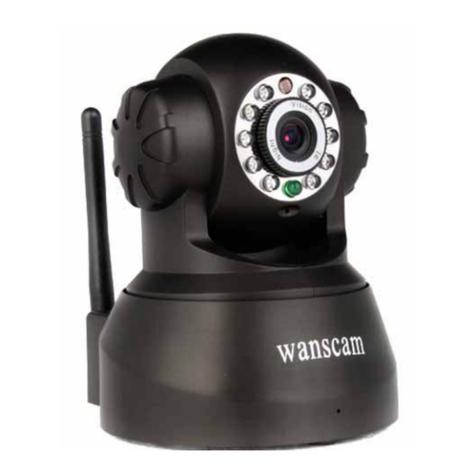
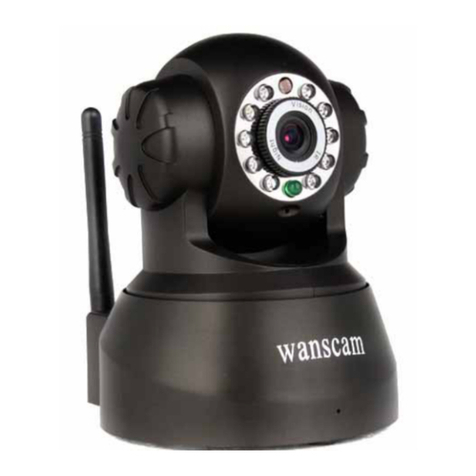
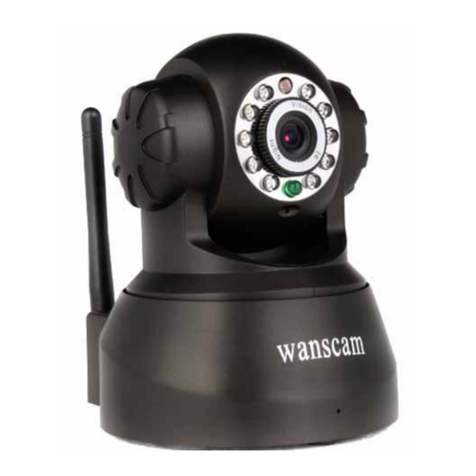
wanscam AJ-C2WA-C118 User manual

0
Wired/Wireless IP Camera
Quick Installation Guide
(IE Browser)
Model: AJ-C2WA-C118

1
Step 1: Hardware Installation
1. Install the Wi-Fi antenna.
2. Plug the power adaptor into camera.
3. Plug the network cable into camera, the other side to the router/switch

2
Step 2: Software Installation
Install the follow software:
1. ActiveX: Click “OCX setup”—“Next”—“Install”—“Finish”.
2. Search Tool: Open the CD, click ,The Search Tool will run
automatically.( No need to install. You can copy this software to your desktop.)
Step 3: Real-time Video Demonstration.
1. Login:
Double click “Search Tool” icon on CD or desktop for search the IP address of the camera,
choose one of your camera’s IP address, double click or click “Open” button to go to IE
login interface.
Default username: admin
Password: no password.

3
Note:
1. Current Computer indicates the Computer’s IP Address information.
2. Equipment information indicates the IP camera’s IP Address information.
3. Make sure the “Subnet Mask”, “Gateway”, “DNS Server” is the same as your router.
4. If you don’t know how to configure your camera’s IP address. You can click
“ Update” button. The Search Tool software can help you configure a usable IP Address
camera automatically.
.

4
2: Choose the language and Sign in Mode.
3: Sign in.
Click sign in, then can get video on real-time.

5
Q1: No pictures problem with ActiveX Settings for IE Browser
If use IE browser to connect the camera for the frist time, maybe there is no image
displayed, there will be an ActiveX prompt, please click the prompt and choose Run Add-
on, refresh the IE interface, and login the camera again, then will see live video.
Windows XP system
Win7 System

6
If there is still no live video after run ActiveX, please try to enable the ActiveX options of IE
security settings, please do the follow steps:
1. Close the firewall of your computer.
2. Change the ActiveX settings, “IE” browser > “Tool” > “Internet Options” > “Security”>
“Custom Level” > “ActiveX control and Plug-ins”, all the ActiveX options set to be
“Enable”: Especially:
Enable: Download unsigned ActiveX controls
Enable: Initialize and script ActiveX controls not marked as safe
Enable: Run ActiveX controls and plu-ins

7
In Addition: you can also click “start” menu->“Internet Explorer”, choose “Internet
attributes “ to enter, or via “Control Panel” ->“Internet Explorer”, enter to Security setting.
3. If there is still no image, please close your anti-virus software, and then try step 1 & 2
again.
Q2: How to do Wireless Settings
1. Make sure the router is a wireless router.
2. Make sure the Wi-Fi antenna installed.
3. Make sure whether there is encryption of the WLAN of the router, if there is encryption,

8
keep the key.
4. Login the camera, click >“Wireless Lan Settings”>”Scan”, please scan 2times,
then you will find the WLAN from the list, choose the one you use.
5. If there is no encryption, just click “Submit”, if there is encryption, please input the key,
then click “Submit”.
6. Wait about 30 seconds, the camera will reboot, then unplug the network cable.
Q3: How to use DDNS
1. Login the camera:
Click > “DDNS Service Settings”.
2. Choose the DDNS, there are 4 kinds of options:
(1): Manufacturer’ DDNS: We provide a free DDNS: vipcam.org. This domain is
provided by manufacturer.
Note: 88safe.com is old DDNS provided by manufacturer also. If you want use the manufacturer’s
free DDNS, Please Choose to use vipcam.org.

9
(2): The Third Party DDNS: This domain is provided by the 3rd party, such as Dyndns,
Oray, 3322
If you use the third party DDNS, please choose the server you need, such as “3322.org”
or“dyndns.org” as below:
You have to register an account firstly, keep the user, password, host, then fill in it.
Note: Only one DDNS can be chosen, for example, if you use manufacturer’s DDNS, the
3rd party one won’t work, if use the 3rd party DDNS, the manufacturer’s one won’t work.
Table of contents
Other wanscam Security Camera manuals