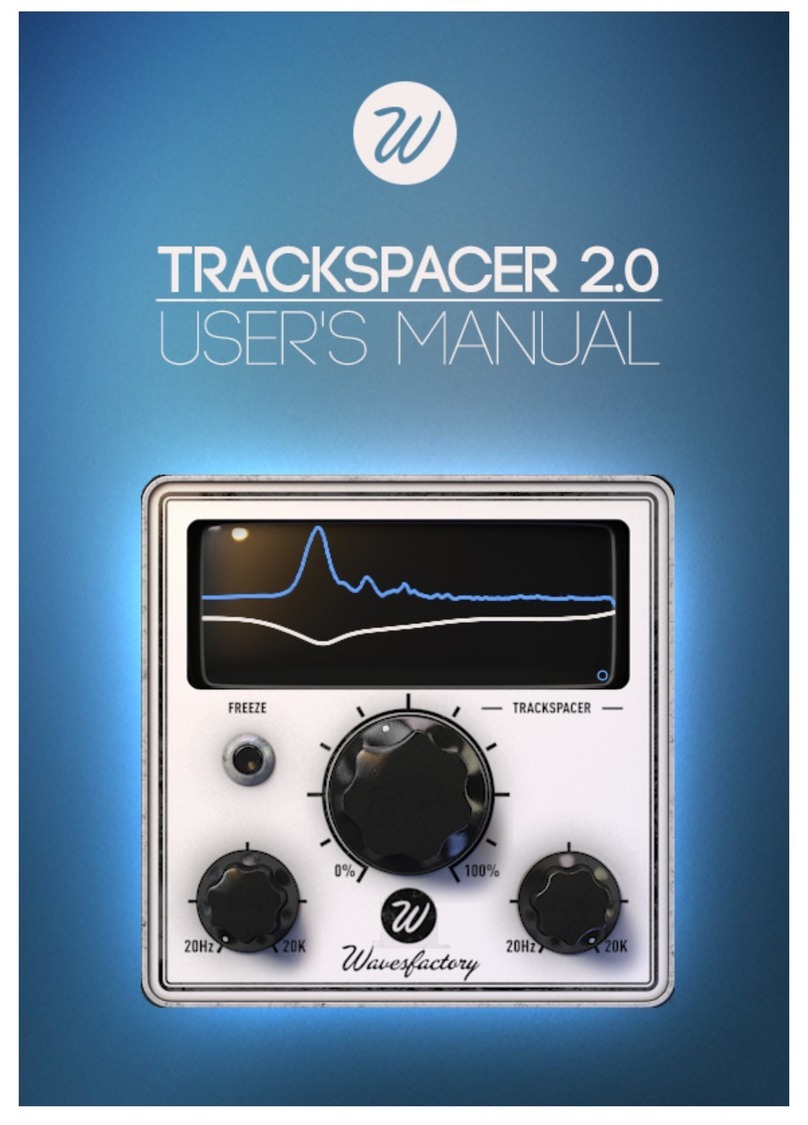
Wavefactory TrackSpacer User manual

Copyright 2012 by Wavesfactory. All Rights Reserved.
TrackSpacer User Manual
.

TrackSpacer User Manual, Revision A
2
Table of Contents
What Is TrackSpacer?............................................................................................. 3
Installing TrackSpacer ............................................................................................ 4
Entering Your Serial Number....................................................................................................... 6
Demo Version Limitations........................................................................................................... 6
About Sidechaining ................................................................................................ 7
Setting Up TrackSpacer .......................................................................................... 7
Overview of the TrackSpacer GUI ........................................................................ 10
Controls ..................................................................................................................................... 11
EQ Display.................................................................................................................................. 11
Basic Usage of TrackSpacer.................................................................................. 12
Legal Agreement.................................................................................................. 15
Limited Warranty and Disclaimer......................................................................... 16

TrackSpacer User Manual, Revision A
3
What Is TrackSpacer?
TrackSpacer is an audio plug-in (available in VST, AU, and RTAS formats) that creates space in the mix for
an instrument, voice, or other audio by performing automatic ,multiband equalization on a channel. In
real-time it analyzes the audio frequency content in a channel via sidechain, and applies an intelligent
32-band EQ to subtract those frequencies from the channel where TrackSpacer is inserted.
TrackSpacer is versatile and can be used in many different situations. But for illustration let’s look at
two common examples where it can solve complex EQ problems.
If the kick and bass are competing for space, insert TrackSpacer in the bass channel and have it listen to
the kick. Then you can easily fine-tune TrackSpacer so that it only subtracts from the bass signal the
frequencies that help define the core sound of the kick. The result is that both are heard more clearly.
If you need to create room for the vocal in a busy and dense mix, route all the competing instruments to
a bus, insert TrackSpacer, and have it listen to the vocal. As the performer talks or sings TrackSpacer
selectively subtracts the vocal’s audio frequency energy from the bus signal. This gives the vocal a lift
without a reduction in the overall volume level of the instruments.

TrackSpacer User Manual, Revision A
4
Installing TrackSpacer
Run the TrackSpacer install program to install TrackSpacer to your computer.
1. Start the install program to display the
TrackSpacer Setup Wizard.
2. Click Next to continue.
3. Review the license agreement.
4. Click the radio button beside “I accept the
agreement”.
5. Click Next to continue.

TrackSpacer User Manual, Revision A
5
6. Select the folder where you wish TrackSpacer
to be installed.
Note: Apple users will see the folder location for
installing AU plug-ins.
7. Click Next to continue.
8. Confirm that the installation destination
folders are correct.
9. Click Install to install TrackSpacer.

TrackSpacer User Manual, Revision A
6
Entering Your Serial Number
You will be prompted to enter a serial number the first time you insert TrackSpacer into a channel.
1. Copy and paste the serial number into the
text field, then press the Enter/Return key.
2. Close TrackSpacer.
3. Relaunch TrackSpacer.
Demo Version Limitations
Please note that the demo version of TrackSpacer has the following limitations:
MIDI automation of controls is disabled
Control settings are not saved
An audio watermark sounds at two-minute intervals

TrackSpacer User Manual, Revision A
7
About Sidechaining
Sidechaining within a DAW refers to using the audio signal in one channel (the send) to trigger or control
a virtual effect (VST, AU, RTAS etc.) that modifies the audio in a different channel (the receive).
Two examples of sidechaining that you may be familiar both involve the use of a compressor:
Ducking –using the presence of one signal to trigger a volume reduction of another signal.
A classic ducking setup involves using a compressor on a rhythm guitar track, with the
compression triggered by the presence of a lead vocal. This causes the guitar to “duck” out of
the way of the vocal.
Gating –using the presence of one signal to trigger a gate on another signal. A common dance
and electronic music technique is to use the audio from a kick drum to open the gate on a bass
track. This tightens up the mix by making the kick drum and bass attacks perfectly in sync.
Of course you can also use sidechain techniques with stem mixes so that an entire group of tracks can
be ducked, gated, equalized, or otherwise affected in response to another signal.
Setting Up TrackSpacer
This section provides the steps for inserting TrackSpacer and setting up the sidechain.
1. Decide on two tracks or channels that you want TrackSpacer to analyze. The channel containing
the audio to be equalized is called the affected signal. The channel that TrackSpacer uses for
comparison is called the control signal.
2. Insert TrackSpacer as an effect on the channel you wish to EQ –the affected signal.
Note: The procedure for Cubase with VST 2.4 is different. Skip this step if using Cubase and
proceed to step 3.
3. Setup the sidechain. Each DAW requires a different procedure. The most popular ones are
covered below:
Pro Tools
1. In the I/O section of the control signal’s channel strip, send the output to a bus.
2. Open the TrackSpacer GUI window within the wrapper and set the Key Chain
Input to the send from the control signal bus.
Channel 1 Send
Channel 2 Receive
VST Effect
Channel 2 Affected Audio

TrackSpacer User Manual, Revision A
8
Logic
1. In the Sends field of the control signal’s channel strip, select a bus.
2. Open the TrackSpacer GUI window, then select the control signal (send) bus in the
Side Chain menu.
Cubase
1. CTRL+click on an empty channel space, then click Add Group Channel Track.
2. From the pop up menu, select Stereo>More>Quadro.
3. CTRL+click on this new group, select Add Child Bus, then select Stereo (Ls Rs).
4. In the Quadro Group channel you just created, go to the Inserts section and insert
TrackSpacer.
5. Open the TrackSpacer GUI window, then select the correct sidechain SC: option for
the control channel that TrackSpacer will listen to.
6. From the control channel, select Sends then select Side Chain. Then, turn the
send on and set the Pre-Fader button to on.
7. From the control channel, set the Output Routing to the Stereo (Ls Rs) output of
the Quadro Group channel.
8. From the channel containing the audio you wish TrackSpacer to EQ, set the
Output Routing to the Stereo (not child) output of the Quadro Group channel.
Ableton Live
1. From the control channel, go to I/O settings, then set Output Type to the track
where TrackSpacer is inserted.
2. Open the TrackSpacer GUI window, click the down arrow button beside the on/off
button, then click Sidechain.
3. Click the Audio From menu and select the channel containing the control signal.
Reaper
1. From the control signal’s channel strip, click and drag the I/O button to the
channel strip of the affected signal (the channel strip with TrackSpacer inserted).
The Routing/Controls window will display.
2. In the Sends section of the window, set the Receive channel using the second
Audio drop down menu (to the right of => symbol) to the channel with
TrackSpacer.
Important Note:
On most DAWs, setting a channel output to a sidechain bus will cause the audio from that channel to

TrackSpacer User Manual, Revision A
9
not be audible. In order to hear the audio you must either create a duplicate of the control signal
channel with the output routed normally, or enable a master parent send to the master output fader.

TrackSpacer User Manual, Revision A
10
Overview of the TrackSpacer GUI
TrackSpacer is a powerful tool that is surprisingly simple to use. There are only four controls and an EQ
display that shows the control signal and the EQ amount of the affected signal.
Note: the screenshot below was taken from TrackSpacer used in Reaper DAW, with the control and
affected signals as channel 1 and channel 2.
Channel 1 Send
Channel 2 Receive
Freeze Button
EQ Ratio
Low Pass
Frequency
High Pass
Frequency
EQ Display
Table of contents
Other Wavefactory Software manuals