3
Table of contents
1 Warnings and Safety information.........................................................................6
2 Getting started.........................................................................................................7
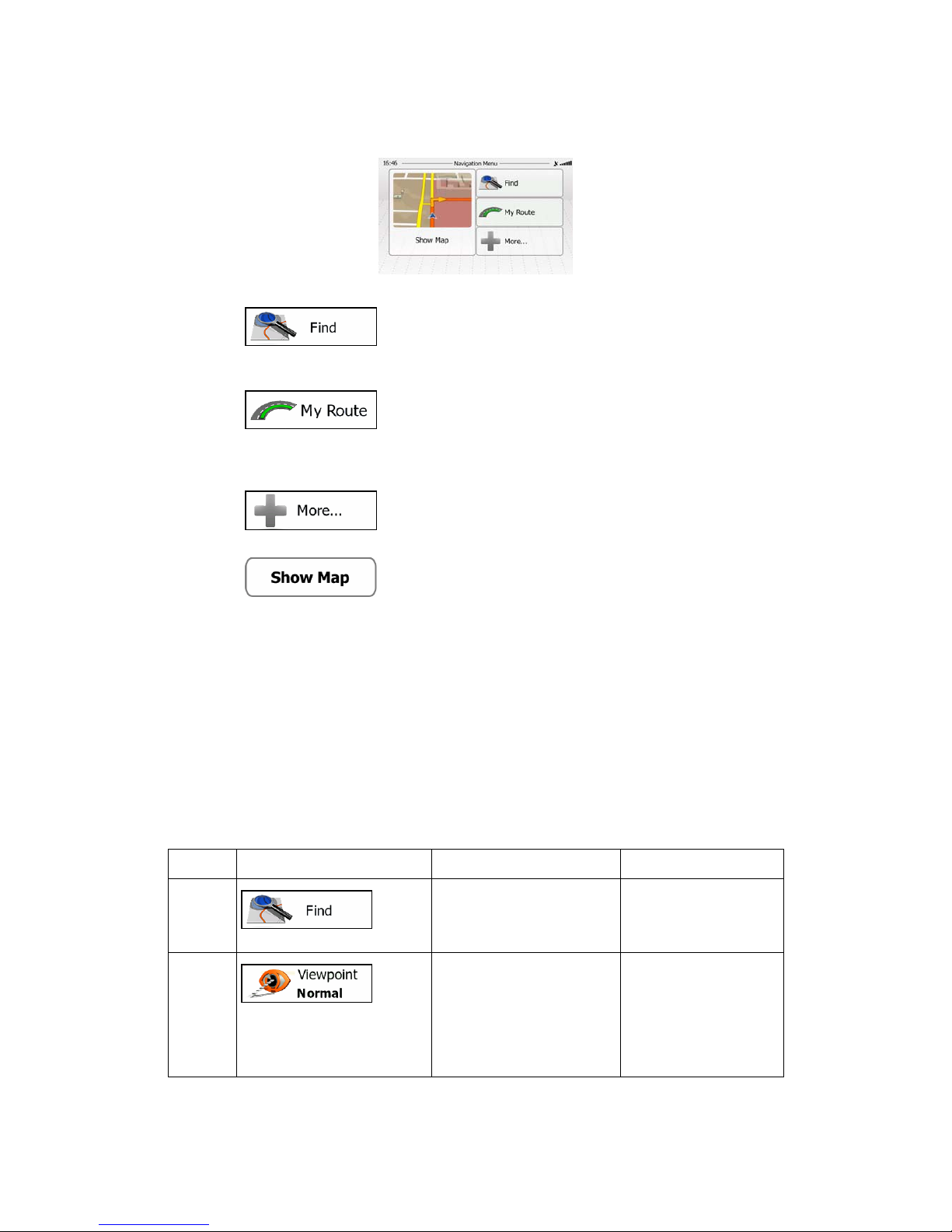
2.1 Navigation menu............................................................................................................8
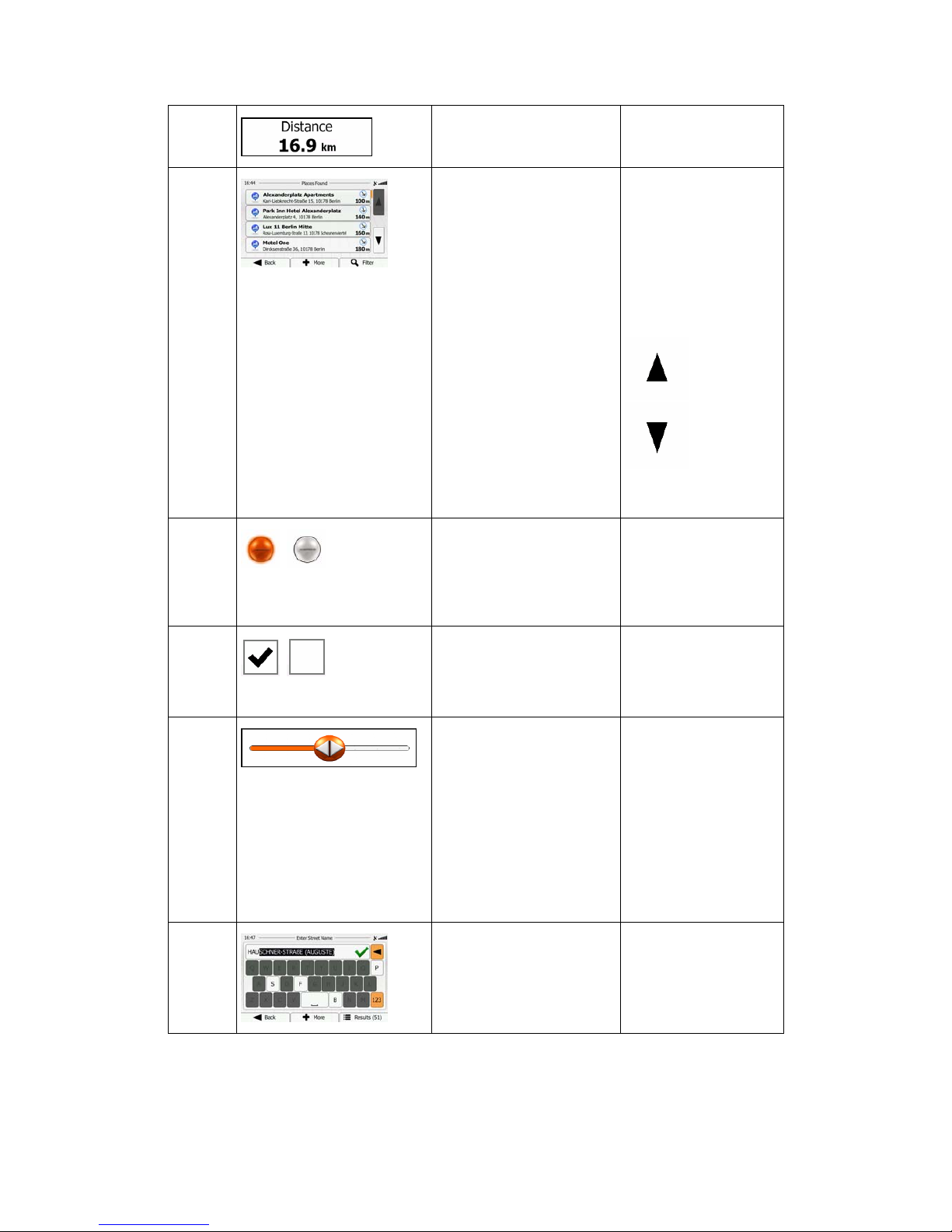
2.2 Buttons and other controls on the screen.......................................................................8
2.2.1 Using keyboards ................................................................................................................ 10
2.2.2 Beyond single screen tap ................................................................................................... 11
2.3 Map screen...................................................................................................................11
2.3.1 Navigating on the map....................................................................................................... 11
2.3.2 Position markers ................................................................................................................ 13
2.3.2.1 Vehimarker and Lock-on-Road.................................................................................................. 13
2.3.2.2 Selected map location (Cursor) and selected map object .......................................................... 13
2.3.3 Objects on the map ............................................................................................................ 14
2.3.3.1 Streets and roads ....................................................................................................................... 14
2.3.3.2 Turn preview and Next street..................................................................................................... 14
2.3.3.3 Lane information and Signposts................................................................................................. 15
2.3.3.4 Junction view............................................................................................................................. 16
2.3.3.5 Motorway exit services .............................................................................................................. 16
2.3.3.6 3D object types........................................................................................................................... 16
2.3.3.7 Elements of the active route....................................................................................................... 17
2.3.4 Manipulating the map........................................................................................................ 17
2.3.5 Quick menu........................................................................................................................ 19
2.3.6 Checking the details of the current position (Where Am I?) ............................................. 21
3 On-road navigation...............................................................................................23
3.1 Selecting the destination of a route..............................................................................23
3.1.1 Entering an address or a part of the address....................................................................... 23
3.1.1.1 Entering an address................................................................................................................... 24
3.1.1.2 Entering the midpoint of a street as the destination................................................................... 26
3.1.1.3 Selecting an intersection as the destination............................................................................... 27
3.1.1.4 Selecting a city/town centre as the destination........................................................................... 29
3.1.1.5 Entering an address with a postal code..................................................................................... 30
3.1.1.6 Tips on entering addresses quickly............................................................................................ 32
3.1.2 Selecting the destination from the Places of Interest ......................................................... 32
3.1.2.1 Quick search for a Place of Interest........................................................................................... 33
3.1.2.2 Searching for a Place of Interest using preset categories.......................................................... 34
3.1.2.3 Searching for a Place of Interest by category............................................................................ 36
3.1.2.4 Searching for a Place of Interest by name................................................................................. 38
3.1.2.5 Selecting nearby assistance from 'Where Am I?' ....................................................................... 41
3.1.3 Selecting a map location as the destination ....................................................................... 42
3.1.4 Selecting the destination from your Favourites ................................................................. 43
3.1.5 Selecting one of the most likely destinations (Smart History)........................................... 44