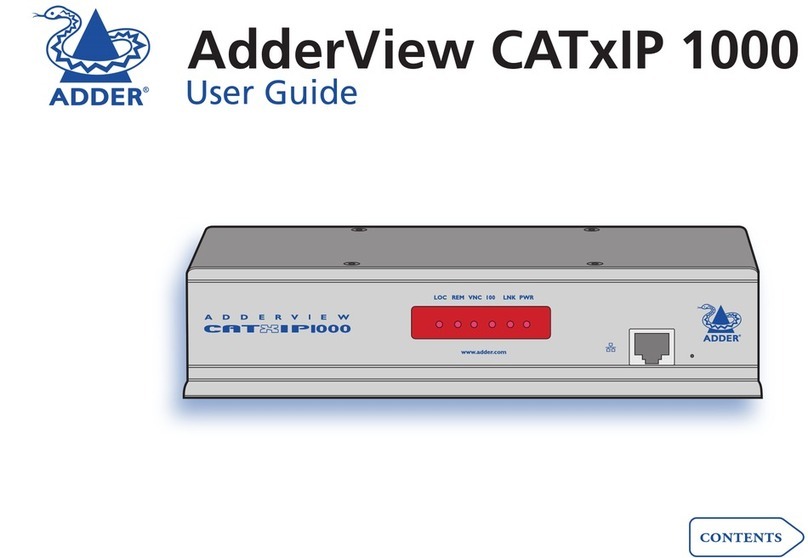
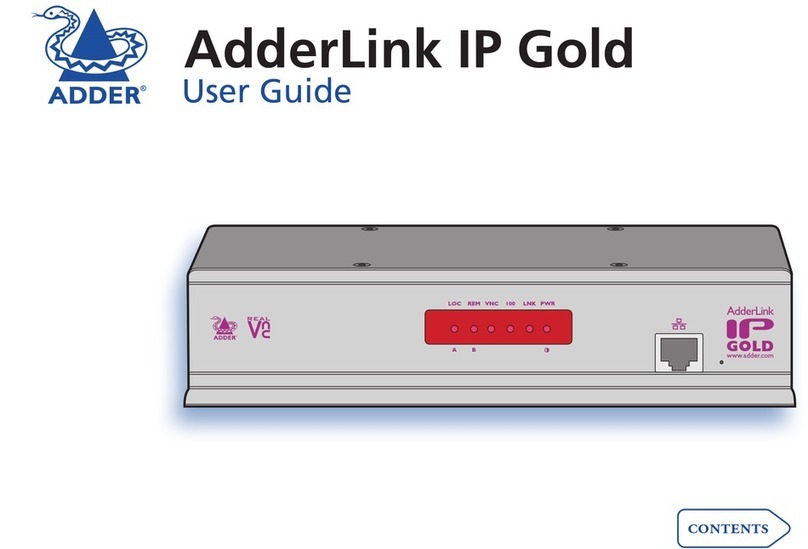
ADDER AdderLink IP User manual

AdderLink IP
User Guide
LOC REM VNC 100 LNK PWR

1
Contents
Introduction
AdderLink IP features - front and rear.......................................4
What’s in the box ........................................................................5
What you may additionally need ...............................................5
Installation
Mounting .....................................................................................6
Connections .................................................................................7
Host computer or KVM switch ...............................................7
Local keyboard, video monitor and mouse...........................8
IP network port.......................................................................8
Modem/ISDN port ...................................................................9
Power supply connection .......................................................9
Power control port ...............................................................10
Conguration
Initial conguration ..................................................................11
Part 1 – Local conguration .................................................11
Encryption settings...........................................................13
Hot plugging and mouse restoration .............................14
Resetting the conguration ...........................................15
Part 2 – Remote conguration.............................................16
Networking issues .....................................................................17
Positioning AdderLink IP in the network ............................17
Placing AdderLink IP behind a router or rewall ..........17
Placing AdderLink IP alongside the rewall...................19
Power switching conguration ................................................20
The KVMADMIN utility .............................................................21
Performing a ash upgrade......................................................22
Operation
Connecting to the AdderLink IP ...............................................23
Local connection ...................................................................23
Remote connections .............................................................24
Remote connection by VNC viewer.................................25
Remote connection by Web browser..............................25
Using the viewer window ....................................................26
The menu bar ...................................................................26
When using the viewer window .....................................26
Mouse pointers.................................................................27
Congure..........................................................................27
Auto calibrate ............................................................28
Re-synchronise mouse ................................................28
Access mode - shared/private .........................................28
Power control ...................................................................28
Controls.............................................................................29
Connecting via dial up (modem or ISDN) link ................32
Downloading VNC viewer from the AdderLink IP .........32
If you need to enter a port number................................32
Viewer encryption settings..............................................33
Supported web browsers.................................................33
Contents - page 2

2
Further information
Getting assistance......................................................................34
Troubleshooting ........................................................................34
Appendix 1 - Local conguration menus.................................35
Unit conguration ................................................................36
Network conguration.........................................................37
Modem conguration ..........................................................38
Reset conguration ..............................................................39
Clear IP access control...........................................................40
Appendix 2 - VNC viewer connection options.........................41
Colour/Encoding ...................................................................41
Inputs.....................................................................................42
Scaling ...................................................................................43
Misc........................................................................................43
Identities................................................................................44
Load / Save ............................................................................44
Appendix 3 - VNC viewer window options..............................45
Appendix 4 - Browser viewer options ......................................46
Encoding and colour level....................................................46
Inputs.....................................................................................46
Security ..................................................................................46
Misc........................................................................................46
Appendix 5 - Remote conguration menus.............................47
User accounts ........................................................................48
Unit conguration ................................................................49
Advanced unit conguration ..........................................50
Network conguration.........................................................51
Setting IP access control...................................................52
Serial port conguration......................................................53
Host conguration................................................................54
Hotkey sequences and Adder Port Direct ...........................55
Logging and status ...............................................................56
Appendix 6 – Addresses, masks and ports ...............................57
IP addresses ...........................................................................57
Net masks ..............................................................................57
Net masks - the binary explanation ................................58
Calculating the mask for IP access control......................59
Ports.......................................................................................60
Security issues with ports.................................................60
Appendix 7 – Cable and connector specications...................61
RS232 serial mouse to PS/2 converter cable .......................61
AdderLink IP to power switch cable ...................................61
Power switch to power switch daisy chain cable................61
Appendix 8 – Hotkey sequence codes......................................62
Permissible key presses .........................................................62
Creating macro sequences ...................................................62
Appendix 9 – Supported video modes .....................................63
Other products in the Adder range..........................................64
Warranty ....................................................................................64
Safety information ....................................................................64
End user licence agreement......................................................65
Radio Frequency Energy ...........................................................66
Index
HT

3
Introduction
Thank you for choosing the AdderLink IP
from Adder Technology. This intelligent
product delivers straightforward setup,
secure operation and the ability to fully
control one or more computers from
almost anywhere.
Remote control via a network
connection is nothing new and
software-only solutions to facilitate this
are commonplace. However, they all
present two major drawbacks: a) Special
software must be used on all of the
computers involved, especially the host,
and b) if that host ceases to operate, the
remote user is powerless to intervene.
AdderLink IP is different and requires
only the remote system(s) to run a small
utility. The host system can run its usual
operating system completely unchanged
and needs only to be connected (via its
keyboard, video and mouse ports) to the
compact AdderLink IP box.
It is this external connection to the
AdderLink IP that keeps the remote user
in control. Even in the midst of a system
crash, the remote user can still view the
host’s condition as if sitting next to it.
Additionally, when the power switch
option is employed, a host system can be
remotely rebooted, no matter how badly
it has locked-up.
AdderLink IP really starts to excel when
it is hooked to a suitable KVM switch.
Then its robust, secure and adaptable
operation is available across up to 128
separate host systems.
LOC REM VNC 100 LNK PWR
KVM switch
OR
IP network/
Internet
Power switch
Modem or ISDN
Modem or ISDN
One host or many
On its own, the AdderLink IP provides remote
access to one host computer system. However,
when linked to a suitable KVM switch, the
remote user(s) can easily control up to 128
separate host systems.
Optional power control
AdderLink IP provides the
opportunity to attach one
or more power switches.
These control the supply
to the host system(s) and
allow the remote user to
hard reset any system that
has suffered a failure.
IP network/Internet
The IP port allows direct
connection to an Ethernet-based
local network and from there
onto the wider Internet, as
required.
Alternatively, the robust
AdderLink IP security system will
allow direct connection to the
outside world.
Local user
The console port allows
control of the system(s) by
a keyboard, video monitor
and mouse connected
directly to the AdderLink IP.
Modem/ISDN port
This port offers a
connection option that
can be used alongside,
or instead of, the IP
network link. It also
offers a backup route
should the network fail.
Four simultaneous remote users
AdderLink IP can support four remote
users at any one time. All of these may be
connected via the IP network port or one
may be linked via the modem/ISDN channel.
Main KVM connection

4
AdderLink IP features - front and rear
Considering its capabilities, the AdderLink IP is supplied within a remarkably
compact casing. Measuring just 198mm x 120mm x 43mm, it occupies just half
of a single (1U) rack space and provides most of its connectors at the rear face.
The smart front face features the IP network port and the operation indicators.
INDOOR USE ONLY
KVM CONSOLE COMPUTER / KVM SWITCH
5V
COM2 COM1
POWER
CONTROL MODEM
2A
1
ON
2
Power control port
Optionally use this port
to control one or more
power switches. These
allow the remote user to
take full control of the
host system(s).
KVM console
Connect a keyboard, video
monitor and a mouse to these
three connectors. These allow
you to perform the initial
conguration of the AdderLink
IP. Additionally, you can use these
to locally control the connected
computer(s).
Computer/KVM Switch
Link these connectors to the
keyboard, video and mouse ports of
the device to be remotely controlled,
either a single computer or a KVM
switch. The USB port on the right
is for future expansion and is not
currently used.
Modem port
Optionally use this port to
attach either a standard
modem or an ISDN adapter.
This feature provides an
alternative, direct-dial, remote
link into the AdderLink IP.
Power input
Connect
the supplied
power
adapter here.
Conguration
switches
Used for ash
upgrades and
total reset
functions. They
are not required
under normal
circumstances.
LOC REM VNC 100 LNK PWR
IP network port
This intelligent Ethernet
port can automatically
sense whether it is
attached to a 10Mb or
100Mb network.
Indicators
These six indicators clearly show the key aspects of operation:
• LOC Keyboard or mouse data are being received from the local console.
• REM Keyboard or mouse data are being received from a remote viewer.
• VNC Indicates that a remote viewer is connected and active.
• 100 Indicates the Ethernet network speed (10/100Mbs).
• LNK Network link and activity indication.
• PWR Power indicator.
Created through partnership
The AdderLink IP is the result of a creative
partnership between two companies that are
leaders in their respective markets:
Adder Technology Limited are renowned
worldwide for their professional KVM
switching hardware.
RealVNC are creators of remote control
software for a wide variety of computer
systems. Speed, simplicity and security
are their particular strengths.

5
What’s in the box
AdderLink IP
Power supply
and country-
specic power
lead
Four Self-adhesive
rubber feet
What you may additionally need
CD-ROM
Slave power switches for connection to AdderLink IP or
master power switch (part number: EPS-S8)
Master power switch for connection to AdderLink IP or
standalone Ethernet operation (part number: EPS-M8)
KVM cables
One set per connected computer
Part number: VKVM-xM
(where x is the cable length in
metres: 1, 2, 5 or 10)
CCUSB converter
Required to connect with computers
that use a USB port to connect their
keyboard and mouse
Part number: CCUSB-xM
(where x is the cable length in metres:
2, 5 or 10)
CCSUN converter
Required to connect Sun computers
that use a mini-DIN port to connect
their keyboard and mouse
Part number: CCSUN-xM
(where x is the cable length in metres:
2, 5 or 10)
KVM cable set
PS/2 to AT-style keyboard converter
(part number: VSA3)
PS/2 to 9-pin serial mouse converter
(part number: VSA1)
Single unit rack brackets
Includes four screws
Part number: RMK-ALIP
Double unit rack brackets
Includes twelve screws
Part number: RMK-ALIP-DUAL
LOC REM VNC 100 LNK PWR

6
Installation
Mounting
AdderLink IP offers three main mounting methods:
• Supplied four self-adhesive rubber feet
• Optional single unit rack brackets
• Optional double unit rack brackets
Connections
COM1
MODEM
COM2
POWER
CONTROL
INDOOR USE ONLY
KVM CONSOLE
5V
12
ON
2.5A
COMPUTER /KVM SWITCH
Single unit rack brackets
These two brackets (plus four screws), extend the
size of the AdderLink IP so that it lls the full
width of a 1U rack slot.
COM1
MODEM
COM2
POWER
CONTROL
INDOOR USE ONLY
KV
5V
12
ON
2.5A
COM1
MODEM
COM2
POWER
CONTROL
INDOOR USE ONLY
KVM CONSOLE
5V
12
ON
2.5A
COMPUTER /KVM SWITCH
COM1
MODEM
COM2
POWER
CONTROL
INDOOR USE ONLY
KVM CONSOLE
5V
12
ON
2.5A
COMPUTER /KVM SWITCH
Double unit rack brackets
This kit comprises four brackets (plus twelve
screws) and allows two AdderLink IP
units to be connected side by side
and tted into a 1U rack slot.
HT

7
Connections
Installation of the AdderLink IP involves a number of basic
connections to some or all of the following items:
• Host computer or KVM switch ð
• Local keyboard, video and mouse
• IP network port
• Modem/ISDN port
• Power input
• Power control port
COM1
MODEM
COM2
POWER
CONTROL
INDOOR USE ONLY
KVM CONSOLE
5V
12
ON
2A
COMPUTER /KVM SWITCH
Host computer or KVM switch
The AdderLink IP can either connect directly to a single host computer or to
range of hosts via one or more KVM switches.
To connect a host computer or KVM switch
1 Ensure that power is disconnected from the AdderLink IP and the computer
or KVM switch to be connected.
(Note: If it is not possible to switch off devices prior to connection, then
a ‘Hot plug’ procedure is available – see the Hot plugging and mouse
restoration section for more details).
2 Connect the plugs at one end of a KVM cable set to the keyboard, video
and mouse sockets of the computer or KVM switch (for mouse plug
conversion information – see Appendix 7).
Monitor (video) Blue
Keyboard Purple
Mouse or Mid green
3 Connect the plugs at the other end of the KVM cable set to the corresponding
sockets, collectively labelled as ‘COMPUTER/KVM SWITCH’, at the rear of the
AdderLink IP.

8
Local keyboard, video monitor and mouse
A locally connected keyboard, video monitor and mouse are required during the
initial conguration. These are also useful during normal use to allow quick local
control of any connected host computers.
To connect a local keyboard, video monitor and mouse
1 Position a suitable keyboard, video monitor and mouse in the vicinity of the
AdderLink IP such that their cables will easily reach.
2 Connect the keyboard, video monitor and mouse plugs to the sockets,
collectively labelled as ‘KVM CONSOLE’, at the rear of the AdderLink IP.
COM1
MODEM
COM2
POWER
CONTROL
INDOOR USE ONLY
KVM CONSOLE
5V
12
ON
2A
COMPUTER /KVM SWITCH
From mouse
From keyboard
From video monitor
IP network port
The AdderLink IP provides an autosensing Ethernet IP port that can operate at
10 or 100Mbps, according to the network speed. The AdderLink IP is designed
to reside quite easily at any part of your network:
• It can be placed within the local network, behind any rewall/router
connections to the Internet, or
• It can be placed externally to the local network, on a separate sub-network
or with an open Internet connection.
Wherever in the network the AdderLink IP is situated, you will need to
determine certain conguration issues such as address allocation and/or rewall
adjustment to allow correct operation. Please refer to Networking issues within
the Conguration chapter for more details.
IMPORTANT: When the AdderLink IP is accessible from the public Internet or dial
up connection, you must ensure that sufcient security measures are employed.
To connect the IP network port
1 Depending upon where in the network the AdderLink IP is being connected,
run a category 5e or 6 cable from the appropriate hub or router to the
AdderLink IP.
2 Connect the plug of the category 5e or 6 cable into the IP port on the front
panel of the AdderLink IP.
LOC REM VNC 100 LNK PWR
3 Congure the network settings as appropriate to the position of the
AdderLink IP within the network - see Networking issues for details.

9
Modem/ISDN port
The AdderLink IP provides a serial port specically for you to connect either a
modem or ISDN terminal adapter. This can be used as a primary, secondary or
backup access port for remote systems, as best suits your overall conguration.
IMPORTANT: When the AdderLink IP is accessible from the public Internet or dial
up connection, you must ensure that sufcient security measures are employed.
To connect a modem or ISDN port
1 If possible, disconnect power from the AdderLink IP and the modem or ISDN
adapter.
2 Connect a suitable serial modem (non-crossover) cable to the serial port on
the modem/ISDN adapter.
3 Connect the other end of the serial cable to the port labelled COM1 at the
rear of the AdderLink IP.
COM1
MODEM
COM2
POWER
CONTROL
INDOOR USE ONLY
KVM CONSOLE
5V
12
ON
2A
COMPUTER /KVM SWITCH
Note: The default serial port speed is 115200 and a standard Hayes-compatible
auto-answer string is sent during startup. The default startup string is
‘ATZHS0=1’. Both the serial port speed and startup string settings can easily be
altered during the local or remote conguration - see Initial conguration for
more details. The other serial settings are xed at: No parity, 8 bit word and 1
stop bit.
Power supply connection
The AdderLink IP is supplied with a single power supply and an appropriate
country-specic IEC power lead. There is no on/off switch so operation begins as
soon as the power supply is connected.
To connect the power supply
1 Connect the low voltage output connector from the power supply unit to
the power socket on the rear panel of the AdderLink IP.
COM1
MODEM
COM2
POWER
CONTROL
INDOOR USE ONLY
KVM CONSOLE
5V
12
ON
2A
COMPUTER /KVM SWITCH
2 Connect the IEC connector of the supplied country-specic power lead to
the socket of the power supply.
3 Connect the power lead to a nearby main supply socket.
Other manuals for AdderLink IP
1
Table of contents
Other ADDER Network Hardware manuals
Popular Network Hardware manuals by other brands

Matrix Switch Corporation
Matrix Switch Corporation MSC-HD161DEL product manual

B&B Electronics
B&B Electronics ZXT9-IO-222R2 product manual

Yudor
Yudor YDS-16 user manual

D-Link
D-Link ShareCenter DNS-320L datasheet

Samsung
Samsung ES1642dc Hardware user manual

Honeywell Home
Honeywell Home LTEM-PV Installation and setup guide