Photo settings
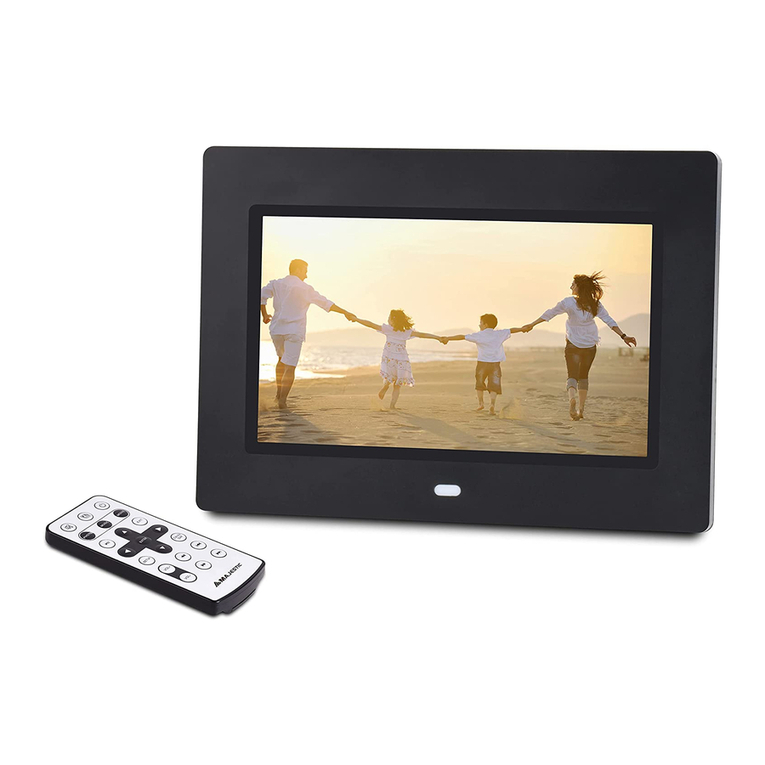
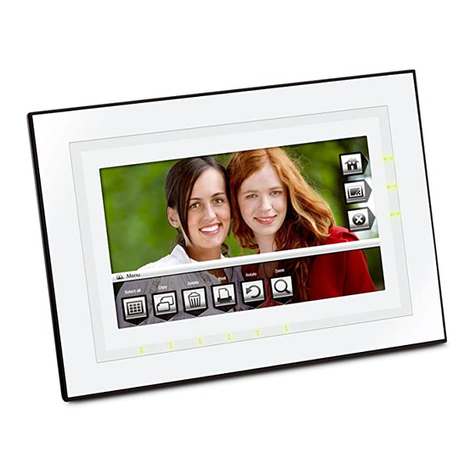
While viewing an individual image, press the “Setup” button on the remote control. You will then
be given a list of possible features to change:
OSD Language Select the on screen display language (English, French, German,
Netherlands or Spanish).
Slide Duration Select the duration of time between slides (Slow/Normal/Fast).
Slide Order Select the slideshow order: Normal or Random.
Slide Effect Adjust the transition effect between each image in a slideshow. Optional
effects include Off, Random, Slide, Door, Shutter, Mosaic, Cross Comb,
Corner Slide, Snail, Dissolving or Roll.
Display Mode Select image display size, Original or Full screen.
Photo Play Mode Select an image play mode. Select between: Single play mode, Slide
show mode, Multi image mode, Multi round thumb, Round thumb, Free
thumb, Puzzle and Photo info.
Photo Effect Select different effects for the current image. Select between: Black &
White, Sepial1, Sepial2, Sepial3 and No Effect (original colour).
Photo Frame Select different frame effects for the current photo.
Contrast Adjust display contrast.
Brightness Adjust display brightness.
Colour Adjust display colour.
Reset Return to the factory default setting.
Watching a video
Before starting please make sure you have at least one image, video or music file on your
memory card or USB storage device. To watch a movie file follow these steps:
Press the “Back” button until the screen displays all available storage devices.
Using the directional the arrows highlight ‘’Video’’, press the “Enter” button or wait for 3
seconds, the cursor position will move to the list of available videos.
Using the directional arrows highlight the desired video file and press the “Enter” button to
watch the selected video.
Press the “Back” button on the remote control to display the video with a small screen.
Press the button to zoom in to a full screen display, and press to zoom back to the
smaller screen.
10